

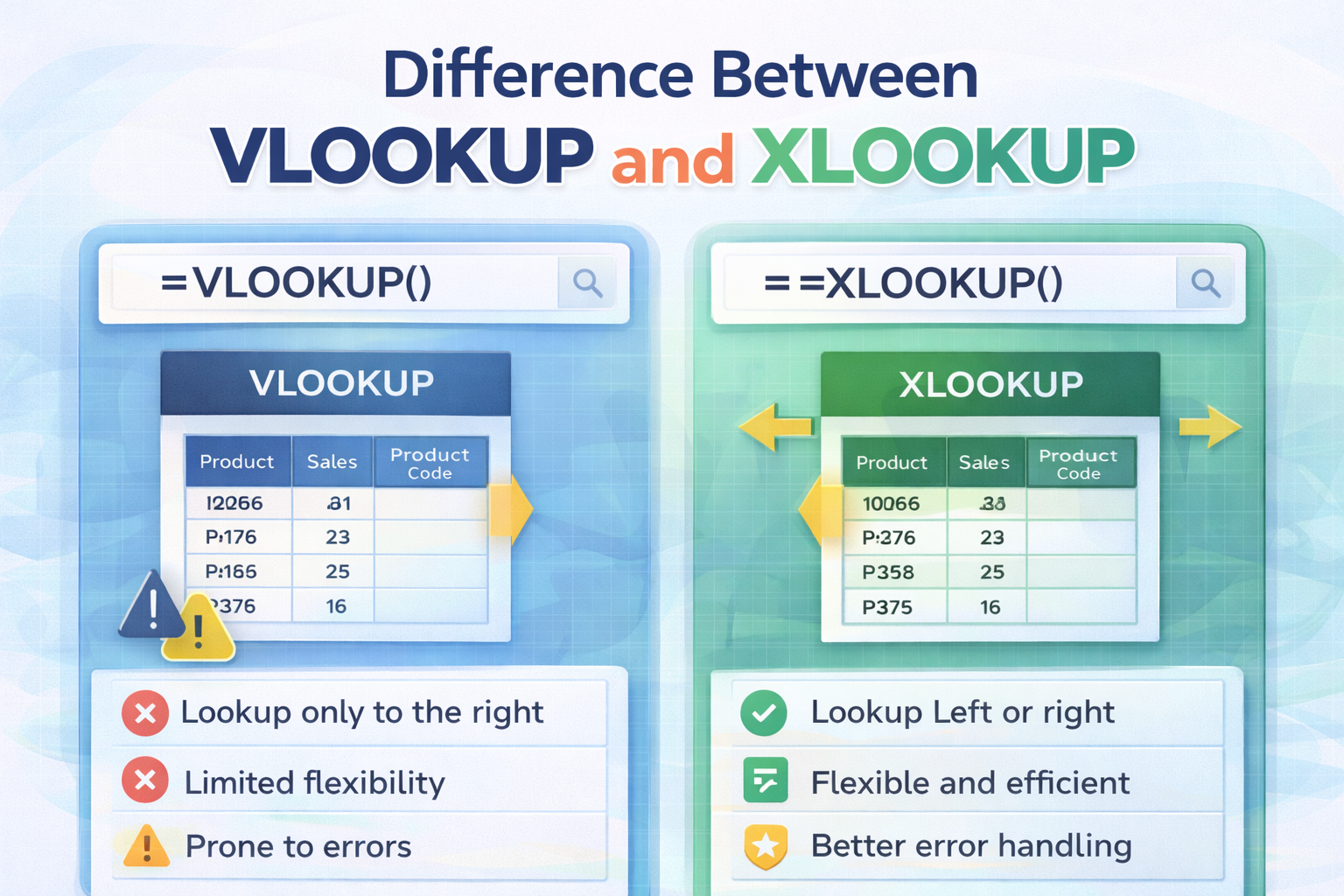
Quick Answer: What Is the Real Difference?
The Difference Between VLOOKUP and XLOOKUP (Detailed Comparison) can be summed up in one line: XLOOKUP is a more advanced, flexible, and safer replacement for VLOOKUP. While VLOOKUP has been a staple Excel function for years, it comes with structural limitations that can cause errors and inefficiencies. XLOOKUP was created to eliminate these issues and simplify lookup operations in modern spreadsheets.
In the first few minutes of use, most users notice that XLOOKUP requires fewer arguments, works in any direction, and does not break when columns change. VLOOKUP, on the other hand, relies heavily on column positions and strict table layouts, which makes it less reliable for dynamic data.
Why Comparing These Two Functions Matters
Lookup functions are essential in Excel because they allow you to retrieve matching data across large tables. Whether you are working with financial reports, employee records, or product inventories, choosing the right lookup function can greatly affect accuracy, speed, and ease of maintenance.
This detailed comparison will help you understand:
- How each function works
- Their strengths and weaknesses
- When one is better than the other
- Which function is best for future-proof spreadsheets
Overview of VLOOKUP
VLOOKUP stands for “Vertical Lookup.” It searches for a value in the first column of a table and returns a corresponding value from another column in the same row.
How VLOOKUP Operates
- Searches vertically from top to bottom
- Requires the lookup column to be the leftmost column
- Uses a column index number to return results
Basic Syntax (Conceptual)
VLOOKUP needs four arguments, including a column number that tells Excel where to fetch the result.
Strengths of VLOOKUP
- Widely known and used
- Compatible with older Excel versions
- Simple for basic, static tables
Weaknesses of VLOOKUP
- Cannot look to the left
- Breaks if columns are inserted or removed
- Returns errors if a match is not found
- Requires manual column counting
These weaknesses become more visible as datasets grow larger and more complex.
Overview of XLOOKUP
XLOOKUP is a modern lookup function designed to replace older lookup functions, including VLOOKUP.
How XLOOKUP Operates
- Searches a defined lookup range
- Returns values from any direction
- Does not depend on column numbers
Key Advantages
- Works left, right, up, or down
- Built-in handling for missing values
- Cleaner and more readable formulas
- Safer when spreadsheet structures change
XLOOKUP focuses on clarity and reliability, which makes it ideal for modern Excel workflows.
Structural Differences Explained
Direction of Lookup
VLOOKUP can only retrieve values from columns to the right of the lookup column. XLOOKUP has no such restriction, allowing much greater flexibility.
Dependency on Column Position
VLOOKUP depends on column index numbers. XLOOKUP uses explicit ranges, which makes formulas more resilient.
Error Handling
XLOOKUP allows you to specify what should happen if no match is found. VLOOKUP usually returns an error unless combined with additional functions.
Detailed Comparison Table
| Feature | VLOOKUP | XLOOKUP |
| Lookup Direction | Left to right only | Any direction |
| Column Index Required | Yes | No |
| Formula Stability | Low when structure changes | High |
| Error Handling | Limited | Built-in |
| Ease of Maintenance | Moderate to difficult | Easy |
| Suitable for Large Datasets | Less reliable | Highly reliable |
Example Scenario: Product Price Lookup
Imagine a dataset containing product codes and prices.
With VLOOKUP:
- The product code must be in the first column
- You must count the price column manually
- Inserting a new column can break the formula
With XLOOKUP:
- Product code can be anywhere
- Price range is clearly defined
- Formula remains intact even after structural changes
This real-world example highlights why many users prefer XLOOKUP.
Screenshots for Better Understanding
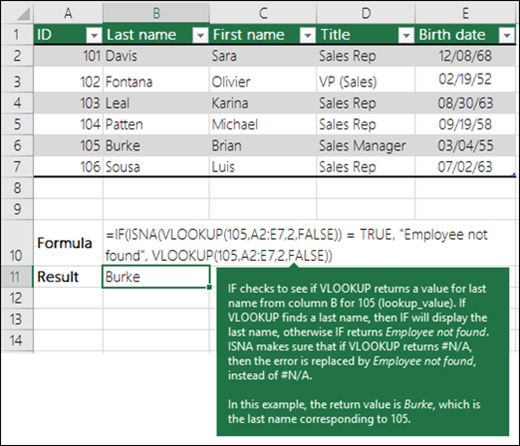
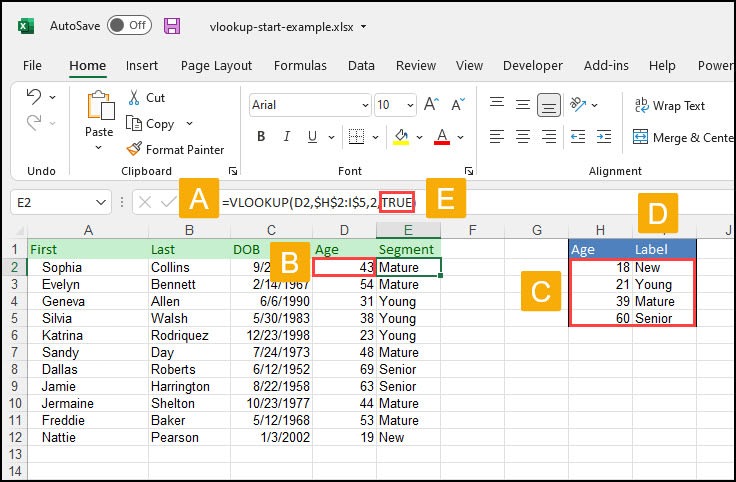
Example of VLOOKUP Formula in Excel
Example of XLOOKUP Formula in Excel
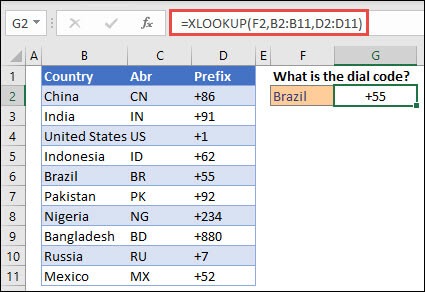
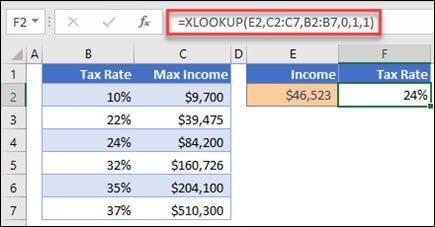
These screenshots clearly show how XLOOKUP avoids column counting and uses more readable ranges.
Performance in Large Spreadsheets
In smaller spreadsheets, both functions perform similarly. However, in large workbooks:
- XLOOKUP formulas are easier to audit
- Errors are reduced significantly
- Spreadsheet maintenance becomes simpler
This makes XLOOKUP especially valuable for business reporting and analysis.
Learning Curve for New Users
Many beginners struggle with VLOOKUP because:
- Column index numbers are confusing
- Errors are not descriptive
XLOOKUP is easier to learn because:
- Arguments are intuitive
- Formulas read more naturally
As a result, new Excel users often adopt XLOOKUP faster.
Compatibility Considerations
VLOOKUP works in nearly all Excel versions, including very old ones. XLOOKUP is available only in newer Excel versions. If file compatibility with older systems is critical, this may influence your choice.
When VLOOKUP Still Makes Sense
You may still use VLOOKUP if:
- You are maintaining legacy spreadsheets
- Your organization uses older Excel versions
- The dataset structure is fixed and unlikely to change
Even then, transitioning to XLOOKUP for new projects is usually recommended.
Business Use Cases Where XLOOKUP Excels
- Financial forecasting
- Sales dashboards
- HR data management
- Inventory tracking
In these scenarios, reliability and flexibility are critical, making XLOOKUP the stronger option.
Common Mistakes to Avoid
- Mixing lookup functions inconsistently
- Forgetting version compatibility
- Overcomplicating formulas when simpler logic works
Consistency and clarity are key to effective spreadsheet design.
Final Thoughts
The Difference Between VLOOKUP and XLOOKUP (Detailed Comparison) clearly shows that XLOOKUP is the more modern, reliable, and user-friendly function. While VLOOKUP still has a place in older spreadsheets, XLOOKUP offers better flexibility, fewer errors, and easier maintenance.
For anyone building new Excel models or working with dynamic data, understanding the Difference Between VLOOKUP and XLOOKUP (Detailed Comparison) is essential. Choosing XLOOKUP today means fewer problems tomorrow and a smoother Excel experience overall.
