

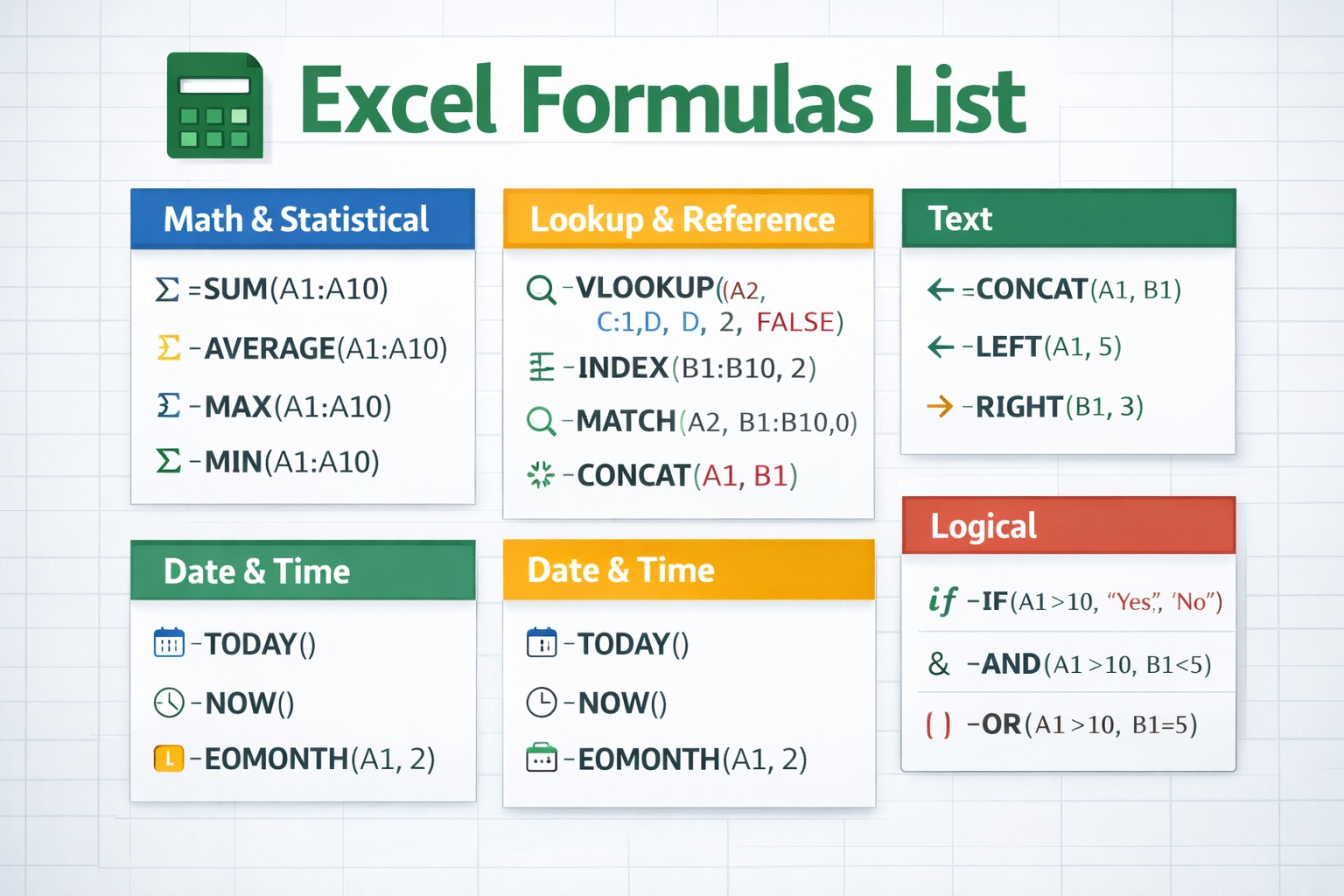
If you’re searching for an excel formulas list, you probably want a clear, organized collection of the most important Excel functions — explained in simple terms. An Excel formulas list is a categorized reference guide that includes commonly used formulas for calculations, text handling, lookups, dates, logical testing, and advanced data analysis.
Whether you’re a student, office professional, business owner, or analyst, knowing the right formulas can save hours of manual work. Instead of memorizing everything randomly, this guide organizes formulas from beginner to advanced level so you can build your skills step by step.
Let’s start from the foundation.
What Is an Excel Formulas List?
An Excel formulas list is a structured collection of built-in Excel functions that perform calculations or automate tasks. These formulas help you:
- Add and analyze numbers
- Manipulate text
- Work with dates
- Search for data
- Apply conditions
- Automate reports
Excel contains hundreds of functions, but most users rely on about 40–60 formulas regularly. Mastering these core formulas makes you confident in almost any spreadsheet situation.
How Excel Formulas Work
Every Excel formula starts with an equals sign:
=
After the equals sign, you enter a function or calculation.
Basic Structure:
=FUNCTION_NAME(arguments)
Example:
| A | B |
|---|---|
| 5 | 10 |
Formula:
=A1+B1
Result: 15
Relative vs Absolute References
- Relative reference: A1 (changes when copied)
- Absolute reference: $A$1 (stays fixed)
Understanding references is crucial when building large spreadsheets.
Basic Excel Formulas Everyone Should Know
These are the core formulas found in every excel formulas list.
Arithmetic Formulas
| Formula | Purpose | Example |
|---|---|---|
| SUM | Adds numbers | =SUM(A1:A5) |
| AVERAGE | Finds average | =AVERAGE(A1:A5) |
| MIN | Smallest value | =MIN(A1:A5) |
| MAX | Largest value | =MAX(A1:A5) |
| COUNT | Counts numeric cells | =COUNT(A1:A5) |
These five formulas alone cover most daily spreadsheet tasks.
Logical Basics
IF Function
The IF formula tests a condition.
=IF(A1>50, "Pass", "Fail")
AND Function
=AND(A1>50, B1<100)
OR Function
=OR(A1>50, B1<100)
Logical formulas are used heavily in grading systems, payroll sheets, and performance dashboards.
Text Handling Formulas
Text formulas help clean and organize messy data.
| Formula | Purpose | Example |
|---|---|---|
| CONCAT | Combines text | =CONCAT(A1,B1) |
| LEFT | Extracts left characters | =LEFT(A1,4) |
| RIGHT | Extracts right characters | =RIGHT(A1,2) |
| MID | Extracts middle text | =MID(A1,2,3) |
| LEN | Counts characters | =LEN(A1) |
| TRIM | Removes extra spaces | =TRIM(A1) |
| UPPER | Converts to uppercase | =UPPER(A1) |
| LOWER | Converts to lowercase | =LOWER(A1) |
Example Scenario
| First Name | Last Name |
|---|---|
| John | Smith |
Formula:
=CONCAT(A2," ",B2)
Result: John Smith
Text formulas are lifesavers when working with imported data.
Date and Time Functions
Working with dates can feel confusing, but Excel makes it easier.
| Formula | Purpose |
|---|---|
| TODAY | Current date |
| NOW | Current date and time |
| DATE | Creates date |
| YEAR | Extracts year |
| MONTH | Extracts month |
| DAY | Extracts day |
| DATEDIF | Difference between dates |
Example:
=DATEDIF(A1,B1,"Y")
Calculates number of years between two dates.
Common use cases:
- Employee tenure tracking
- Loan duration
- Subscription expiration
Lookup and Reference Formulas
Lookup formulas are powerful tools in any excel formulas list.
| Formula | Best For | Limitation |
|---|---|---|
| VLOOKUP | Vertical lookup | Cannot look left |
| HLOOKUP | Horizontal lookup | Rarely used |
| INDEX | Returns value by position | Needs MATCH |
| MATCH | Finds position | Returns number |
| XLOOKUP | Modern flexible lookup | Newer Excel only |
VLOOKUP Example:
=VLOOKUP(A2, A2:C10, 2, FALSE)
INDEX + MATCH Example:
=INDEX(B2:B10, MATCH(A2, A2:A10, 0))
Lookups are widely used in HR databases, product pricing lists, and dashboards.
Conditional and Dynamic Formulas
These formulas calculate based on conditions.
| Formula | Purpose |
|---|---|
| IFERROR | Replaces error values |
| COUNTIF | Counts based on condition |
| SUMIF | Sums based on condition |
| COUNTIFS | Multiple conditions |
| SUMIFS | Multiple conditions |
Example:
=SUMIF(A2:A10,"Sales",B2:B10)
This sums values in B where A equals “Sales.”
Perfect for sales tracking and reporting.
Advanced Excel Formulas for Power Users
Once you master basics, these take your spreadsheets to the next level.
| Formula | Purpose |
|---|---|
| INDIRECT | Dynamic reference |
| OFFSET | Dynamic range |
| UNIQUE | Extract unique values |
| FILTER | Filters based on criteria |
| TEXTJOIN | Combines text with delimiter |
| CHOOSE | Selects from list |
Example: UNIQUE
=UNIQUE(A2:A20)
Returns only distinct values.
Example: FILTER
=FILTER(A2:B20, B2:B20>1000)
Extracts rows where values exceed 1000.
Advanced formulas are often used in data analysis and reporting automation.
Real-World Business Use Cases
Here’s how formulas apply in practical scenarios:
| Business Task | Recommended Formula |
|---|---|
| Payroll Calculation | SUM, IF |
| Sales Commission | IF, SUMIFS |
| Inventory Tracking | VLOOKUP, COUNTIF |
| Financial Forecasting | AVERAGE, TREND |
| Budget Planning | SUM, MIN, MAX |
Excel remains one of the most powerful business tools because of formula flexibility.
Common Excel Errors and How to Fix Them
| Error | Cause | Fix |
|---|---|---|
| #DIV/0! | Dividing by zero | Check denominator |
| #N/A | Value not found | Verify lookup |
| #REF! | Invalid cell reference | Fix broken reference |
| #VALUE! | Wrong data type | Check arguments |
| #NAME? | Misspelled formula | Correct spelling |
Most errors are simple once you know what they mean.
Complete Excel Formulas List Summary Table
| Category | Formula | Purpose |
|---|---|---|
| Math | SUM | Add numbers |
| Math | AVERAGE | Calculate mean |
| Logical | IF | Conditional test |
| Text | LEFT | Extract text |
| Date | TODAY | Current date |
| Lookup | VLOOKUP | Find values |
| Conditional | SUMIF | Conditional sum |
| Advanced | FILTER | Dynamic filtering |
This table acts as a quick-reference cheat sheet.
Practical Tips for Mastering Excel Formulas
Learning Excel doesn’t happen overnight. Here are realistic tips:
- Start with SUM and IF.
- Practice small datasets.
- Break complex formulas into parts.
- Use Excel’s “Evaluate Formula” tool.
- Keep a personal formula cheat sheet.
- Don’t memorize — understand the logic.
Consistency beats memorization every time.
Frequently Asked Questions About Excel Formulas List
1. What is an excel formulas list?
It’s a categorized collection of commonly used Excel formulas for calculations and data management.
2. What are the most important Excel formulas?
SUM, IF, VLOOKUP, INDEX, MATCH, and COUNTIF are among the most widely used.
3. How many Excel formulas exist?
Excel contains over 450 built-in functions, though most users rely on fewer than 100 regularly.
4. What is the easiest Excel formula?
SUM is typically the easiest to learn.
5. What is the hardest Excel formula?
Advanced array formulas and nested logical functions can be complex.
6. Are Excel formulas difficult to learn?
Not if you start with basics and build gradually.
7. How long does it take to learn Excel formulas?
Basic formulas can be learned in a few days; mastery takes consistent practice.
8. Is Excel still relevant today?
Absolutely. It remains widely used in finance, business, education, and data analysis.
Final Thoughts on Excel Formulas List
Mastering an excel formulas list gives you control over your data instead of letting the spreadsheet control you. From simple arithmetic to advanced filtering, formulas automate work, reduce errors, and save time.
The key is not trying to learn everything at once. Start small. Practice daily. Build complexity gradually.
Once you understand the logic behind each function, the entire world of spreadsheets opens up. And with a solid excel formulas list at your side, you’ll always know exactly which formula to use — and when.
