

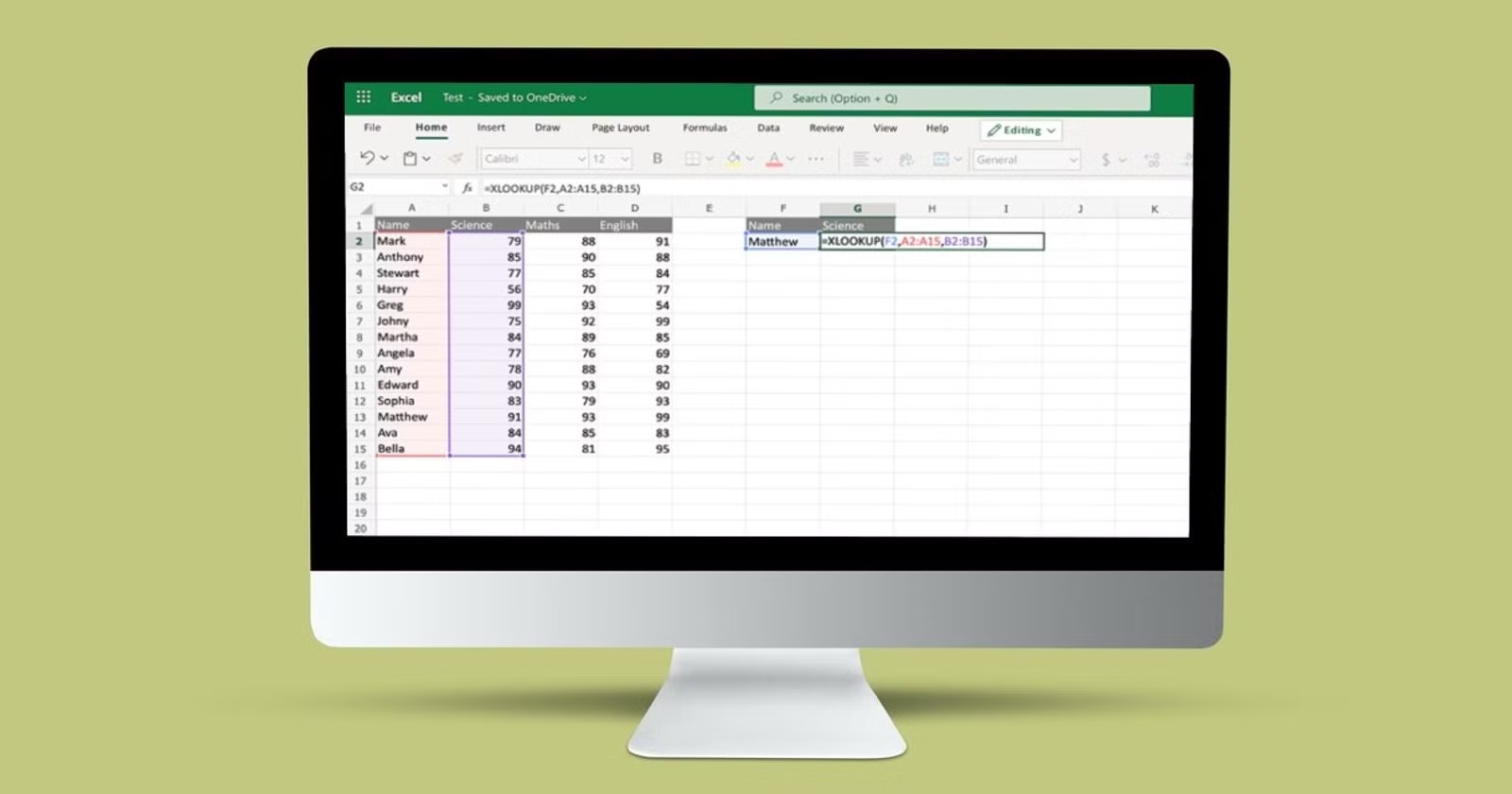
If you already know what XLOOKUP is, the next logical question is how does XLOOKUP work in real Excel files. XLOOKUP is designed to simplify data searching by replacing complex and error-prone formulas with a single, flexible function.
In this detailed guide, you’ll learn how does XLOOKUP work in Excel, how to use it step by step, and exactly how to XLOOKUP values correctly—even if you’re a complete beginner.
How Does XLOOKUP Work in Excel? (High-Level Overview)
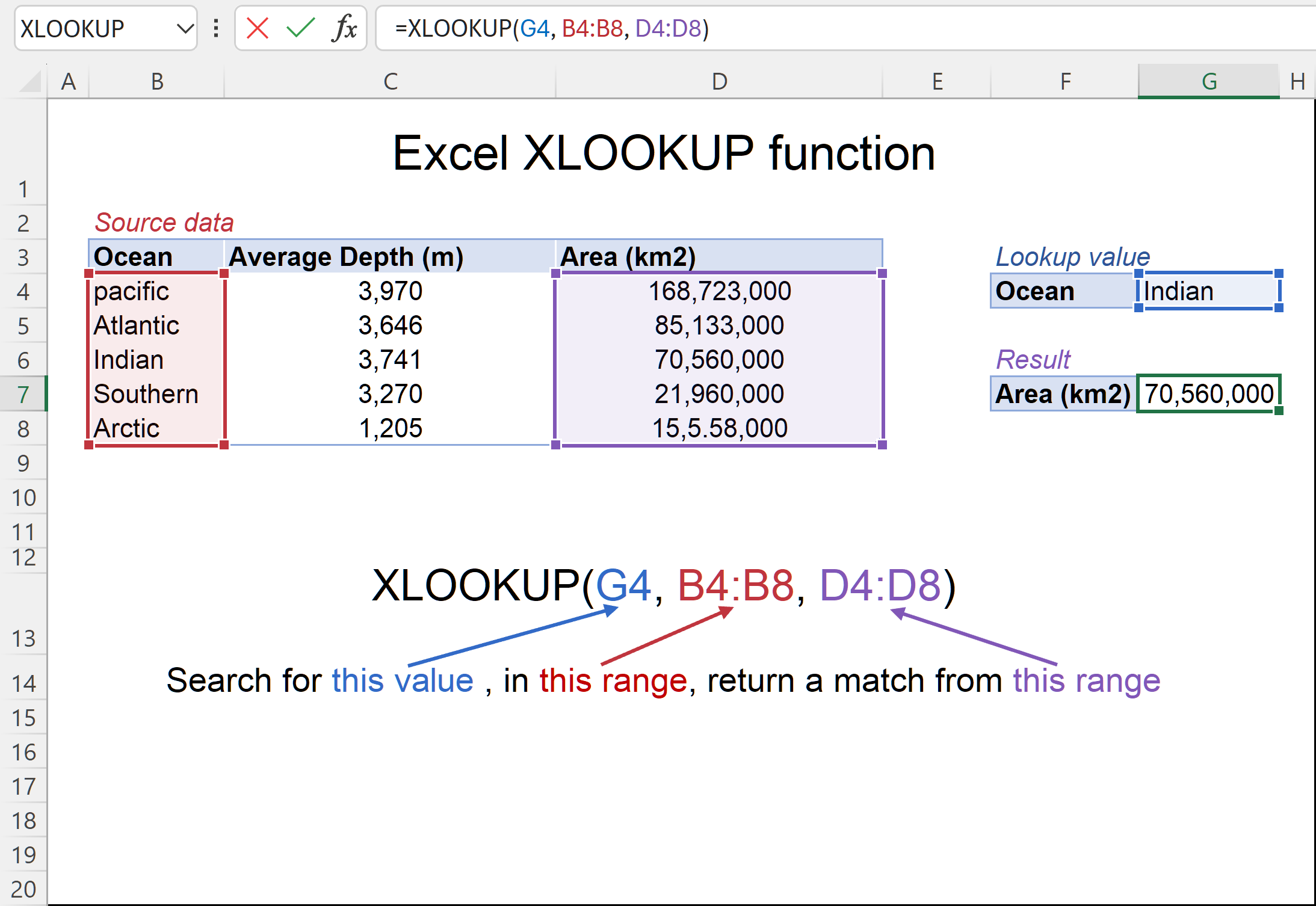
At a high level, XLOOKUP works by doing three things:
- It searches for a value you specify
- It finds that value in a lookup range
- It returns a related value from another range
Unlike older functions, XLOOKUP does not depend on column positions. Instead, it directly links the lookup range and return range, making the formula more reliable and easier to understand.
This design is why many users ask how does XLOOKUP work instead of continuing to use VLOOKUP or HLOOKUP.
Understanding the XLOOKUP Formula Structure
Before using XLOOKUP, it’s important to understand how the formula is built.
Basic XLOOKUP Syntax
=XLOOKUP(lookup_value, lookup_array, return_array)
Each part has a clear purpose:
- lookup_value – The value you want to find
- lookup_array – The column or row where Excel searches
- return_array – The column or row containing the result
Because of this simple structure, beginners often find XLOOKUP easier than older lookup functions.
Step 1: Prepare Your Data for XLOOKUP
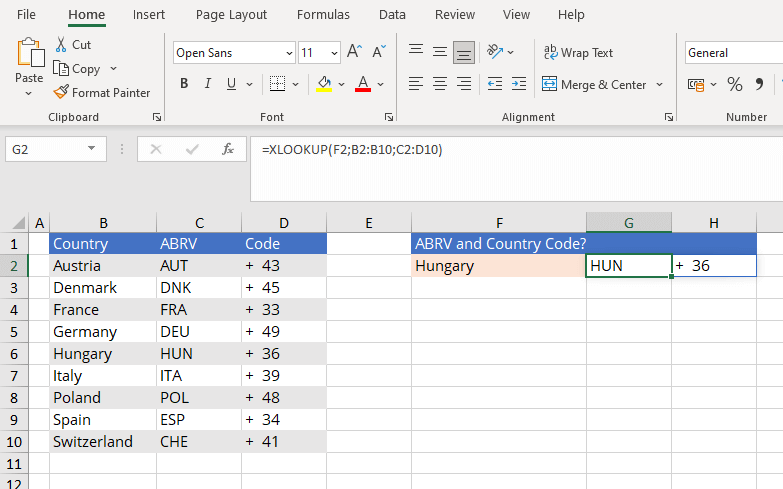
To understand how to XLOOKUP, you first need clean, structured data.
A typical dataset might include:
- One column with unique values (IDs, names, codes)
- Another column with related data (prices, scores, departments)
Make sure:
- Lookup values are consistent (no extra spaces)
- Lookup and return ranges are the same size
Step 2: Select the Lookup Value
The lookup value is what XLOOKUP searches for.
This can be:
- A cell reference (recommended)
- A number or text value
- A value entered by the user
For example, if cell E2 contains an employee ID, XLOOKUP will search for that ID in your dataset.
Using a cell reference allows your formula to update dynamically when the value changes.
Step 3: Define the Lookup Array
The lookup array is the range where Excel looks for the value.
This range:
- Can be vertical or horizontal
- Does not need to be the first column
- Does not need to be sorted

This flexibility is a major reason users ask how does XLOOKUP work in Excel instead of sticking with older formulas.
Step 4: Define the Return Array
The return array is where Excel retrieves the matching result.
Once the lookup value is found, XLOOKUP returns the value from the same position in the return array.
Because the return array is defined directly, inserting or deleting columns does not break the formula.
Step 5: Enter the Complete XLOOKUP Formula
Putting everything together:
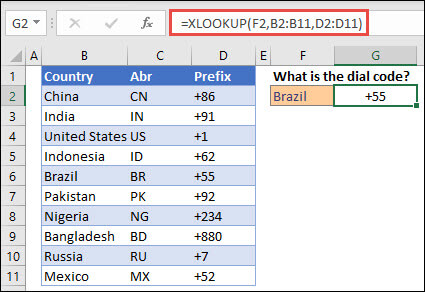
=XLOOKUP(E2, A2:A10, B2:B10)
This formula:
- Looks for the value in E2
- Searches range A2:A10
- Returns the matching value from B2:B10
Once entered, Excel instantly returns the result.
How XLOOKUP Handles Missing Values
One of the biggest advantages of XLOOKUP is error handling.
If a value is not found, XLOOKUP normally returns #N/A. However, you can tell Excel what to display instead.
=XLOOKUP(E2, A2:A10, B2:B10, "Not Found")
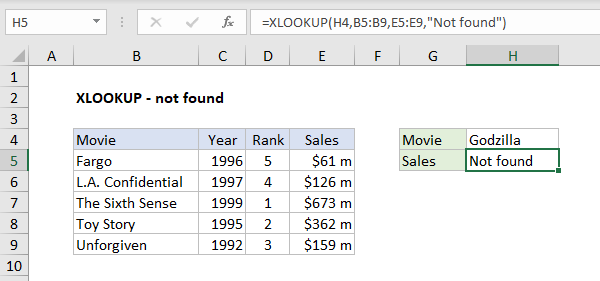
This makes your spreadsheets cleaner and more user-friendly.
How to XLOOKUP Left and Right
Unlike VLOOKUP, XLOOKUP can return values from any direction.
- Lookup column on the right
- Return column on the left
- Horizontal lookups across rows
This flexibility is one of the most common reasons people search xlookup how to guides.
Common Mistakes When Learning XLOOKUP
When learning how does XLOOKUP work, beginners often make these mistakes:
- Mismatched lookup and return ranges
- Including headers in one range but not the other
- Hard-coding values instead of using cell references
Fixing these issues usually resolves most errors instantly.
Frequently Asked Questions
How does XLOOKUP work in Excel for beginners?
XLOOKUP searches one range for a value and returns a matching value from another range using a simple, readable formula.
How to XLOOKUP multiple values?
XLOOKUP can return arrays when combined with dynamic Excel features.
Does XLOOKUP require sorted data?
No, XLOOKUP works with unsorted data by default.
Can XLOOKUP replace VLOOKUP completely?
Yes, in most cases XLOOKUP is a full replacement.
Is XLOOKUP faster than older lookup functions?
Yes, especially in large datasets.
What Excel versions support XLOOKUP?
Excel for Microsoft 365 and Excel 2021+.
Conclusion
Now you know exactly how does XLOOKUP work, how does XLOOKUP work in Excel, and how to XLOOKUP data step by step. With its clean syntax, flexible ranges, and powerful features, XLOOKUP is one of the most valuable Excel functions you can learn.
If your goal is accuracy, speed, and easier formulas, mastering XLOOKUP is the right move.
