Close Menu
    XLOOKUP
    • Home
    • Blogs
    • XLOOKUP
    • Excel Guide
    • Excel Formulas
    Build Formula
    XLOOKUP
    Home Β» How to Create Drop Down List in Excel: 9 Simple Steps for Beginners
    Excel Guide

    How to Create Drop Down List in Excel: 9 Simple Steps for Beginners

    adminBy adminApril 2, 2026No Comments3 Mins Read
    Facebook Twitter Pinterest LinkedIn Tumblr Email
    How to Create Drop Down List in Excel

    πŸ” What is a Drop Down List in Excel?

    If you’re wondering how to create drop down list in excel, you’re about to learn one of the most useful Excel features.

    A drop-down list allows users to select a value from a predefined list instead of typing manually. This reduces errors and improves consistency.

    βœ… Benefits of Using Drop Down Lists

    • Prevents data entry mistakes
    • Saves time
    • Keeps data consistent
    • Makes spreadsheets user-friendly

    πŸ“Š Types of Drop Down Lists

    πŸ“Œ Static List

    • Manually typed values
    • Best for small datasets

    πŸ“Œ Dynamic List

    • Linked to a range
    • Automatically updates

    πŸͺœ Step-by-Step Guide: How to Create Drop Down List in Excel

    πŸ“Œ Step 1: Prepare Your List

    Image
    Image
    Image

    Create a list like:

    • Apple
    • Banana
    • Mango

    πŸ“Œ Step 2: Select the Target Cell

    Choose the cell where you want the drop-down list.

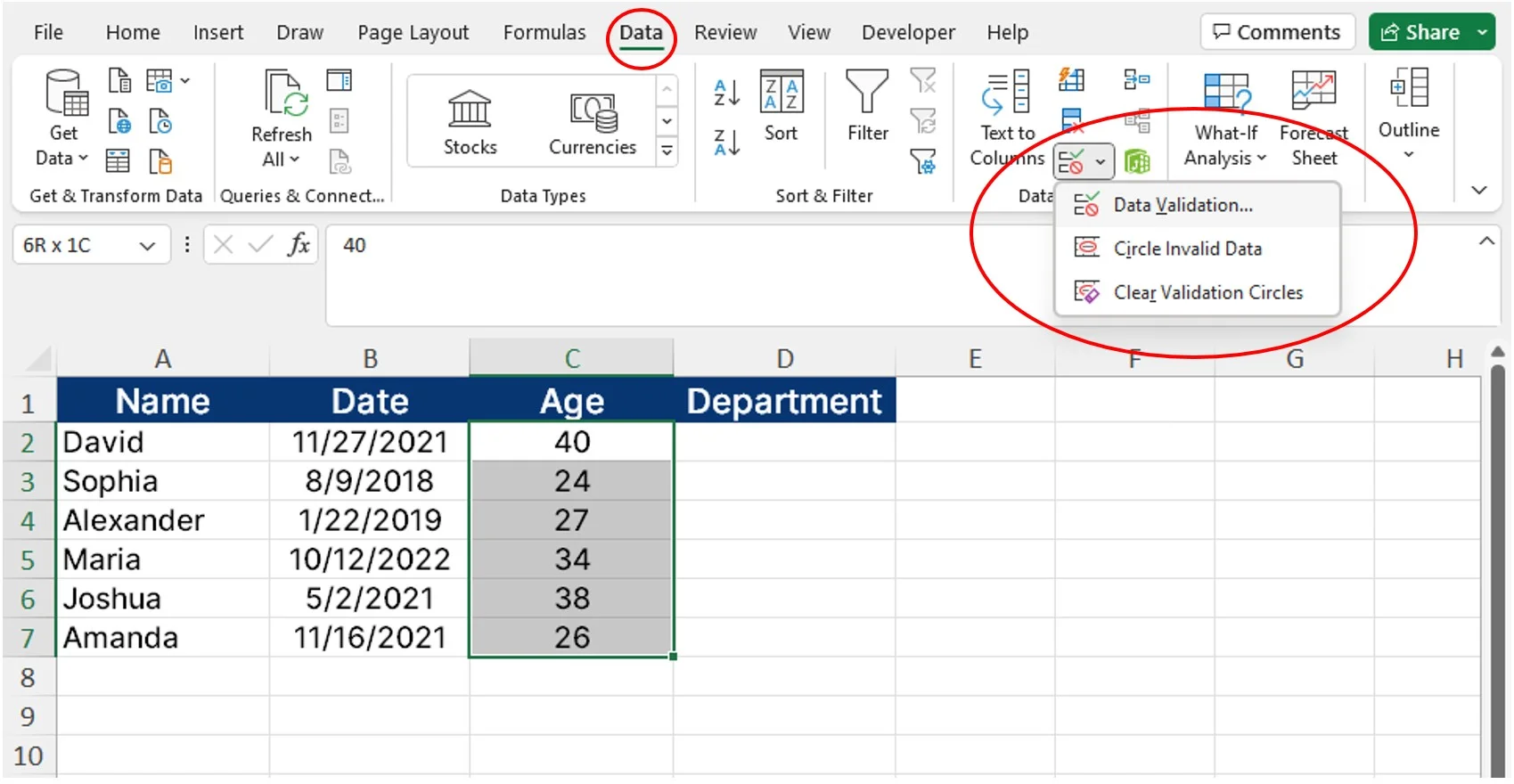
    πŸ“Œ Step 3: Open Data Validation

    Image
    Image
    Image
    Image

    Go to:

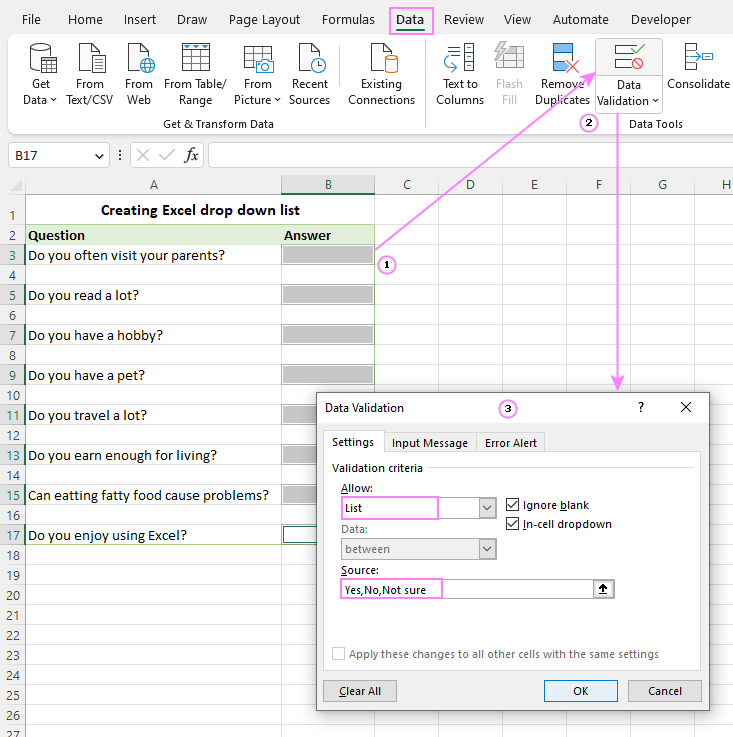
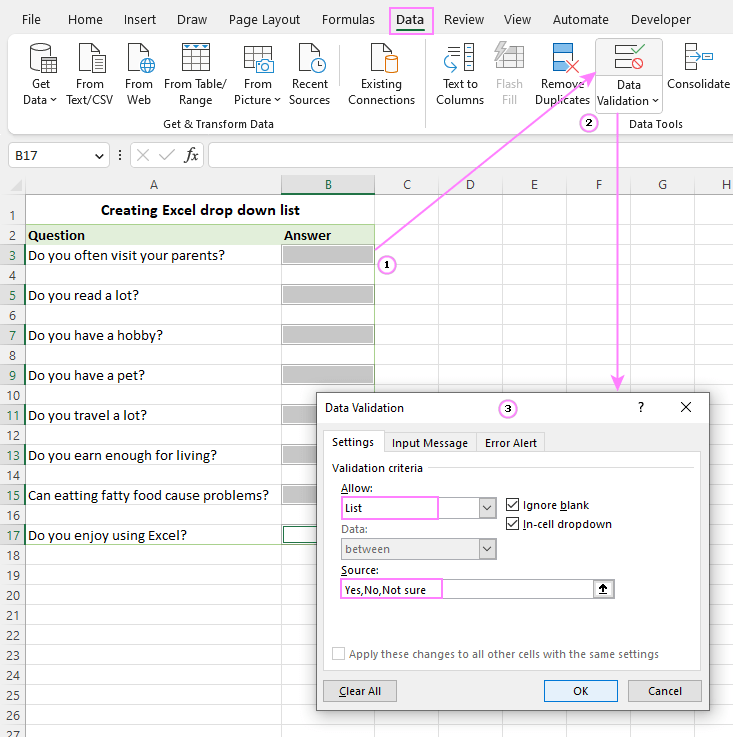
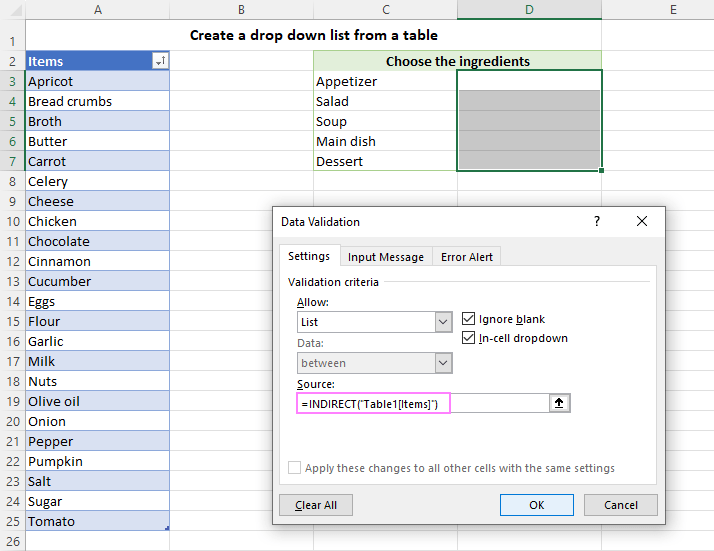
    πŸ‘‰ Data Tab β†’ Data Validation

    πŸ“Œ Step 4: Choose List Option

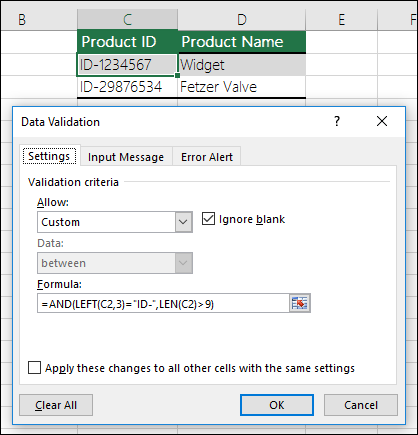
    • In settings β†’ Allow β†’ Select List

    πŸ“Œ Step 5: Enter Source Data

    Image
    Image
    Image
    Image
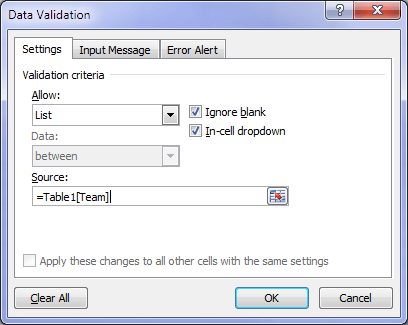
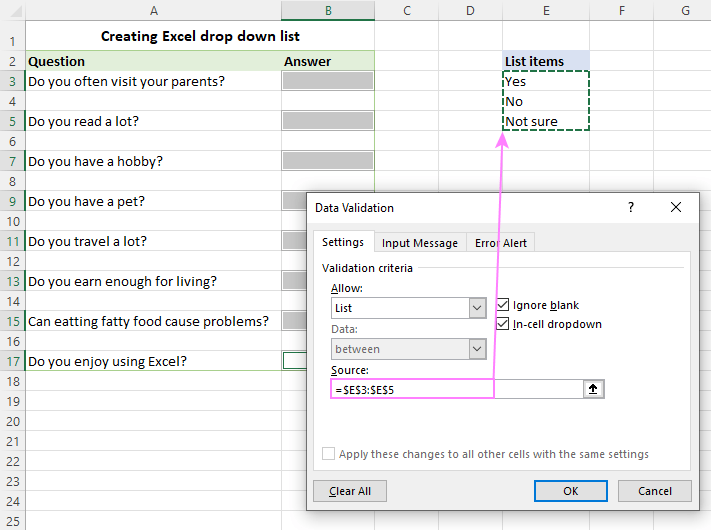
    • Select your list range (e.g., A1:A3)
      OR
    • Type values separated by commas

    πŸ“Œ Step 6: Apply and Test

    Image
    Image
    Image
    Image

    Click OK β†’ Test your dropdown πŸŽ‰

    πŸ“‚ Creating Drop Down List from Another Sheet

    πŸ“Œ Named Range Method

    Steps:

    1. Select list in Sheet2
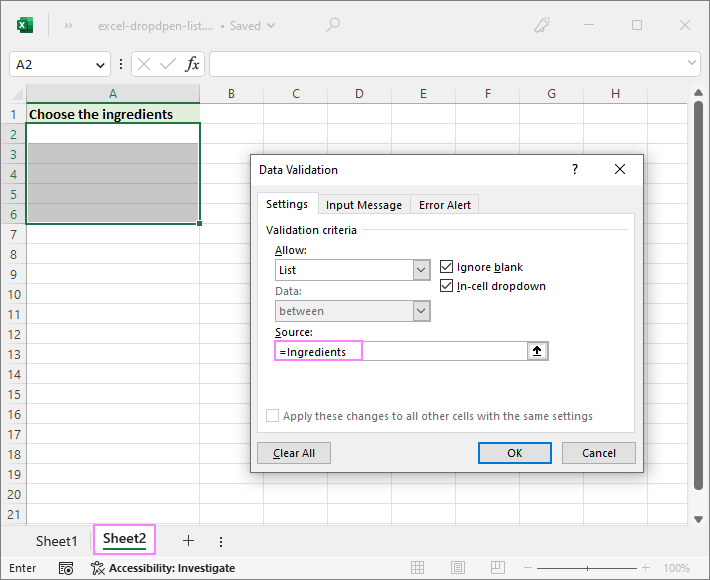
    2. Go to Formulas β†’ Define Name
    3. Use that name in Data Validation

    βœ… Best Practices

    • Use clear names
    • Avoid blank cells
    • Keep lists organized

    ⚑ Advanced Drop Down Techniques

    πŸ”— Dependent Drop Down List

    • Second dropdown depends on first
    • Useful for categories

    πŸ” Searchable Drop Down

    • Use combo box or advanced formulas
    • Great for large datasets

    ⚠️ Common Errors and Fixes

    ❌ Source Error

    • Wrong range
    • Empty cells

    🚫 Drop Down Not Showing

    • Data validation not applied
    • Incorrect settings

    🎯 Tips for Better Usage

    πŸ“Œ Data Organization

    • Keep lists in separate sheet
    • Use tables

    🎨 Formatting Tips

    • Highlight dropdown cells
    • Use borders for clarity

    ❓ FAQs

    1. What is a drop-down list in Excel?

    A list that allows users to select values instead of typing.

    2. Can I create a drop-down from another sheet?

    Yes, using named ranges.

    3. How do I edit a drop-down list?

    Go to Data Validation and update source.

    4. Can I allow multiple selections?

    Not directlyβ€”requires VBA.

    5. Why is my drop-down not working?

    Check data validation settings.

    6. Can I create dynamic drop-down lists?

    Yes, using tables or formulas.

    🏁 Conclusion

    Now you know exactly how to create drop down list in excel using simple steps and screenshots. This feature is essential for improving data accuracy and making your spreadsheets more professional.

    Practice these steps, explore advanced options, and soon you’ll be creating powerful Excel tools with ease.


    Share. Facebook Twitter Pinterest LinkedIn Tumblr Email
    admin
    • Website

    Related Posts

    How to Find Duplicates in Excel: 11 Easy Methods That Actually Work

    April 2, 2026

    Why Is My VLOOKUP Not Working? 11 Common Errors and Easy Fixes

    April 1, 2026

    How to Use XLOOKUP in Excel with Two Sheets: 9 Easy Steps for Accurate Results

    April 1, 2026
    Leave A Reply Cancel Reply

    Categories
    • Excel Formulas
    • Excel Guide
    • XLOOKUP
    Latest Posts

    How to Freeze a Row in Excel: 7 Quick Steps to Keep Headers Visible

    April 2, 2026

    How to Find Duplicates in Excel: 11 Easy Methods That Actually Work

    April 2, 2026

    How to Create Drop Down List in Excel: 9 Simple Steps for Beginners

    April 2, 2026

    XLOOKUP Returning 0 Instead of Blank: 9 Easy Fixes You Must Know

    April 1, 2026

    Why Is My VLOOKUP Not Working? 11 Common Errors and Easy Fixes

    April 1, 2026

    How to Use XLOOKUP in Excel with Two Sheets: 9 Easy Steps for Accurate Results

    April 1, 2026

    Free XLOOKUP formula generator and interactive guide for Excel users. Learn how to use XLOOKUP in Excel with step-by-step examples.
    Categories
    • Excel Formulas
    • Excel Guide
    • XLOOKUP
    Company
    • Contact Us
    • About Us
    • Privacy Policy

    How to Freeze a Row in Excel: 7 Quick Steps to Keep Headers Visible

    April 2, 2026

    How to Find Duplicates in Excel: 11 Easy Methods That Actually Work

    April 2, 2026
    © 2026 xlookup.co.uk XLOOKUP.

    Type above and press Enter to search. Press Esc to cancel.

    Powered by
    ►
    Necessary cookies enable essential site features like secure log-ins and consent preference adjustments. They do not store personal data.
    None
    ►
    Functional cookies support features like content sharing on social media, collecting feedback, and enabling third-party tools.
    None
    ►
    Analytical cookies track visitor interactions, providing insights on metrics like visitor count, bounce rate, and traffic sources.
    None
    ►
    Advertisement cookies deliver personalized ads based on your previous visits and analyze the effectiveness of ad campaigns.
    None
    ►
    Unclassified cookies are cookies that we are in the process of classifying, together with the providers of individual cookies.
    None
    Powered by