Close Menu
    XLOOKUP
    • Home
    • Blogs
    • XLOOKUP
    • Excel Guide
    • Excel Formulas
    Build Formula
    XLOOKUP
    Home » How to Do an XLOOKUP in Excel (Beginner Tutorial)
    XLOOKUP

    How to Do an XLOOKUP in Excel (Beginner Tutorial)

    adminBy adminFebruary 9, 2026Updated:February 9, 2026No Comments4 Mins Read
    Facebook Twitter Pinterest LinkedIn Tumblr Email
    How to Do an XLOOKUP in Excel

    If you’re just starting with Excel and asking how to do XLOOKUP, you’re not alone. XLOOKUP is one of Excel’s most useful functions, but beginners often feel unsure about where to start or how to write the formula correctly.

    This beginner tutorial explains how to do XLOOKUP in Excel step by step, using simple examples and plain language. By the end, you’ll clearly understand how to do a XLOOKUP in Excel without confusion.

    What Is XLOOKUP and Why Should Beginners Use It?

    Before learning how to do an XLOOKUP, it helps to know why it exists.

    XLOOKUP is used to:

    • Find a value in a list or table
    • Return related information from another column or row
    • Replace older functions like VLOOKUP and HLOOKUP
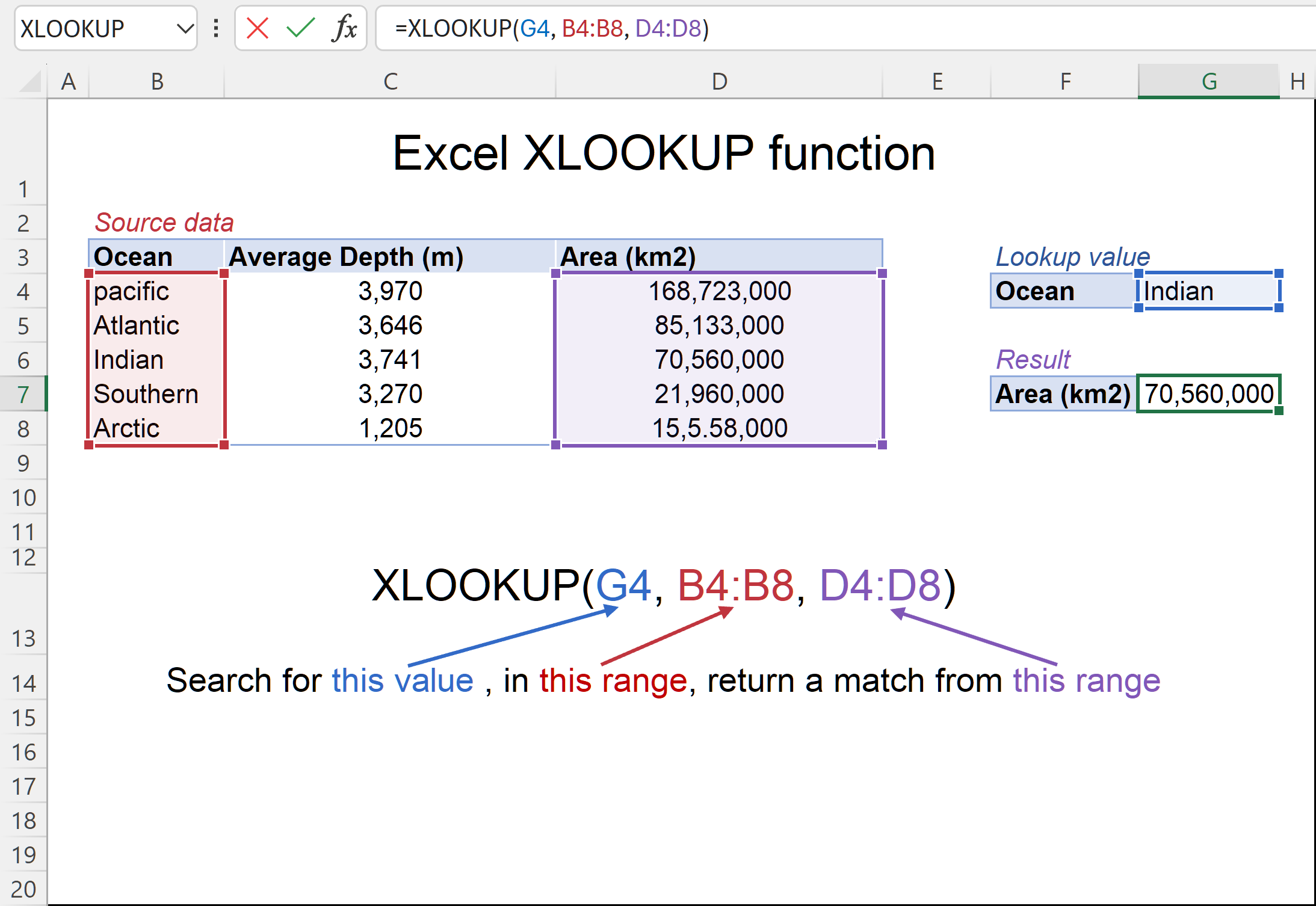
    https://cdn.extendoffice.com/images/stories/doc-excel/xlookup-function/xlookup-function-25.png
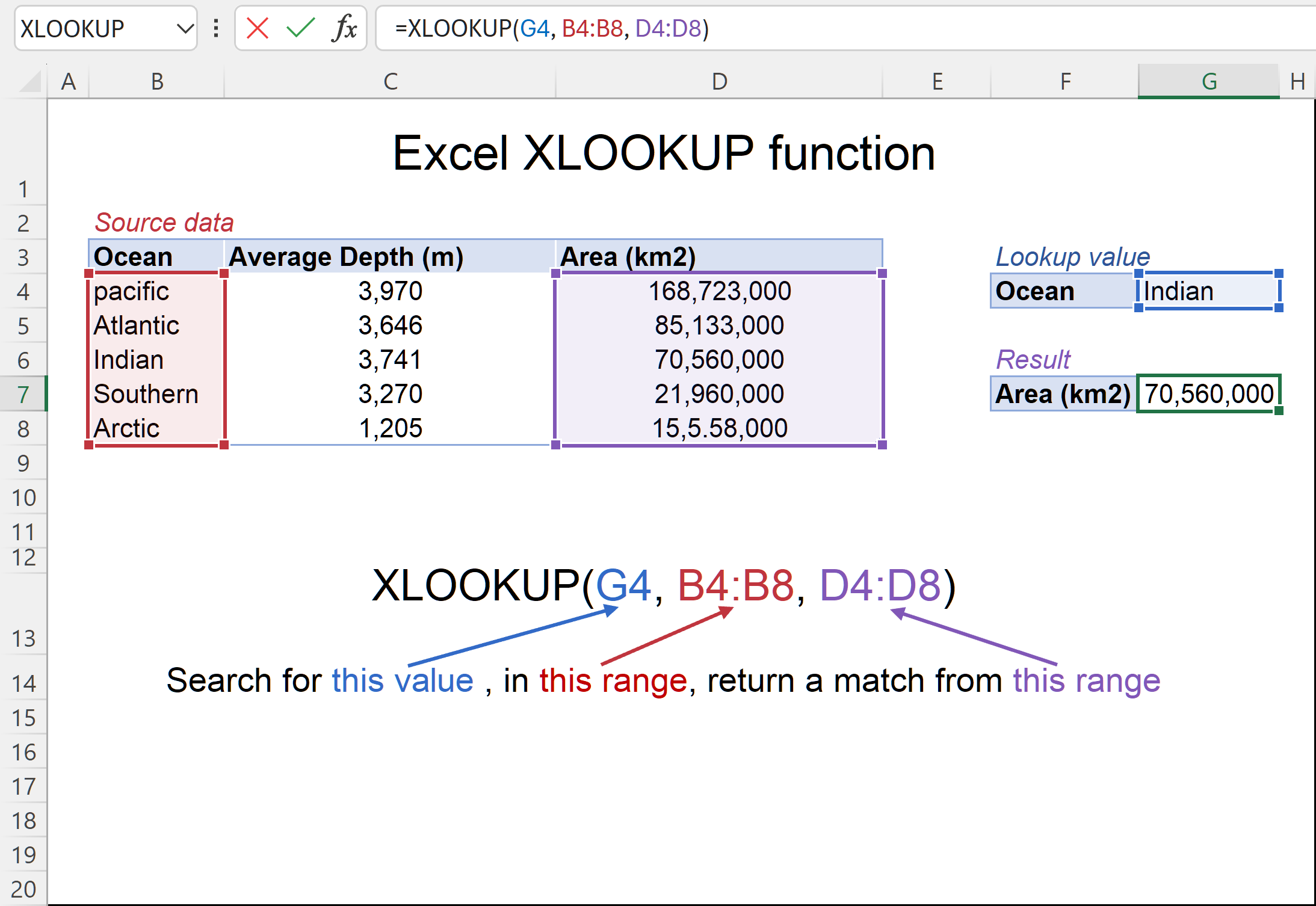
    https://cdn.ablebits.com/_img-blog/xlookup/excel-xlookup-function-3x.png

    For beginners, XLOOKUP is easier because:

    • It uses exact matches by default
    • It does not rely on column numbers
    • It works left, right, up, and down

    Step 1: Set Up Your Data in Excel

    The first step in learning how to do XLOOKUP in Excel is preparing your data correctly.

    A beginner-friendly dataset usually includes:

    • One column with unique values (IDs, names, codes)
    • Another column with related information (prices, departments, scores)
    https://cdn.ablebits.com/_img-blog/xlookup/excel-xlookup-function-3x.png
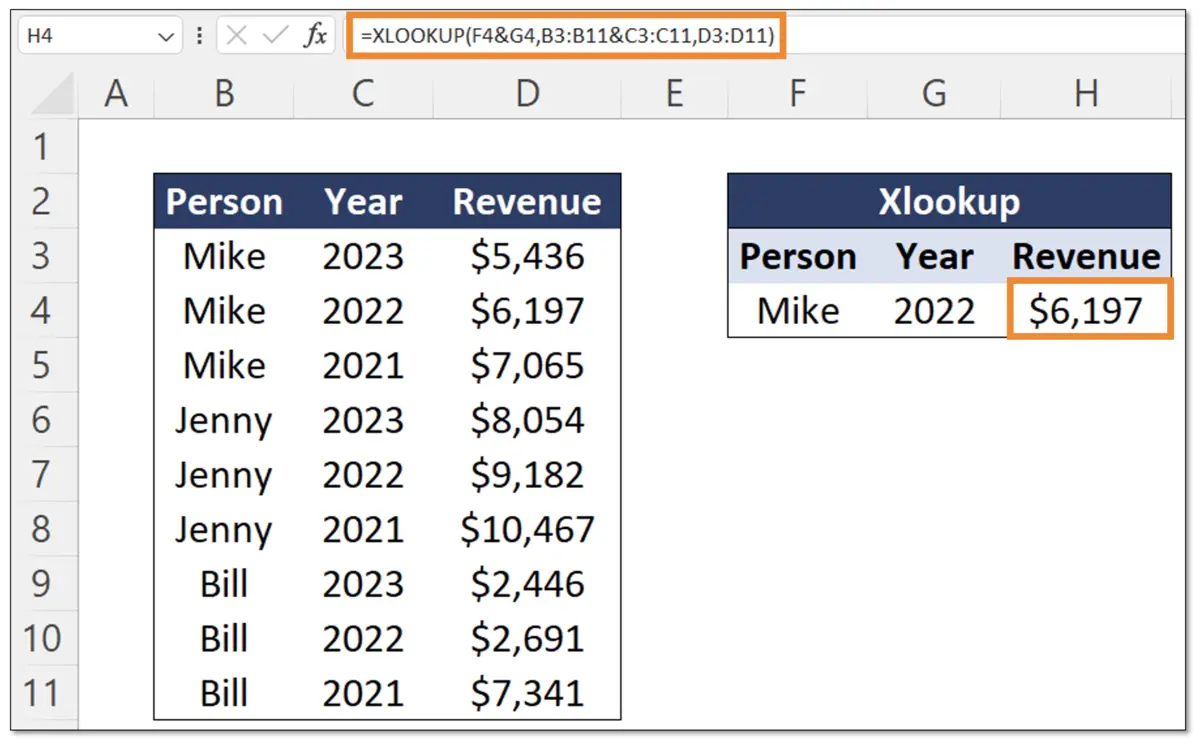
    https://cdn.prod.website-files.com/628cb4acdaf9087cd633cc6b/64a92417c1b795d42b276b40_Screenshot%202023-07-08%20at%2009.47.35.webp

    Make sure:

    • There are no extra spaces in values
    • Lookup and return columns have the same number of rows

    Step 2: Decide What You Want to Look Up

    Next, choose the value you want Excel to find.

    This value:

    • Is usually stored in a separate cell
    • Can be typed by a user
    • Can change dynamically

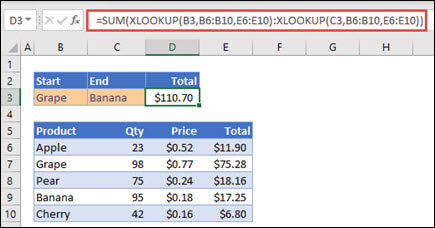
    For example, if cell E2 contains an employee ID, Excel will search for that ID.
    https://cdn.ablebits.com/_img-blog/xlookup/excel-xlookup-function-3x.png
    https://support.microsoft.com/images/en-us/c05e2d7d-e0dd-49a5-801c-7a5a838ce53e

    This step is essential to understanding how to do a XLOOKUP properly.

    Step 3: Write Your First XLOOKUP Formula

    Now comes the most important part of learning how to do XLOOKUP.

    Basic XLOOKUP Formula

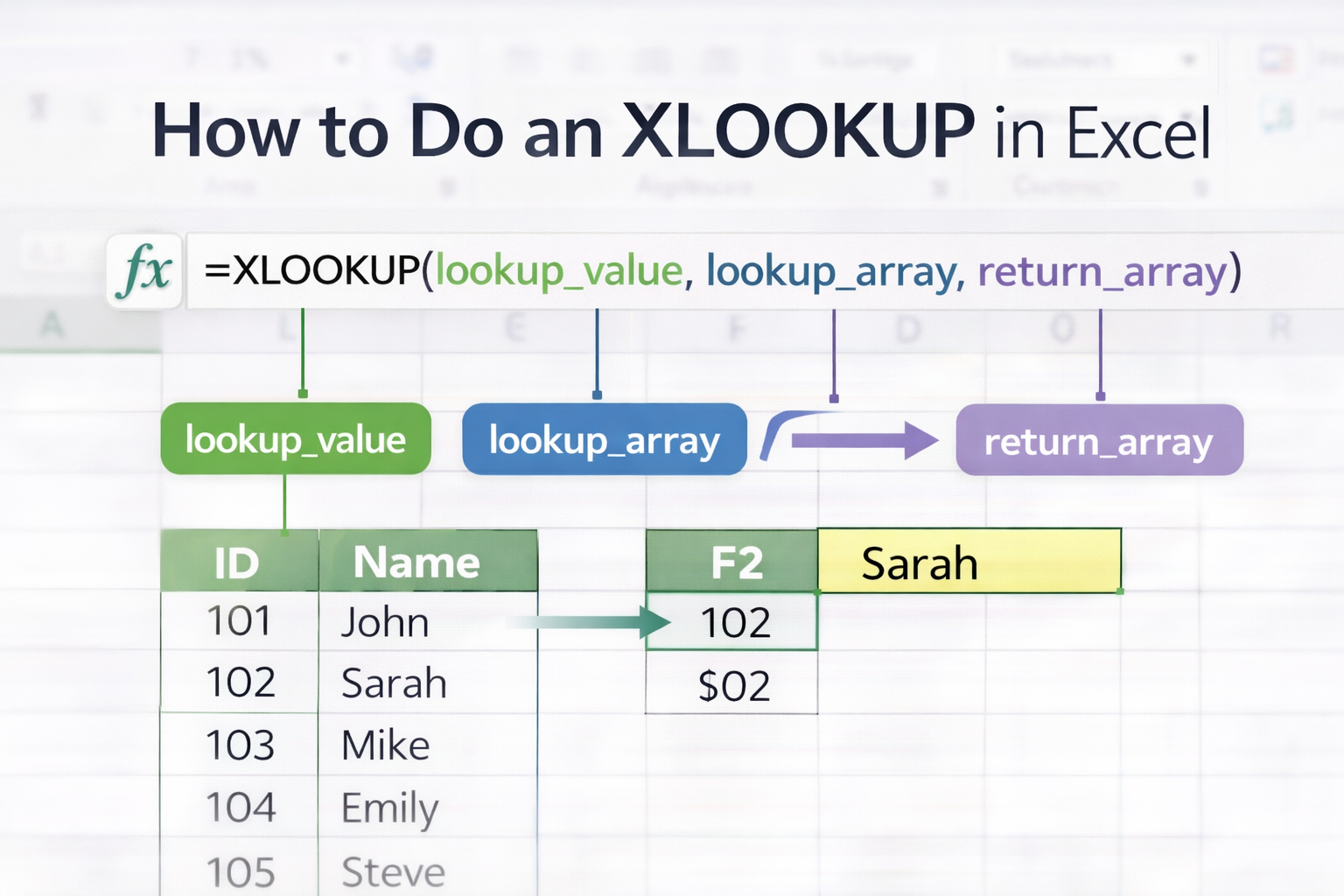
    =XLOOKUP(lookup_value, lookup_array, return_array)
    

    Beginner Example

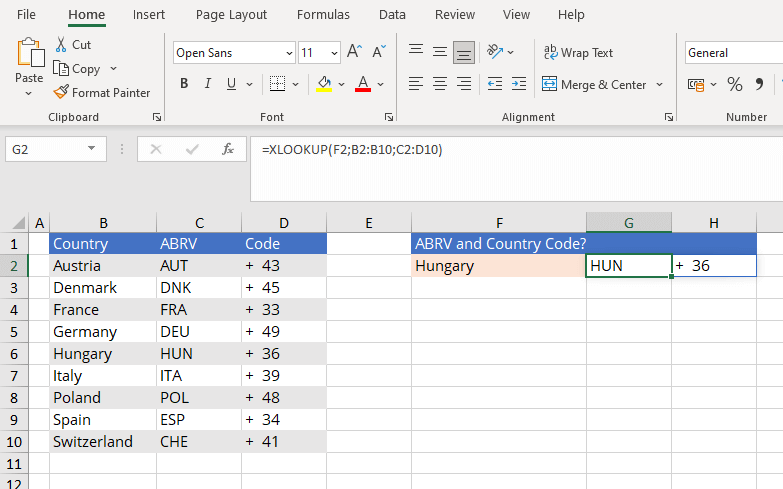
    =XLOOKUP(E2, A2:A10, B2:B10)
    
    https://cdn.ablebits.com/_img-blog/xlookup/excel-xlookup-function-3x.png
    https://www.ionos.com/digitalguide/fileadmin/DigitalGuide/Screenshots_2021/xlookup-2.png

    What This Formula Does

    • Looks for the value in E2
    • Searches column A
    • Returns the matching value from column B

    This simple formula covers most beginner use cases.

    Step 4: Press Enter and Review the Result

    Once you press Enter:

    • Excel searches the lookup column
    • Finds the first exact match
    • Displays the related result
    https://cdn.ablebits.com/_img-blog/xlookup/excel-xlookup-function-3x.webp
    https://cdn.ablebits.com/_img-blog/xlookup/excel-xlookup-function-3x.png

    If the value exists, the result appears instantly.

    Step 5: Handle “Not Found” Results (Beginner Tip)

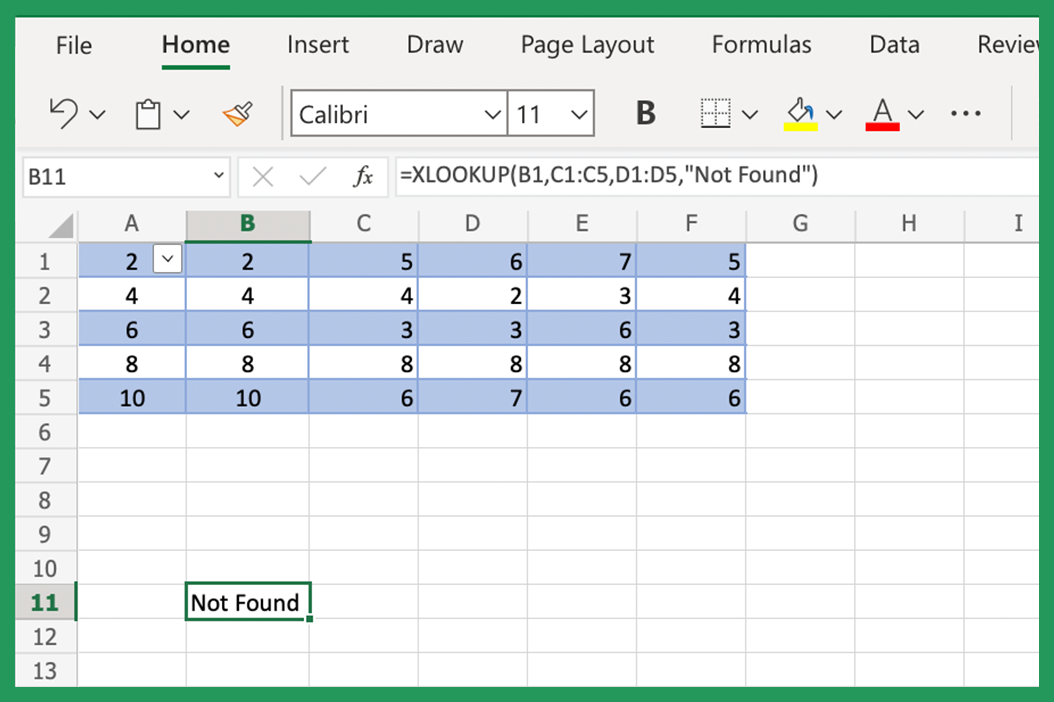
    When learning how to do XLOOKUP in Excel, beginners often encounter #N/A errors.

    You can make your formula beginner-friendly by adding a message.

    =XLOOKUP(E2, A2:A10, B2:B10, "Not Found")
    
    https://cdn.ablebits.com/_img-blog/xlookup/excel-xlookup-function-3x.png
    https://www.classicalfinance.com/content/images/2022/06/excel-custom-error-msg-xlookup.png

    This improves readability and user experience.

    Step 6: How to Do a XLOOKUP to the Left

    Older Excel functions couldn’t return values from the left. XLOOKUP can.

    Example

    =XLOOKUP(E2, B2:B10, A2:A10)
    
    https://cdn.ablebits.com/_img-blog/xlookup/excel-xlookup-function-3x.png
    https://exceljet.net/sites/default/files/styles/original_with_watermark/public/images/formulas/XLOOKUP%20lookup%20left.png

    This flexibility is one reason beginners prefer XLOOKUP.

    Common Beginner Mistakes to Avoid

    When learning how to do XLOOKUP, beginners often:

    • Select lookup and return ranges of different sizes
    • Include headers in one range but not the other
    • Type values directly instead of using cell references

    Avoiding these mistakes makes XLOOKUP much easier to use.


    Frequently Asked Questions

    How to do XLOOKUP in Excel for beginners?

    Start with clean data, use cell references, and keep lookup and return ranges aligned.

    Is XLOOKUP hard to learn?

    No, most beginners find it easier than VLOOKUP.

    Can XLOOKUP return text and numbers?

    Yes, it works with all common data types.

    Does XLOOKUP need sorted data?

    No, exact match is the default behavior.

    How to do a XLOOKUP with large tables?

    Use Excel tables and structured references.

    Which Excel versions support XLOOKUP?

    Excel 365 and Excel 2021 or newer.

    Conclusion

    Now you know how to do XLOOKUP, how to do XLOOKUP in Excel, and how to do a XLOOKUP in Excel as a beginner. With its simple syntax and flexible design, XLOOKUP is one of the easiest and most powerful Excel functions to learn early.

    Once you master this function, many everyday Excel tasks become faster and more accurate.

    Share. Facebook Twitter Pinterest LinkedIn Tumblr Email
    admin
    • Website

    Related Posts

    How to Freeze a Row in Excel: 7 Quick Steps to Keep Headers Visible

    April 2, 2026

    XLOOKUP Returning 0 Instead of Blank: 9 Easy Fixes You Must Know

    April 1, 2026

    XLOOKUP Formula in Excel with Example: 7 Powerful Ways to Master It Easily

    April 1, 2026
    Leave A Reply Cancel Reply

    Categories
    • Excel Formulas
    • Excel Guide
    • XLOOKUP
    Latest Posts

    How to Freeze a Row in Excel: 7 Quick Steps to Keep Headers Visible

    April 2, 2026

    How to Find Duplicates in Excel: 11 Easy Methods That Actually Work

    April 2, 2026

    How to Create Drop Down List in Excel: 9 Simple Steps for Beginners

    April 2, 2026

    XLOOKUP Returning 0 Instead of Blank: 9 Easy Fixes You Must Know

    April 1, 2026

    Why Is My VLOOKUP Not Working? 11 Common Errors and Easy Fixes

    April 1, 2026

    How to Use XLOOKUP in Excel with Two Sheets: 9 Easy Steps for Accurate Results

    April 1, 2026

    Free XLOOKUP formula generator and interactive guide for Excel users. Learn how to use XLOOKUP in Excel with step-by-step examples.
    Categories
    • Excel Formulas
    • Excel Guide
    • XLOOKUP
    Company
    • Contact Us
    • About Us
    • Privacy Policy

    How to Freeze a Row in Excel: 7 Quick Steps to Keep Headers Visible

    April 2, 2026

    How to Find Duplicates in Excel: 11 Easy Methods That Actually Work

    April 2, 2026
    © 2026 xlookup.co.uk XLOOKUP.

    Type above and press Enter to search. Press Esc to cancel.

    Powered by
    ►
    Necessary cookies enable essential site features like secure log-ins and consent preference adjustments. They do not store personal data.
    None
    ►
    Functional cookies support features like content sharing on social media, collecting feedback, and enabling third-party tools.
    None
    ►
    Analytical cookies track visitor interactions, providing insights on metrics like visitor count, bounce rate, and traffic sources.
    None
    ►
    Advertisement cookies deliver personalized ads based on your previous visits and analyze the effectiveness of ad campaigns.
    None
    ►
    Unclassified cookies are cookies that we are in the process of classifying, together with the providers of individual cookies.
    None
    Powered by