Close Menu
    XLOOKUP
    • Home
    • Blogs
    • XLOOKUP
    • Excel Guide
    • Excel Formulas
    Build Formula
    XLOOKUP
    Home » How to Do an XLOOKUP in Excel with Two Sheets
    Excel Formulas

    How to Do an XLOOKUP in Excel with Two Sheets

    adminBy adminFebruary 9, 2026Updated:February 9, 2026No Comments4 Mins Read
    Facebook Twitter Pinterest LinkedIn Tumblr Email
    How to Do an XLOOKUP in Excel with Two Sheets

    Many Excel users understand basic XLOOKUP but get stuck when the data is stored on different worksheets. If you’re wondering how to do an XLOOKUP in Excel with two sheets, the good news is that the process is almost the same as using XLOOKUP on a single sheet.

    In this guide, you’ll learn how to use XLOOKUP in Excel with two sheets, step by step, using simple examples that work for beginners and everyday Excel users.

    What Does XLOOKUP with Two Sheets Mean?

    Using XLOOKUP with two sheets simply means:

    • The lookup value is on one worksheet
    • The lookup array and return array are on another worksheet

    XLOOKUP works across sheets as long as the ranges are referenced correctly.
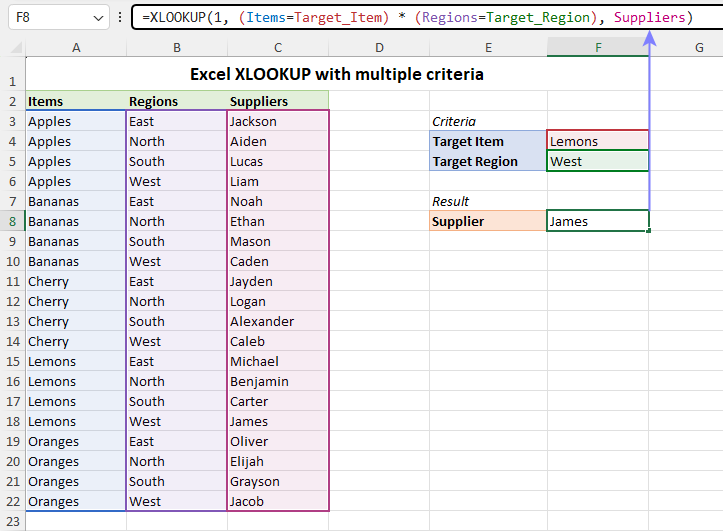
    https://cdn.ablebits.com/_img-blog/xlookup-criteria/excel-xlookup-multiple-criteria.png
    https://i.sstatic.net/u3ybb.png

    This makes XLOOKUP ideal for:

    • Master data sheets
    • Reports pulling data from a database sheet
    • Large workbooks with organized data

    Example Scenario: Using XLOOKUP Across Two Sheets

    Sheet 1: Lookup Sheet

    • Contains an Employee ID entered by the user

    Sheet 2: Data Sheet

    • Contains Employee IDs and Employee Names

    Your goal is to return the employee name from Sheet 2 into Sheet 1.

    https://cdn.ablebits.com/_img-blog/xlookup-criteria/excel-xlookup-multiple-criteria.png
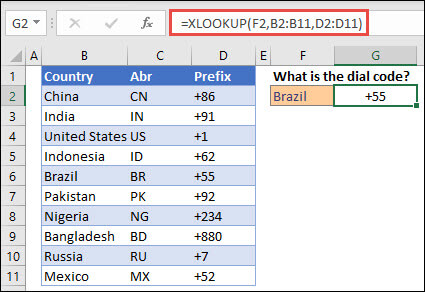
    https://exceljet.net/sites/default/files/styles/original_with_watermark/public/images/functions/main/exceljet_xlookup_function.png

    Step 1: Identify the Lookup Value Sheet

    Start on the sheet where you want the result to appear.

    This sheet usually contains:

    • A lookup value entered by the user
    • An empty cell where the result will be displayed

    For example:

    • Cell B2 contains an Employee ID
    • Cell C2 will display the employee name
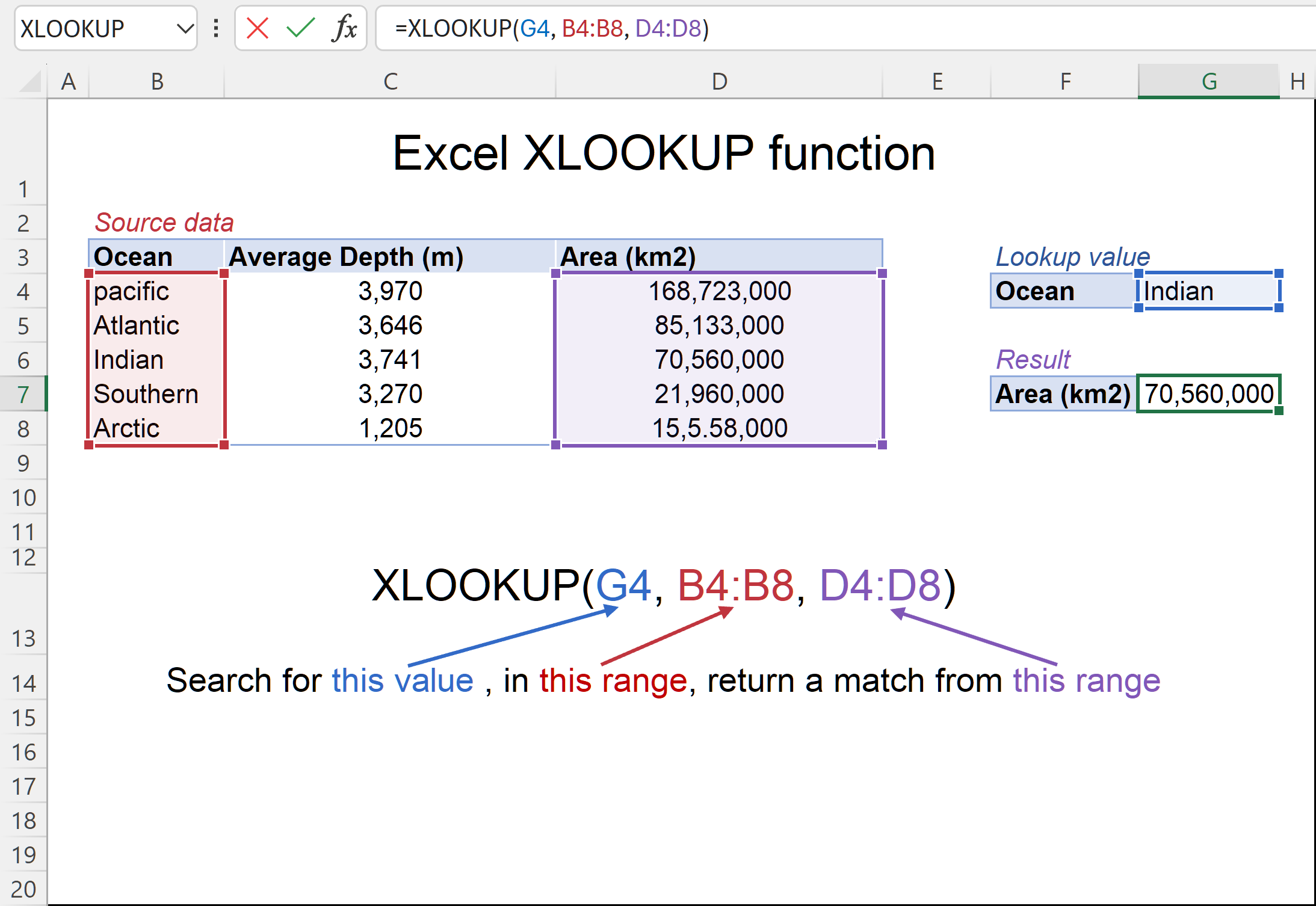
    https://cdn.ablebits.com/_img-blog/xlookup/excel-xlookup-function-3x.png
    https://support.microsoft.com/images/en-us/25529a29-8f61-4a71-92c0-f5d7b280641e

    Step 2: Identify the Data Sheet

    Now switch to the sheet that contains your data.

    This sheet must include:

    • A lookup column (Employee IDs)
    • A return column (Employee Names)

    Make sure:

    • Both columns have the same number of rows
    • There are no extra spaces in the lookup values
    https://support.microsoft.com/images/en-us/25529a29-8f61-4a71-92c0-f5d7b280641e
    https://cdn.ablebits.com/_img-blog/xlookup/excel-xlookup-function-3x.png

    Step 3: Write the XLOOKUP Formula with Sheet References

    This is the most important step in learning how to do XLOOKUP in Excel with two sheets.

    Basic Formula Structure

    =XLOOKUP(lookup_value, Sheet2!lookup_array, Sheet2!return_array)
    

    Example Formula

    =XLOOKUP(B2, Sheet2!A2:A20, Sheet2!B2:B20)
    
    https://cdn.ablebits.com/_img-blog/xlookup/excel-xlookup-function-3x.png
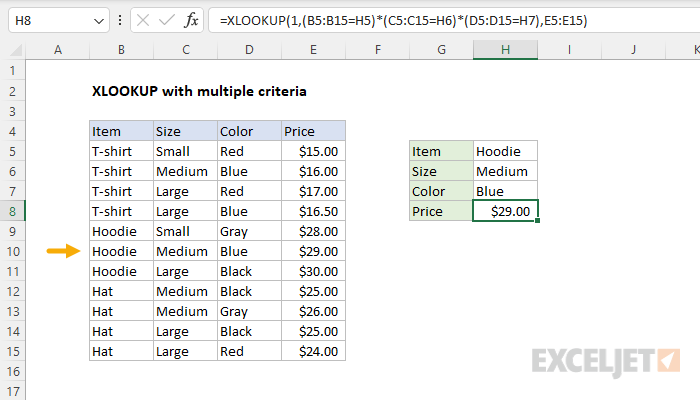
    https://exceljet.net/sites/default/files/styles/original_with_watermark/public/images/formulas/XLOOKUP_with_multiple_criteria.png

    What This Formula Does

    • Looks for the value in B2 (Sheet 1)
    • Searches column A on Sheet 2
    • Returns the matching value from column B on Sheet 2

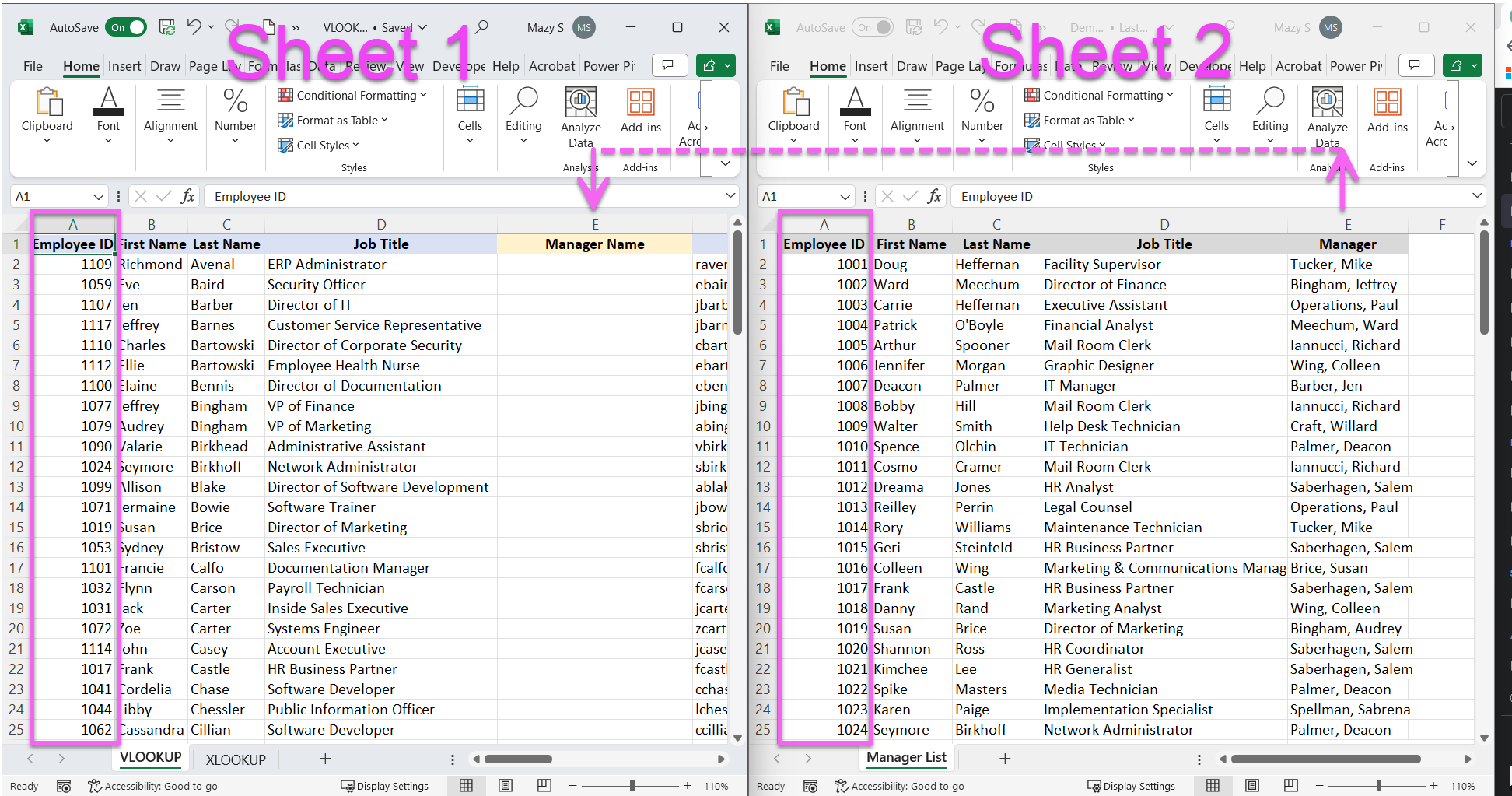
    Step 4: Press Enter and Check the Result

    After pressing Enter:

    • Excel searches the second sheet
    • Finds the matching value
    • Displays the result on the first sheet
    https://images.squarespace-cdn.com/content/v1/63fbc6b319454675b8620325/c396b719-9c99-4fb8-89bb-dbcba6fbcbe3/VLOOKUP%2BXLOOKUP%2BBlog%2BImage%2B1.png
    https://cdn.ablebits.com/_img-blog/xlookup/excel-xlookup-function-3x.png

    If the value exists, the result appears instantly.

    Step 5: Handle “Not Found” Results Across Sheets

    When using XLOOKUP across sheets, missing values are common. You can handle this easily.

    Formula with Error Handling

    =XLOOKUP(B2, Sheet2!A2:A20, Sheet2!B2:B20, "Not Found")
    
    https://i.sstatic.net/u3ybb.png
    https://cdn.ablebits.com/_img-blog/xlookup/excel-xlookup-function-3x.png

    This keeps your workbook clean and professional.

    Using XLOOKUP with Two Sheets in Real Projects

    This method is commonly used when:

    • One sheet stores raw data
    • Another sheet is used for reporting
    • Multiple users update lookup values

    Because XLOOKUP does not rely on column numbers, it remains stable even if the data sheet changes.

    Common Mistakes When Using XLOOKUP with Two Sheets

    When learning how to use XLOOKUP in Excel with two sheets, avoid these mistakes:

    • Forgetting the sheet name before the range
    • Selecting lookup and return arrays of different sizes
    • Renaming a sheet without updating formulas

    Using clear sheet names helps prevent errors.

    Frequently Asked Questions

    How to do XLOOKUP in Excel with two sheets?

    Reference the lookup and return ranges using the correct sheet name (e.g., Sheet2!A2:A20).

    Does XLOOKUP work across different workbooks?

    Yes, as long as the source workbook is open or properly linked.

    Is XLOOKUP slower when using two sheets?

    No, performance is usually the same.

    Can I use XLOOKUP with tables across sheets?

    Yes, structured table references work well.

    What happens if the sheet name changes?

    The formula must be updated to match the new sheet name.

    Does XLOOKUP require sorted data?

    No, exact match is the default.

    Conclusion

    Now you know how to do an XLOOKUP in Excel with two sheets and how to use XLOOKUP in Excel with two sheets correctly. Once you understand sheet references, XLOOKUP becomes just as easy across worksheets as it is on a single sheet.

    This approach is perfect for building clean, scalable Excel workbooks with separated data and reports.

    Share. Facebook Twitter Pinterest LinkedIn Tumblr Email
    admin
    • Website

    Related Posts

    Excel formulas list: 50+ Essential Excel Functions Explained for Every Skill Level

    February 24, 2026

    How to Use XLOOKUP with Multiple Criteria

    February 9, 2026

    What Is the Return Array in XLOOKUP?

    February 9, 2026
    Leave A Reply Cancel Reply

    Categories
    • Excel Formulas
    • Excel Guide
    • XLOOKUP
    Latest Posts

    How to Freeze a Row in Excel: 7 Quick Steps to Keep Headers Visible

    April 2, 2026

    How to Find Duplicates in Excel: 11 Easy Methods That Actually Work

    April 2, 2026

    How to Create Drop Down List in Excel: 9 Simple Steps for Beginners

    April 2, 2026

    XLOOKUP Returning 0 Instead of Blank: 9 Easy Fixes You Must Know

    April 1, 2026

    Why Is My VLOOKUP Not Working? 11 Common Errors and Easy Fixes

    April 1, 2026

    How to Use XLOOKUP in Excel with Two Sheets: 9 Easy Steps for Accurate Results

    April 1, 2026

    Free XLOOKUP formula generator and interactive guide for Excel users. Learn how to use XLOOKUP in Excel with step-by-step examples.
    Categories
    • Excel Formulas
    • Excel Guide
    • XLOOKUP
    Company
    • Contact Us
    • About Us
    • Privacy Policy

    How to Freeze a Row in Excel: 7 Quick Steps to Keep Headers Visible

    April 2, 2026

    How to Find Duplicates in Excel: 11 Easy Methods That Actually Work

    April 2, 2026
    © 2026 xlookup.co.uk XLOOKUP.

    Type above and press Enter to search. Press Esc to cancel.

    Powered by
    ►
    Necessary cookies enable essential site features like secure log-ins and consent preference adjustments. They do not store personal data.
    None
    ►
    Functional cookies support features like content sharing on social media, collecting feedback, and enabling third-party tools.
    None
    ►
    Analytical cookies track visitor interactions, providing insights on metrics like visitor count, bounce rate, and traffic sources.
    None
    ►
    Advertisement cookies deliver personalized ads based on your previous visits and analyze the effectiveness of ad campaigns.
    None
    ►
    Unclassified cookies are cookies that we are in the process of classifying, together with the providers of individual cookies.
    None
    Powered by