

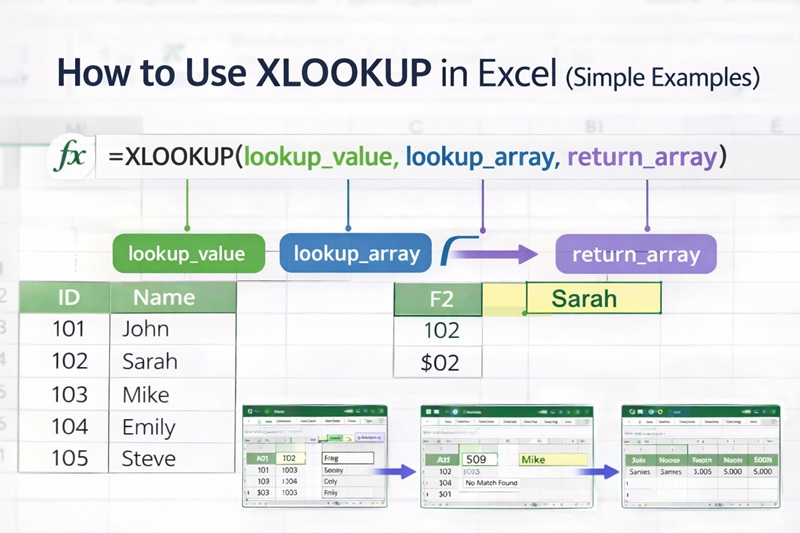
If you’re learning Excel and wondering how to use XLOOKUP, you’re in the right place. XLOOKUP is one of the most useful Excel functions for finding and returning data, and it’s much easier to use than older lookup formulas.
In this guide, you’ll learn how to use XLOOKUP in Excel step by step with simple, practical examples. By the end, you’ll understand how to use XLOOKUP Excel formulas confidently—even if you’re a beginner.
What Does XLOOKUP Do in Excel?
Before jumping into examples, let’s quickly clarify how to use the XLOOKUP function in Excel correctly.
XLOOKUP:
- Searches for a value in a range
- Finds an exact match by default
- Returns a related value from another range

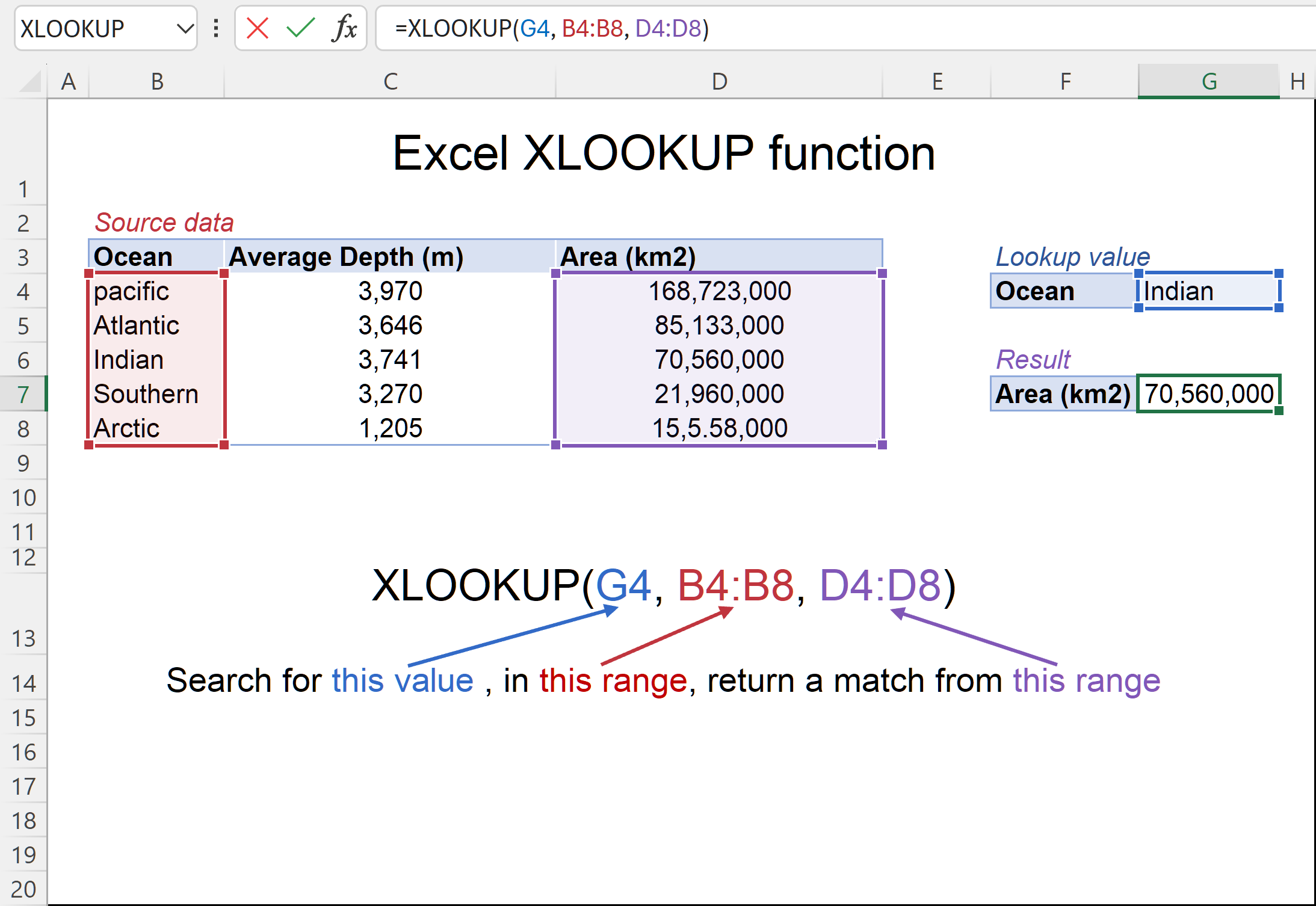
It works vertically or horizontally and does not depend on column numbers, which makes it more reliable than older functions.
Basic XLOOKUP Formula You Should Know
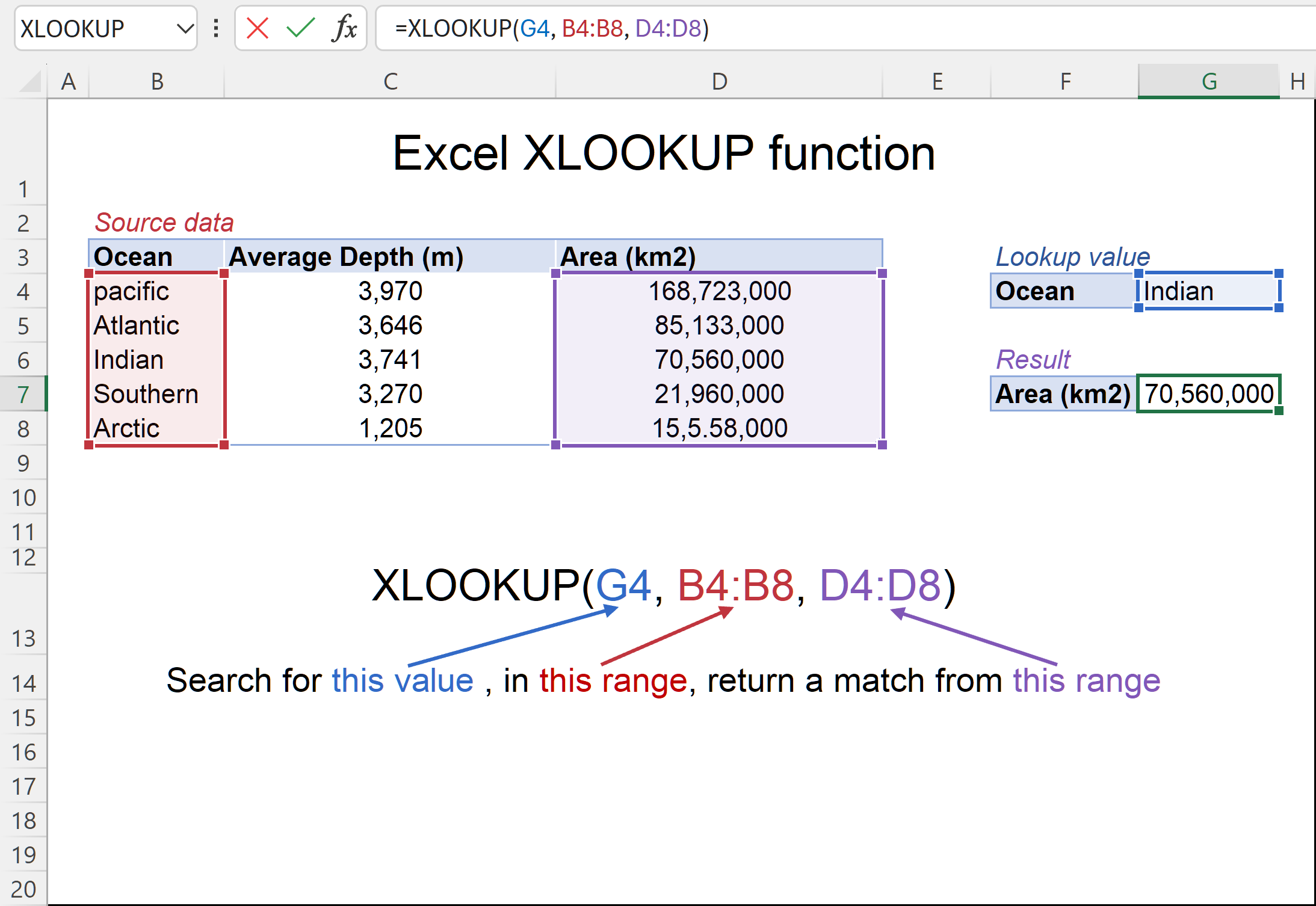
Every example in this guide is built on the same basic formula:
=XLOOKUP(lookup_value, lookup_array, return_array)
Where:
- lookup_value → What you want to find
- lookup_array → Where Excel searches
- return_array → What Excel returns
Understanding this structure is the key to learning how to use XLOOKUP in Excel.
Example 1: How to Use XLOOKUP to Find a Name
Scenario
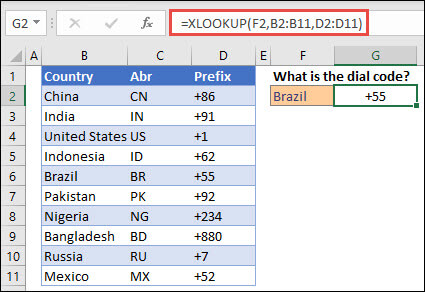
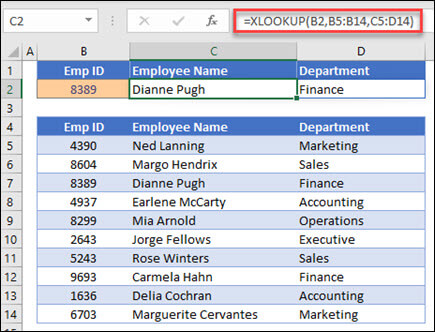
You have a list of employee IDs and names. You want Excel to return the employee name when you enter an ID.
Formula
=XLOOKUP(E2, A2:A10, B2:B10)
What Happens
- Excel looks for the ID in cell E2
- Searches column A
- Returns the matching name from column B
This is one of the most common beginner examples of how to use XLOOKUP Excel formulas.
Example 2: How to Use XLOOKUP to Return Numbers
XLOOKUP works just as well with numbers as it does with text.
Scenario
You want to find a product price based on a product code.
Formula
=XLOOKUP(F2, A2:A15, C2:C15)
Excel returns the correct price instantly, even if the price column is to the left or right.
Example 3: How to Use XLOOKUP When Data Is Missing
One important part of learning how to use the XLOOKUP function in Excel is handling missing data.
By default, XLOOKUP returns #N/A if it can’t find a match. You can customize this behavior.
Formula with Error Handling
=XLOOKUP(E2, A2:A10, B2:B10, "No Match Found")
This makes your spreadsheets cleaner and more user-friendly.
Example 4: How to Use XLOOKUP to Look Left
Older lookup functions could not return values to the left. XLOOKUP removes this limitation completely.
Scenario
You want to look up a name and return an ID that appears to the left.
Formula
=XLOOKUP(E2, B2:B10, A2:A10)
This flexibility is a major reason people search how to use XLOOKUP instead of VLOOKUP.
Example 5: How to Use XLOOKUP Horizontally
XLOOKUP also works across rows, not just columns.
Scenario
Months are listed across the top, and you want to return a sales value.
Formula
=XLOOKUP(B1, B1:G1, B2:G2)
This shows how versatile how to use XLOOKUP in Excel can be.
Common Mistakes Beginners Make
When learning how to use XLOOKUP Excel, watch out for these mistakes:
- Lookup and return ranges not matching in size
- Including headers in one range but not the other
- Hard-coding values instead of using cell references
Fixing these usually resolves errors immediately.
Frequently Asked Questions
How to use XLOOKUP in Excel for beginners?
Start with simple lookup and return ranges and use cell references instead of typed values.
Is XLOOKUP easier than VLOOKUP?
Yes, XLOOKUP is more flexible and easier to read.
Can XLOOKUP return text and numbers?
Yes, it works with all data types.
Does XLOOKUP work without sorted data?
Yes, exact match is the default.
How to use XLOOKUP Excel with large tables?
Use structured tables and absolute references.
What Excel versions support XLOOKUP?
Excel 365 and Excel 2021 or newer.
Conclusion
Now you know how to use XLOOKUP, how to use XLOOKUP in Excel, and how to use the XLOOKUP function in Excel with clear, simple examples. Once you understand the basic formula, XLOOKUP becomes one of the easiest and most powerful Excel functions to use.
If accuracy, flexibility, and clean formulas matter to you, XLOOKUP should be part of your everyday Excel toolkit.
