

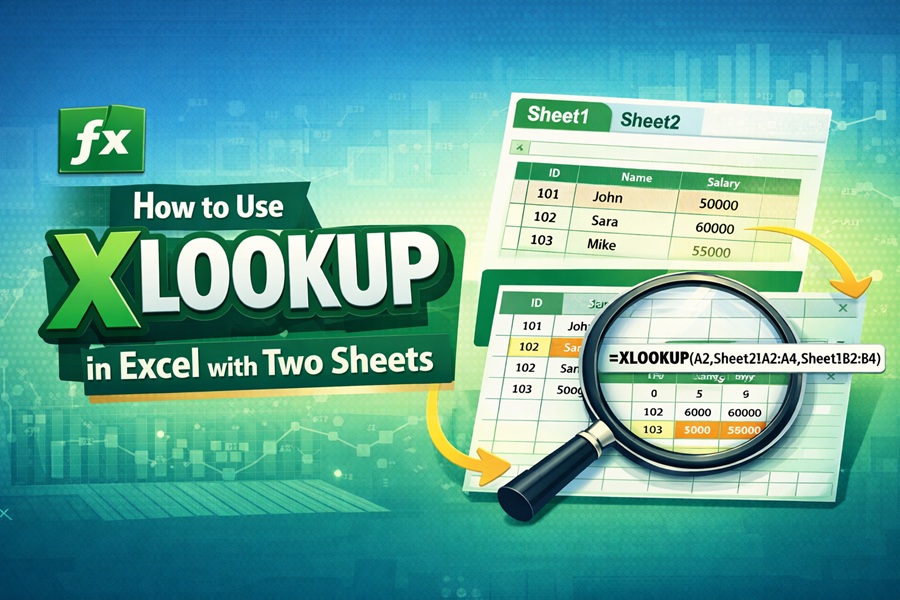
🔍 What Does Using XLOOKUP with Two Sheets Mean?
The keyword how to use xlookup in excel with two sheets refers to using the XLOOKUP function to search for data in one worksheet and return results from another worksheet.
This is extremely useful when your data is separated across multiple sheets—something very common in real-world Excel workbooks.
🚀 Benefits of Cross-Sheet Lookup
- Keeps data organized
- Reduces duplication
- Improves accuracy
- Makes large datasets manageable
📊 Understanding the Scenario
📷 Sample Dataset Explanation
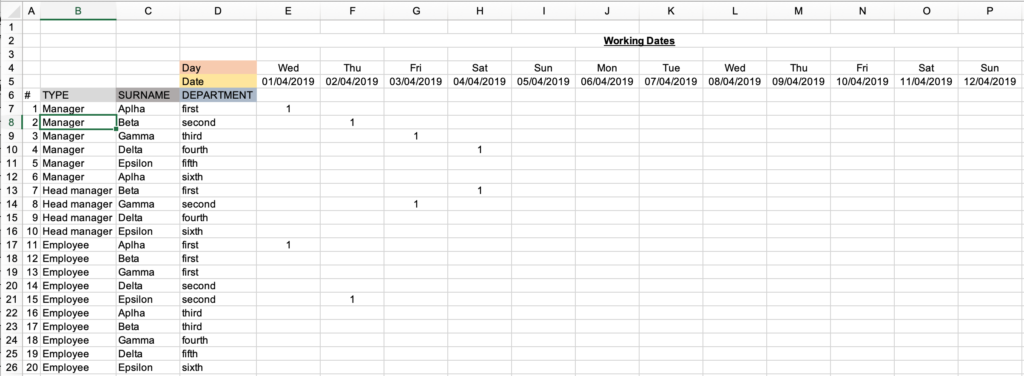


Imagine you have:
Sheet1 (Main Sheet)
| ID | Name |
|---|---|
| 101 | John |
| 102 | Sara |
| 103 | Mike |
Sheet2 (Salary Sheet)
| ID | Salary |
|---|---|
| 101 | 50000 |
| 102 | 60000 |
| 103 | 55000 |
📑 Sheet Structure Overview
- Sheet1 → Lookup Value (ID)
- Sheet2 → Data Source (Salary)
📌 Syntax of XLOOKUP for Two Sheets
🧩 Formula Structure
=XLOOKUP(lookup_value, Sheet2!lookup_array, Sheet2!return_array)
🔗 Reference Between Sheets
- Use
SheetName!Range - Example:
Sheet2!A2:A10
🪜 Step-by-Step Guide: How to Use XLOOKUP in Excel with Two Sheets
📌 Step 1: Prepare Your Data
Ensure:
- Both sheets exist
- Data is clean and aligned
- Lookup column is consistent
📌 Step 2: Identify Lookup Value
In Sheet1, select the ID you want to search.
Example: 101
📌 Step 3: Write XLOOKUP Formula
=XLOOKUP(A2, Sheet2!A2:A4, Sheet2!B2:B4)
📌 Step 4: Apply and Verify
Press Enter → Excel returns salary from Sheet2.
📷 Practical Example with Screenshots
💻 Step-by-Step Excel View
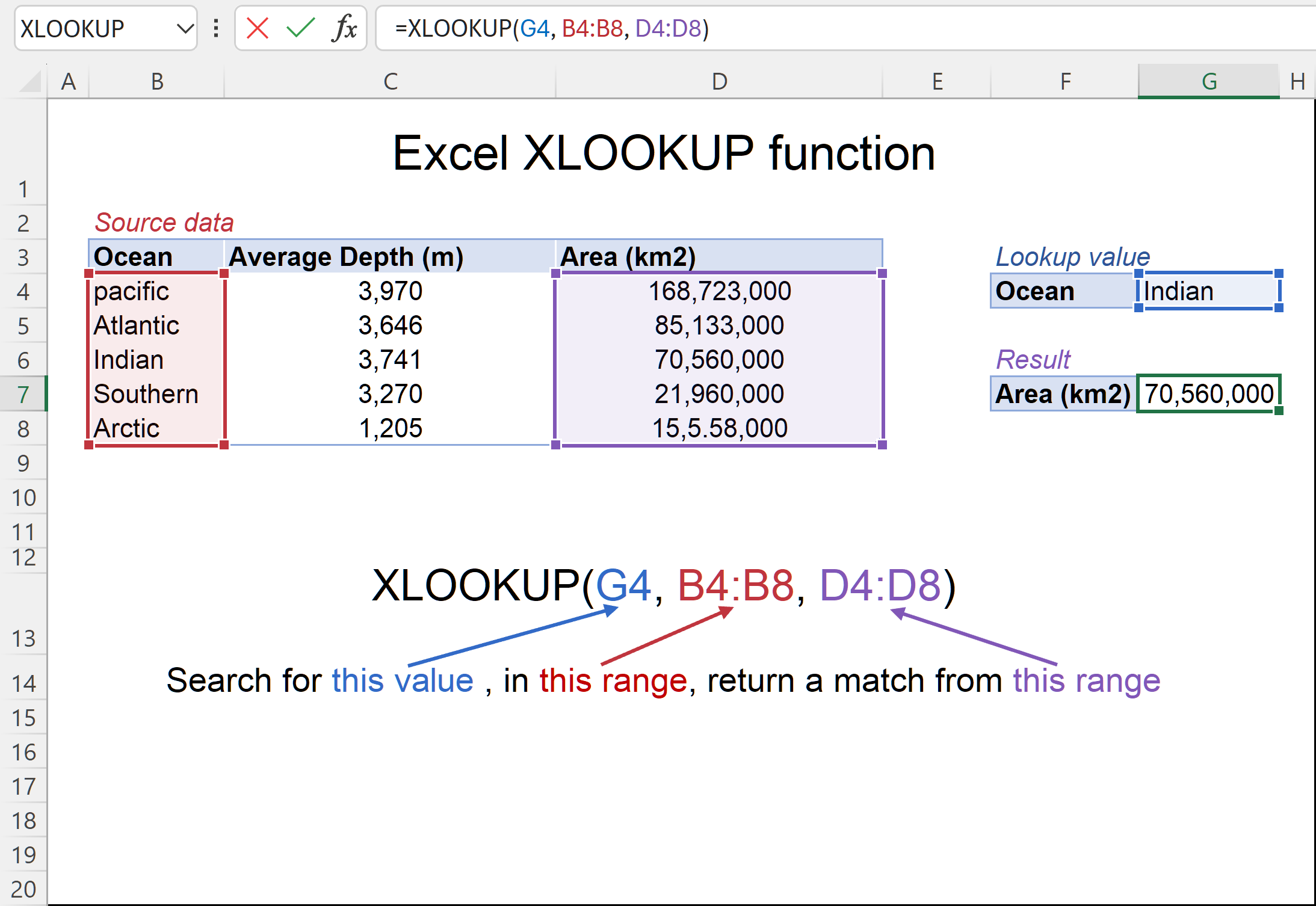
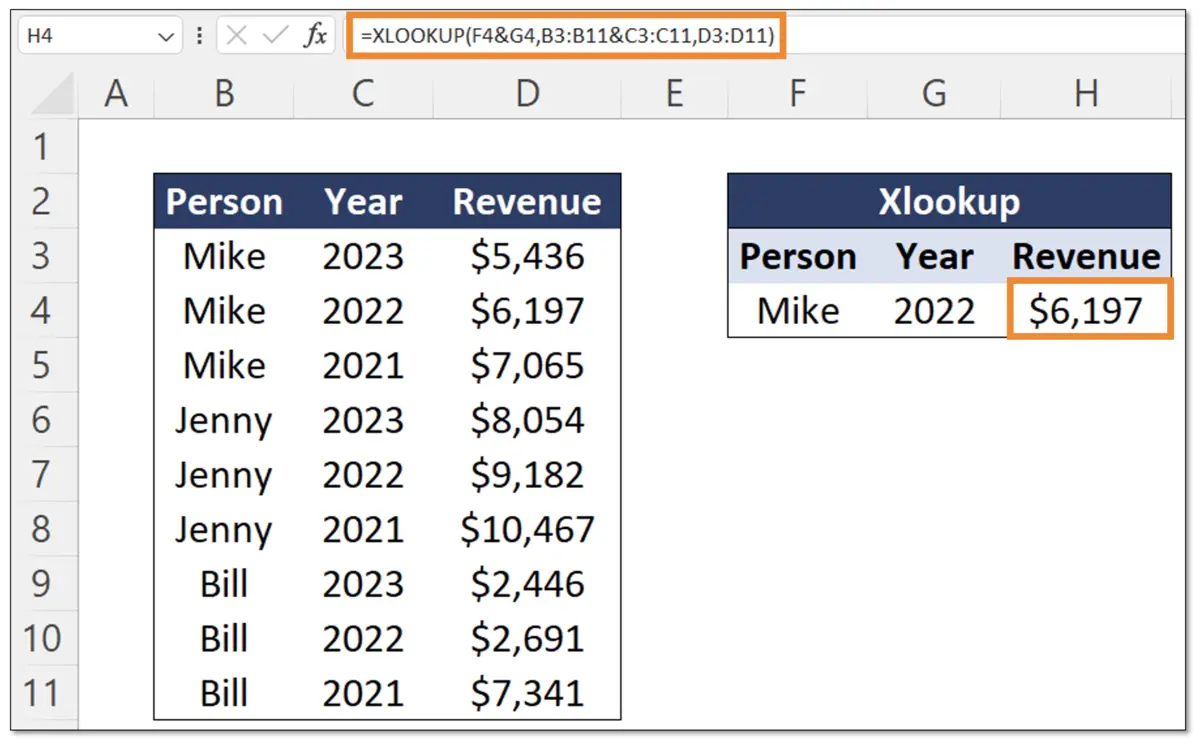
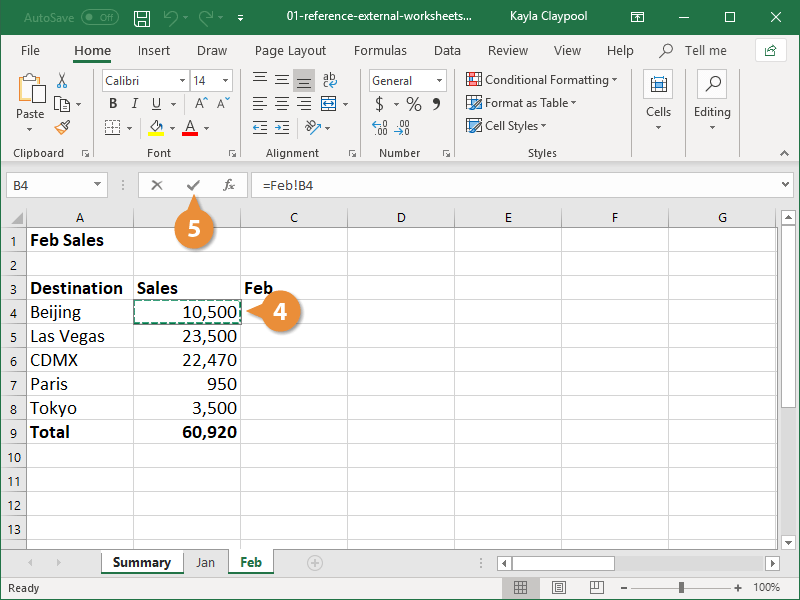
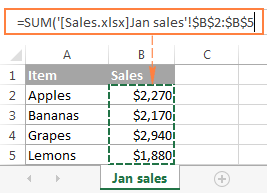
🧮 Employee Data Lookup Example
Formula:
=XLOOKUP(A2, Sheet2!A2:A4, Sheet2!B2:B4)
Output:
👉 50000 (Salary of John)
💡 Result Interpretation
- Excel searches ID in Sheet2
- Finds match
- Returns corresponding salary
⚡ Advanced Use Cases
📌 XLOOKUP with Named Ranges
Instead of ranges:
=XLOOKUP(A2, IDs, Salaries)
📊 Dynamic Data Between Sheets
Works perfectly with:
- Tables
- Dashboards
- Live reports
⚠️ Common Mistakes and Fixes
❌ Reference Errors
- Wrong sheet name
- Missing “!” symbol
📉 Sheet Name Issues
If sheet has space:
=XLOOKUP(A2, 'Salary Sheet'!A2:A4, 'Salary Sheet'!B2:B4)
🎯 Tips for Better Accuracy
⚡ Best Practices
- Use exact match
- Keep consistent IDs
- Avoid blank cells
📌 Performance Optimization
- Use smaller ranges
- Convert data into tables
❓ FAQs
1. Can XLOOKUP work between two sheets?
Yes, it works perfectly across multiple sheets.
2. Do I need the same structure in both sheets?
No, but lookup values must match.
3. What if sheet name has spaces?
Use single quotes.
4. Is XLOOKUP faster than VLOOKUP?
Yes, especially with large data.
5. Can I drag the formula down?
Yes, it auto-adjusts references.
6. Does it work in Excel 2016?
No, only Excel 365 and newer versions.
🏁 Conclusion
Now you fully understand how to use xlookup in excel with two sheets. This method is essential for managing real-world data efficiently across multiple worksheets.
By following the steps and examples above, you can confidently apply XLOOKUP in your daily Excel tasks and significantly improve productivity.
