


When working with real-world Excel data, one lookup condition is often not enough. You might need to find a value based on two or more criteria, such as employee name and department, or product and region. That is where XLOOKUP with multiple criteria becomes incredibly useful.
In this guide, you will learn how to use XLOOKUP with multiple criteria, why it works, and how to apply it in practical scenarios step by step.
Why Use XLOOKUP with Multiple Criteria
XLOOKUP is designed to search for a single lookup value. However, Excel allows you to combine multiple conditions into one logical lookup. This lets you:
- Return results that match more than one column
- Avoid helper columns
- Replace complex INDEX and MATCH formulas
- Build cleaner and easier-to-read spreadsheets
The Core Idea Behind Multiple Criteria
The trick is to combine criteria into a single logical test. Excel evaluates each condition as TRUE or FALSE, converts them into 1s and 0s, and then multiplies them together.
Only rows that meet all conditions return a 1. XLOOKUP can then find that row.
Basic Example of XLOOKUP with Two Criteria
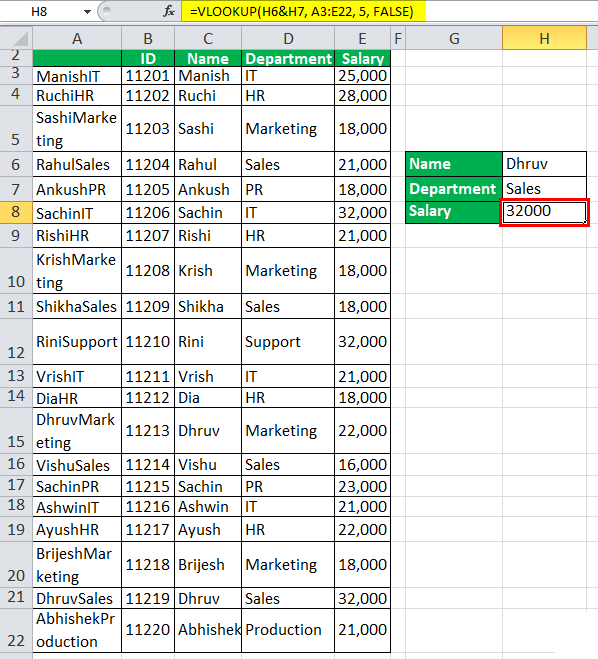
Sample Data
Imagine a table with:
- Column A: Employee Name
- Column B: Department
- Column C: Salary
You want to find the salary of John in the Sales department.
Formula
=XLOOKUP(1,(A2:A10=E1)*(B2:B10=F1),C2:C10)
How It Works
(A2:A10=E1)checks the first condition(B2:B10=F1)checks the second condition- Multiplying them returns 1 only when both conditions are met
- XLOOKUP searches for 1 and returns the matching salary
Using XLOOKUP with Three or More Criteria
You can extend the same logic for additional conditions.
Example
Find the sales value for:
- Product: Laptop
- Region: West
- Year: 2024
=XLOOKUP(1,(A2:A20=E1)*(B2:B20=F1)*(C2:C20=G1),D2:D20)
Each added condition is simply multiplied into the formula.
Handling Errors with Multiple Criteria
If no row matches all criteria, XLOOKUP returns an error. You can handle this gracefully by using the optional if_not_found argument.
=XLOOKUP(1,(A2:A10=E1)*(B2:B10=F1),C2:C10,"No match found")
This keeps your spreadsheet clean and user-friendly.
Case Sensitive Multiple Criteria Lookups
By default, XLOOKUP is not case sensitive. If you need case sensitivity, combine XLOOKUP with the EXACT function.
=XLOOKUP(1,EXACT(A2:A10,E1)*EXACT(B2:B10,F1),C2:C10)
This ensures text matches exactly as typed.
Common Mistakes to Avoid
- Forgetting to use ranges of equal size
- Mixing text and numeric data types
- Using entire column references in very large datasets
- Not handling missing matches
Understanding how Excel evaluates logical arrays helps prevent these issues.
Why This Method Is Better Than Older Approaches
Compared to INDEX and MATCH with multiple criteria, XLOOKUP:
- Is easier to read
- Requires fewer nested functions
- Is simpler to maintain
- Works seamlessly with dynamic arrays
For modern Excel users, this is the preferred approach.
Conclusion
Learning how to use XLOOKUP with multiple criteria unlocks a powerful level of data analysis in Excel. By combining logical tests into a single lookup, you can return precise results without extra columns or complicated formulas.
Once you understand the pattern, you can scale it to handle almost any lookup scenario with confidence.
