

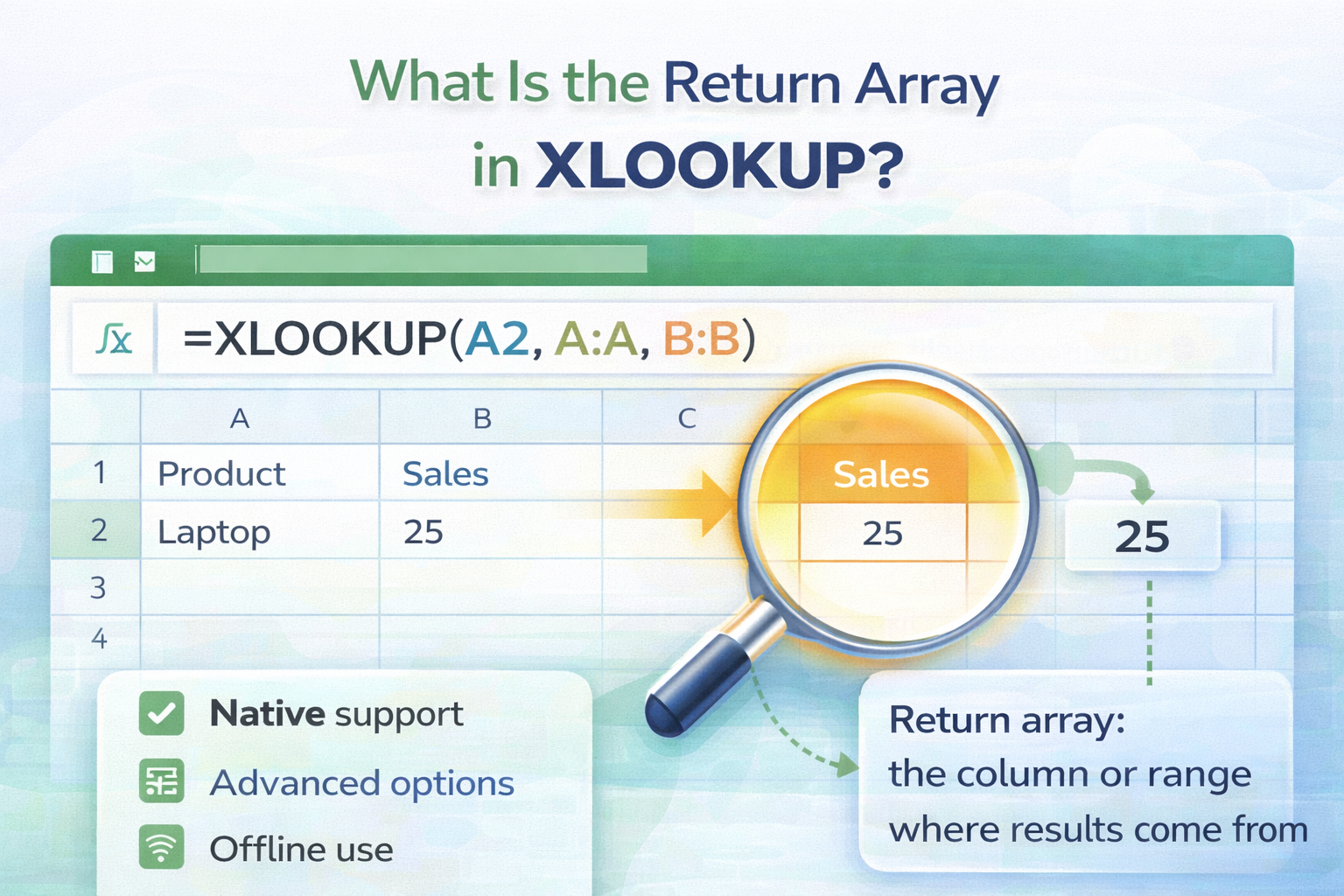
When learning XLOOKUP, many beginners understand the lookup value but get confused about one key part of the formula. What is the return array in XLOOKUP and why is it important?
The return array controls what value XLOOKUP brings back into your cell. If this part is wrong, your formula will not work correctly even if everything else looks fine.
In this article, you will learn exactly what the return array is, how it works, and how to use it correctly with simple examples.
Understanding the XLOOKUP Formula Structure
A basic XLOOKUP formula looks like this:
=XLOOKUP(lookup_value, lookup_array, return_array)
Each argument has a specific role:
- lookup_value is what you are searching for
- lookup_array is where Excel searches
- return_array is where Excel pulls the result from
This article focuses entirely on the third argument.
What Is the Return Array in XLOOKUP?
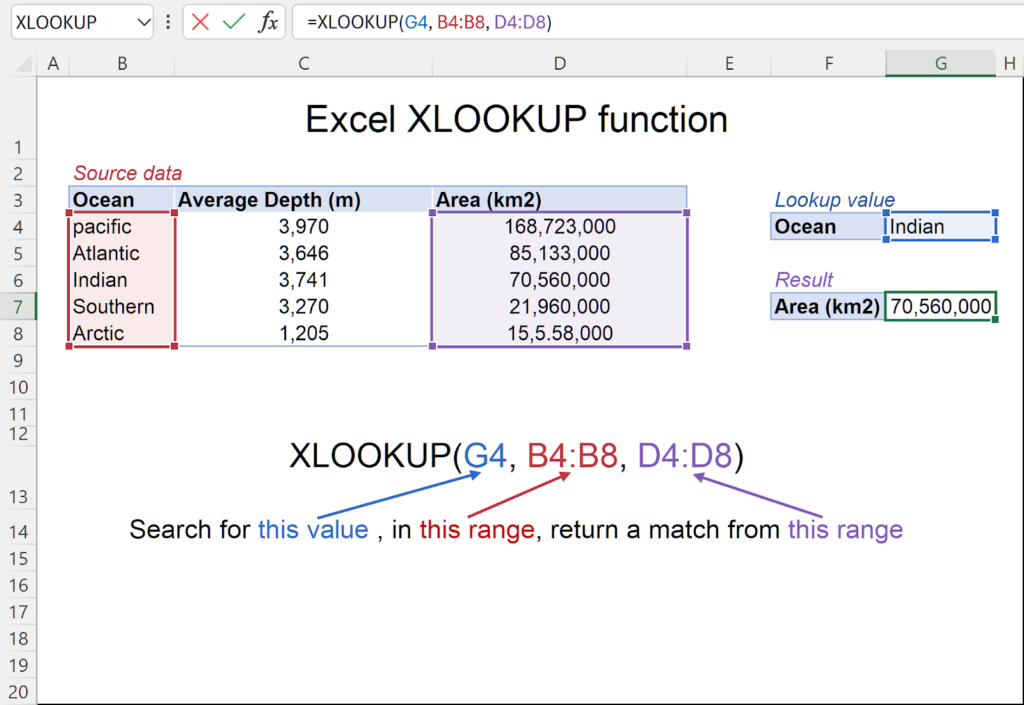
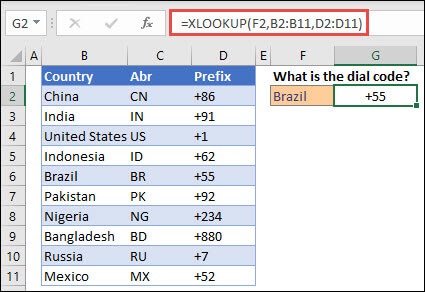
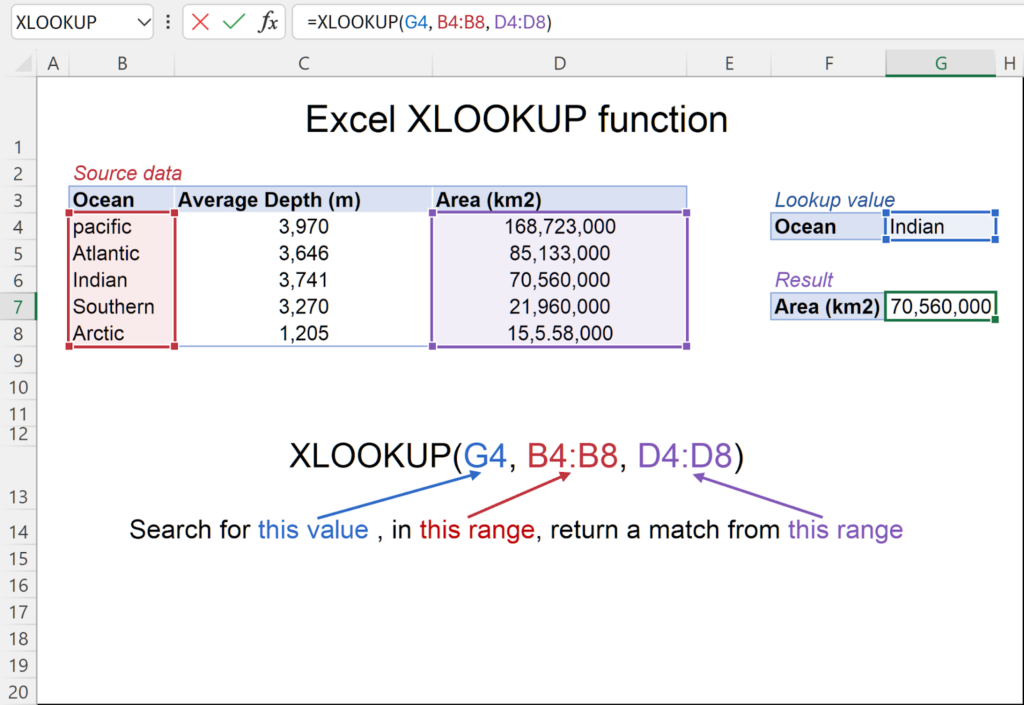
The return array is the range of cells that contains the value you want XLOOKUP to return.
Once XLOOKUP finds the lookup value inside the lookup array, it goes to the same position in the return array and brings back the matching result.
Think of it as the answer column or row.
Simple Return Array Example
Imagine this data:
- Column A contains employee IDs
- Column B contains employee names
Formula:
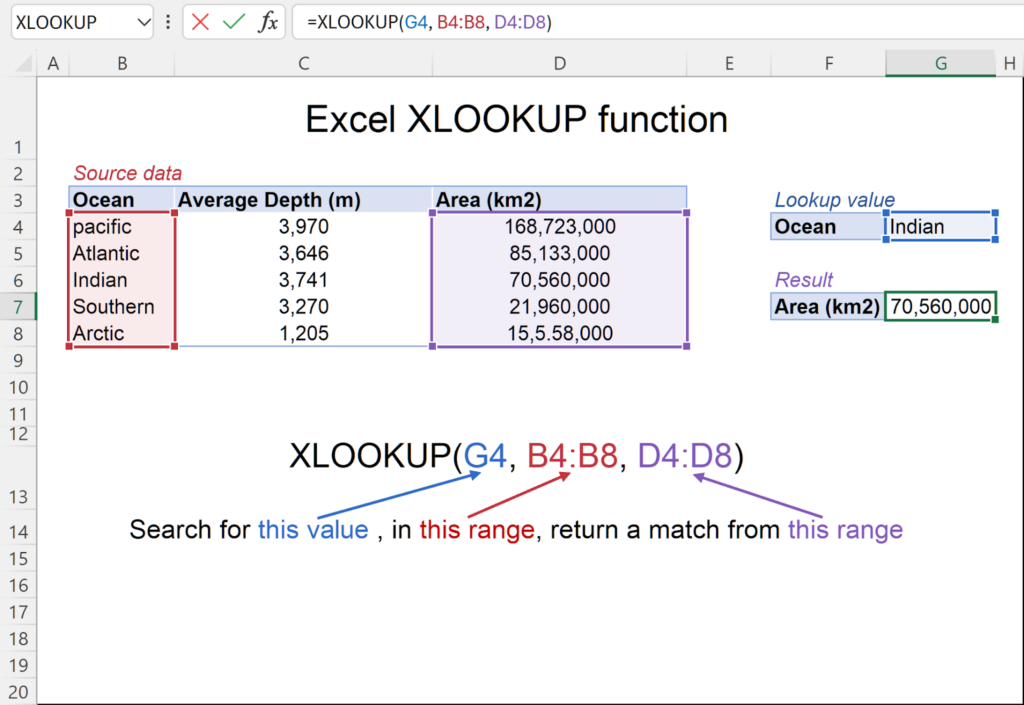
=XLOOKUP(E2, A2:A10, B2:B10)
Explanation:
- Excel looks for the ID in cell E2 inside A2:A10
- When it finds a match, it returns the value from the same row in B2:B10
In this case, B2:B10 is the return array.
Return Array Can Be a Row or a Column
The return array does not have to be a column.
It can also be:
- A horizontal row
- A single column
- Multiple columns when using dynamic arrays
Example with rows:
=XLOOKUP(B1, B1:F1, B2:F2)
Here, B2:F2 is the return array, even though it is horizontal.
Matching Size Requirement
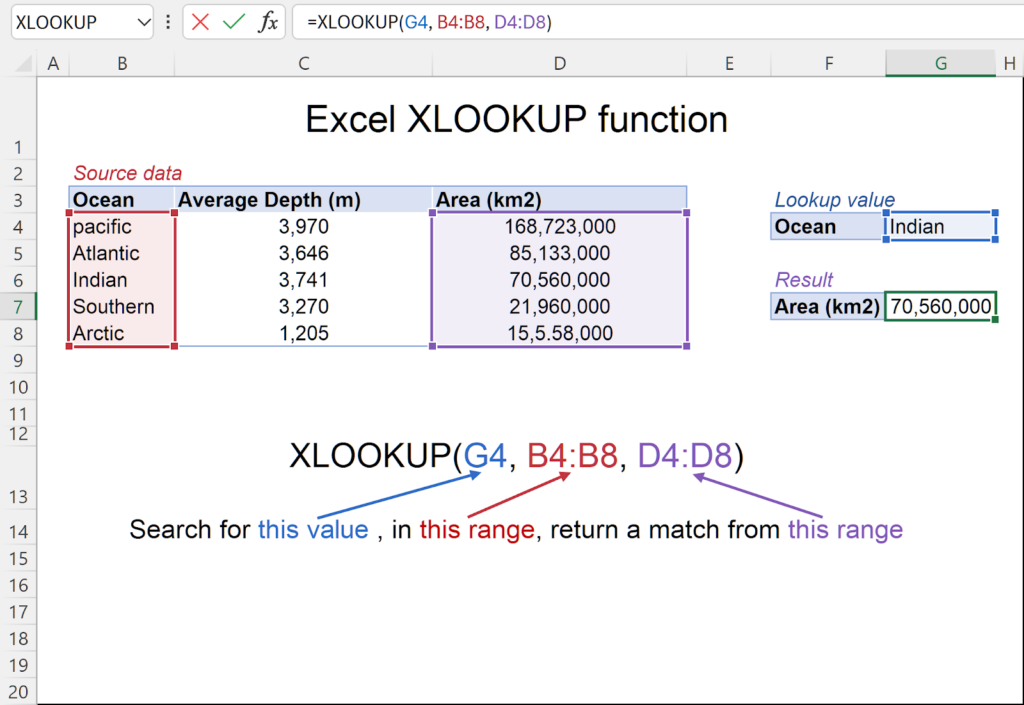
The return array must be the same size as the lookup array.
If your lookup array has 10 rows, your return array must also have 10 rows.
If the sizes do not match, Excel returns an error.
Using Multiple Columns as the Return Array
One powerful feature of XLOOKUP is that the return array can include multiple columns.
Example:
=XLOOKUP(A2, A2:A10, B2:D10)
This returns multiple values that spill across cells automatically in modern Excel versions.
This is especially useful for dashboards and reports.
Common Mistakes with the Return Array
Here are frequent issues users face:
- Selecting a return array with a different number of rows
- Selecting the wrong column
- Including header rows accidentally
- Mixing text and numeric formats
Double checking the return array selection fixes most XLOOKUP errors.
Return Array vs Lookup Array
A quick comparison helps clarify the difference.
| Element | Purpose |
| Lookup array | Where Excel searches for the value |
| Return array | Where Excel pulls the result from |
The lookup array finds the match.
The return array delivers the answer.
Final Thoughts
Understanding what the return array is in XLOOKUP is essential for writing accurate and reliable formulas.
Once you know that the return array simply defines where the result comes from, XLOOKUP becomes much easier to use and troubleshoot.
Mastering this one concept will eliminate most beginner XLOOKUP mistakes.
