
Close Menu
    XLOOKUP
    • Home
    • Blogs
    • XLOOKUP
    • Excel Guide
    • Excel Formulas
    Build Formula
    XLOOKUP
    Home ยป XLOOKUP Examples for Real-World Excel Tasks
    XLOOKUP

    XLOOKUP Examples for Real-World Excel Tasks

    adminBy adminFebruary 9, 2026Updated:February 17, 2026No Comments3 Mins Read
    Facebook Twitter Pinterest LinkedIn Tumblr Email
    XLOOKUP Examples for Real-World Excel Tasks

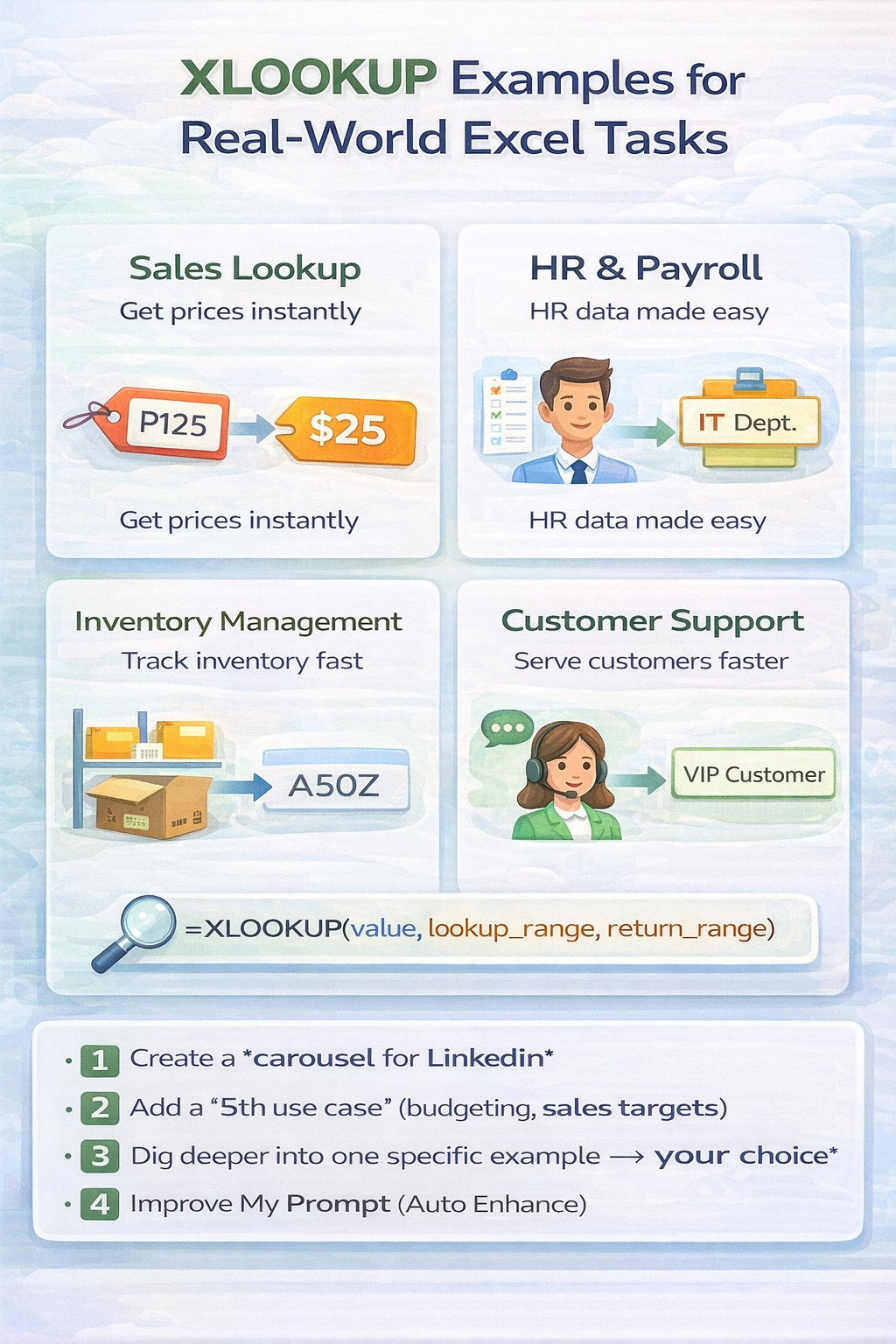
    XLOOKUP is not just a replacement for older lookup functions. It is a practical tool that solves everyday Excel problems faster and with fewer errors. In this article, you will explore real-world XLOOKUP examples that show how professionals actually use XLOOKUP in reports, dashboards, and daily operations.

    Each example is simple, practical, and easy to adapt to your own spreadsheets.


    Example 1: Find an Employee Salary by Name

    Scenario

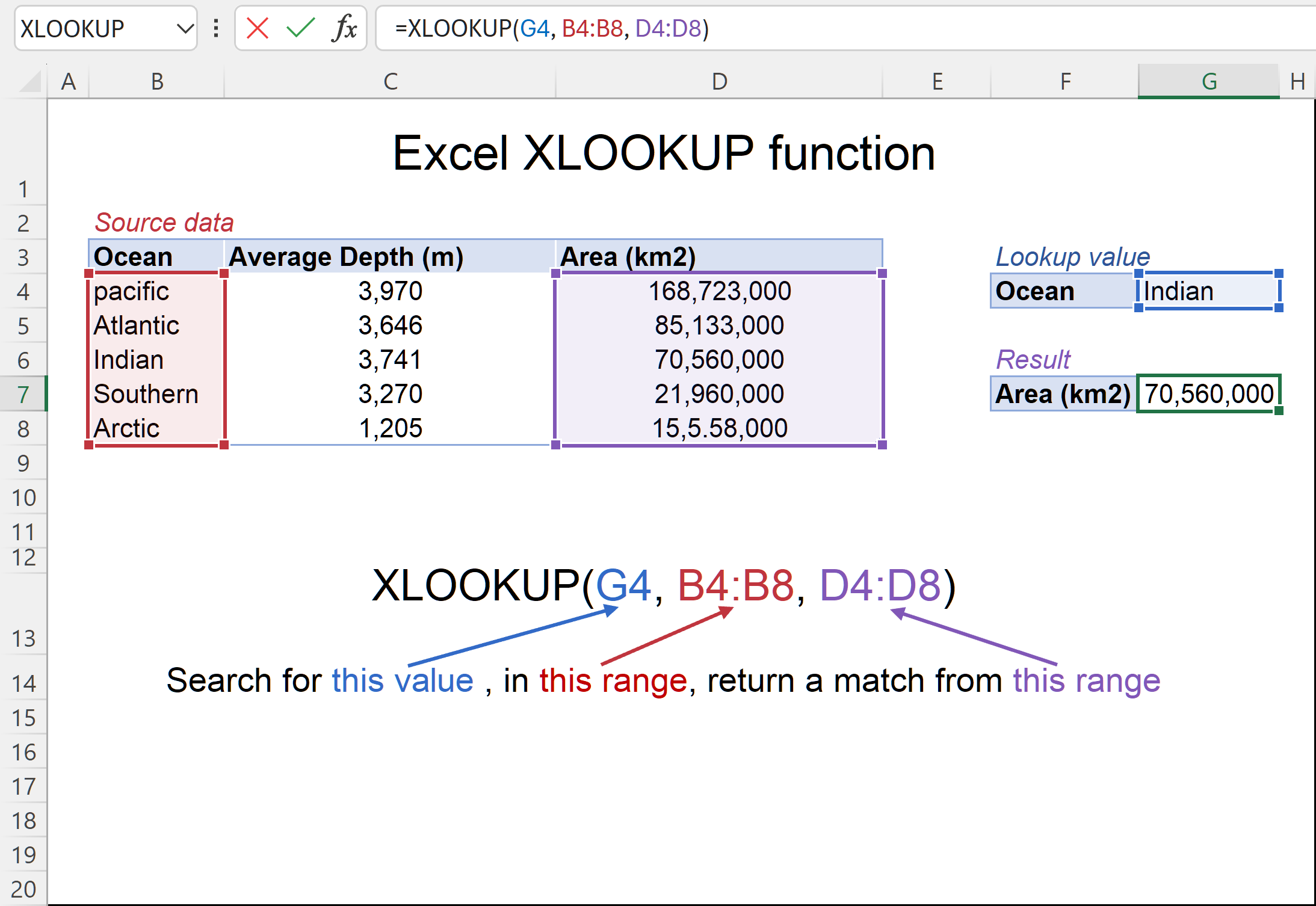
    You have an employee list with names and salaries, and you want Excel to return the salary for a selected employee.
    https://cdn.ablebits.com/_img-blog/xlookup/excel-xlookup-function-3x.webp
    https://www.simplilearn.com/ice9/free_resources_article_thumb/Xlookup/XLookUp-In-Excel-last-to-first.png

    Formula

    =XLOOKUP(E2,A2:A20,B2:B20)
    

    Why This Works

    XLOOKUP searches for the employee name in column A and returns the salary from column B. Unlike older functions, the formula stays intact even if columns move.


    Example 2: Lookup Product Price from a Price List

    Scenario

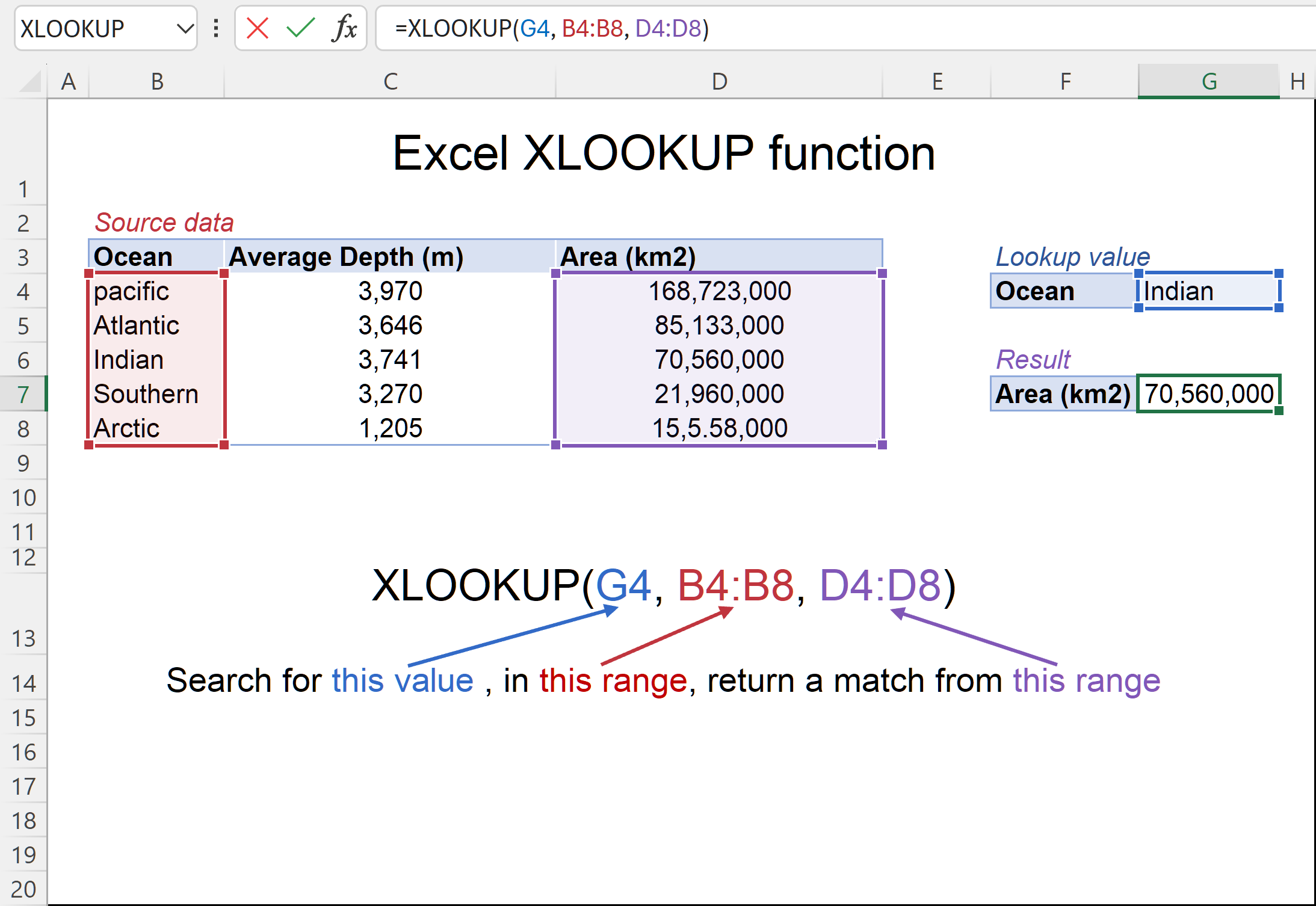
    You manage a product catalog and want to pull the correct price when a product code is entered.
    https://cdn.ablebits.com/_img-blog/xlookup/excel-xlookup-function-3x.png
    https://cdn.ablebits.com/_img-blog/xlookup/excel-xlookup-function-3x.webp

    Formula

    =XLOOKUP(F2,A2:A50,C2:C50)
    

    Real-World Use

    This is commonly used in invoices, order forms, and sales templates where accuracy matters.


    Example 3: Return a Value to the Left

    Scenario

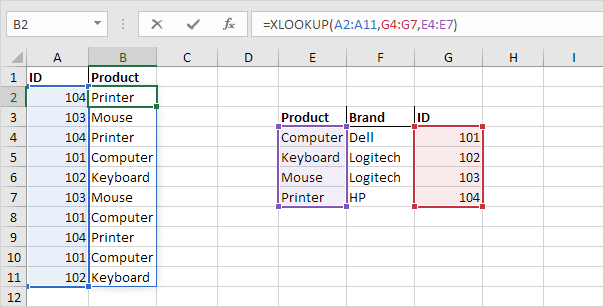
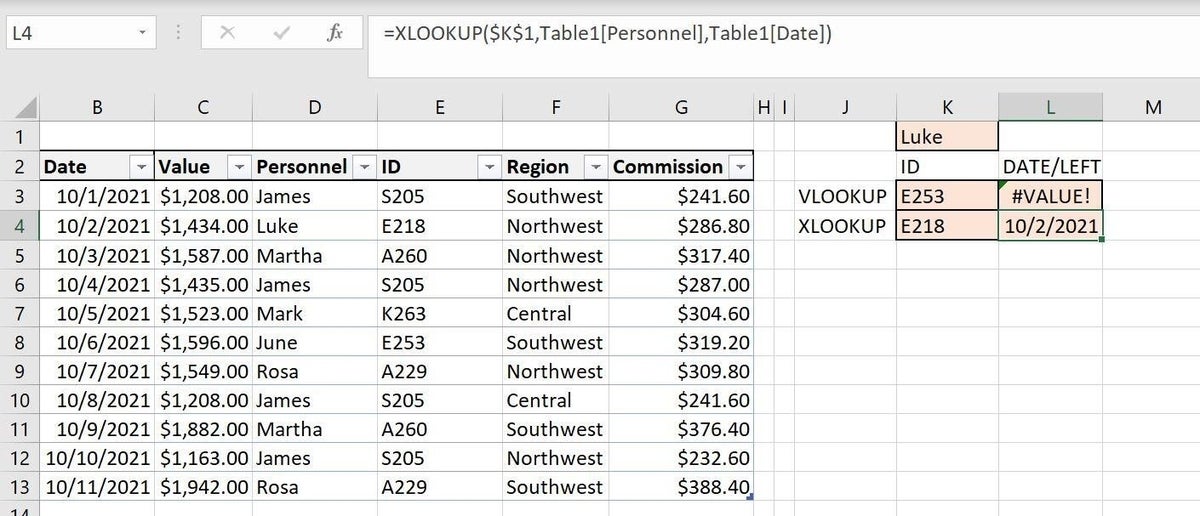
    Your lookup column appears to the right of the result column, something VLOOKUP cannot handle.
    https://www.excel-easy.com/examples/images/left-lookup/xlookup-function.png

    Formula

    =XLOOKUP(D2,B2:B20,A2:A20)
    

    Why XLOOKUP Is Better

    XLOOKUP does not care about column order. You simply define where to search and where to return from.


    Example 4: Handle Missing Data Gracefully

    Scenario

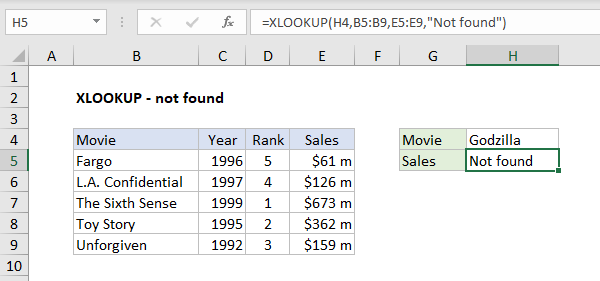
    Sometimes the lookup value does not exist, and you want a friendly message instead of an error.
    https://exceljet.net/sites/default/files/images/functions/inline/xlookup%20not%20found%20example.png

    Formula

    =XLOOKUP(E2,A2:A30,B2:B30,"Not found")
    

    Real-World Benefit

    This improves readability in dashboards and prevents confusion for non-technical users.


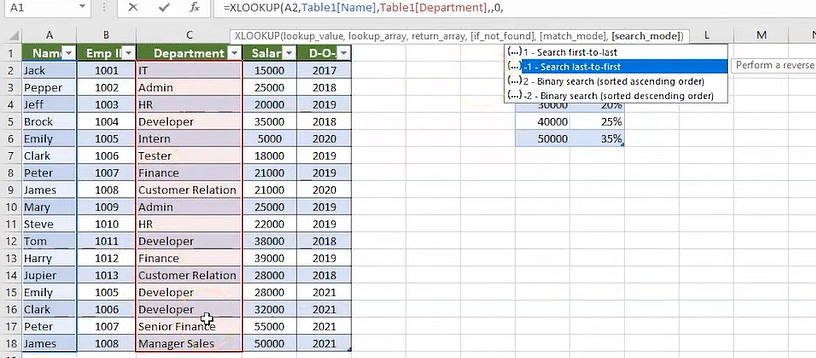
    Example 5: Lookup the Latest Value in a Dataset

    Scenario

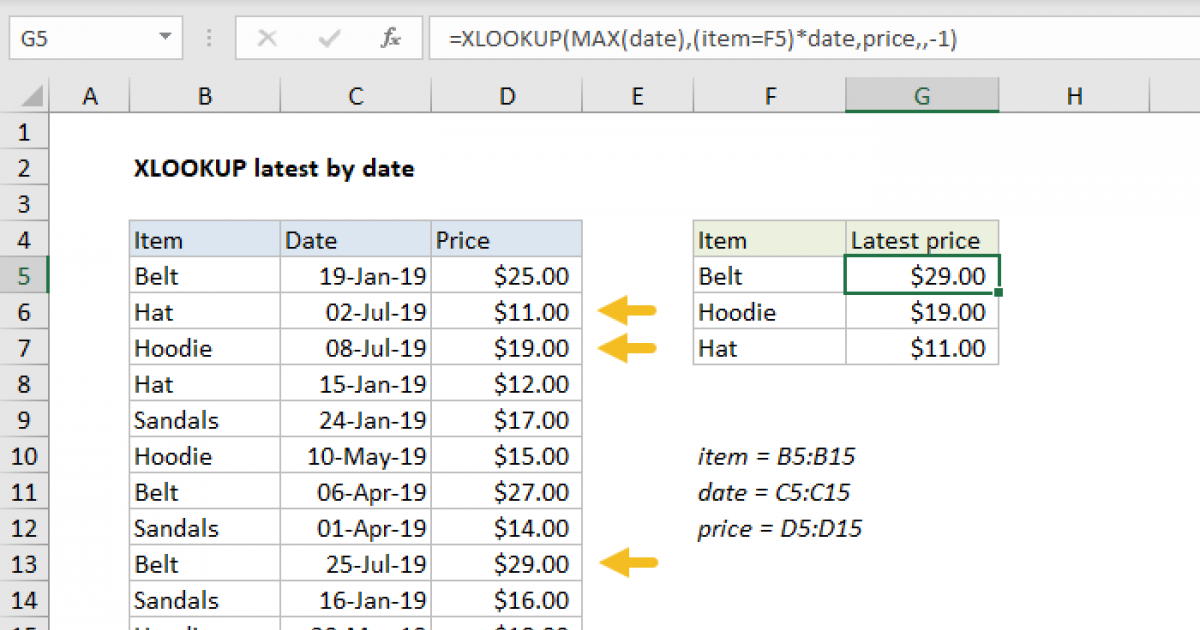
    You want to return the most recent price, score, or status for a product or customer.
    https://exceljet.net/sites/default/files/styles/og_image/public/images/formulas/XLOOKUP%20latest%20by%20date.png

    Formula

    =XLOOKUP(E2,A2:A100,B2:B100,,,-1)
    

    How It Helps

    This is useful for tracking latest transactions, updated inventory levels, or recent performance metrics.


    Example 6: Horizontal Lookup Across Rows

    Scenario

    Your data is organized across columns instead of rows.

    Formula

    =XLOOKUP(B1,B1:G1,B2:G2)
    

    Real-World Use

    Financial models and comparison tables often use this layout.


    Example 7: Combine XLOOKUP with Dynamic Arrays

    Scenario

    You want your results to automatically expand when new data is added.
    https://assets.techrepublic.com/uploads/2021/10/excelxlookup-a.jpg

    Why This Matters

    XLOOKUP works seamlessly with modern Excel features like dynamic arrays, making it ideal for scalable reports.


    Common Real-World Mistakes to Avoid

    • Using mismatched lookup and return ranges
    • Forgetting to handle missing values
    • Using entire column references on very large datasets
    • Mixing numbers stored as text with numeric values

    Avoiding these mistakes keeps your formulas efficient and reliable.


    Conclusion

    These XLOOKUP examples for real-world Excel tasks show why XLOOKUP has become the go-to lookup function for modern Excel users. Whether you are managing employees, products, prices, or reports, XLOOKUP simplifies your workflow and reduces formula complexity.

    Share. Facebook Twitter Pinterest LinkedIn Tumblr Email
    admin
    • Website

    Related Posts

    How to Freeze a Row in Excel: 7 Quick Steps to Keep Headers Visible

    April 2, 2026

    XLOOKUP Returning 0 Instead of Blank: 9 Easy Fixes You Must Know

    April 1, 2026

    XLOOKUP Formula in Excel with Example: 7 Powerful Ways to Master It Easily

    April 1, 2026
    Leave A Reply Cancel Reply

    Categories
    • Excel Formulas
    • Excel Guide
    • XLOOKUP
    Latest Posts

    How to Freeze a Row in Excel: 7 Quick Steps to Keep Headers Visible

    April 2, 2026

    How to Find Duplicates in Excel: 11 Easy Methods That Actually Work

    April 2, 2026

    How to Create Drop Down List in Excel: 9 Simple Steps for Beginners

    April 2, 2026

    XLOOKUP Returning 0 Instead of Blank: 9 Easy Fixes You Must Know

    April 1, 2026

    Why Is My VLOOKUP Not Working? 11 Common Errors and Easy Fixes

    April 1, 2026

    How to Use XLOOKUP in Excel with Two Sheets: 9 Easy Steps for Accurate Results

    April 1, 2026

    Free XLOOKUP formula generator and interactive guide for Excel users. Learn how to use XLOOKUP in Excel with step-by-step examples.
    Categories
    • Excel Formulas
    • Excel Guide
    • XLOOKUP
    Company
    • Contact Us
    • About Us
    • Privacy Policy

    How to Freeze a Row in Excel: 7 Quick Steps to Keep Headers Visible

    April 2, 2026

    How to Find Duplicates in Excel: 11 Easy Methods That Actually Work

    April 2, 2026
    © 2026 xlookup.co.uk XLOOKUP.

    Type above and press Enter to search. Press Esc to cancel.

    Powered by
    ►
    Necessary cookies enable essential site features like secure log-ins and consent preference adjustments. They do not store personal data.
    None
    ►
    Functional cookies support features like content sharing on social media, collecting feedback, and enabling third-party tools.
    None
    ►
    Analytical cookies track visitor interactions, providing insights on metrics like visitor count, bounce rate, and traffic sources.
    None
    ►
    Advertisement cookies deliver personalized ads based on your previous visits and analyze the effectiveness of ad campaigns.
    None
    ►
    Unclassified cookies are cookies that we are in the process of classifying, together with the providers of individual cookies.
    None
    Powered by