

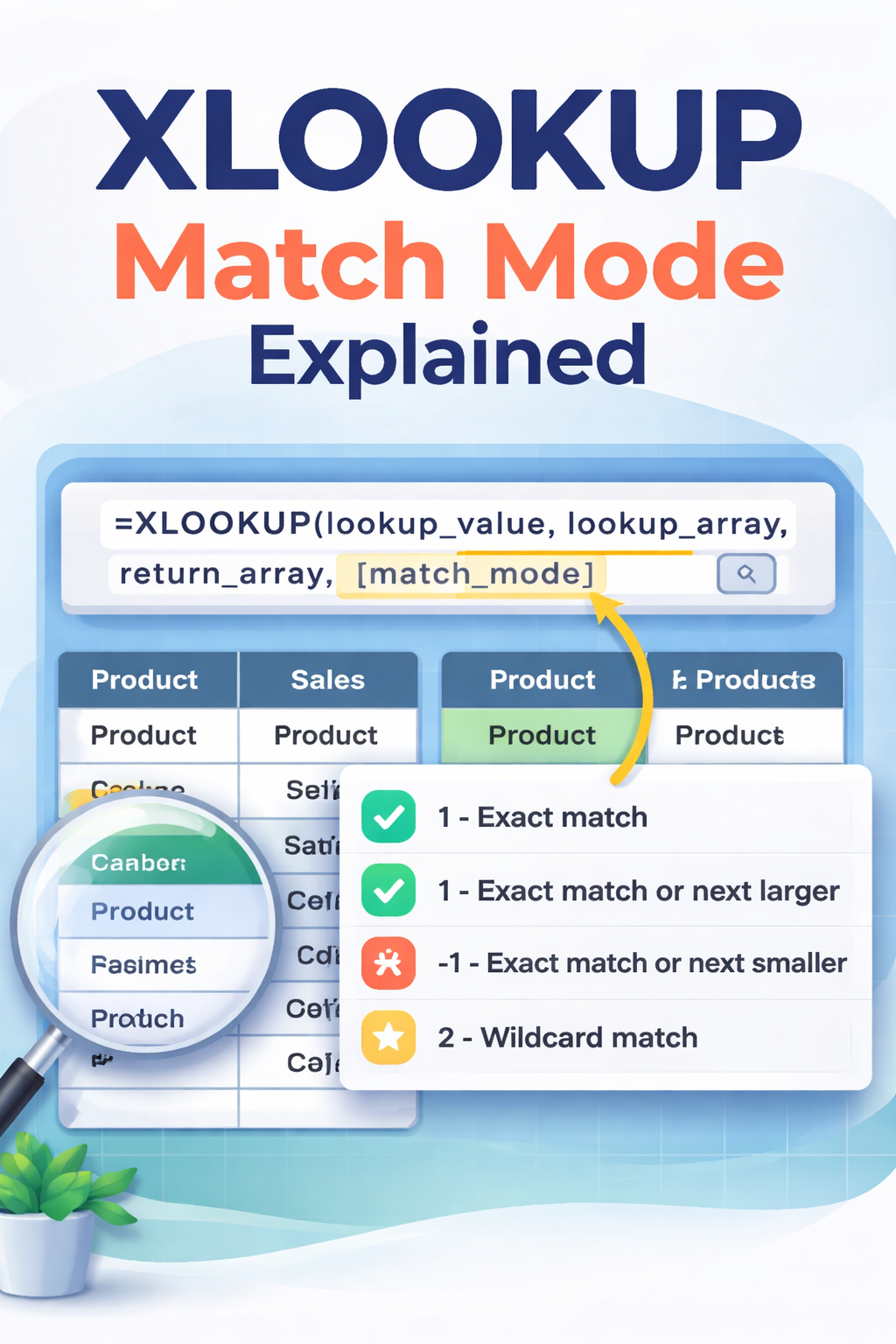
XLOOKUP match mode is a critical parameter in Excel’s revolutionary XLOOKUP function that determines how the function searches for and matches your lookup value within the lookup array, offering five distinct matching behaviors ranging from exact matches to wildcard searches and even advanced regex pattern matching. This fifth argument in the XLOOKUP formula gives users unprecedented control over matching logic, allowing exact matches (default), approximate matches returning the next smaller or larger value, wildcard searches using asterisks and question marks, and as of December 2024, sophisticated regex pattern matching for complex text scenarios. Understanding match mode transforms XLOOKUP from a simple replacement for VLOOKUP into an incredibly versatile tool capable of handling virtually any lookup scenario from precise product ID searches to flexible grade calculations and advanced data pattern recognition.
Mastering XLOOKUP match mode is essential for anyone working with data in Excel 365, Excel 2024, or Excel 2021, as this single parameter unlocks functionality that previously required multiple different functions or complex workarounds. Whether you’re building financial models that need approximate matches for tax brackets, creating inventory systems requiring exact product code matching, or analyzing survey data with partial text searches, understanding how to leverage the five match mode options—0 for exact, -1 for next smaller, 1 for next larger, 2 for wildcards, and 3 for regex—dramatically improves your spreadsheet efficiency and analytical capabilities.
Understanding XLOOKUP Function Syntax
Before diving into match mode specifics, it’s important to understand where match mode fits within the complete XLOOKUP function structure. The function uses the following syntax:
=XLOOKUP(lookup_value, lookup_array, return_array, [if_not_found], [match_mode], [search_mode])
| Argument | Required/Optional | Description |
| lookup_value | Required | The value you want to find |
| lookup_array | Required | The range to search in |
| return_array | Required | The range containing values to return |
| if_not_found | Optional | Text to display if no match found |
| match_mode | Optional | How to match (0, -1, 1, 2, or 3) |
| search_mode | Optional | Search direction (1, -1, 2, or -2) |
Match mode is the fifth argument, positioned after the if_not_found parameter. This means if you want to specify match mode without using if_not_found, you must include empty commas as placeholders.
The Five Match Mode Options
XLOOKUP offers five distinct match mode values, each serving specific lookup scenarios. Understanding when and how to use each option is crucial for effective data analysis.
| Match Mode | Value | Behavior | Data Requirements | Common Use Cases |
| Exact Match | 0 | Finds exact match only | None | Product IDs, employee numbers, specific values |
| Exact or Next Smaller | -1 | Exact match, or next smaller if not found | Sorted descending | Tax brackets, commission tiers (lower bounds) |
| Exact or Next Larger | 1 | Exact match, or next larger if not found | Sorted ascending | Shipping rates, grade cutoffs (upper bounds) |
| Wildcard Match | 2 | Partial matching using * and ? | None | Email searches, partial names, pattern matching |
| Regex Match | 3 | Complex pattern matching | None | Advanced text patterns, data validation |
Match Mode 0: Exact Match (Default)
Exact match is XLOOKUP’s default behavior, meaning if you omit the match_mode argument entirely, this is what you’ll get. This mode searches for a precise, character-for-character match of your lookup value in the lookup array.
When to Use: Use exact match when you need to find specific, unique identifiers like product codes, employee IDs, invoice numbers, or any scenario where approximate matching could produce incorrect results.
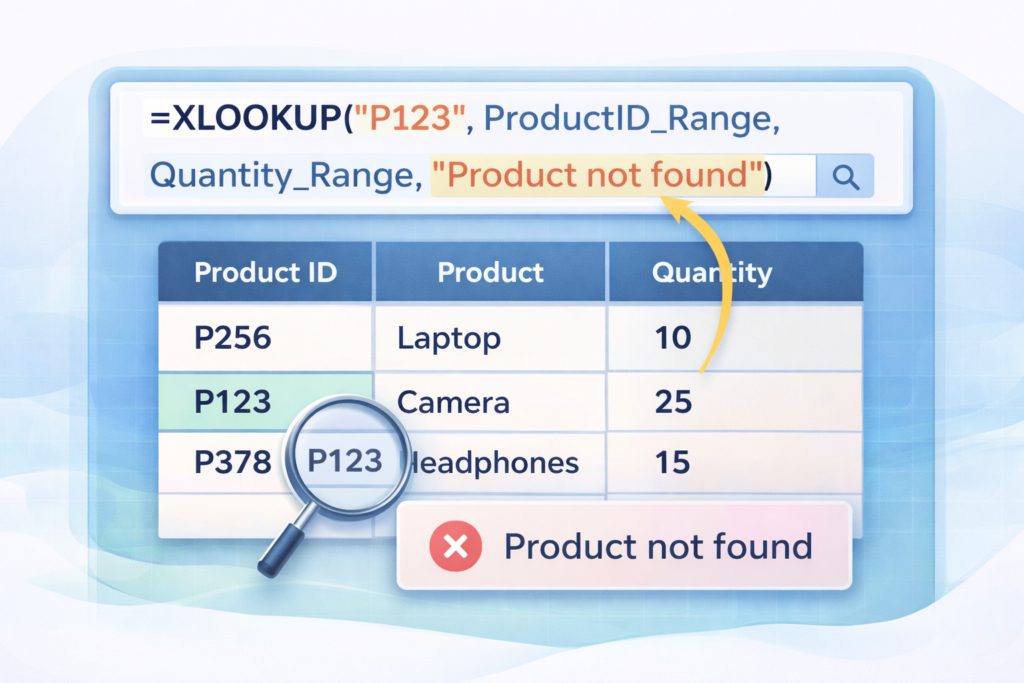
Example Scenario: Looking up product stock quantities based on product IDs.
=XLOOKUP(“P123”, ProductID_Range, Quantity_Range, “Product not found”, 0)
If “P123” exists in the ProductID_Range, XLOOKUP returns the corresponding quantity. If not found, it displays “Product not found” instead of the standard #N/A error.
Important Note: Since exact match is the default, you can achieve the same result by omitting the match_mode argument entirely:
=XLOOKUP(“P123”, ProductID_Range, Quantity_Range, “Product not found”)
Match Mode -1: Exact Match or Next Smaller Item
This match mode first searches for an exact match, but if none exists, it returns the value corresponding to the next smaller (lesser) item in the lookup array. This mode assumes your lookup array is sorted in descending order for optimal performance.
When to Use: Ideal for scenarios involving lower bounds, such as tax brackets based on income, commission rates based on sales thresholds, or discount tiers based on purchase amounts.
Example Scenario: Calculating student grades where the lookup table shows the minimum score required for each grade.
Suppose you have this grade structure:
- Score 90 or above = A
- Score 80-89 = B
- Score 70-79 = C
- Score 60-69 = D
- Below 60 = F
| Score | Grade |
| 90 | A |
| 80 | B |
| 70 | C |
| 60 | D |
| 0 | F |
=XLOOKUP(98, Score_Range, Grade_Range, , -1)
Even though 98 doesn’t exist in the score range, XLOOKUP finds the next smaller value (90) and returns the corresponding grade (A). The double comma skips the if_not_found argument.
Critical Consideration: The lookup array should be sorted in descending order (90, 80, 70, 60, 0) for this mode to work correctly. If unsorted, you may get incorrect results that look perfectly legitimate but are wrong.
Match Mode 1: Exact Match or Next Larger Item
This match mode works oppositely to -1, searching first for an exact match, then returning the value corresponding to the next larger (greater) item if no exact match exists. This mode assumes your lookup array is sorted in ascending order.
When to Use: Best for scenarios involving upper bounds or ceilings, such as shipping costs based on weight brackets, pricing tiers with maximum thresholds, or tax calculations using upper limit structures.
Example Scenario: Applying quantity-based discounts where the table shows the maximum quantity for each discount level.
Suppose purchases up to $50 get no discount, $51-100 get 5% off, $101-200 get 10% off, and above $200 get 15% off:
| Sales Amount | Discount |
| 50 | 0% |
| 100 | 5% |
| 200 | 10% |
| 999999 | 15% |
=XLOOKUP(75, Sales_Range, Discount_Range, , 1)
Since 75 doesn’t exist exactly, XLOOKUP finds the next larger value (100) and returns the corresponding discount (5%).
Important: The lookup array must be sorted in ascending order (50, 100, 200, 999999) for accurate results.
Practical Comparison: Match Mode -1 vs Match Mode 1
| Aspect | Match Mode -1 | Match Mode 1 |
| Primary Use | Lower bounds/minimums | Upper bounds/maximums |
| Sort Order | Descending | Ascending |
| Example Structure | “90 and above gets A” | “Up to 100 gets 5% discount” |
| Next Match Direction | Finds next smaller value | Finds next larger value |
| Common Applications | Income tax brackets, grade cutoffs | Shipping weight tiers, volume discounts |
Match Mode 2: Wildcard Match
Wildcard match enables partial or pattern-based matching using Excel’s standard wildcard characters: asterisk (*) for any sequence of characters and question mark (?) for any single character.
When to Use: Perfect for searching partial names, email addresses containing specific domains, product codes with known patterns, or any scenario where you know only part of the lookup value.
Wildcard Characters:
- * (asterisk) – Represents any number of characters (including zero)
- ? (question mark) – Represents exactly one character
- ~ (tilde) – Escape character for literal asterisk or question mark
Example Scenarios:
Finding customers with email addresses from a specific domain:
=XLOOKUP(“*@company.com”, Email_Range, Customer_Range, “No match”, 2)
Finding product codes starting with “XL”:
=XLOOKUP(“XL*”, ProductCode_Range, Description_Range, , 2)
Finding phone numbers with a specific area code:
=XLOOKUP(“555-???-????”, Phone_Range, Name_Range, , 2)
Important Notes:
- You must explicitly set match_mode to 2 for wildcards to work
- XLOOKUP returns the first match it finds
- Use the tilde (~) before * or ? if you want to search for the literal character rather than the wildcard
Match Mode 3: Regex Match (Advanced Pattern Matching)
Introduced in December 2024 for Excel 365 users, match mode 3 enables regular expression (regex) pattern matching—an incredibly powerful text matching language that allows complex pattern searches far beyond basic wildcards.
When to Use: Ideal for advanced scenarios like validating data formats (email addresses, phone numbers, postal codes), extracting specific text patterns, handling messy data with multiple variations, or performing sophisticated text analysis.
Example Scenario: Searching for “USA” in data where it appears inconsistently as “USA”, “United States”, “U.S.A.”, or “US”:
=XLOOKUP(“USA|United States|U\.S\.A\.|US”, Country_Range, Data_Range, , 3)
The vertical bar (|) means “or” in regex, allowing the formula to match any of these variations.
Common Regex Tokens:
| Token | Meaning | Example |
| . | Any single character | a.c matches “abc”, “a1c”, “a@c” |
| * | Zero or more of preceding | ab*c matches “ac”, “abc”, “abbc” |
| + | One or more of preceding | ab+c matches “abc”, “abbc” but not “ac” |
| ? | Zero or one of preceding | colou?r matches “color” and “colour” |
| | | OR operator | cat|dog matches “cat” or “dog” |
| [] | Character class | [aeiou] matches any vowel |
| \d | Any digit | \d\d\d matches any 3-digit number |
| ^ | Start of string | ^The matches “The” only at start |
| $ | End of string | end$ matches “end” only at end |
Practical Example: Finding email addresses from multiple domains:
=XLOOKUP(“.*@(gmail|yahoo|outlook)\.com”, Email_Range, Name_Range, , 3)
This matches emails ending with @gmail.com, @yahoo.com, or @outlook.com.
Important Considerations:
- Regex mode is currently in preview and available only in Excel for Microsoft 365
- Not available in Excel 2024, 2021, or earlier versions
- Results may change as Microsoft refines this feature
- Microsoft recommends not using in critical workbooks until generally available
Choosing the Right Match Mode
| Your Scenario | Recommended Match Mode | Example |
| Need precise, specific match | 0 (Exact) | Employee ID lookup |
| Using minimum thresholds | -1 (Next Smaller) | Tax brackets, grade minimums |
| Using maximum limits | 1 (Next Larger) | Shipping weight limits, discount caps |
| Know only part of the value | 2 (Wildcard) | Partial email search |
| Complex text patterns | 3 (Regex) | Data validation, messy data cleanup |
| General lookup without special needs | 0 (Default) | Most everyday scenarios |
Common Mistakes and How to Avoid Them
Mistake 1: Wrong Sort Order for Approximate Matches
When using match_mode -1 or 1, incorrect sorting produces wrong results that appear legitimate. Always verify your lookup array is sorted correctly:
- Match mode -1 requires descending sort (largest to smallest)
- Match mode 1 requires ascending sort (smallest to largest)
Mistake 2: Forgetting to Set Match Mode for Wildcards
Wildcard characters (* and ?) only work when match_mode is explicitly set to 2. Without this, XLOOKUP treats asterisks and question marks as literal characters to match.
Wrong: =XLOOKUP(“*@company.com”, Email_Range, Name_Range)
Right: =XLOOKUP(“*@company.com”, Email_Range, Name_Range, , 2)
Mistake 3: Not Using Placeholder Commas
If you want to specify match_mode without if_not_found, you must include an empty comma as a placeholder:
Wrong: =XLOOKUP(value, lookup, return, 2)
Right: =XLOOKUP(value, lookup, return, , 2)
Mistake 4: Assuming Regex Works in All Excel Versions
Match mode 3 (regex) is only available in Excel for Microsoft 365 and is still in preview. Using it in other versions will cause errors.
Combining Match Mode with Other XLOOKUP Features
Match Mode + If_Not_Found
Customize error messages while specifying match behavior:
=XLOOKUP(“*@gmail.com”, Email_Range, Name_Range, “No Gmail users found”, 2)
Match Mode + Search Mode
Combine match behavior with search direction. For example, find the last occurrence using wildcard matching:
=XLOOKUP(“Sales*”, Department_Range, Revenue_Range, , 2, -1)
This finds the last department name starting with “Sales” by combining wildcard match (2) with reverse search (-1).
Availability and Version Compatibility
| Excel Version | Match Modes Available |
| Excel for Microsoft 365 | All modes: 0, -1, 1, 2, 3 (regex in preview) |
| Excel 2024 | Modes: 0, -1, 1, 2 (no regex) |
| Excel 2021 | Modes: 0, -1, 1, 2 (no regex) |
| Excel 2019 and earlier | XLOOKUP not available |
| Excel for Web | All modes including regex |
Note: XLOOKUP is not backward compatible. Workbooks containing XLOOKUP formulas will show #NAME? errors when opened in Excel 2019 or earlier versions.
Conclusion
XLOOKUP match mode represents a quantum leap in Excel’s lookup capabilities, providing unprecedented flexibility and control over how data searches execute. The five match modes—exact match for precision, next smaller and next larger for approximate matching in different directions, wildcards for partial text searches, and regex for complex pattern matching—cover virtually every lookup scenario you’ll encounter in data analysis. Understanding when to use each mode transforms XLOOKUP from a simple VLOOKUP replacement into a sophisticated data retrieval powerhouse that can handle everything from basic product lookups to advanced pattern recognition.
For anyone working seriously with data in modern Excel versions, mastering XLOOKUP match mode is no longer optional—it’s essential. The ability to choose the appropriate match mode for your specific scenario, whether that’s exact matching for inventory systems, approximate matching for financial calculations, wildcard matching for flexible searches, or regex matching for complex data validation, dramatically improves spreadsheet efficiency and analytical accuracy. As Excel continues evolving with features like regex support, XLOOKUP with its flexible match modes remains at the forefront of what makes Excel the world’s most powerful spreadsheet platform for professionals who demand precision, flexibility, and control in their data analysis workflows.
