

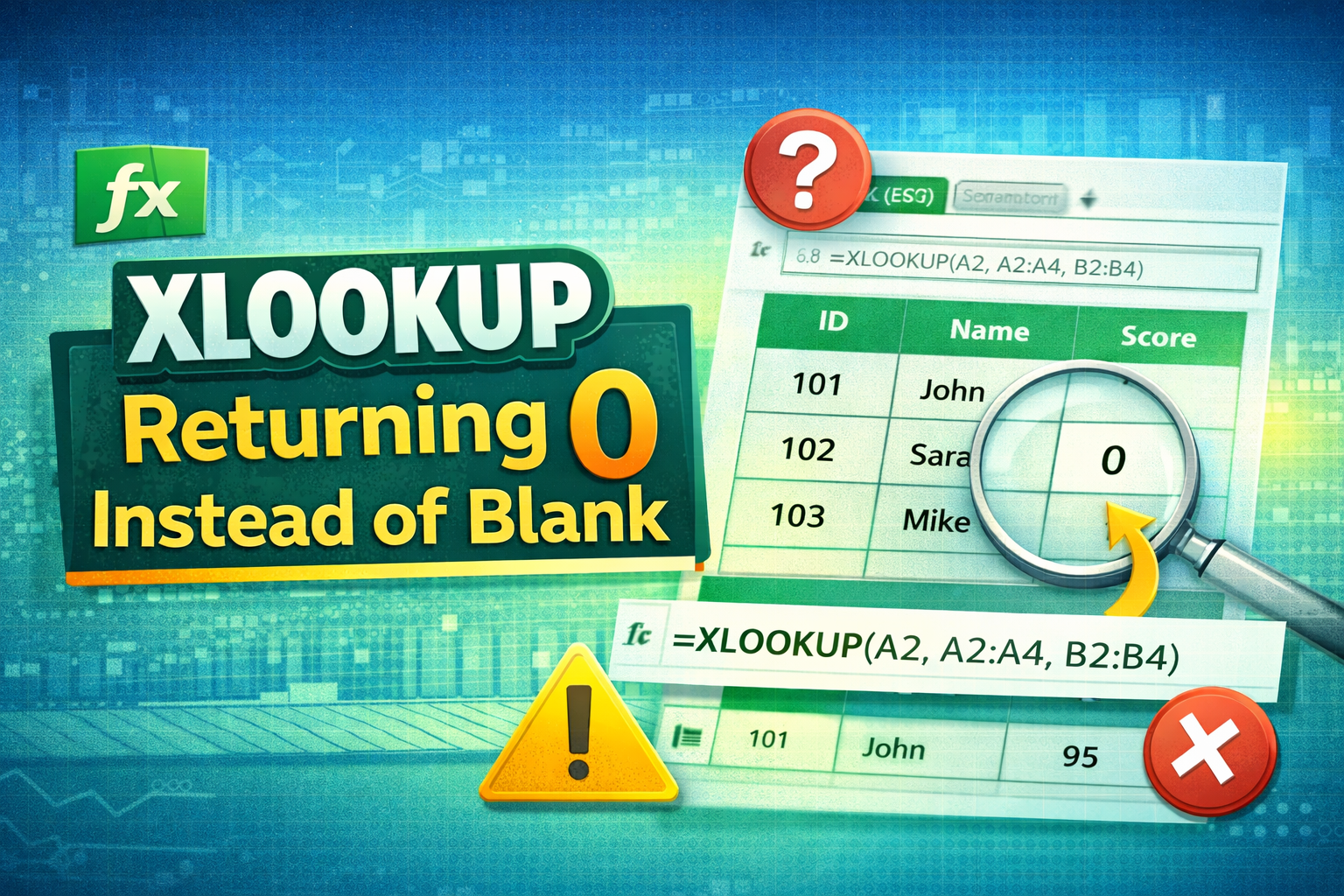
🔍 What Does It Mean When XLOOKUP Returns 0?
When dealing with Excel formulas, many users face the issue of xlookup returning 0 instead of blank. This happens when XLOOKUP finds a match, but the corresponding return cell is empty.
Instead of leaving the result blank, Excel displays 0, which can be confusing—especially in reports and dashboards.
⚠️ Why This Issue Happens
- Excel treats empty cells as zero in calculations
- XLOOKUP returns the actual value stored (which may be blank but interpreted as 0)
- Formatting differences can affect display
📊 Understanding XLOOKUP Behavior
🧠 How XLOOKUP Handles Blank Cells
XLOOKUP doesn’t truly return “nothing.” If the matched cell is empty, Excel interprets it as:
👉 0 (zero)
📌 Default Return Values Explained
- Blank cell → Often displayed as 0
- Text cell → Returns text
- Error → Returns error unless handled
🚨 Common Causes of XLOOKUP Returning 0 Instead of Blank
📉 Empty Cells in Return Array
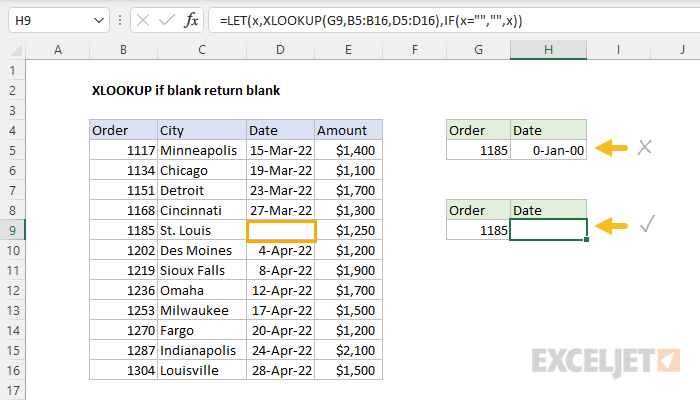
If your return column has empty cells, XLOOKUP may output 0.
🧮 Formula Returning Zero
Sometimes the return cell contains a formula that outputs 0.
👀 Hidden Values
Cells may look blank but contain:
- Spaces
- Hidden formulas
- Zero values
📊 Syntax of XLOOKUP
🧩 Formula Structure
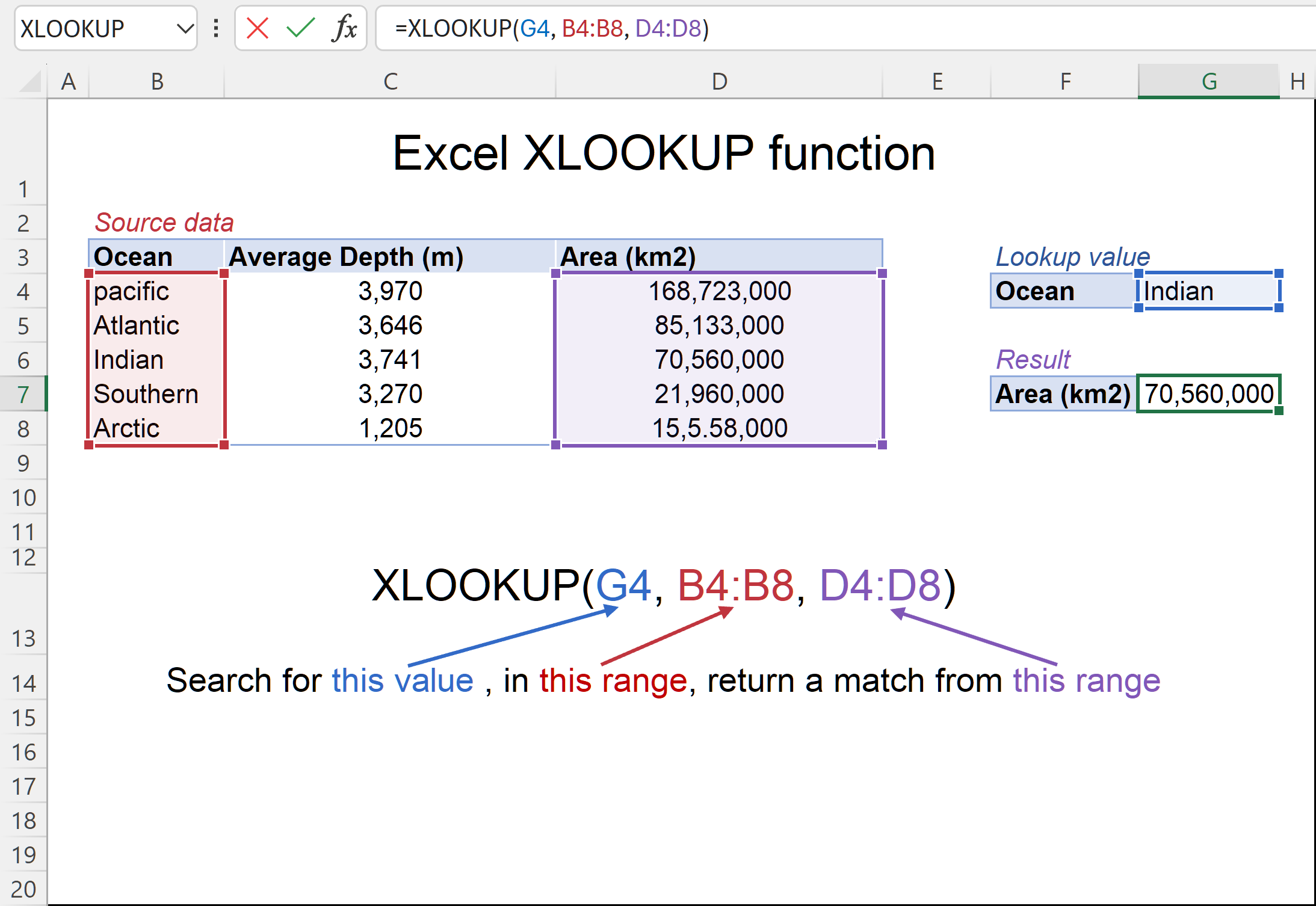
=XLOOKUP(lookup_value, lookup_array, return_array, [if_not_found])
📌 Argument Breakdown
- lookup_value → Value to search
- lookup_array → Search range
- return_array → Result range
- if_not_found → Optional fallback
🪜 Step-by-Step Fixes
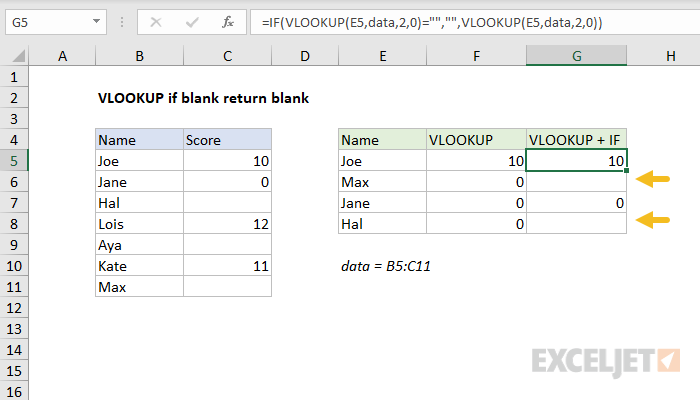
✅ Fix 1: Use IF Statement
=IF(XLOOKUP(A2, A2:A10, B2:B10)="", "", XLOOKUP(A2, A2:A10, B2:B10))
👉 Returns blank instead of 0
✅ Fix 2: Use IFNA Function
=IFNA(XLOOKUP(A2, A2:A10, B2:B10), "")
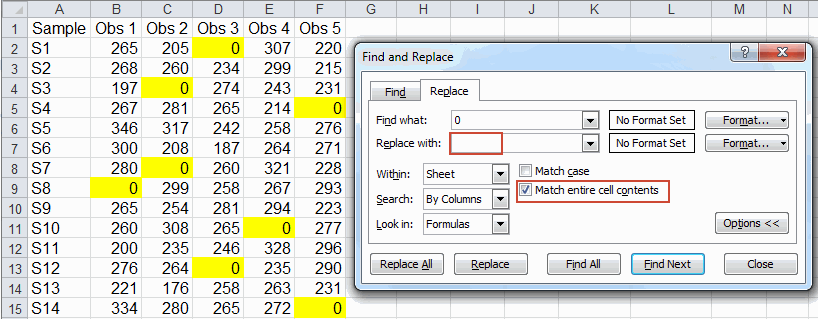
✅ Fix 3: Replace 0 with Blank
=IF(XLOOKUP(A2, A2:A10, B2:B10)=0, "", XLOOKUP(A2, A2:A10, B2:B10))
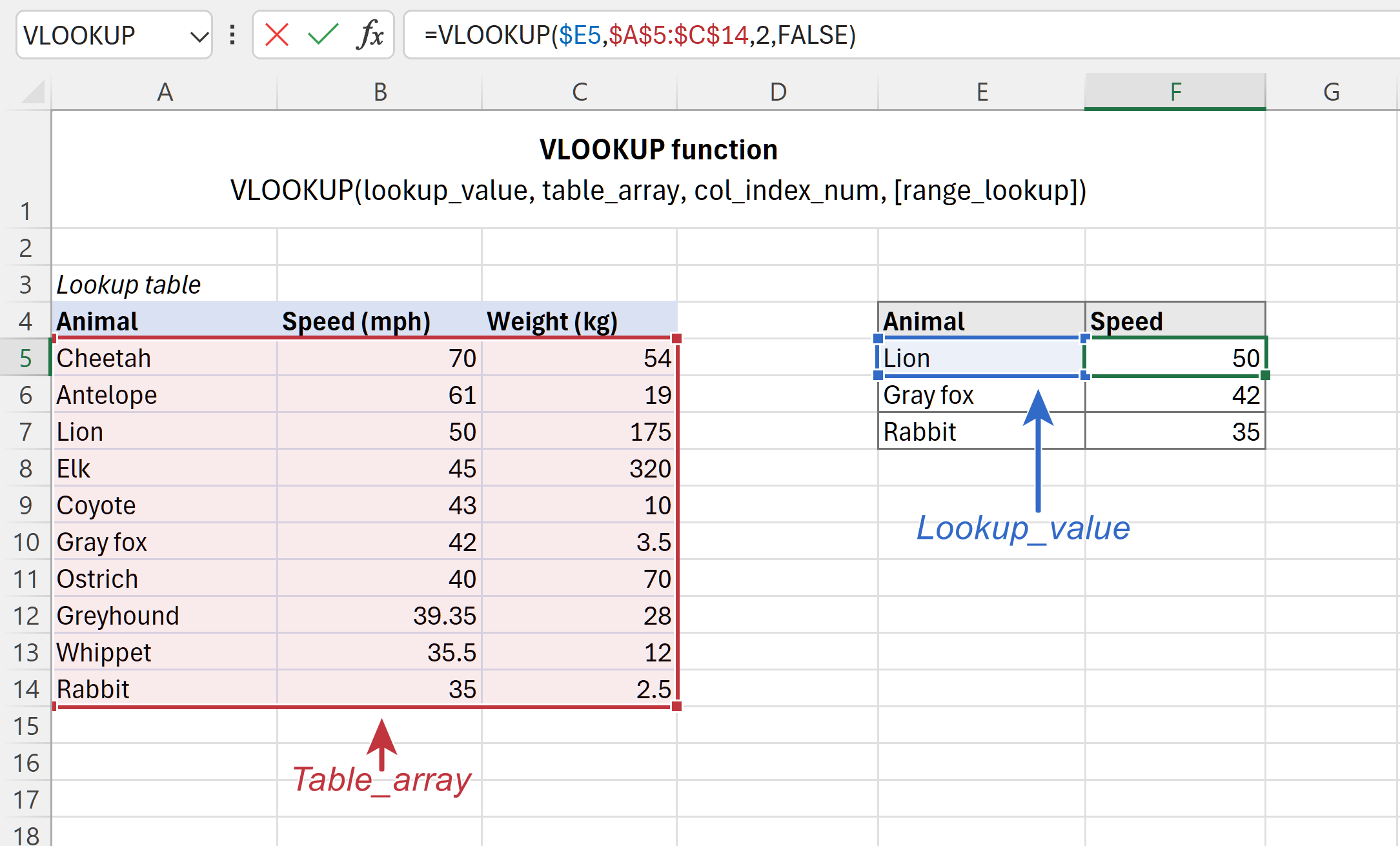
📷 Practical Examples with Screenshots
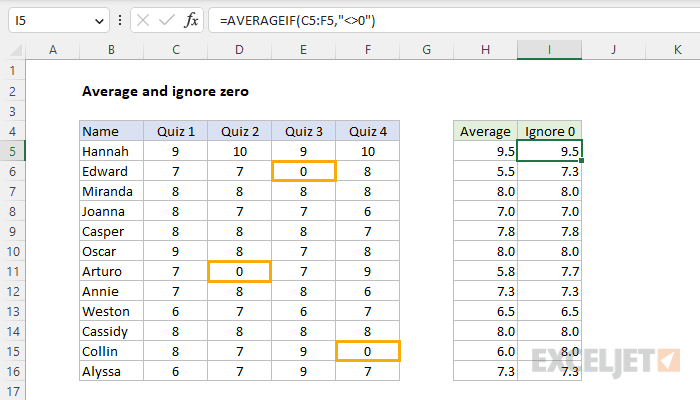
❌ Example Showing the Issue


✅ Corrected Formula Example
⚡ Advanced Solutions
🧠 Using LET Function
=LET(result, XLOOKUP(A2, A2:A10, B2:B10), IF(result="", "", result))
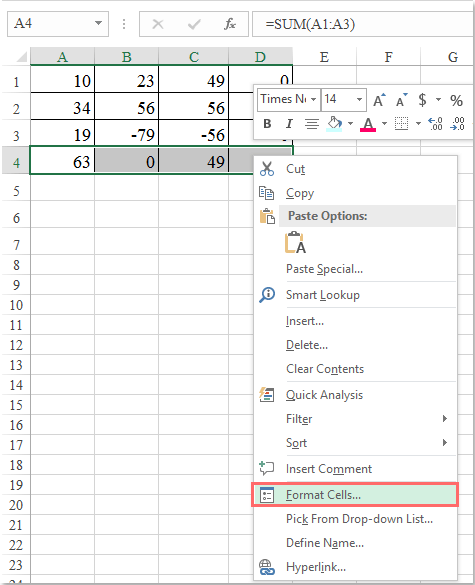
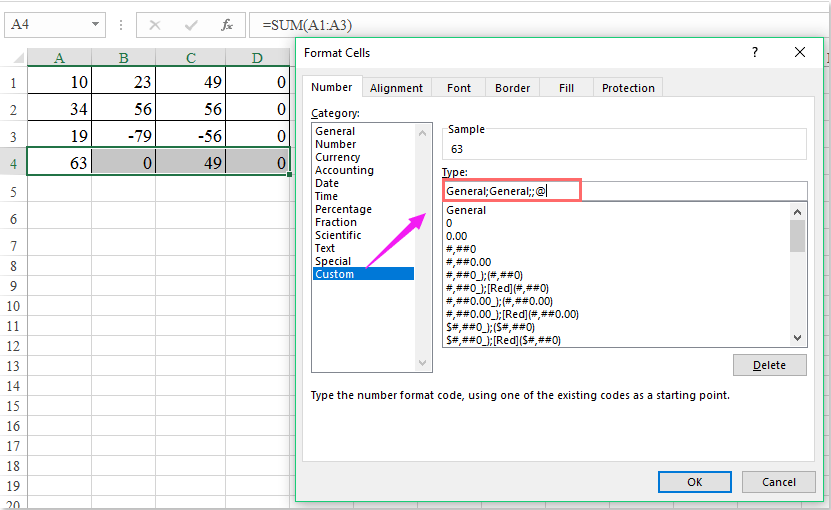
🎨 Custom Formatting Trick
- Select cells
- Use custom format:
0;-0;;@
👉 Hides zeros visually
🎯 Tips to Avoid This Issue
✅ Best Practices
- Clean your dataset
- Avoid unnecessary formulas
- Check for hidden values
🧹 Data Cleaning Tips
- Use TRIM
- Use CLEAN
- Remove blanks properly
❓ FAQs
1. Why does XLOOKUP return 0 instead of blank?
Because Excel interprets empty cells as zero.
2. How do I stop XLOOKUP from showing 0?
Use IF or custom formatting.
3. Is this an Excel bug?
No, it’s expected behavior.
4. Can formatting fix this issue?
Yes, custom formatting can hide zeros.
5. Does IFNA fix this problem?
Only for errors, not blank cells.
6. What’s the best solution?
Using IF with XLOOKUP.
🏁 Conclusion
The issue of xlookup returning 0 instead of blank is common but easy to fix once you understand how Excel treats empty cells.
By applying the methods above—especially IF formulas—you can ensure clean, professional-looking results in your spreadsheets.
