

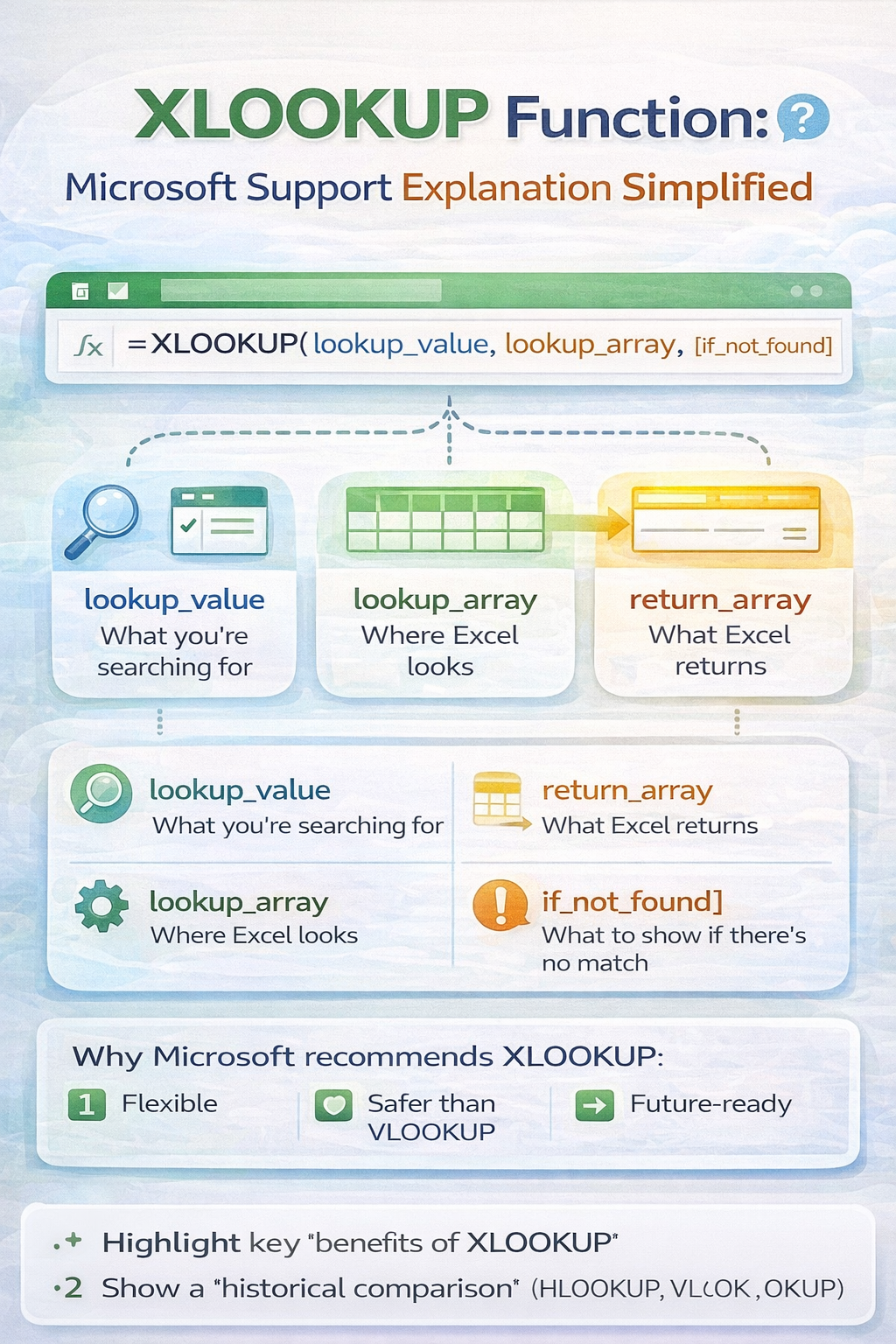
Microsoft describes XLOOKUP as a modern replacement for older lookup functions like VLOOKUP and HLOOKUP. While the official documentation is accurate, it can feel technical and confusing for beginners.
This article provides a simplified explanation of the XLOOKUP function, based on Microsoft Support guidance, but rewritten in plain language with practical examples.
What Is the XLOOKUP Function?
According to Microsoft, XLOOKUP is a function that searches for a value in a range and returns a matching value from another range.
In simple terms, XLOOKUP helps Excel:
- Find something
- Match it correctly
- Return the result you want
It works whether your data is arranged vertically or horizontally.
Why Microsoft Introduced XLOOKUP
Microsoft created XLOOKUP to fix common problems with older lookup functions.
Older methods required:
- Column numbers that could break formulas
- Data arranged in a specific order
- Extra functions for error handling
XLOOKUP removes these limitations and gives users a safer and easier lookup tool.
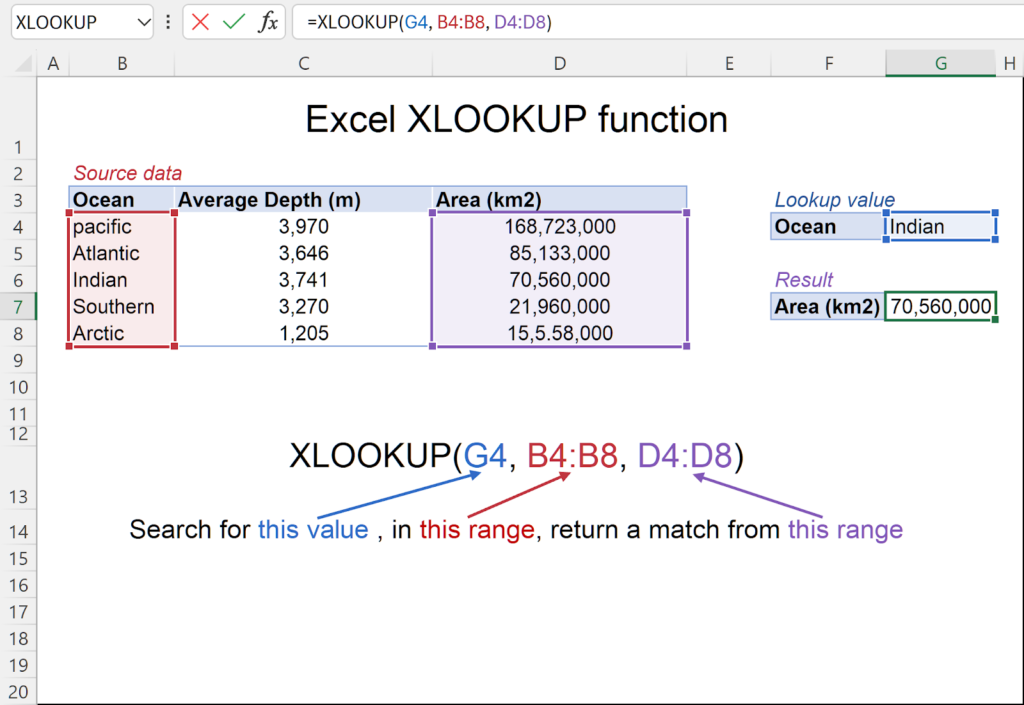
Basic XLOOKUP Syntax Explained Simply
Microsoft shows the XLOOKUP syntax like this:
=XLOOKUP(lookup_value, lookup_array, return_array, [if_not_found], [match_mode], [search_mode])
Here is what each part means in plain language:
- lookup_value is what you want to find
- lookup_array is where Excel searches
- return_array is where Excel gets the answer
- if_not_found is what Excel shows if no match exists
- match_mode controls exact or approximate matches
- search_mode controls search direction
Most users only need the first three arguments.
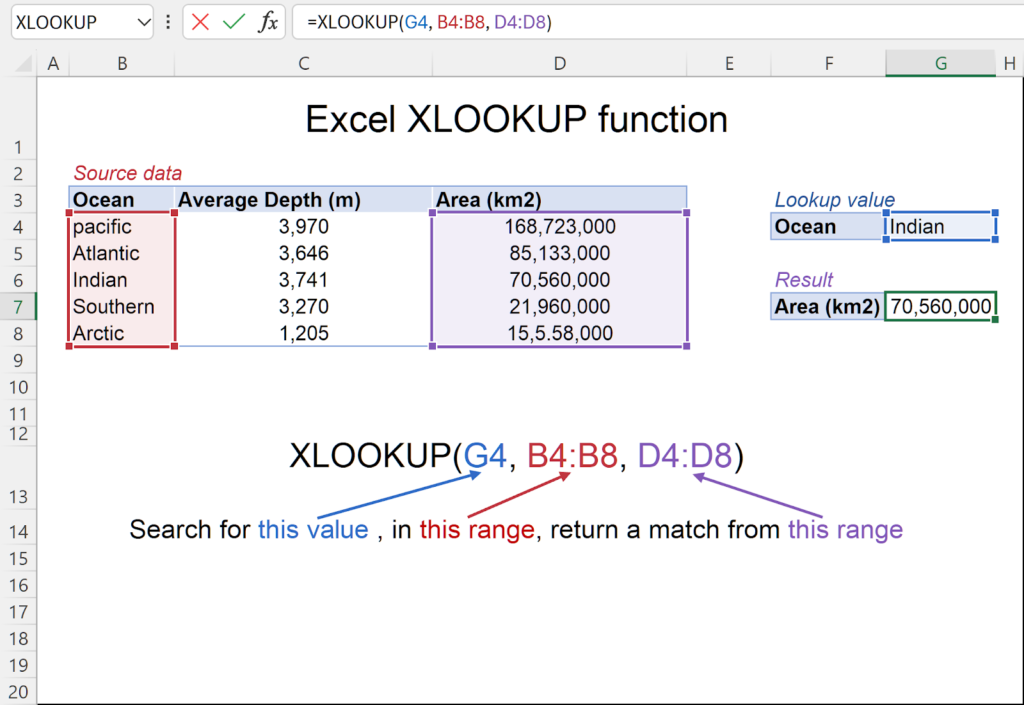
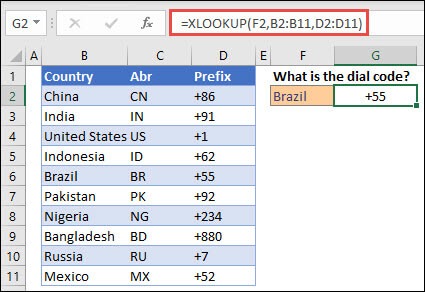
Simple Example Based on Microsoft Support
Scenario:
- Column A has employee IDs
- Column B has employee names
You want Excel to return the name based on an ID.
Formula:
=XLOOKUP(E2, A2:A10, B2:B10)
What Excel does:
- Looks for the ID in column A
- Finds the matching row
- Returns the name from column B
Exact Match Is the Default
Microsoft emphasizes that XLOOKUP uses exact match automatically.
This means:
- You do not need extra arguments
- You avoid common lookup mistakes
- Results are more reliable
This alone makes XLOOKUP safer than VLOOKUP.
Built In Error Handling Explained
Microsoft Support highlights the optional if_not_found argument.
Example:
=XLOOKUP(E2, A2:A10, B2:B10, “Not Found”)
Instead of showing an error, Excel displays a clear message. This keeps spreadsheets easy to understand.
Searching Left or Right Without Issues
Microsoft explains that XLOOKUP can return values from any direction.
You can:
- Search left
- Search right
- Search up
- Search down
No data rearranging is needed.
This flexibility removes one of the biggest frustrations with older lookup functions.
Horizontal Lookups Made Easy
XLOOKUP replaces HLOOKUP completely.
If your data runs across rows instead of columns, the same XLOOKUP function works without changes.
This consistency is a key improvement highlighted in Microsoft documentation.
Multiple Results and Dynamic Arrays
Microsoft Support also notes that XLOOKUP can return multiple values at once.
Example:
=XLOOKUP(A2, A2:A10, B2:D10)
Excel spills the results into nearby cells automatically, saving time and reducing duplicate formulas.
Which Excel Versions Support XLOOKUP?
Microsoft states that XLOOKUP is available in:
- Excel for Microsoft 365
- Excel 2021
- Excel 2024 and newe
It is not available in older Excel versions like Excel 2019 or earlier.
Why Microsoft Recommends XLOOKUP
Microsoft Support recommends XLOOKUP because it:
- Reduces formula errors
- Improves readability
- Handles missing data gracefully
- Replaces multiple older functions
For most users, XLOOKUP is now the preferred lookup method.
Final Summary
The XLOOKUP function, as explained by Microsoft Support, is designed to make lookups easier, safer, and more flexible.
By understanding it in simple terms, you can:
- Build cleaner spreadsheets
- Avoid common lookup errors
- Replace outdated formulas confidently
XLOOKUP is not just an upgrade. It is the new standard.
