

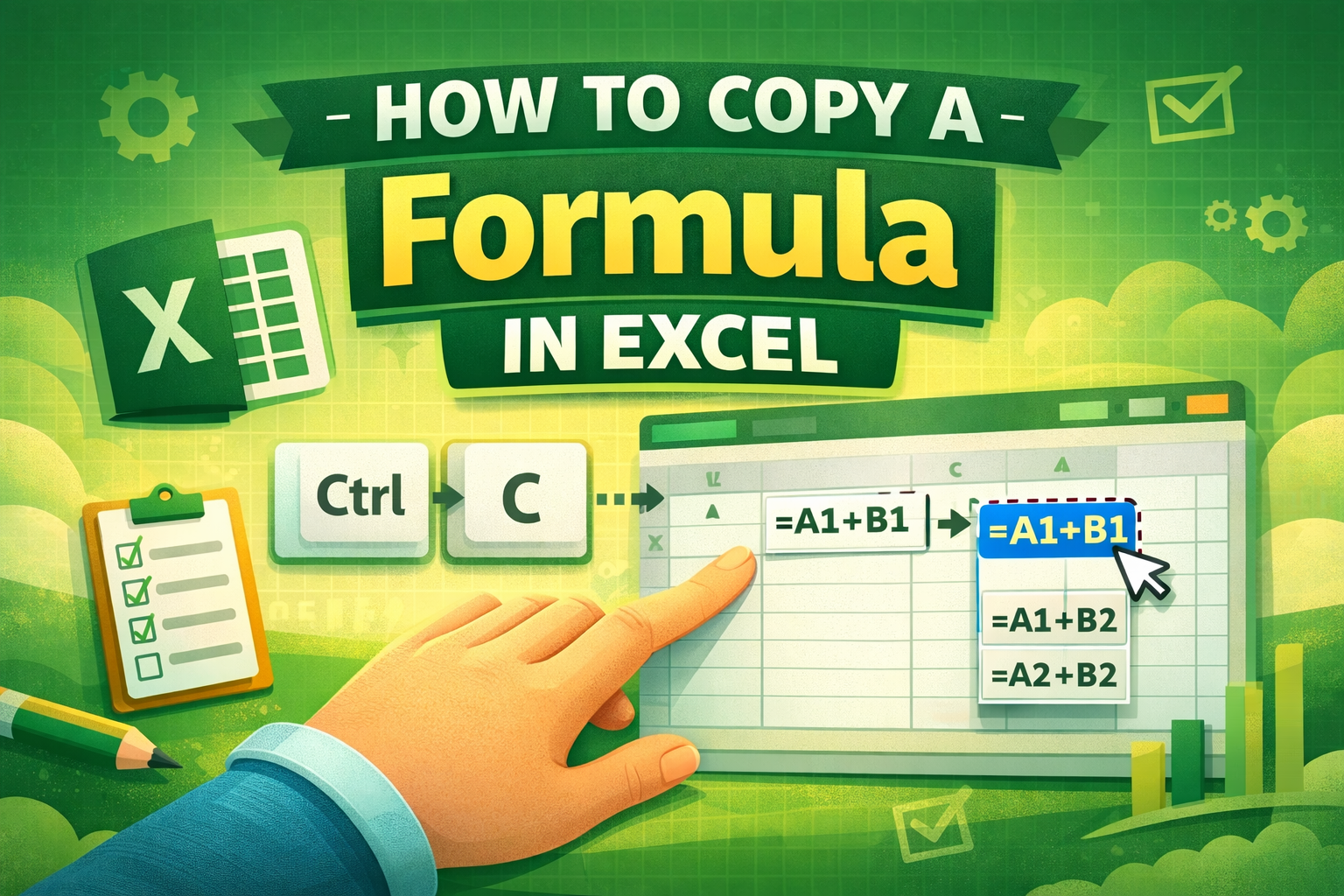
What Does Copying a Formula Mean?
Copying a formula in Excel means duplicating a formula from one cell to another while maintaining or adjusting its references.
Why Copying Formulas is Important
- Saves time and effort
- Reduces manual errors
- Helps automate calculations
- Improves efficiency
🛠️ Basic Methods to Copy a Formula in Excel
Using Copy and Paste
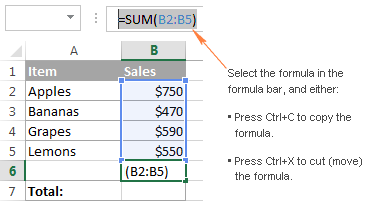

- Select the cell with the formula
- Press Ctrl + C
- Select another cell
- Press Ctrl + V
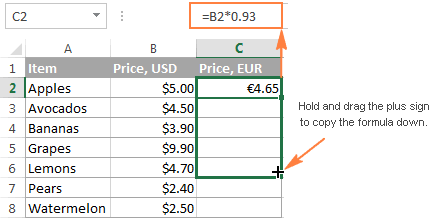
Using Drag Fill Handle
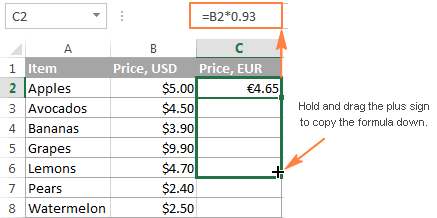

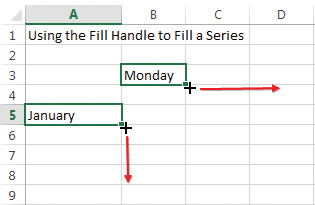
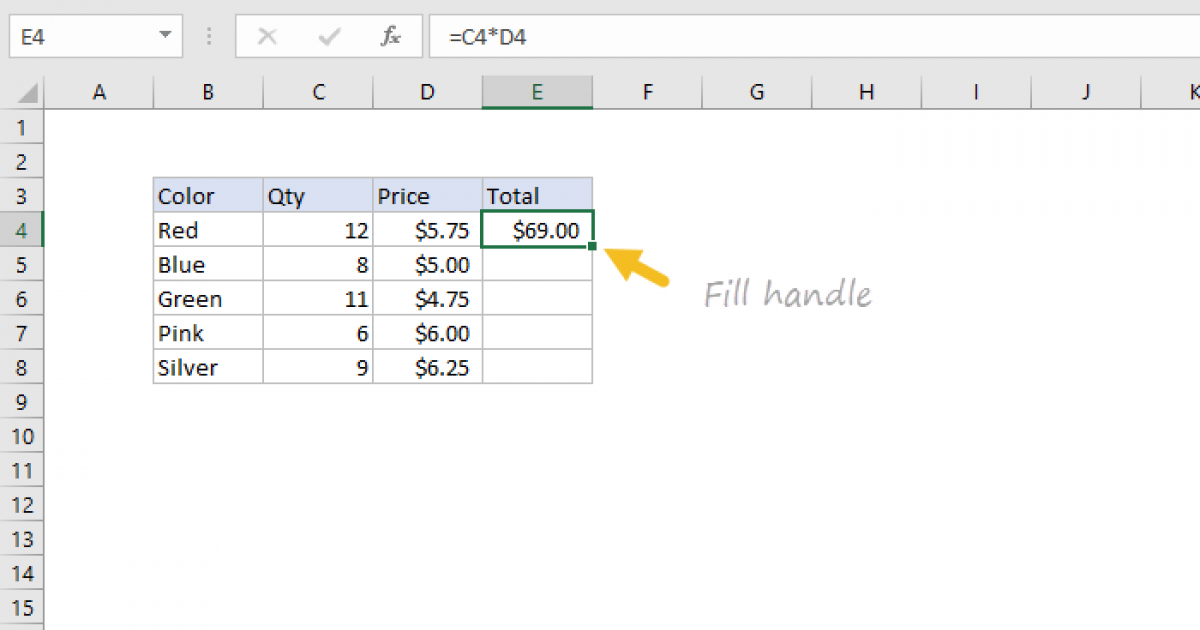
- Click on the cell
- Drag the small square at the bottom-right corner
- Release to copy the formula
Using Keyboard Shortcuts
- Ctrl + D → Copy down
- Ctrl + R → Copy right
🔍 Understanding Relative and Absolute References
What is a Relative Reference?
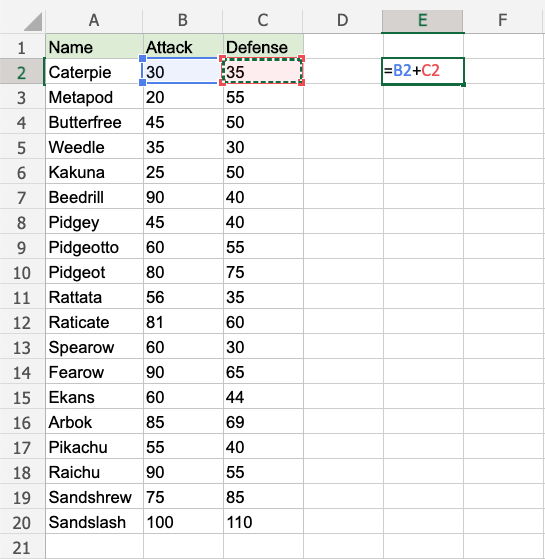
A relative reference changes automatically when copied.
Example:
=A1+B1
When copied down, it becomes:
=A2+B2
What is an Absolute Reference?
An absolute reference stays fixed.
Example:
=$A$1+$B$1
This will not change when copied.
📋 Step-by-Step Guide to Copy a Formula in Excel
Step 1: Enter the Formula

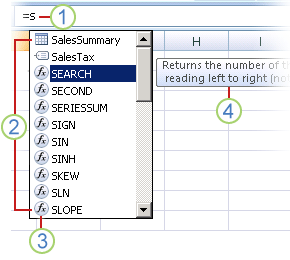
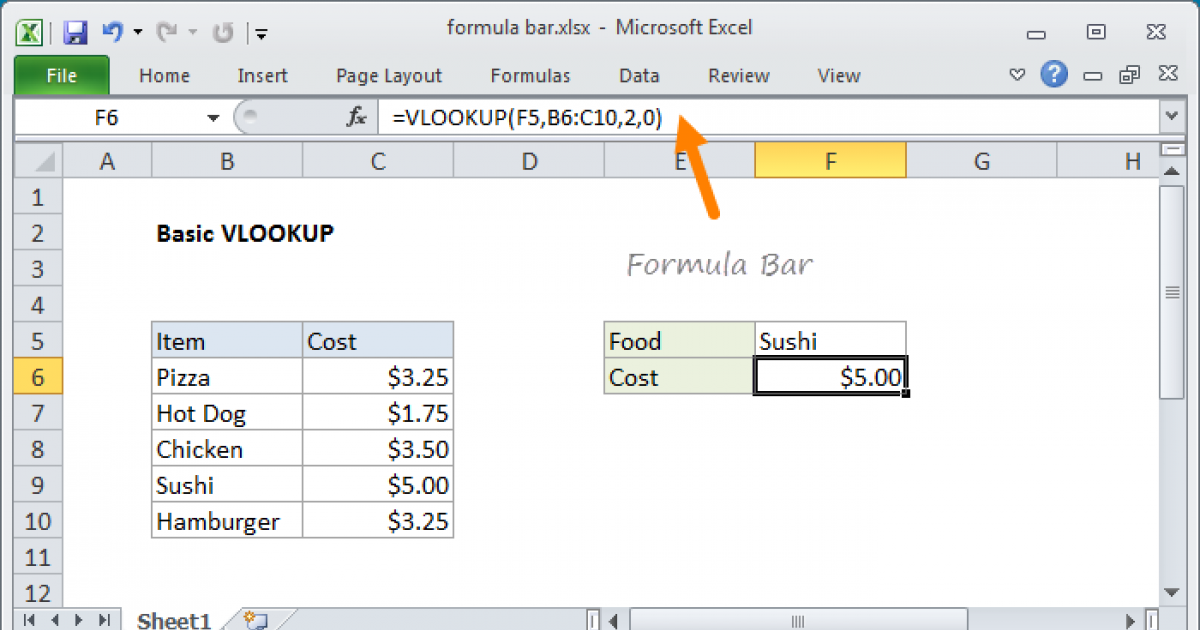

Type your formula in a cell (e.g., =A1+B1).
Step 2: Select the Cell
Click the cell containing the formula.
Step 3: Copy the Formula


Press Ctrl + C.
Step 4: Paste or Drag
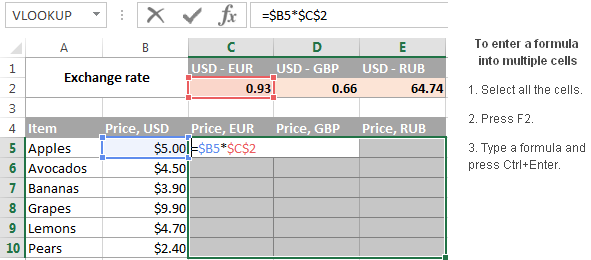


Paste using Ctrl + V or drag the fill handle.
🔒 Copying Formulas Without Changing References
Using $ Symbol
- Lock rows/columns using
$ - Example:
$A$1
Using Paste Special
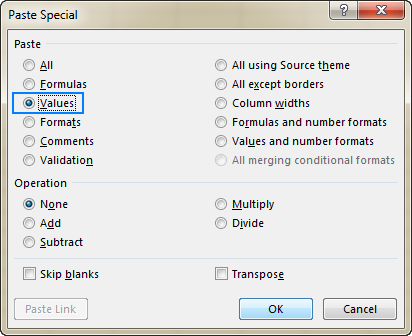
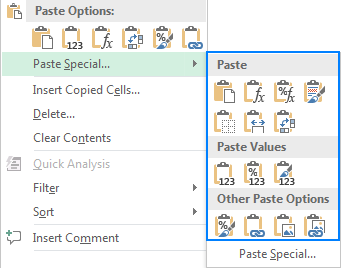

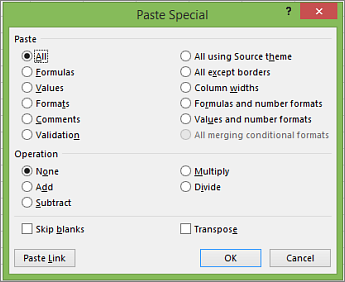
- Right-click → Paste Special
- Choose Formulas
📄 Copying Formulas Across Sheets
- Use references like:
=Sheet1!A1
- Copy and paste normally
⚠️ Common Errors and Fixes
Reference Errors
- Happens when referenced cells are deleted
- Fix by updating references
Formula Not Updating
- Check if calculation mode is set to Automatic
💡 Advanced Tips for Efficient Formula Copying
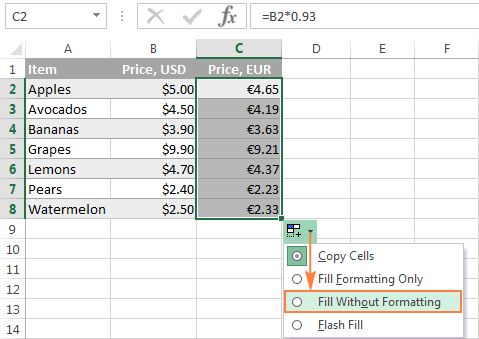
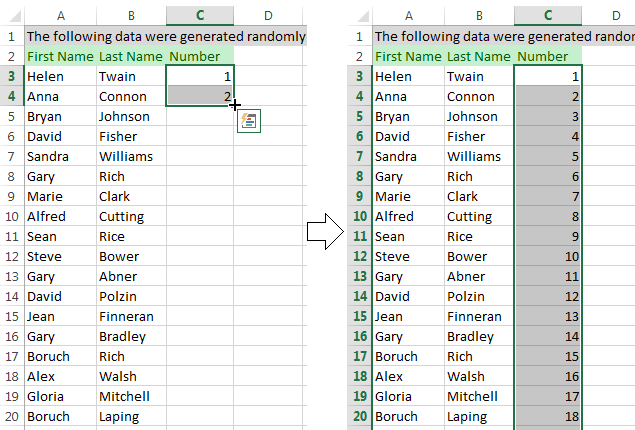
Using AutoFill Options
- Choose:
- Copy Cells
- Fill Series
Double-Click Fill Handle
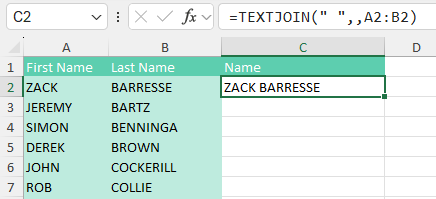
- Double-click the fill handle
- Excel auto-fills down the column
📊 Real-Life Examples
- Calculating totals in budgets
- Applying tax formulas
- Generating reports
🎥 Video Tutorial: Copying Formulas in Excel
❓ FAQs
1. How do I copy a formula without changing cell references?
Use absolute references with $ or paste as values.
2. Why is my formula not copying correctly?
Check if references are relative instead of absolute.
3. Can I copy formulas to non-adjacent cells?
Yes, use Ctrl + Click to select multiple cells before pasting.
4. What is the fastest way to copy a formula?
Use the fill handle or Ctrl + D.
5. How do I copy formulas across worksheets?
Use sheet references like Sheet1!A1.
6. Can I copy only the result and not the formula?
Yes, use Paste Special → Values.
✅ Conclusion
Mastering how to copy a formula in Excel is essential for anyone working with spreadsheets. It helps automate tasks, improve accuracy, and save valuable time. Whether you use copy-paste, drag-fill, or shortcuts, Excel offers multiple ways to make your work easier.
By understanding references and using the right techniques, you can avoid common mistakes and work like a pro. Start practicing today and boost your Excel skills instantly!
