

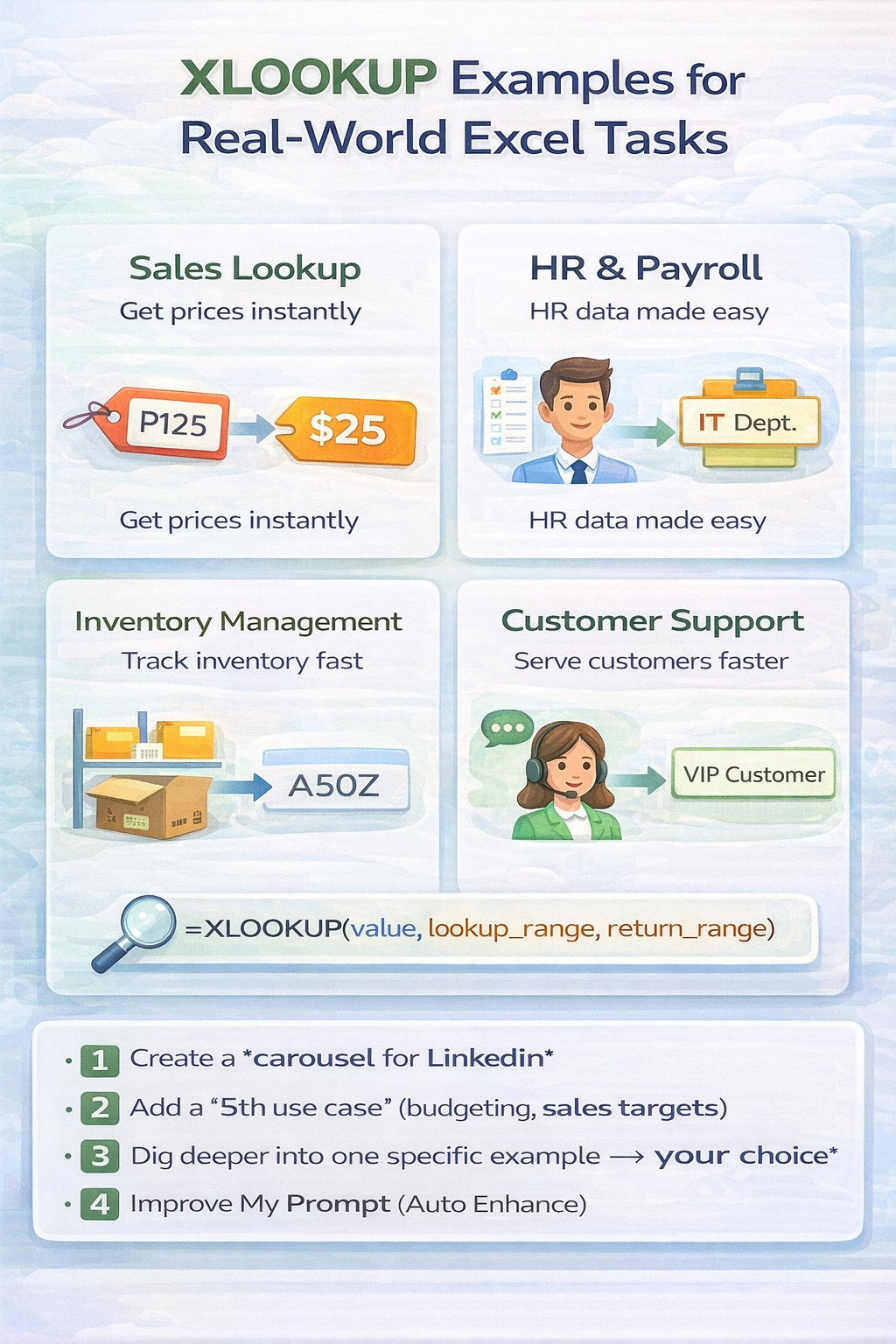
XLOOKUP is not just a replacement for older lookup functions. It is a practical tool that solves everyday Excel problems faster and with fewer errors. In this article, you will explore real-world XLOOKUP examples that show how professionals actually use XLOOKUP in reports, dashboards, and daily operations.
Each example is simple, practical, and easy to adapt to your own spreadsheets.
Example 1: Find an Employee Salary by Name
Scenario
You have an employee list with names and salaries, and you want Excel to return the salary for a selected employee.
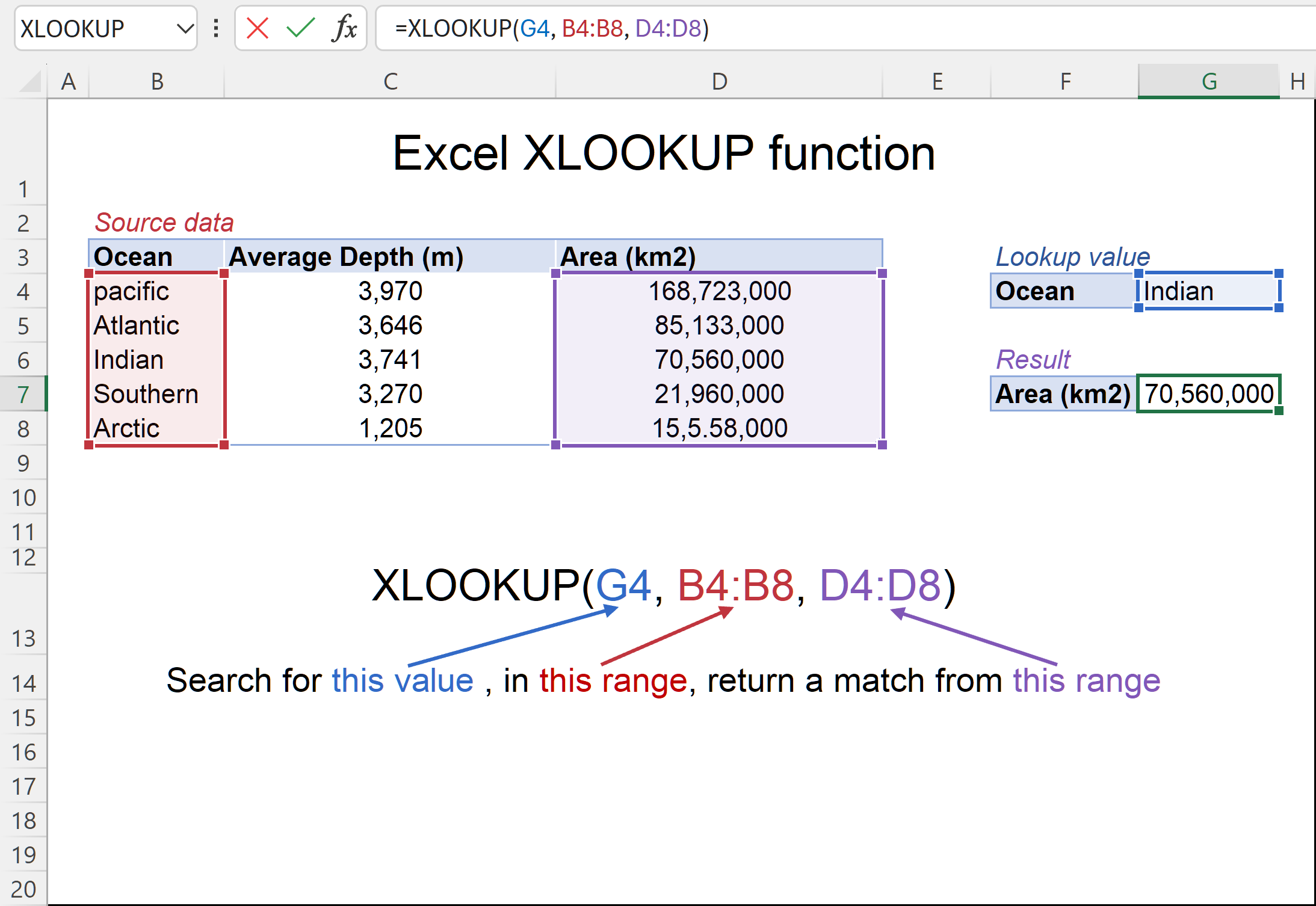
Formula
=XLOOKUP(E2,A2:A20,B2:B20)
Why This Works
XLOOKUP searches for the employee name in column A and returns the salary from column B. Unlike older functions, the formula stays intact even if columns move.
Example 2: Lookup Product Price from a Price List
Scenario
You manage a product catalog and want to pull the correct price when a product code is entered.
Formula
=XLOOKUP(F2,A2:A50,C2:C50)
Real-World Use
This is commonly used in invoices, order forms, and sales templates where accuracy matters.
Example 3: Return a Value to the Left
Scenario
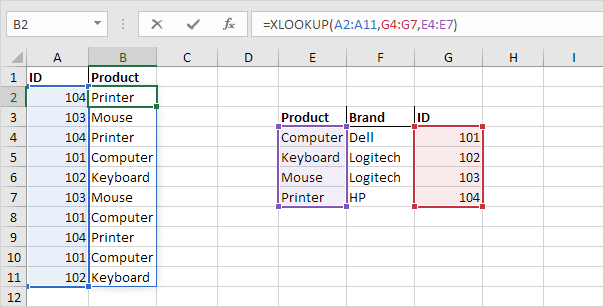
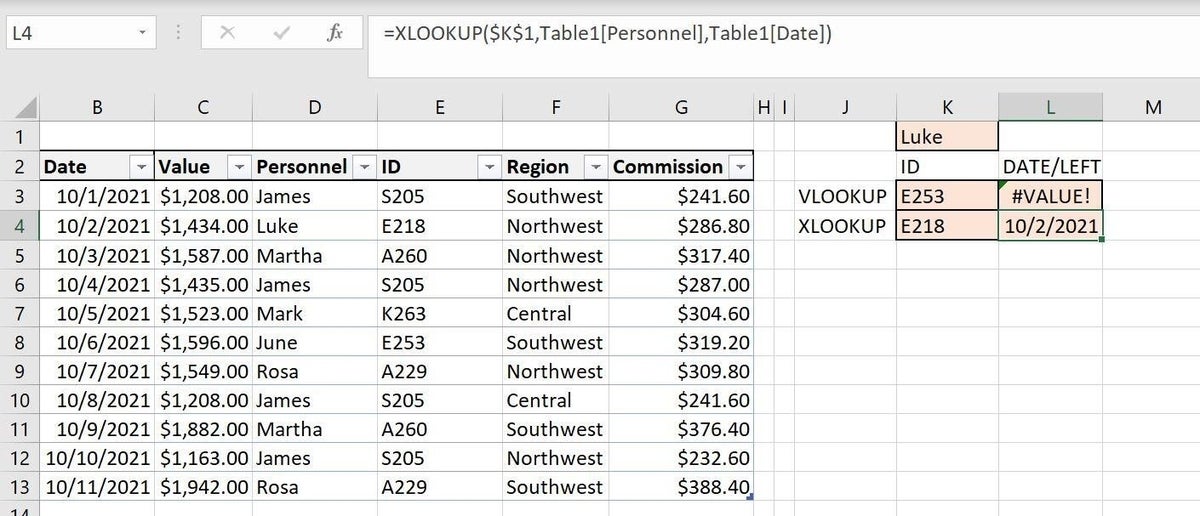
Your lookup column appears to the right of the result column, something VLOOKUP cannot handle.
Formula
=XLOOKUP(D2,B2:B20,A2:A20)
Why XLOOKUP Is Better
XLOOKUP does not care about column order. You simply define where to search and where to return from.
Example 4: Handle Missing Data Gracefully
Scenario
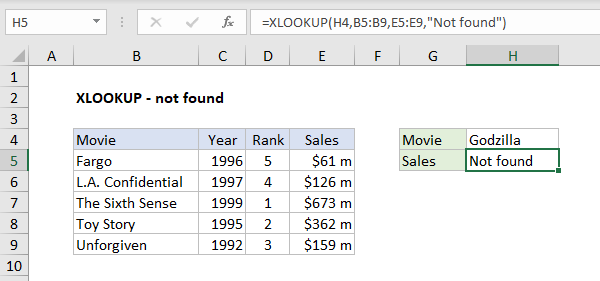
Sometimes the lookup value does not exist, and you want a friendly message instead of an error.
Formula
=XLOOKUP(E2,A2:A30,B2:B30,"Not found")
Real-World Benefit
This improves readability in dashboards and prevents confusion for non-technical users.
Example 5: Lookup the Latest Value in a Dataset
Scenario
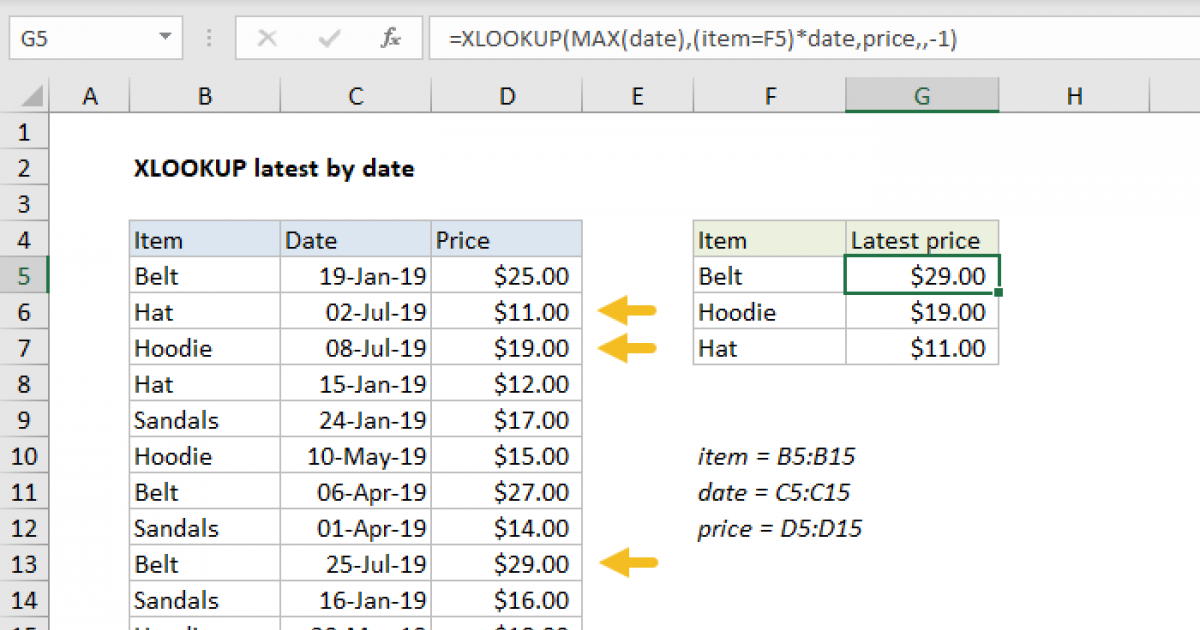
You want to return the most recent price, score, or status for a product or customer.
Formula
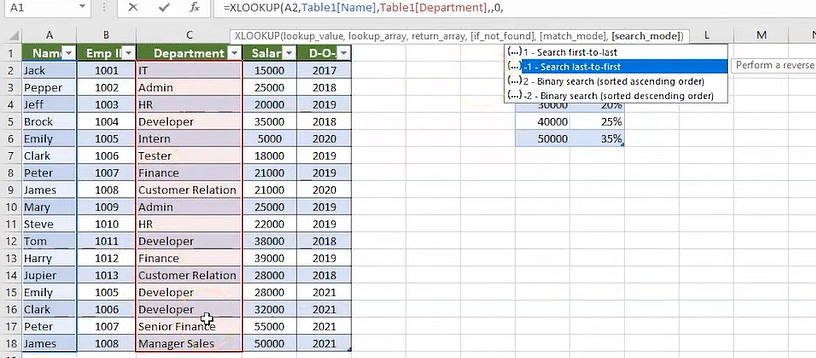
=XLOOKUP(E2,A2:A100,B2:B100,,,-1)
How It Helps
This is useful for tracking latest transactions, updated inventory levels, or recent performance metrics.
Example 6: Horizontal Lookup Across Rows
Scenario
Your data is organized across columns instead of rows.
Formula
=XLOOKUP(B1,B1:G1,B2:G2)
Real-World Use
Financial models and comparison tables often use this layout.
Example 7: Combine XLOOKUP with Dynamic Arrays
Scenario
You want your results to automatically expand when new data is added.
Why This Matters
XLOOKUP works seamlessly with modern Excel features like dynamic arrays, making it ideal for scalable reports.
Common Real-World Mistakes to Avoid
- Using mismatched lookup and return ranges
- Forgetting to handle missing values
- Using entire column references on very large datasets
- Mixing numbers stored as text with numeric values
Avoiding these mistakes keeps your formulas efficient and reliable.
Conclusion
These XLOOKUP examples for real-world Excel tasks show why XLOOKUP has become the go-to lookup function for modern Excel users. Whether you are managing employees, products, prices, or reports, XLOOKUP simplifies your workflow and reduces formula complexity.
