

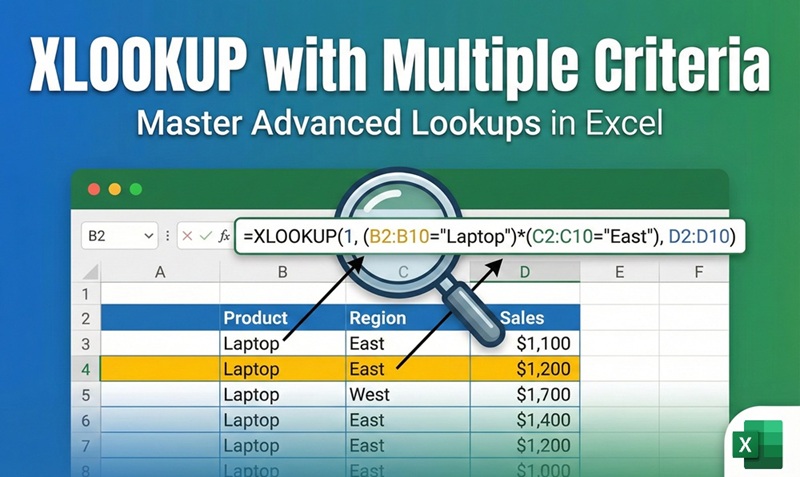
If you’ve ever tried to find a value in Excel based on more than one condition, you’ve probably hit a wall with VLOOKUP. It’s simply not designed for the job. XLOOKUP, Microsoft’s modern replacement, gives you the power to search using multiple criteria — but it requires knowing the right technique. This guide breaks down every method, from beginner-friendly concatenation to advanced Boolean logic, with real formulas and practical examples you can use today.
What Is XLOOKUP? A Quick Refresher
Introduced in Excel 365 and Excel 2021, XLOOKUP is a versatile lookup function that replaces VLOOKUP, HLOOKUP, and INDEX/MATCH in most scenarios. Unlike its predecessors, it can search in any direction — left, right, up, or down — and return results from multiple columns in a single formula.
The basic syntax is:
=XLOOKUP(lookup_value, lookup_array, return_array, [if_not_found], [match_mode], [search_mode])
Here is what each argument means:
| Argument | Required? | Description |
| lookup_value | Yes | The value you want to find |
| lookup_array | Yes | The range or array to search in |
| return_array | Yes | The range or array to return a result from |
| if_not_found | Optional | Value to display if no match is found |
| match_mode | Optional | 0 = exact match (default), 1 = next larger, -1 = next smaller |
| search_mode | Optional | 1 = first to last (default), -1 = last to first |
The challenge arises because XLOOKUP is designed to work with a single lookup_value and a single lookup_array. When you need to match on two or three columns simultaneously, you need to apply one of two powerful workarounds: concatenation or Boolean logic.
Why You Need Multiple Criteria in XLOOKUP
Real-world data is rarely clean enough to identify a unique row by a single value. Consider these common scenarios where a single lookup column isn’t enough:
- A sales report where the same product code appears in multiple regions
- An inventory system where Item Name and Size together define a unique SKU
- An HR database where Employee ID must be matched with a specific Department
- An order table where Invoice Number and Customer Name together confirm a unique transaction
In all of these cases, looking up only one column would return the wrong row or an ambiguous result. XLOOKUP multiple criteria solves this by checking all conditions at once, returning a result only when every condition is satisfied.
Method 1: Boolean Logic (Recommended Approach)
Boolean logic is the most reliable and flexible method for handling multiple criteria in XLOOKUP. The core idea is to create a temporary array of 1s and 0s — where 1 represents a row that satisfies all conditions and 0 represents a row that does not. XLOOKUP then searches for the first 1 in that array.
The Formula Structure
=XLOOKUP(1, (range1=criteria1)*(range2=criteria2)*(range3=criteria3), return_array)
Notice the lookup_value is always 1. Each condition in parentheses produces an array of TRUE/FALSE values. When multiplied together, TRUE becomes 1 and FALSE becomes 0. A row returns 1 only if every single condition evaluates to TRUE — meaning all criteria are matched. XLOOKUP finds the first 1 and returns the corresponding value from the return array.
Practical Example: Finding a Product Price
Suppose you have a product table with columns for Item (Column B), Size (Column C), Color (Column D), and Price (Column E). You want to find the price of a Medium Blue Hoodie, where your search values sit in cells H5, H6, and H7.
=XLOOKUP(1, (B5:B15=H5)*(C5:C15=H6)*(D5:D15=H7), E5:E15)
This formula checks each row to see if the Item matches H5, the Size matches H6, and the Color matches H7. Only the row where all three conditions are TRUE returns a 1. XLOOKUP finds that row and pulls the price from column E.
Using OR Logic
Boolean logic also makes it possible to implement OR conditions — something concatenation cannot do. Instead of multiplying conditions, you add them:
=XLOOKUP(1, (B5:B15=”Hoodie”)+(C5:C15=”Blue”), E5:E15)
Here, any row where Item is Hoodie OR Color is Blue returns a value greater than 0, and XLOOKUP finds the first such row. This level of flexibility is why Boolean logic is considered the gold standard for multi-criteria XLOOKUP formulas.
Method 2: Concatenation (Simple and Beginner-Friendly)
Concatenation works by joining multiple lookup values into one combined string and doing the same to the lookup columns. It is the simpler of the two methods and works well when all criteria are straightforward text or number matches.
The Formula Structure
=XLOOKUP(value1&value2&value3, range1&range2&range3, return_array)
Practical Example: Supplier Lookup
Imagine a table where Supplier names (Column D) are determined by three factors: Item (Column A), Region (Column B), and Delivery Type (Column C). Your search criteria are in cells G4, G5, and G6.
=XLOOKUP(G4&G5&G6, A3:A22&B3:B22&C3:C22, D3:D22)
This concatenates your three criteria into a single lookup string (e.g., “OrangesWestExpedited”) and compares it against a combined string built from each data row. The first row where all three values join to form an identical string is returned as the match.
Important Limitation of Concatenation
Concatenation can occasionally produce false positives. For example, if one criterion is “AB” and another is “CD”, the combined string “ABCD” might accidentally match a row where the first criterion is “A” and the second is “BCD”. To avoid this, consider inserting a delimiter between values:
=XLOOKUP(G4&”|”&G5&”|”&G6, A3:A22&”|”&B3:B22&”|”&C3:C22, D3:D22)
Boolean Logic vs. Concatenation: A Head-to-Head Comparison
Choosing the right method depends on your data and complexity. Here is a direct comparison to help you decide:
| Feature | Boolean Logic | Concatenation |
| Ease of writing | Moderate | Simple |
| Supports OR conditions | Yes | No |
| Supports NOT conditions | Yes | No |
| Risk of false matches | None | Possible (use delimiter) |
| Works with numbers & text | Yes | Yes |
| Recommended for beginners | No | Yes |
| Recommended for complex logic | Yes | No |
| Performance on large datasets | Good | Good |
Handling Errors: What to Do When No Match Is Found
When XLOOKUP finds no row matching your criteria, it returns a #N/A error by default. In a professional spreadsheet, this looks messy and can confuse users. You can handle this cleanly using the optional if_not_found argument — the fourth parameter of XLOOKUP.
=XLOOKUP(1, (B5:B15=H5)*(C5:C15=H6), E5:E15, “No Match Found”)
You can replace “No Match Found” with any text, a zero, a blank string (“”), or even a reference to another cell. This makes your lookups much more robust in production environments where data gaps are common.
Returning Multiple Columns with One Formula
One of the most powerful features of XLOOKUP is its ability to return more than one column at a time. By specifying a multi-column return_array, a single formula can populate an entire row of results. This works seamlessly with multiple criteria as well.
=XLOOKUP(1, (B5:B15=H5)*(C5:C15=H6), D5:F15)
In this example, columns D, E, and F are all returned simultaneously. The result spills across adjacent cells automatically — a feature powered by Excel’s dynamic array engine, available in Excel 365 and Excel 2021 and later.
XLOOKUP Multiple Criteria vs. INDEX/MATCH
Before XLOOKUP existed, INDEX/MATCH was the gold standard for multiple-criteria lookups. It is still useful if you are working in Excel 2016 or earlier. The equivalent formula using INDEX/MATCH looks like this:
=INDEX(E5:E15, MATCH(1, (B5:B15=H5)*(C5:C15=H6)*(D5:D15=H7), 0))
Note that in legacy Excel versions, this must be entered as an array formula using Ctrl+Shift+Enter. In Excel 365 and later, it works as a regular formula. XLOOKUP, however, is cleaner to write, supports the if_not_found argument natively, and is generally easier to maintain — making it the preferred choice whenever your Excel version supports it.
Pro Tips for Using XLOOKUP with Multiple Criteria
- Always lock your ranges with $ signs (e.g., $B$5:$B$15) when copying formulas across multiple cells to prevent range drift.
- Use named ranges to make formulas more readable — instead of B5:B15, name it ItemList and reference that instead.
- When working with large datasets, avoid volatile functions inside XLOOKUP as they recalculate on every change and slow Excel down.
- If you need to return ALL matching rows (not just the first), use the FILTER function instead of XLOOKUP, as XLOOKUP always stops at the first match.
- Add a delimiter like | when concatenating to prevent accidental false positives from similar strings.
- Test your Boolean array by pressing F9 inside the formula to evaluate the intermediate array and verify that 1s and 0s appear in the correct rows.
Excel Version Availability
XLOOKUP is not available in all versions of Excel. Here is a quick reference for compatibility:
| Excel Version | XLOOKUP Available? | Notes |
| Excel 365 (Microsoft 365) | Yes | Full support, including dynamic arrays |
| Excel 2021 | Yes | Full support |
| Excel 2019 | No | Use INDEX/MATCH instead |
| Excel 2016 | No | Use INDEX/MATCH instead |
| Excel for the Web | Yes | Full support |
| Excel for Mac (365) | Yes | Full support |
Conclusion
XLOOKUP with multiple criteria is one of the most powerful techniques in modern Excel. Whether you choose Boolean logic for its flexibility or concatenation for its simplicity, both methods can transform the way you search and retrieve data from complex datasets.
Boolean logic is the recommended approach for most real-world scenarios — it supports AND, OR, and NOT conditions, eliminates false-positive risks, and scales naturally as your number of criteria grows. Concatenation, on the other hand, is a perfectly valid option for straightforward, exact-match lookups where simplicity is preferred.
Mastering these techniques will save you hours of manual lookup work, reduce formula errors, and make your spreadsheets significantly more powerful and professional. Start with a simple two-criteria Boolean formula, build your confidence, and you’ll quickly find yourself applying it to everything from sales dashboards to HR reports and financial models.
