

The Short Answer
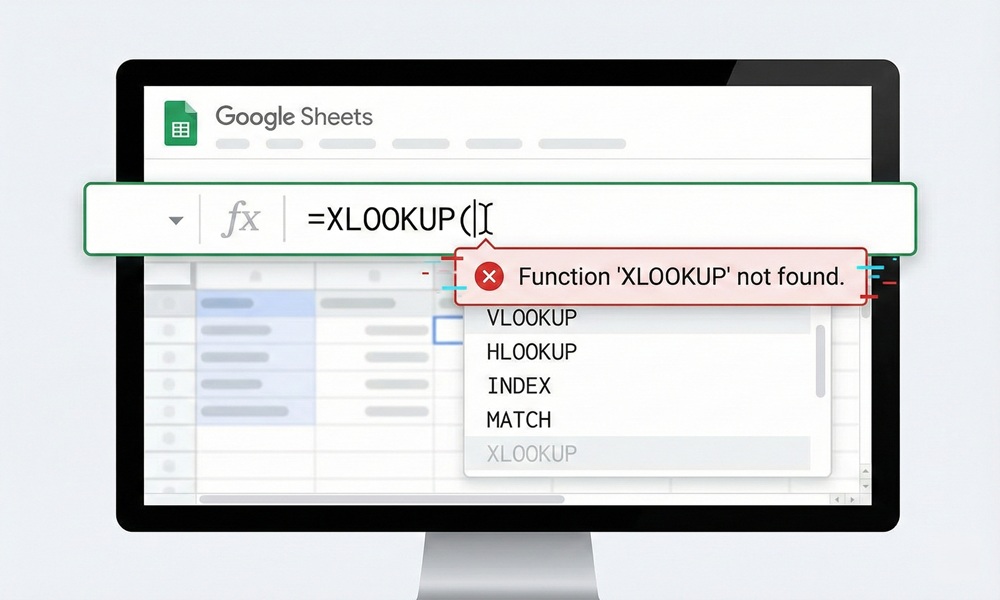
If you’ve ever copy-pasted an Excel spreadsheet into Google Sheets only to see your XLOOKUP formula throw an error, you’re not alone. For years, XLOOKUP simply didn’t exist in Google Sheets — it was an Excel-exclusive function introduced by Microsoft in 2019. Google eventually added XLOOKUP to Sheets in August 2022, but many users still run into issues because of version differences, unsupported syntax, or sheets shared from older environments. Either way, knowing the best alternatives puts you firmly in control of your data.
What Is XLOOKUP and Why Does It Matter?
XLOOKUP is a modern lookup function designed to replace the aging VLOOKUP and HLOOKUP. Instead of locking you into a column number, XLOOKUP lets you define both the lookup range and return range directly — making your formulas far more flexible and readable.
Basic XLOOKUP Syntax:
=XLOOKUP(lookup_value, lookup_array, return_array, [if_not_found], [match_mode], [search_mode])Here’s a quick breakdown of what each argument does:
| Argument | Required? | What It Does |
|---|---|---|
lookup_value |
Yes | The value you’re searching for |
lookup_array |
Yes | The range to search in |
return_array |
Yes | The range to return a value from |
if_not_found |
Optional | Custom text/value if no match found |
match_mode |
Optional | Exact, approximate, or wildcard match |
search_mode |
Optional | First-to-last, last-to-first, binary |
The reason XLOOKUP became so popular is simple: it doesn’t break when you insert or delete columns, it searches in any direction (left, right, up, down), and it has built-in error handling — all things VLOOKUP cannot do natively.
Why Is XLOOKUP Not Working in Your Google Sheet?
Even though Google added XLOOKUP in 2022, you might still face errors. Here are the most common reasons:
1. Your Google account or workspace is on an older version. Google’s rollout was gradual, and some enterprise or education accounts may have delayed updates.
2. You’re using unsupported optional arguments. Google’s implementation of XLOOKUP doesn’t cover every advanced argument available in Excel — particularly some binary search modes.
3. The sheet was created in an older version of Google Sheets. If someone shared a spreadsheet created before the 2022 update, the formula engine may not recognize XLOOKUP.
4. You’re using a third-party integration or export tool that converts your sheet to a format that strips newer functions.
If you’re hitting a #NAME? error, that’s the clearest signal that XLOOKUP isn’t being recognized in your current environment.
The 4 Best XLOOKUP Alternatives in Google Sheets
Don’t worry — Google Sheets has powerful functions that can fully replicate what XLOOKUP does, and in some cases, do it better. Here are the four top alternatives.
1. FILTER Function — The Best Overall Alternative
The FILTER function is widely considered the closest equivalent to XLOOKUP in Google Sheets. It’s intuitive, flexible, and can even return multiple matching rows — something XLOOKUP can’t do natively.
Syntax:
=FILTER(return_range, lookup_range=lookup_value)Example: You want to find an employee’s extension number by their name.
=FILTER(C2:C15, A2:A15="John Smith")Why FILTER shines:
- Returns an array of all matching values (not just the first one)
- Easy to read and write
- Supports multiple conditions using
*(AND) or+(OR) - Unique to Google Sheets — it doesn’t exist in older Excel versions
Limitation: If no match is found, FILTER returns a #N/A error unless you wrap it with IFERROR.
2. INDEX + MATCH — The Most Compatible Alternative
INDEX/MATCH has been the power-user’s choice for years and works identically in both Google Sheets and Excel — making it the gold standard for cross-platform compatibility.
Syntax:
=INDEX(return_range, MATCH(lookup_value, lookup_range, 0))Example:
=INDEX(C2:C15, MATCH("John Smith", A2:A15, 0))The MATCH function finds the row position of your lookup value, and INDEX retrieves the value from that row in your return range. The 0 at the end of MATCH means exact match.
Why INDEX/MATCH is reliable:
- Works in all versions of Google Sheets and Excel
- Column order doesn’t matter — you can look left, right, or across sheets
- Handles large datasets well
- Easily extended to multi-criteria lookups
3. VLOOKUP — For Simple, Quick Lookups
VLOOKUP is the most familiar lookup function for most spreadsheet users. While it has real limitations compared to XLOOKUP, it still works perfectly well for straightforward, vertical lookups where your lookup column is on the left.
Syntax:
=VLOOKUP(lookup_value, table_range, column_number, FALSE)Example:
=VLOOKUP("John Smith", A2:C15, 3, FALSE)Here, 3 means return the value from the 3rd column of your selected range. The FALSE argument ensures an exact match.
When VLOOKUP works fine:
- Your lookup column is always on the far left
- You’re not inserting or rearranging columns
- You only need a single returned value
When to avoid VLOOKUP:
- Your return column is to the left of the lookup column
- Your table structure changes frequently
- You need to return multiple matches
4. QUERY Function — For Advanced Users
The QUERY function is one of Google Sheets’ most powerful native tools — and it has no equivalent in Excel at all. It lets you write SQL-like queries on your data, making it incredibly flexible for complex lookups.
Syntax:
=QUERY(data_range, "select return_col where lookup_col = '"&lookup_value&"'")Example:
=QUERY(A2:C15, "select C where A = '"&F2&"'")This returns the value in column C wherever column A matches the value in cell F2.
When QUERY is the right tool:
- You need to apply multiple complex conditions
- You want to sort or filter results alongside the lookup
- You’re comfortable with basic SQL-style syntax
Limitation: The syntax is less intuitive for beginners, and it can be finicky with numeric vs. text comparisons.
Side-by-Side Comparison: Which Alternative Should You Use?
| Function | Ease of Use | Returns Multiple Matches | Works Left-to-Right | Cross-Platform | Error Handling |
|---|---|---|---|---|---|
| XLOOKUP | ⭐⭐⭐⭐⭐ | No (single) | Yes | Excel + Sheets (2022+) | Built-in if_not_found |
| FILTER | ⭐⭐⭐⭐ | Yes | Yes | Google Sheets only | Use IFERROR |
| INDEX/MATCH | ⭐⭐⭐ | No | Yes | Universal | Use IFERROR |
| VLOOKUP | ⭐⭐⭐⭐⭐ | No | Left-only | Universal | Use IFERROR |
| QUERY | ⭐⭐ | Yes | Yes | Google Sheets only | Use IFERROR |
How to Use XLOOKUP in Google Sheets (If It’s Available)
If your Google Sheets environment does support XLOOKUP, here’s how to use it correctly.
Basic example:
=XLOOKUP(F2, A2:A15, C2:C15)F2— the value you’re looking upA2:A15— the range to searchC2:C15— the range to return a value from
With error handling:
=XLOOKUP(F2, A2:A15, C2:C15, "Not Found")Reverse search (last match first):
=XLOOKUP(F2, A2:A15, C2:C15, "Not Found", 0, -1)The search_mode of -1 tells XLOOKUP to search from the last row to the first — perfect when you need the most recent entry in a log or timestamp-based table.
Pro Tips for Smoother Lookups in Google Sheets
Getting your lookup formula right is half the battle. Here are a few practical tips that save time and prevent errors regardless of which function you use:
- Lock your ranges with
$signs (e.g.,$A$2:$A$15) when copying formulas across rows or columns to prevent range drift. - Use named ranges for frequently referenced lookup tables. Instead of
A2:A15, naming itEmployeeNamesmakes formulas far easier to read and maintain. - Wrap any lookup in
IFERRORto return a clean custom message instead of an ugly#N/A. Example:=IFERROR(FILTER(C2:C15, A2:A15=F2), "No Match Found") - For large datasets, INDEX/MATCH tends to perform better than FILTER since it returns only one value rather than evaluating the entire array.
- Avoid VLOOKUP on tables you edit often. Every time you insert a column, you have to update the column number argument manually — a common source of broken formulas.
When to Stick With XLOOKUP vs. When to Switch
Here’s a simple decision guide based on your situation:
Use XLOOKUP when:
- You’re working in a Google Sheets environment that supports it (post-August 2022)
- You need clean, readable formulas
- You want built-in error handling without wrapping in IFERROR
- You’re migrating spreadsheets from Excel and want formula consistency
Use FILTER when:
- You may have multiple matching records
- You need Google Sheets-specific functionality
- You want to apply multi-condition logic cleanly
Use INDEX/MATCH when:
- Your sheet is shared between Excel and Google Sheets users
- You need maximum cross-platform reliability
- You’re performing left-side lookups
Use QUERY when:
- Your lookup involves complex filtering or sorting logic
- You’re comfortable with SQL-like syntax
- You want to combine lookup + data transformation in a single formula
Final Thoughts
XLOOKUP not working in Google Sheets is a frustrating experience — especially when you’re mid-project and your formulas are breaking. The good news is that Google Sheets offers four solid alternatives, each with its own strengths. FILTER is the closest match in terms of behavior and flexibility. INDEX/MATCH is your best bet for compatibility. VLOOKUP is perfectly adequate for simple tasks, and QUERY is a powerhouse when your needs go beyond a basic lookup.
If you’re using a modern Google Sheets environment, XLOOKUP should now be available to you — try typing =XLOOKUP( and see if autocomplete appears. If it does, you’re good to go. If not, use the alternatives covered in this guide and you won’t miss a beat.
