

Introduction
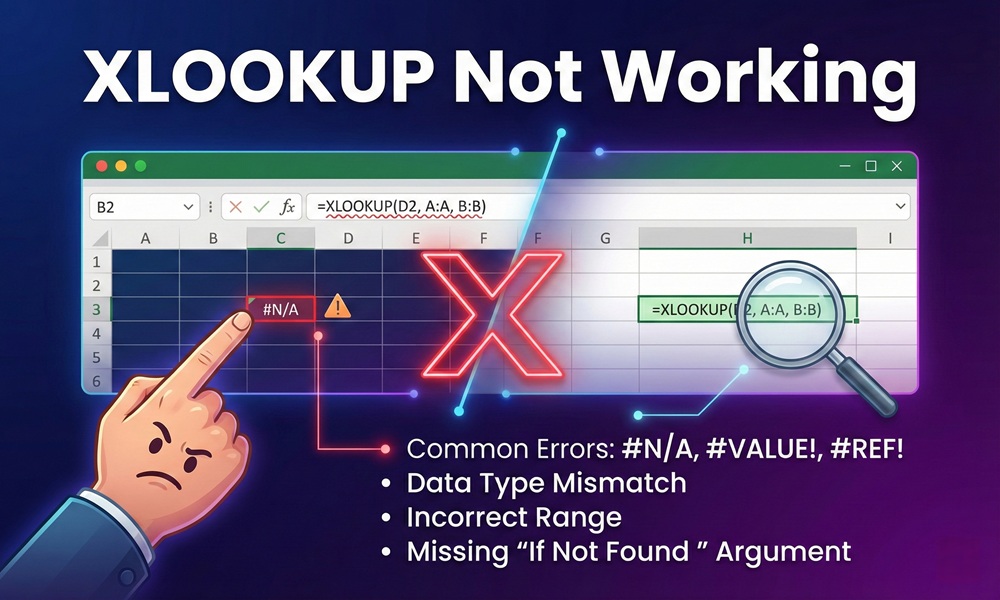
XLOOKUP is one of Excel’s most powerful lookup functions, introduced as a modern replacement for VLOOKUP and HLOOKUP. It’s flexible, intuitive, and capable of returning results from any direction. But despite its advantages, many users find themselves staring at an error or an unexpected result and wondering: why is XLOOKUP not working?
The good news is that almost every XLOOKUP failure has a clear, fixable cause. Whether you’re seeing a #N/A error, a #VALUE! warning, wrong results, or the function simply isn’t available, this guide walks you through every common problem and exactly how to resolve it — with examples and formulas included.
Understanding XLOOKUP Syntax First
Before diving into errors, it helps to revisit the function’s structure. XLOOKUP takes up to six arguments:
=XLOOKUP(lookup_value, lookup_array, return_array, [if_not_found], [match_mode], [search_mode])
| Argument | Required? | Description |
|---|---|---|
| lookup_value | Yes | The value you’re searching for |
| lookup_array | Yes | The range to search in |
| return_array | Yes | The range to return results from |
| if_not_found | Optional | Value to return if no match found |
| match_mode | Optional | 0 = exact, -1 = next smaller, 1 = next larger, 2 = wildcard |
| search_mode | Optional | 1 = first to last, -1 = last to first, 2 = binary ascending, -2 = binary descending |
Misunderstanding even one of these arguments can cause the entire formula to break. Now let’s look at what actually goes wrong.
Top Reasons XLOOKUP Is Not Working (And How to Fix Each)
1. #N/A Error — Value Not Found
This is the most common XLOOKUP error. It appears when Excel cannot find the lookup value inside the lookup array.
Common Causes:
- The value genuinely does not exist in the data
- A typo or spelling difference between the lookup value and the data
- Data type mismatch (a number vs. a text string that looks like a number)
- Extra spaces before or after the text
Fix: Use the if_not_found argument to replace the error with a friendly message:
=XLOOKUP(A2, B2:B100, C2:C100, "Not Found")
This way, instead of a harsh #N/A, the cell displays “Not Found,” making your spreadsheet cleaner and more professional.
2. Data Type Mismatch — Numbers Stored as Text
This is arguably the sneakiest XLOOKUP problem. Visually, the values in your lookup array look like numbers — but Excel is actually storing them as text strings. XLOOKUP treats 123 (number) and "123" (text) as completely different values and won’t match them.
This typically happens when data is imported from external sources, copied and pasted, or entered into cells that were pre-formatted as text.
How to Diagnose:
- Look for a small green triangle in the top-left corner of the cell
- Use
=ISTEXT(A1)— if it returns TRUE for what looks like a number, it’s stored as text
Fix Option 1 — Wrap with VALUE():
=XLOOKUP(VALUE(A2), B2:B100, C2:C100)
Fix Option 2 — Text to Columns: Select the column → Data tab → Text to Columns → Finish. This forces Excel to re-evaluate the data type.
Fix Option 3 — Paste Special: Type 1 in an empty cell → Copy it → Select the problematic range → Paste Special → Multiply. This converts text-numbers to real numbers.
3. Extra Spaces Causing Mismatches
Text lookups are prone to errors due to extra spaces. A lookup value like “Sub 2” with two spaces will not match “Sub 2” with one space from the lookup array.
This problem is particularly common with data imported from databases, web scrapes, or copy-pasted content.
Fix: Wrap both your lookup value and lookup array with the TRIM() function:
=XLOOKUP(TRIM(A2), TRIM(B2:B100), C2:C100)
TRIM removes all leading, trailing, and excess internal spaces, ensuring clean matching.
4. #VALUE! Error — Mismatched Array Sizes
When you see a #VALUE! error in your XLOOKUP function, the most likely reason is that your lookup array and your return array are not the same size.
For example, if your lookup array covers rows 2–1003 but your return array only covers rows 2–1002, Excel cannot map the results correctly.
Fix: Make sure both arrays cover the exact same number of rows (for vertical lookups) or columns (for horizontal lookups).
Better Fix — Use Excel Tables: Convert your data to an Excel Table (Ctrl + T). Table references automatically stay in sync, so your lookup and return arrays will always match in size — and your references become absolute automatically.
5. Wrong Results from Binary Search Mode
When using search_mode set for binary search on unsorted data, XLOOKUP can return inconsistent results. Binary search modes (2 for ascending, -2 for descending) are faster on large datasets, but they require the data to be properly sorted.
The Problem Formula:
=XLOOKUP(A2, B2:B100, C2:C100, , , 2) ← Binary search on unsorted data = wrong results
The Fix: Either sort your data first, or switch back to the default search mode:
=XLOOKUP(A2, B2:B100, C2:C100) ← Default mode works on any data
6. #SPILL! Error — Output Blocked by Existing Data
If XLOOKUP is set to return multiple values (an array result), it needs a clear range of empty cells to “spill” into. If another value exists in those cells, you’ll see a #SPILL! error.
Fix: Clear the cells in the spill range or move the formula to a location with enough empty space for all the results to display.
7. XLOOKUP Not Available — Version Issue
XLOOKUP is not available in all versions of Excel. It was introduced in Microsoft 365 and Excel 2021. If you’re using Excel 2016, 2013, or 2010, the function simply does not exist.
| Excel Version | XLOOKUP Available? |
|---|---|
| Microsoft 365 | ✅ Yes |
| Excel 2021 | ✅ Yes |
| Excel 2019 | ❌ No |
| Excel 2016 | ❌ No |
| Excel 2013 | ❌ No |
| Google Sheets | ✅ Yes (since 2022) |
| Apple Numbers | ✅ Yes |
Fix: If you’re on an older Excel version, use INDEX(MATCH()) as the best alternative:
=INDEX(C2:C100, MATCH(A2, B2:B100, 0))
8. XLOOKUP Only Returning the First Match
By default, XLOOKUP stops at the first match it finds. If you have duplicate values in your lookup array and need the last occurrence, this causes incorrect results.
Fix — Return the Last Match: Set the search_mode argument to -1 to search from bottom to top:
=XLOOKUP(A2, B2:B100, C2:C100, , , -1)
Fix — Return All Matches: XLOOKUP isn’t designed to return every matching row. For that, use the FILTER function:
=FILTER(C2:C100, B2:B100=A2)
9. Cell References Not Locked (Copying Formula Down)
When you copy an XLOOKUP formula down a column, the lookup and return arrays shift with it — unless they’re locked with absolute references. This causes each row to look in a smaller and smaller range.
Broken Formula (when copied down):
=XLOOKUP(A2, B2:B100, C2:C100) ← B2:B100 slides to B3:B101, B4:B102, etc.
Fixed Formula:
=XLOOKUP(A2, $B$2:$B$100, $C$2:$C$100)
Press F4 after selecting a range in the formula bar to toggle absolute references. Or, as mentioned earlier, use Excel Tables — they handle this automatically.
Quick Troubleshooting Reference Table
| Error / Symptom | Most Likely Cause | Quick Fix |
|---|---|---|
| #N/A | Value not found or data type mismatch | Use if_not_found argument; check data types |
| #VALUE! | Lookup array ≠ return array size | Match array sizes; use Excel Table |
| #SPILL! | Output range is blocked | Clear cells in spill range |
| #NAME? | Function not recognized | Update Excel version; check spelling |
| Wrong result | Binary search on unsorted data | Remove search_mode argument or sort data |
| Blank result | Extra spaces in data | Wrap lookup with TRIM() |
| Shifts when copied | Relative references | Use absolute references ($) |
| Only first match returned | Default XLOOKUP behavior | Use search_mode -1 or FILTER function |
Pro Tips to Prevent XLOOKUP Errors
Getting XLOOKUP to work reliably is partly about fixing errors and partly about building habits that prevent them from happening in the first place. Here are some best practices every Excel user should adopt:
Always use Excel Tables for your data. Tables keep array sizes synchronized, use absolute structured references, and automatically expand when new data is added. This alone eliminates the two most common XLOOKUP errors (#VALUE! and shifting references).
Use the if_not_found argument every time. Instead of letting your spreadsheet show ugly #N/A errors, always supply a fallback value like "Not Found" or 0. This makes your workbooks cleaner and easier for others to read.
Diagnose data types before writing your formula. Use =ISTEXT() and =ISNUMBER() to verify that your lookup values and lookup array store data in the same format. Five seconds of checking can save an hour of troubleshooting.
Trim your data during import. If you regularly pull data from external sources, build TRIM() and CLEAN() into your lookups by default. CLEAN() removes non-printable characters that are invisible but break matching.
Avoid binary search mode unless you’re confident your data is sorted. The performance gain on small to medium datasets is negligible, and the risk of wrong results on unsorted data is high.
XLOOKUP vs. VLOOKUP — Why Errors Differ
Many users switch from VLOOKUP to XLOOKUP expecting everything to just work, but the two functions behave differently in ways that matter.
| Feature | VLOOKUP | XLOOKUP |
|---|---|---|
| Search direction | Left to right only | Any direction |
| Return column | Specified by index number | Direct range reference |
| Default match | Approximate (sorted data) | Exact match |
| Array size requirement | Flexible | Lookup and return must match |
| Error handling built-in | No (needs IFERROR) | Yes (if_not_found argument) |
| Binary search support | No | Yes |
The key difference that trips people up: VLOOKUP’s default match_mode is approximate (1), while XLOOKUP’s default is exact (0). If you’re migrating formulas from VLOOKUP to XLOOKUP, you may see different results simply because XLOOKUP is stricter about what counts as a match.
Conclusion
XLOOKUP is genuinely one of Excel’s best functions — but it rewards users who understand its requirements. The vast majority of “XLOOKUP not working” situations come down to a small handful of root causes: data type mismatches, extra spaces, mismatched array sizes, or compatibility issues with older Excel versions.
Work through the checklist in this article methodically: check your data types first, then your spacing, then your array sizes, then your references. In most cases, you’ll find the culprit quickly. And with the best practices in place — Excel Tables, locked references, and built-in error handling — you’ll spend far less time debugging and far more time actually using your data.
