

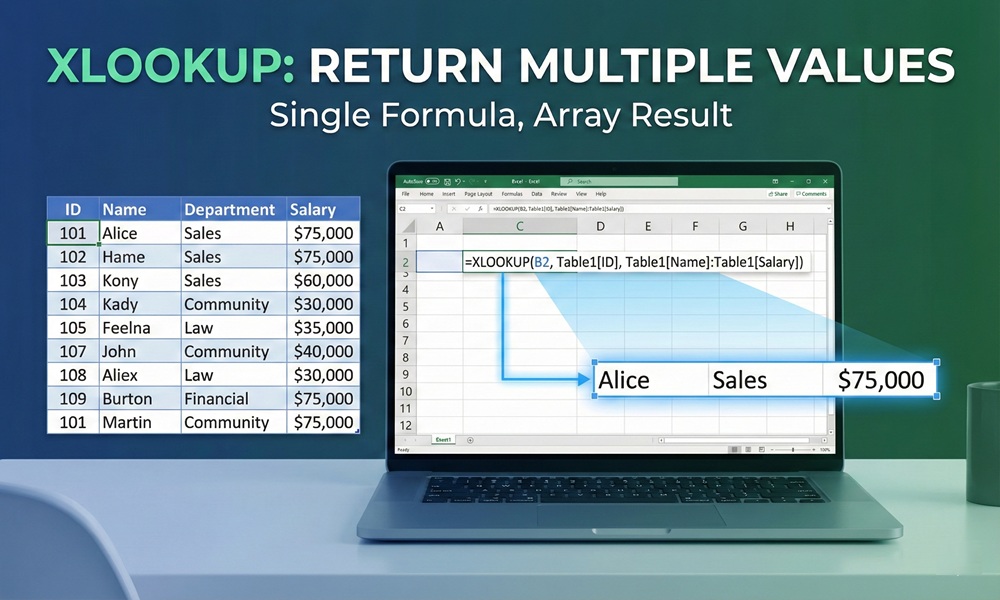
If you’ve ever wrestled with VLOOKUP’s rigid one-column-at-a-time limitation, XLOOKUP is the upgrade you’ve been waiting for. Introduced in Excel 365 and Excel 2021, XLOOKUP doesn’t just find a match — it can return multiple values at once, spanning several columns or rows, with far less formula complexity. This guide covers every major scenario: returning multiple columns, handling multiple criteria, and returning all matching rows — complete with ready-to-use formulas.
What Is XLOOKUP and Why Does It Matter?
XLOOKUP is a modern Excel lookup function that replaces VLOOKUP, HLOOKUP, and even INDEX/MATCH in most scenarios. Its core syntax is:
=XLOOKUP(lookup_value, lookup_array, return_array, [if_not_found], [match_mode], [search_mode])| Argument | Description |
|---|---|
lookup_value |
The value you’re searching for |
lookup_array |
The column or row to search in |
return_array |
The column(s) or row(s) to return |
[if_not_found] |
Optional: what to display if no match found |
[match_mode] |
0 = exact match (default), -1 = exact or next smaller, 1 = exact or next larger, 2 = wildcard |
[search_mode] |
1 = first to last (default), -1 = last to first, 2 = binary ascending, -2 = binary descending |
Unlike VLOOKUP, XLOOKUP searches lookup and return arrays independently — meaning your return data can be to the left of your lookup column, and you can specify multiple columns as the return range.
Scenario 1: Return Multiple Columns with XLOOKUP
This is the most common use case. When you expand the return_array to cover multiple adjacent columns, XLOOKUP spills all matching values automatically — no Ctrl+Shift+Enter required.
Example: You have an employee table with ID, Name, Department, and Salary. You want to retrieve Name, Department, and Salary in one formula.
| A (Emp ID) | B (Name) | C (Department) | D (Salary) |
|---|---|---|---|
| 1001 | Sarah Lee | Marketing | $72,000 |
| 1002 | James Kim | Engineering | $95,000 |
| 1003 | Amy Patel | Finance | $68,000 |
Formula (in cell F2, searching for ID 1002):
=XLOOKUP(1002, A2:A4, B2:D4)Result: James Kim | Engineering | $95,000 — spread across cells F2, G2, and H2 automatically via Excel’s spill behavior.
Pro Tip: The return columns must be adjacent (consecutive). If you need non-adjacent columns, see Scenario 3 below using CHOOSE or CHOOSECOLS.
Scenario 2: Return Multiple Values Using Multiple Criteria
XLOOKUP natively accepts only one lookup_value and one lookup_array. But you can unlock multi-criteria lookups using two proven approaches.
Method A: Concatenation (Simple Cases)
Combine lookup values and lookup arrays using the ampersand (&):
=XLOOKUP(G2 & H2, A2:A100 & B2:B100, C2:C100)When to use it: When your criteria values are clearly distinct and won’t accidentally create false matches by combining (e.g., “New” + “York” vs “Ne” + “wYork”).
Method B: Boolean Logic (Recommended)
This approach is more flexible, handles operators like >, <>, and <, and avoids the concatenation pitfall:
=XLOOKUP(1, (A2:A100=G2) * (B2:B100=H2), C2:C100)Here’s how it works step by step:
(A2:A100=G2)returns an array of TRUE/FALSE values for the first condition.(B2:B100=H2)returns an array of TRUE/FALSE for the second condition.- Multiplying them together converts TRUE/FALSE to 1/0 — a row is only
1if both conditions are met. - XLOOKUP searches for
1and returns the first matching row.
Three-Criteria Example (Item + Size + Color):
=XLOOKUP(1, (B5:B15=H5) * (C5:C15=H6) * (D5:D15=H7), E5:E15)Comparison: Concatenation vs. Boolean Logic
| Feature | Concatenation | Boolean Logic |
|---|---|---|
| Ease of writing | ✅ Simple | 🔶 Slightly more complex |
Handles >, <, <> operators |
❌ No | ✅ Yes |
| Risk of false matches | 🔶 Possible | ✅ None |
| Works with OR logic | ❌ No | ✅ Yes (use + instead of *) |
| Recommended for complex data | ❌ | ✅ |
Scenario 3: Return Non-Adjacent Columns
XLOOKUP can’t natively skip columns. If you need columns 1 and 3 but not column 2, you have two solid options:
Using CHOOSE
=XLOOKUP(F3, A3:A7, CHOOSE({1,3}, B3:B7, D3:D7))This wraps CHOOSE inside XLOOKUP’s return_array, telling Excel exactly which non-adjacent columns to return, in the order you specify.
Using CHOOSECOLS (Excel 365 Beta/Newer Builds)
=XLOOKUP(F3, A3:A7, CHOOSECOLS(B3:D7, 1, 3))CHOOSECOLS is cleaner for larger datasets since you specify column positions by number rather than building a CHOOSE array manually.
Scenario 4: Return ALL Matching Rows (Not Just the First)
This is where many users hit a wall: XLOOKUP only returns the first match. If a customer has five orders in your table and you want all five, XLOOKUP alone won’t do it.
The solution is the FILTER function, which was built exactly for this purpose.
Example: Return all orders placed by “Bob”:
=FILTER(B2:D100, A2:A100="Bob", "No results found")Want to eliminate duplicates in the results? Wrap with UNIQUE:
=UNIQUE(FILTER(B2:D100, A2:A100="Bob"))Want all results combined into one cell, comma-separated? Use TEXTJOIN:
=TEXTJOIN(", ", TRUE, UNIQUE(FILTER(B2:D100, A2:A100="Bob")))XLOOKUP vs. FILTER: When to Use Which
| Use Case | Best Function |
|---|---|
| Return first match across multiple columns | XLOOKUP |
| Return all matching rows | FILTER |
| Return unique matches only | UNIQUE + FILTER |
| Combine all matches into one cell | TEXTJOIN + FILTER |
| Lookup with multiple criteria, first match only | XLOOKUP with Boolean logic |
Error Handling: Making Your Formula Bulletproof
When XLOOKUP finds no match, it returns #N/A by default. Use the [if_not_found] argument to handle this gracefully:
=XLOOKUP(F2, A2:A100, B2:D100, "Not Found")You can also use an empty string "" to leave the cell blank when no match exists, which is cleaner for dashboards and reports.
Real-World Use Case: Employee Lookup Dashboard
Imagine an HR dashboard where a manager types an Employee ID and instantly sees the employee’s full profile — name, department, role, and start date — populated from a central data table.
Setup:
- Data table: columns A (ID), B (Name), C (Department), D (Role), E (Start Date)
- Input cell: H2 (where manager types the ID)
- Output range: H5 onward
Formula:
=XLOOKUP(H2, A2:A500, B2:E500, "Employee not found")This single formula pulls all four columns of data with no additional steps. Change the ID in H2, and the entire profile updates instantly.
Common Mistakes to Avoid
1. Mismatched array sizes Your lookup_array and return_array must have the same number of rows (for column lookups) or columns (for row lookups). A mismatch causes a #VALUE! error.
2. Using XLOOKUP to return all matches XLOOKUP only returns the first match. For all matches, always use FILTER instead.
3. Non-adjacent columns without CHOOSE/CHOOSECOLS Trying to select columns like B2:B100, D2:D100 directly in the return array won’t work. You must use CHOOSE or CHOOSECOLS as a wrapper.
4. Forgetting spill range conflicts XLOOKUP with a multi-column return array spills results into neighboring cells. If those cells aren’t empty, you’ll get a #SPILL! error. Clear the spill range before entering the formula.
Availability: Which Excel Versions Support XLOOKUP?
| Version | XLOOKUP Available? |
|---|---|
| Microsoft 365 (Windows & Mac) | ✅ Yes |
| Excel 2021 | ✅ Yes |
| Excel 2019 | ❌ No |
| Excel 2016 / 2013 | ❌ No |
| Excel Online (Web) | ✅ Yes |
| Google Sheets | ❌ No (use VLOOKUP or INDEX/MATCH) |
If you’re on an older version, the closest alternative is INDEX/MATCH with array entry (Ctrl+Shift+Enter):
=INDEX(B2:D100, MATCH(F2, A2:A100, 0), 0)Key Takeaways
XLOOKUP is genuinely one of Excel’s most powerful modern functions, and its ability to return multiple values across columns dramatically reduces the number of formulas you need to maintain. Here’s a quick summary of what you’ve learned:
- Multiple columns: Expand the
return_arrayto include adjacent columns — results spill automatically. - Multiple criteria: Use Boolean logic (
*for AND,+for OR) withlookup_value = 1. - Non-adjacent columns: Use CHOOSE or CHOOSECOLS inside the
return_array. - All matching rows: Use FILTER (not XLOOKUP) — optionally wrap with UNIQUE and TEXTJOIN.
- Error handling: Always include the
[if_not_found]argument on production worksheets.
Mastering these patterns will save you hours of formula debugging and make your Excel workbooks significantly easier to maintain and share.
