

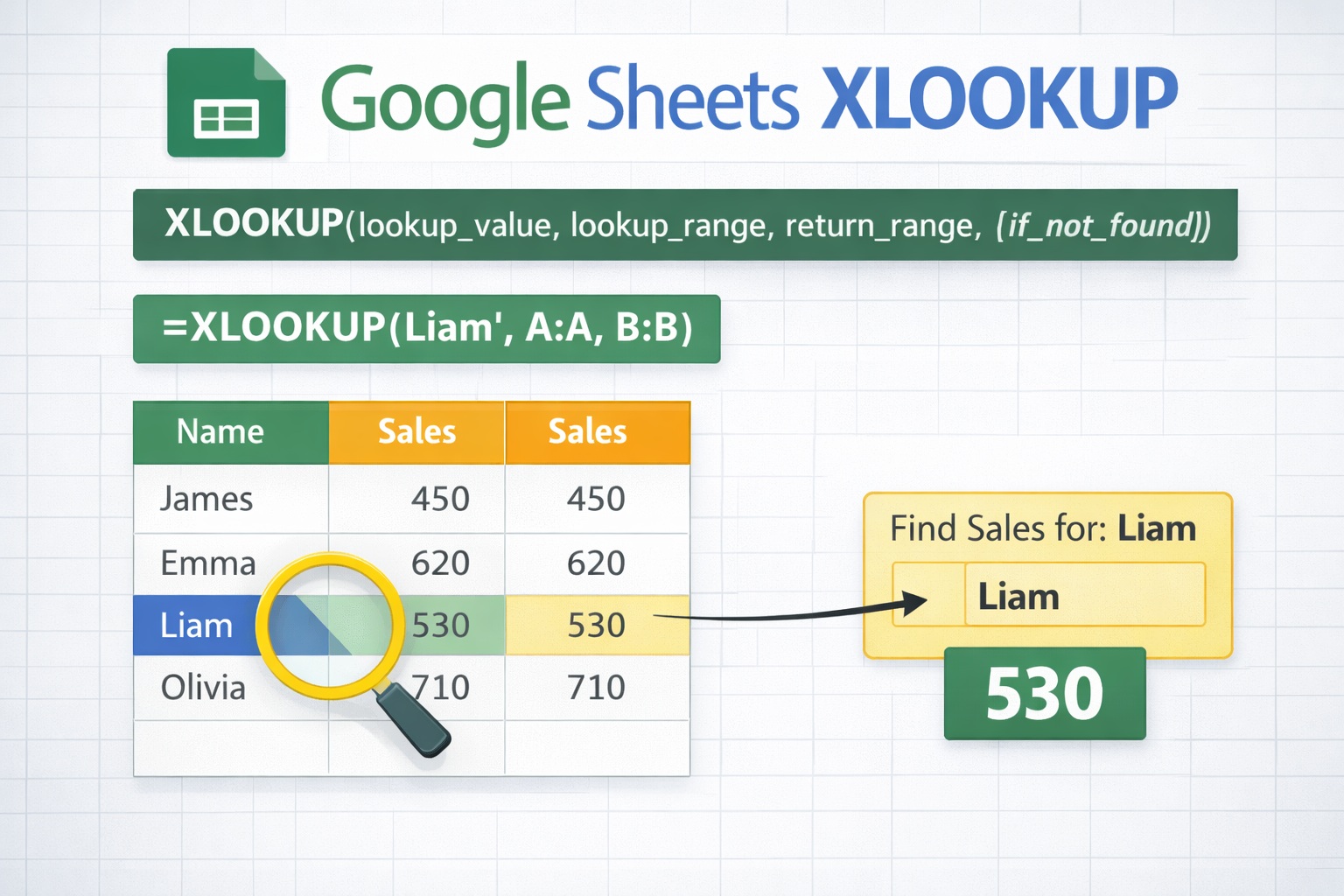
If you’re searching for google sheets xlookup, you probably want to know one key thing: does Google Sheets support XLOOKUP, and how do you use it? The short answer is yes — Google Sheets now supports the XLOOKUP function, giving users a more flexible and modern alternative to VLOOKUP and HLOOKUP.
XLOOKUP allows you to search for a value in one range and return a matching result from another range — without worrying about column index numbers, left-to-right limitations, or broken formulas when columns move. It’s designed to be easier, cleaner, and more powerful than older lookup functions.
Let’s break it down clearly and practically.
Does Google Sheets Have XLOOKUP?
Yes, Google Sheets supports XLOOKUP. This function works similarly to Excel’s XLOOKUP and is designed to replace older lookup methods like VLOOKUP and HLOOKUP.
Here’s the basic syntax:
=XLOOKUP(search_key, lookup_range, result_range)
In simple terms:
- search_key → What you’re looking for
- lookup_range → Where to search
- result_range → What to return
Unlike VLOOKUP, you don’t need to specify a column number. That alone eliminates one of the most common spreadsheet headaches.
Understanding the XLOOKUP Function
Before jumping into examples, let’s understand what makes XLOOKUP powerful.
Key Benefits of XLOOKUP
- Can search left or right
- Exact match by default
- No column index number needed
- Cleaner formula structure
- Optional built-in error handling
Older formulas like VLOOKUP required a fixed column number, which often broke when new columns were inserted. XLOOKUP avoids that problem entirely.
Simple Step-by-Step Example
Let’s say you have this product table:
| Product ID | Product Name | Price |
|---|---|---|
| 101 | Laptop | 900 |
| 102 | Tablet | 500 |
| 103 | Monitor | 300 |
| 104 | Keyboard | 50 |
You want to find the price of Product ID 103.
Formula:
=XLOOKUP(103, A2:A5, C2:C5)
What Happens:
- Google Sheets searches for 103 in A2:A5.
- It finds it in row 3 of the range.
- It returns the corresponding value from C2:C5.
- The result is 300.
That’s it. No column number. No extra arguments.
Clean and simple.
XLOOKUP vs VLOOKUP
Here’s where things get interesting.
| Feature | XLOOKUP | VLOOKUP |
|---|---|---|
| Left Lookup | Yes | No |
| Exact Match Default | Yes | No |
| Requires Column Number | No | Yes |
| Breaks When Columns Move | No | Yes |
| Built-in Error Handling | Yes | No |
Real-World Example
Imagine your “Price” column moves from column C to column D.
- VLOOKUP might break.
- XLOOKUP keeps working because it references ranges directly.
This flexibility makes XLOOKUP ideal for dynamic spreadsheets.
Advanced Techniques with XLOOKUP
Once you master the basics, you can unlock even more power.
Two-Way Lookup
Suppose you have sales data:
| Jan | Feb | Mar | |
|---|---|---|---|
| Product A | 100 | 120 | 130 |
| Product B | 200 | 210 | 220 |
You can combine XLOOKUP with another XLOOKUP to find:
“Product B sales in February”
Example:
=XLOOKUP("Product B", A2:A3,
    XLOOKUP("Feb", B1:D1, B2:D3))
This matches row and column dynamically.
Returning Multiple Columns
XLOOKUP can return multiple columns if your result range spans more than one column.
Example:
=XLOOKUP(103, A2:A5, B2:C5)
This would return both Product Name and Price for ID 103.
That’s incredibly useful for dashboards.
Approximate Match Example
For grading systems:
| Score | Grade |
|---|---|
| 0 | F |
| 50 | D |
| 60 | C |
| 70 | B |
| 80 | A |
You can use approximate matching to determine grades automatically.
Custom Error Handling
You can add an optional argument:
=XLOOKUP(105, A2:A5, C2:C5, "Not Found")
If Product ID 105 doesn’t exist, instead of #N/A, it returns “Not Found”.
That makes reports look more professional.
What to Use If XLOOKUP Isn’t Available
If you’re working in an older environment where XLOOKUP isn’t enabled, here are strong alternatives:
| Scenario | Best Alternative |
|---|---|
| Flexible lookup | INDEX + MATCH |
| Simple lookup | VLOOKUP |
| Filtered results | FILTER |
| Database-style search | QUERY |
INDEX + MATCH remains the most powerful fallback option.
Common XLOOKUP Errors and Fixes
| Error | Cause | Fix |
|---|---|---|
| #N/A | Value not found | Check spelling or use error argument |
| #REF! | Invalid range | Verify range sizes |
| #VALUE! | Data type mismatch | Ensure consistent data types |
| Blank Result | Empty cell | Confirm source data |
Most errors happen due to small reference mistakes. Double-check your ranges.
Practical Business Examples
HR Database
Find employee salary using employee ID.
Sales Dashboard
Retrieve product price automatically.
Inventory Tracker
Match product code with stock level.
Academic Records
Match student ID with grades.
Financial Reports
Pull revenue figures dynamically.
XLOOKUP simplifies data retrieval in every scenario.
Tips for Using XLOOKUP Efficiently
- Use exact match unless necessary.
- Avoid referencing entire columns like A:A.
- Keep lookup ranges clean.
- Remove extra spaces with TRIM.
- Use named ranges for clarity.
Efficiency improves performance, especially in large sheets.
Frequently Asked Questions About Google Sheets XLOOKUP
1. Does Google Sheets support XLOOKUP?
Yes, Google Sheets now includes the XLOOKUP function.
2. Is XLOOKUP better than VLOOKUP?
In most cases, yes. It’s more flexible and less prone to breaking.
3. Why am I getting #N/A?
The search value may not exist in the lookup range.
4. Can XLOOKUP search left?
Yes. That’s one of its biggest advantages.
5. Can I return multiple columns?
Yes, by expanding the result range.
6. Is it faster than VLOOKUP?
For well-structured sheets, performance is comparable or better.
7. Should beginners use XLOOKUP?
Yes. It’s actually easier than VLOOKUP.
8. Do I still need INDEX MATCH?
INDEX MATCH is useful in advanced or older spreadsheet environments.
Final Thoughts on Google Sheets XLOOKUP
Mastering google sheets xlookup makes your spreadsheets smarter, cleaner, and more reliable. It removes the biggest frustrations of older lookup functions and gives you dynamic, flexible control over your data.
If you’ve been relying on VLOOKUP for years, it might feel different at first. But once you experience the simplicity of XLOOKUP, you’ll likely never go back.
Start with small practice tables. Experiment with custom error messages. Try returning multiple columns. The more you use google sheets xlookup, the more natural it becomes — and the more powerful your spreadsheets will be.
