

Meta Description:
Learn XLOOKUP vs VLOOKUP: What’s the Difference? in simple terms. This in-depth guide explains how both Excel functions work, when to use each, and why XLOOKUP is the future.
Introduction: The Short Answer First (For Quick Understanding)
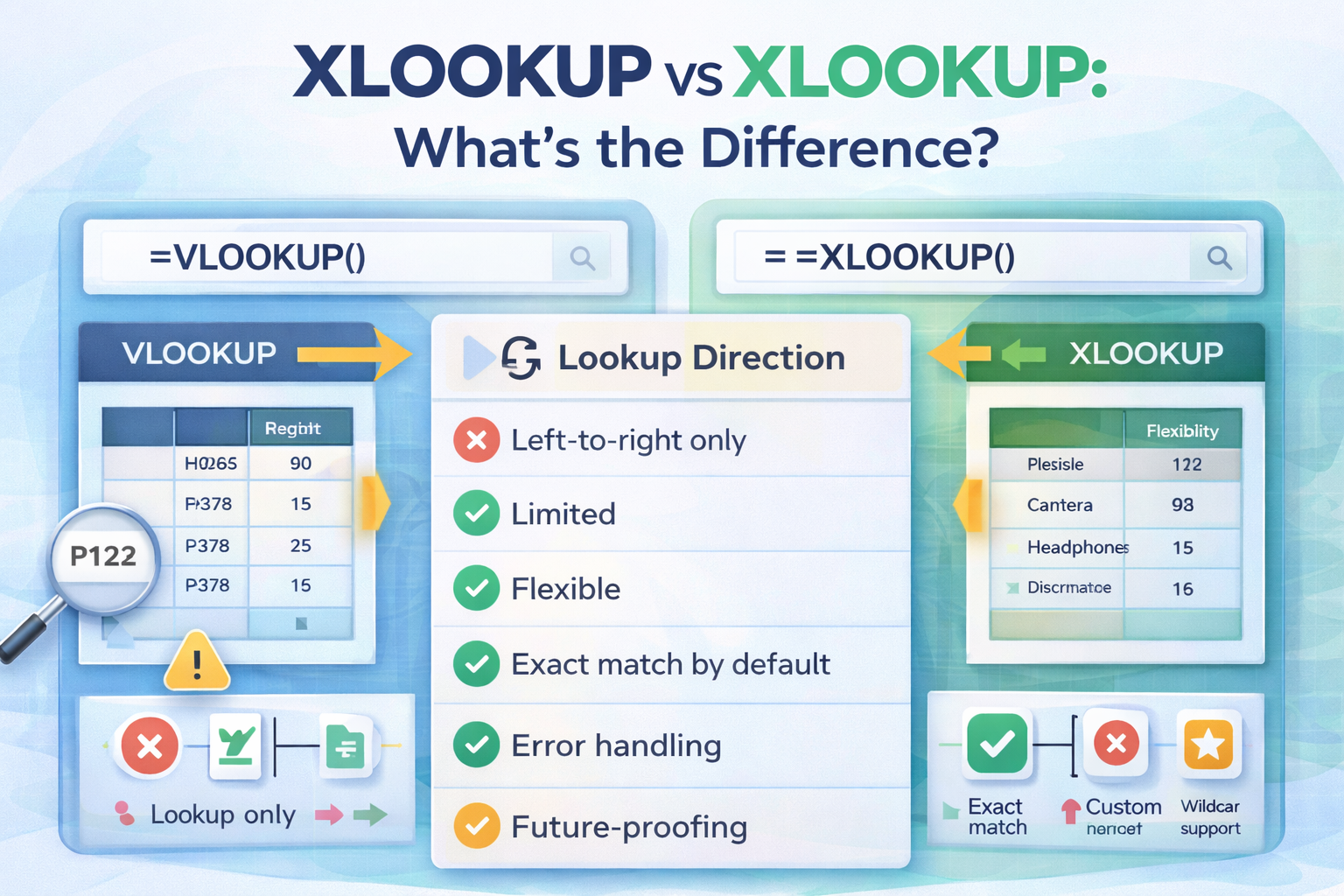
When comparing XLOOKUP vs VLOOKUP: What’s the Difference?, the simplest answer is this: XLOOKUP is a modern, more powerful replacement for VLOOKUP. It is easier to use, more flexible, and avoids many common errors that frustrate Excel users. VLOOKUP, while still widely used, is older and has several limitations that XLOOKUP was specifically designed to fix.
In practical terms, XLOOKUP allows you to search in any direction, return multiple types of results safely, and handle missing data gracefully. VLOOKUP can only search from left to right, breaks when columns are moved, and often requires extra functions to avoid errors. Understanding these differences can save you hours of spreadsheet work and help you build more reliable Excel models.
Why Excel Lookup Functions Matter
Lookup functions are the backbone of many Excel tasks. They allow you to:
- Match IDs to names
- Pull prices from product lists
- Combine data from multiple tables
- Automate reports and dashboards
For years, VLOOKUP was the go-to solution. However, as datasets grew larger and more complex, Excel users needed something more robust. This is where XLOOKUP enters the picture.
Understanding VLOOKUP: The Traditional Approach
VLOOKUP stands for “Vertical Lookup.” It searches for a value in the first column of a table and returns a corresponding value from another column.
How VLOOKUP Works
- Looks for a value in the leftmost column
- Moves vertically down the column
- Returns a value from a column to the right
Basic VLOOKUP Syntax
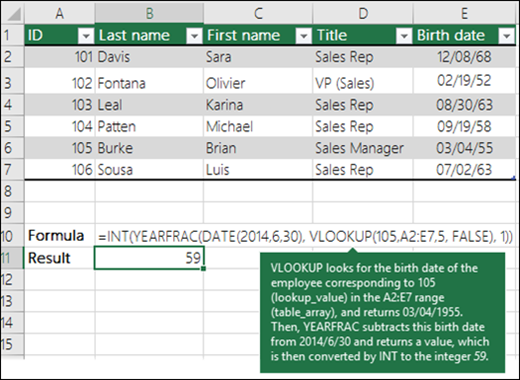
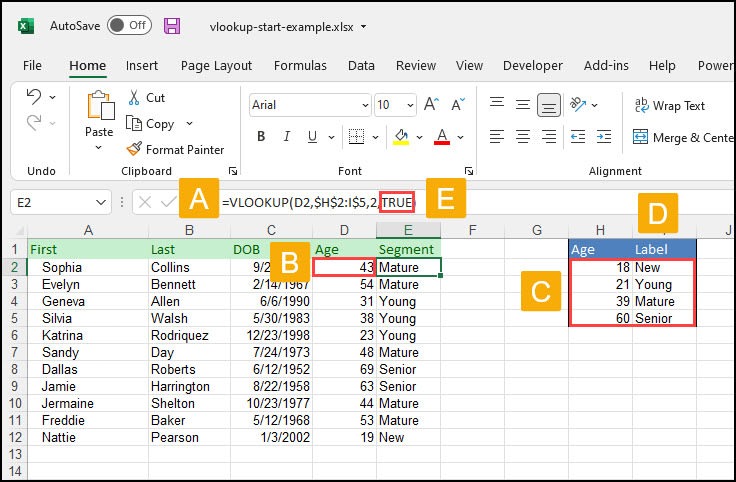
VLOOKUP(lookup_value, table_array, column_index, [range_lookup])
Common Use Cases
- Finding employee names using employee IDs
- Retrieving product prices from a price list
- Matching customer data across sheets
Key Limitations of VLOOKUP
- Cannot look to the left
- Breaks if columns are inserted or deleted
- Requires column numbers instead of ranges
- Returns errors when data is missing
Despite these drawbacks, many organizations still rely on VLOOKUP because of legacy spreadsheets and familiarity.
Understanding XLOOKUP: The Modern Solution
XLOOKUP is Excel’s next-generation lookup function. It was designed to solve nearly every pain point associated with VLOOKUP and similar functions.
How XLOOKUP Works
- Searches a defined lookup range
- Returns results from any range (left, right, up, or down)
- Handles missing values more gracefully
Basic XLOOKUP Syntax
XLOOKUP(lookup_value, lookup_array, return_array, [if_not_found])
Why Users Prefer XLOOKUP
- No need to count columns
- Works in any direction
- Easier to read and write
- Safer for large or changing datasets
Once users switch to XLOOKUP, they rarely go back to VLOOKUP.
Core Differences Explained Simply
Search Direction
VLOOKUP can only search left to right. XLOOKUP can search in any direction, making it far more flexible.
Column Safety
VLOOKUP relies on column numbers, which can break formulas if the sheet structure changes. XLOOKUP uses ranges, so it stays accurate even when columns move.
Error Handling
XLOOKUP allows you to define what happens if a match is not found. VLOOKUP usually returns an error unless wrapped in another function.
Ease of Use
XLOOKUP formulas are easier to read and maintain, especially for beginners.
Side-by-Side Comparison Table
| Feature | VLOOKUP | XLOOKUP |
| Search Direction | Left to Right only | Any direction |
| Column Index Required | Yes | No |
| Handles Missing Values | Poorly | Built-in support |
| Breaks When Columns Change | Yes | No |
| Ease of Learning | Moderate | Easy |
| Modern Excel Support | Legacy | Recommended |
Practical Example: Finding Employee Salary
Imagine a table with employee IDs and salaries.
Using VLOOKUP
You must ensure the ID column is on the far left and manually count the salary column.
Using XLOOKUP
You simply define the ID range and the salary range, regardless of their position.
This alone makes XLOOKUP more reliable in real-world scenarios.
Screenshots for Visual Understanding
VLOOKUP in Action

XLOOKUP in Action
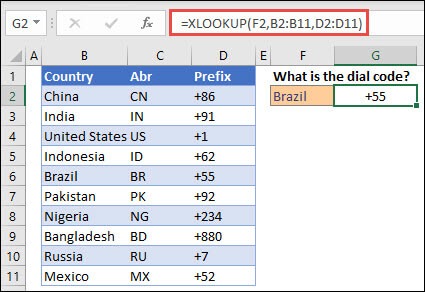
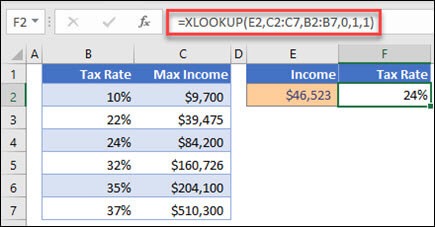
These screenshots show how XLOOKUP uses clearer arguments and avoids column counting entirely.
Performance Considerations
In small datasets, performance differences are minimal. However, in large spreadsheets:
- XLOOKUP tends to be more efficient
- Formulas are easier to audit
- Errors are reduced significantly
This makes XLOOKUP ideal for enterprise-level spreadsheets.
Compatibility and Version Support
VLOOKUP works in almost all Excel versions. XLOOKUP is available in newer versions of Excel. If you collaborate with users on older versions, this may influence which function you choose.
When Should You Still Use VLOOKUP?
You may still use VLOOKUP if:
- You work with legacy Excel versions
- Existing files already use it
- Compatibility is a concern
However, for new projects, XLOOKUP is almost always the better option.
Learning Curve for Beginners
New Excel users often find XLOOKUP easier because:
- It uses descriptive ranges
- It avoids confusing column numbers
- Errors are easier to understand
This makes XLOOKUP more beginner-friendly.
Real-World Business Use Cases
- Financial modeling
- Sales reporting
- Inventory management
- HR data analysis
In all these cases, XLOOKUP improves accuracy and reduces maintenance time.
Common Mistakes to Avoid
- Mixing XLOOKUP and VLOOKUP inconsistently
- Forgetting version compatibility
- Overcomplicating formulas unnecessarily
Keeping formulas clean and consistent is key.
Final Verdict
So, XLOOKUP vs VLOOKUP: What’s the Difference? The difference lies in flexibility, reliability, and future-proofing. XLOOKUP is more powerful, easier to maintain, and designed for modern Excel workflows. While VLOOKUP still has its place in legacy files, XLOOKUP is clearly the better choice for new spreadsheets.
If you want fewer errors, cleaner formulas, and less frustration, adopting XLOOKUP is a smart move. Understanding XLOOKUP vs VLOOKUP: What’s the Difference? will help you work faster, smarter, and with more confidence in Excel.
