

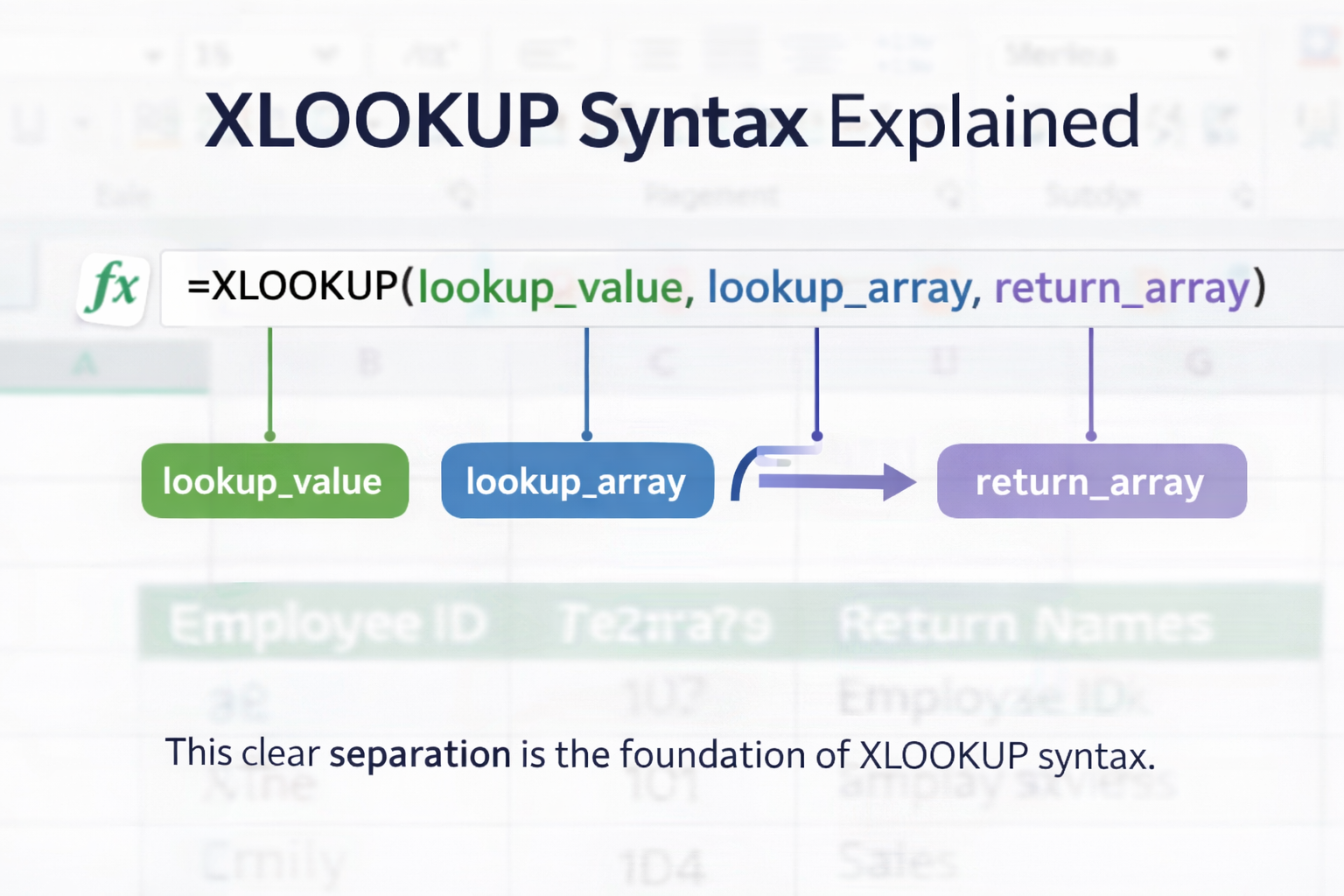
When learning Excel lookups, many users understand what XLOOKUP does but still struggle with XLOOKUP syntax. This is completely normal. The XLOOKUP function is powerful, but its true strength comes from understanding each argument and how they work together.
In this guide, we’ll break down XLOOKUP syntax, explain the XLOOKUP formula step by step, clarify what is return array in XLOOKUP, and show how the XLOOKUP function in Excel behaves in real scenarios.
What Is the XLOOKUP Function in Excel?
The XLOOKUP function in Excel is used to search for a value in one range and return a related value from another range. Unlike older functions, XLOOKUP separates where you search from what you return, which makes the syntax easier to read and safer to maintain.

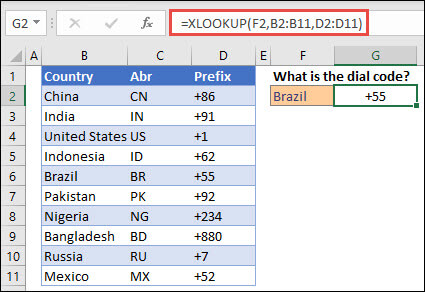
This clear separation is the foundation of XLOOKUP syntax.
Basic XLOOKUP Syntax
Let’s start with the core syntax.
=XLOOKUP(lookup_value, lookup_array, return_array)
This is the simplest and most commonly used XLOOKUP formula.
What Each Part Means
- lookup_value → The value you want Excel to find
- lookup_array → The range where Excel searches
- return_array → The range that contains the result
Once these three parts are understood, most XLOOKUP formulas become easy to read and write.
Lookup Value Explained
The lookup_value is the starting point of every XLOOKUP formula. It tells Excel what you are searching for.
This can be:
- A cell reference (recommended)
- A number
- A text value
For example, if cell E2 contains an employee ID, XLOOKUP will search for that ID in the lookup array.
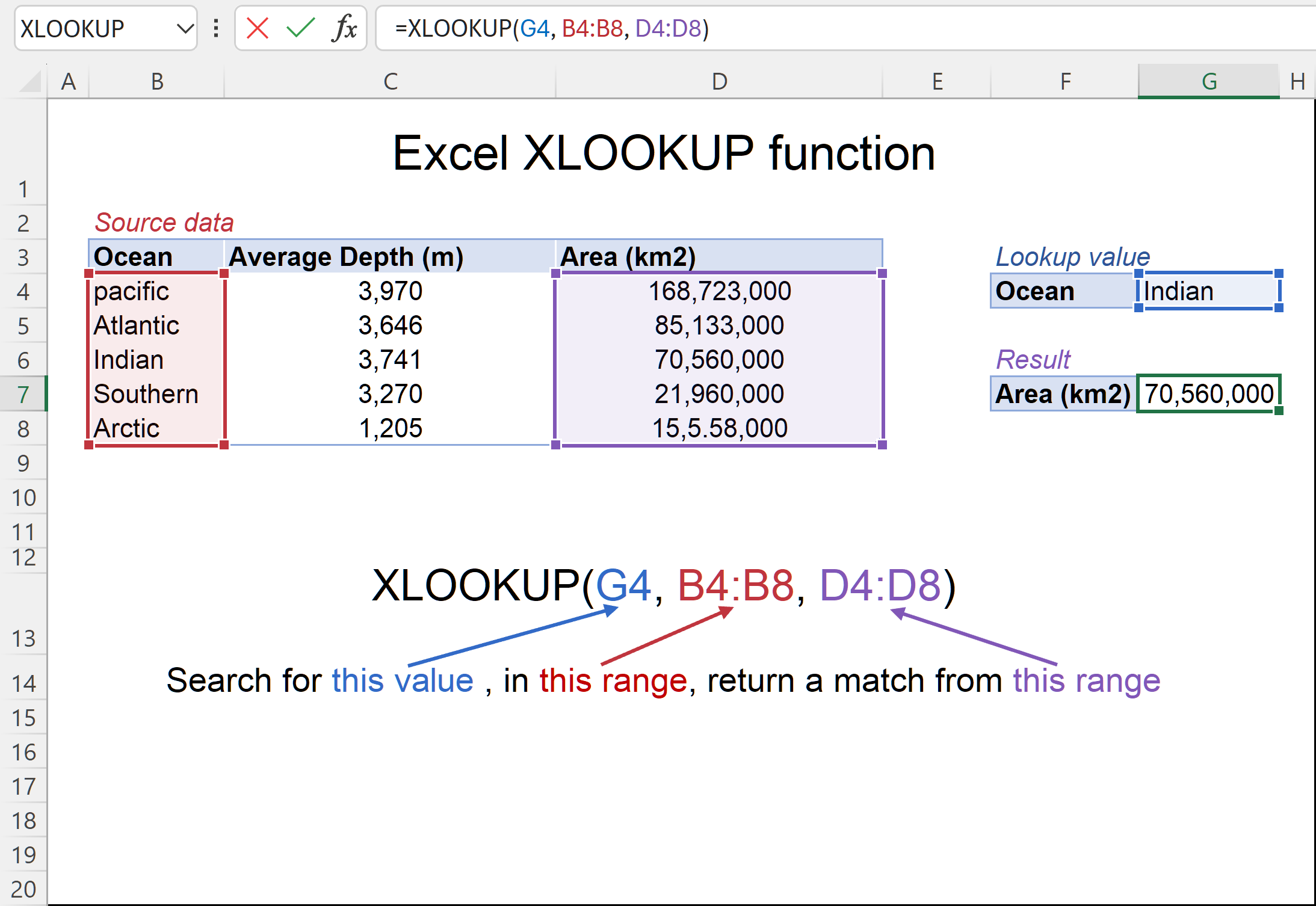
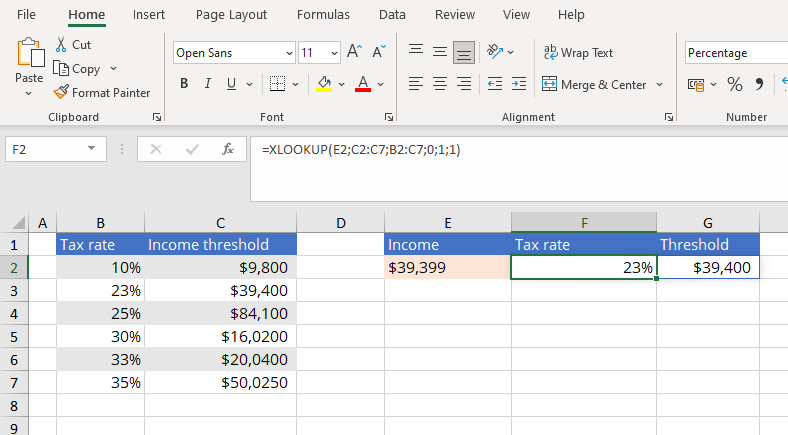
Using a cell reference allows the formula to update dynamically.
Lookup Array Explained
The lookup_array is the range where Excel looks for the lookup value.
Key points:
- It can be a column or a row
- It does not need to be the first column
- Data does not need to be sorted

This flexibility is one of the biggest improvements over older lookup functions.
What Is Return Array in XLOOKUP?
A very common beginner question is what is return array in XLOOKUP.
The return_array is the range that contains the value you want Excel to return once a match is found. It must:
- Be the same size as the lookup array
- Align row-by-row or column-by-column with the lookup array
For example:
- Lookup array → Employee IDs
- Return array → Employee names
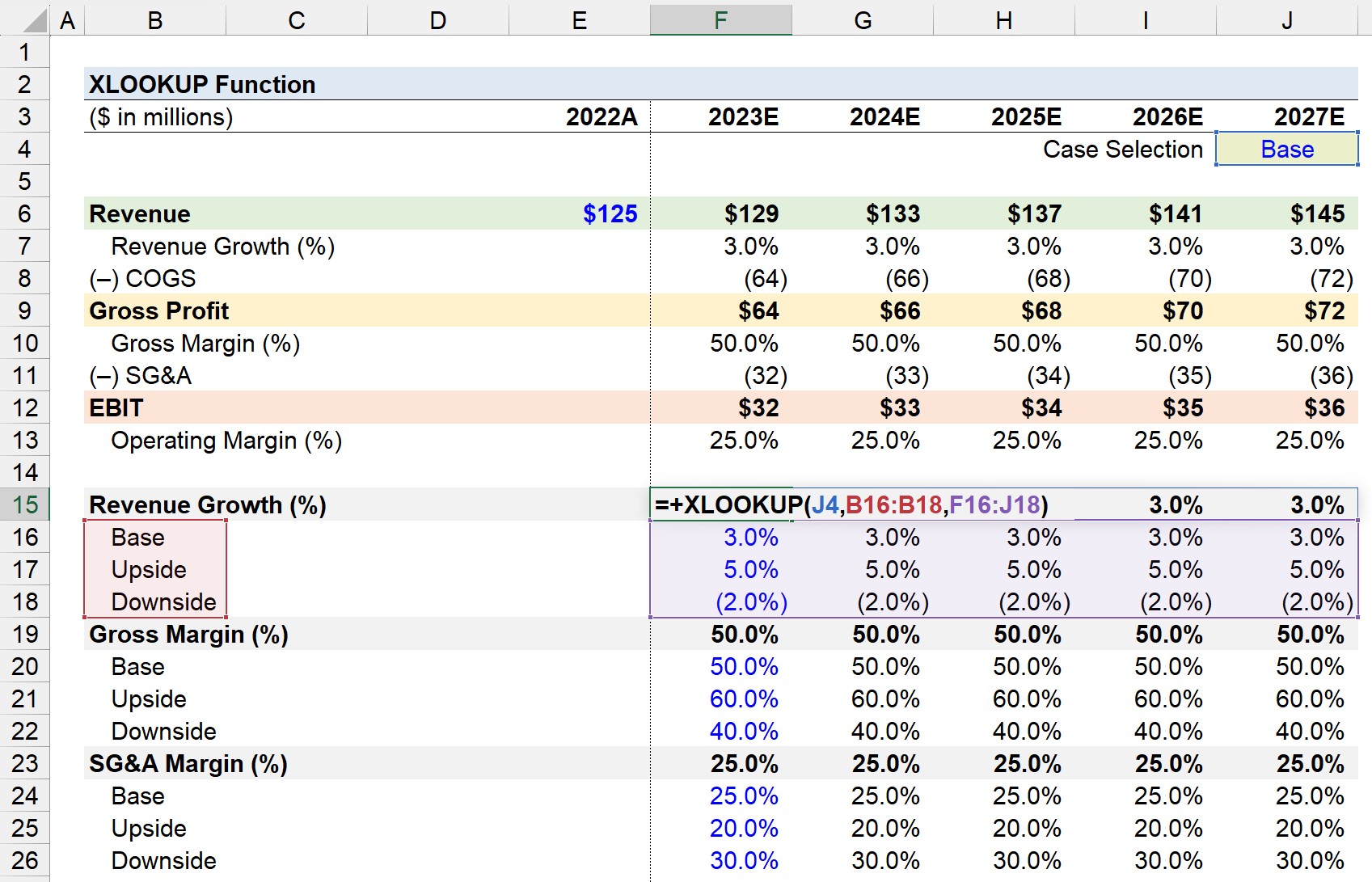
Once Excel finds the lookup value, it pulls the result from the same position in the return array.
Complete XLOOKUP Formula Example
Here’s a full XLOOKUP formula in action:
=XLOOKUP(E2, A2:A10, B2:B10)
This formula:
- Searches for the value in cell E2
- Looks in range A2:A10
- Returns the matching value from B2:B10
Because column numbers are not used, this formula will not break if columns are added or removed.
Optional Arguments in XLOOKUP Syntax
Beyond the basics, XLOOKUP allows optional arguments to control behavior.
=XLOOKUP(lookup_value, lookup_array, return_array, [if_not_found])
Example with Error Handling
=XLOOKUP(E2, A2:A10, B2:B10, "No Match Found")
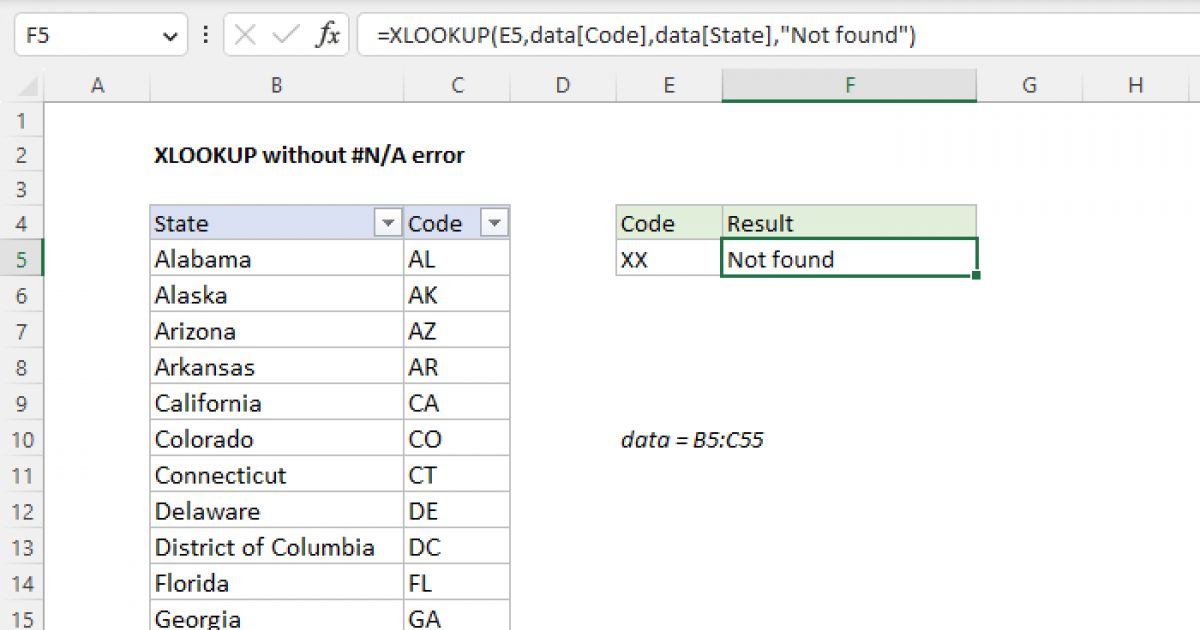
This makes spreadsheets cleaner and more user-friendly.
How XLOOKUP Syntax Supports Left Lookups
Older functions could not return values to the left. XLOOKUP syntax removes this limitation entirely.
Because lookup and return ranges are defined separately, you can:
- Look right and return left
- Look left and return right
- Perform horizontal lookups
This is one of the strongest advantages of the XLOOKUP function in Excel.
Common XLOOKUP Syntax Mistakes
When learning XLOOKUP syntax, users often make these errors:
- Using lookup and return arrays of different sizes
- Including headers in one range but not the other
- Hard-coding values instead of using cell references
Carefully selecting ranges fixes most problems instantly.
Frequently Asked Questions
What is XLOOKUP syntax used for?
XLOOKUP syntax defines how Excel searches for a value and returns a related result from another range.
What is return array in XLOOKUP?
The return array is the range containing the value Excel returns after finding a match.
Is XLOOKUP syntax easier than VLOOKUP?
Yes, XLOOKUP syntax is clearer, safer, and easier to maintain.
Can XLOOKUP handle missing values?
Yes, using the optional if_not_found argument.
Does XLOOKUP require sorted data?
No, exact match is the default behavior.
Which Excel versions support XLOOKUP?
Excel 365 and Excel 2021 or newer.
Conclusion
Understanding XLOOKUP syntax is the key to mastering the XLOOKUP function in Excel. Once you know how the lookup value, lookup array, and return array work together, writing XLOOKUP formulas becomes simple and intuitive.
If you want Excel formulas that are reliable, readable, and future-proof, XLOOKUP is the syntax worth learning.
