

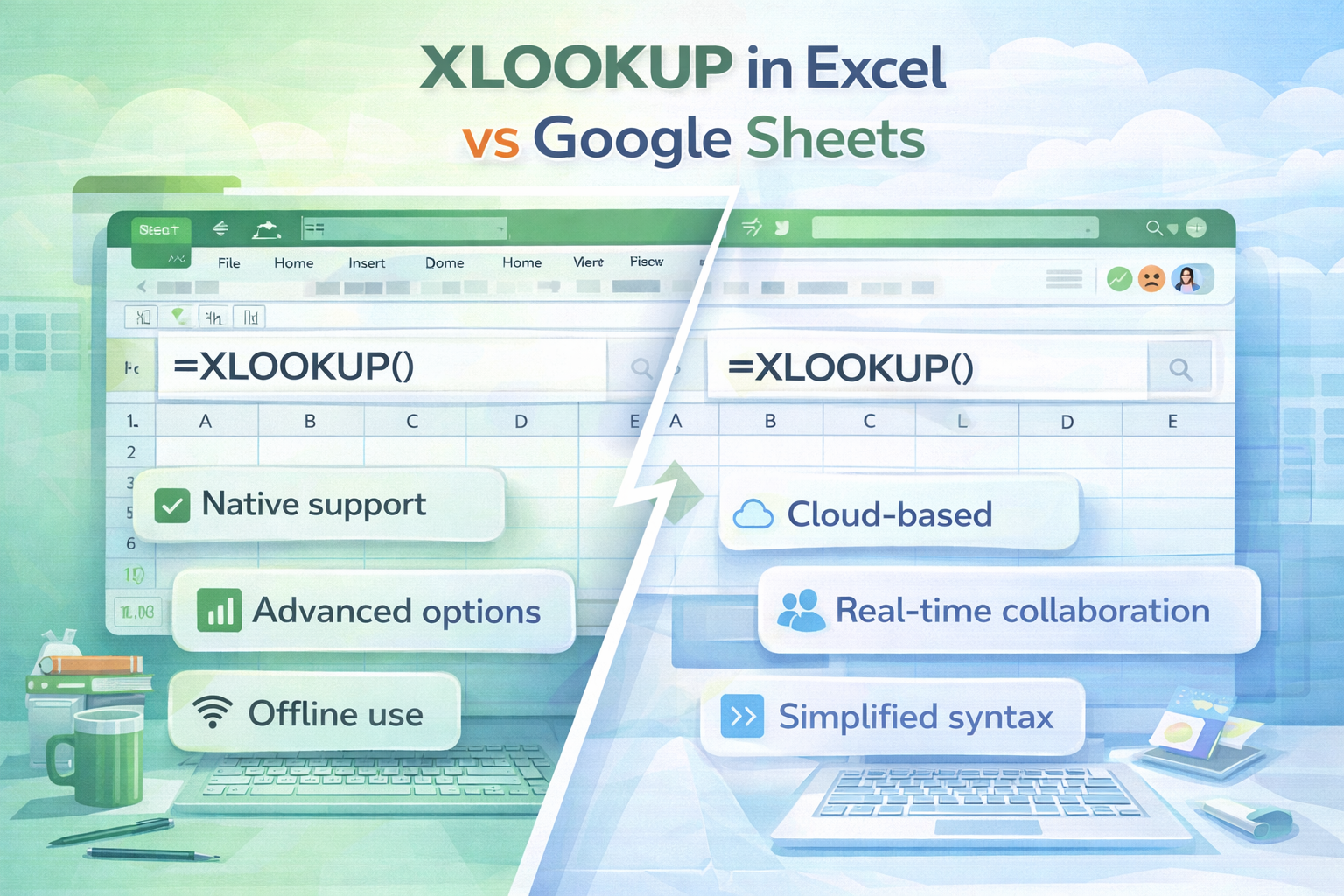
XLOOKUP has become the go to lookup function for modern spreadsheets. But many users now work across platforms and ask an important question. How does XLOOKUP in Excel compare to XLOOKUP in Google Sheets?
While the function name and purpose are the same, there are key differences in behavior, availability, and performance. This guide breaks down everything you need to know so you can confidently use XLOOKUP in both tools.
Is XLOOKUP Available in Both Excel and Google Sheets?
Yes. XLOOKUP is available in:
- Microsoft Excel for Microsoft 365 and Excel 2021 or later
- Google Sheets for most users
Both platforms support the core functionality, but the implementation is not identical.
XLOOKUP Syntax Comparison
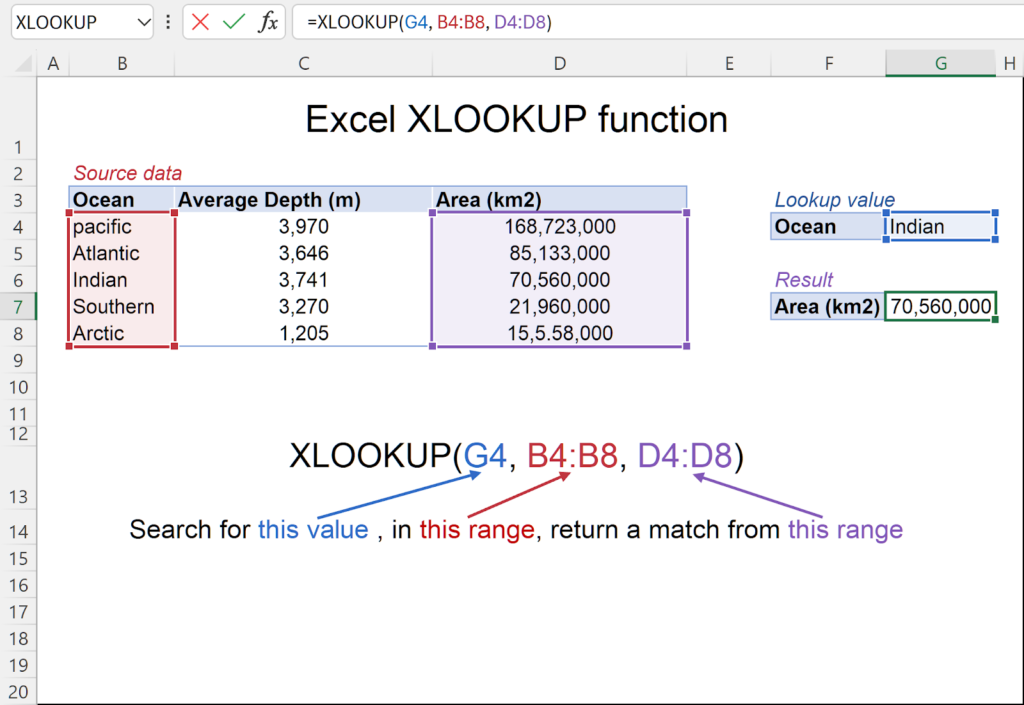
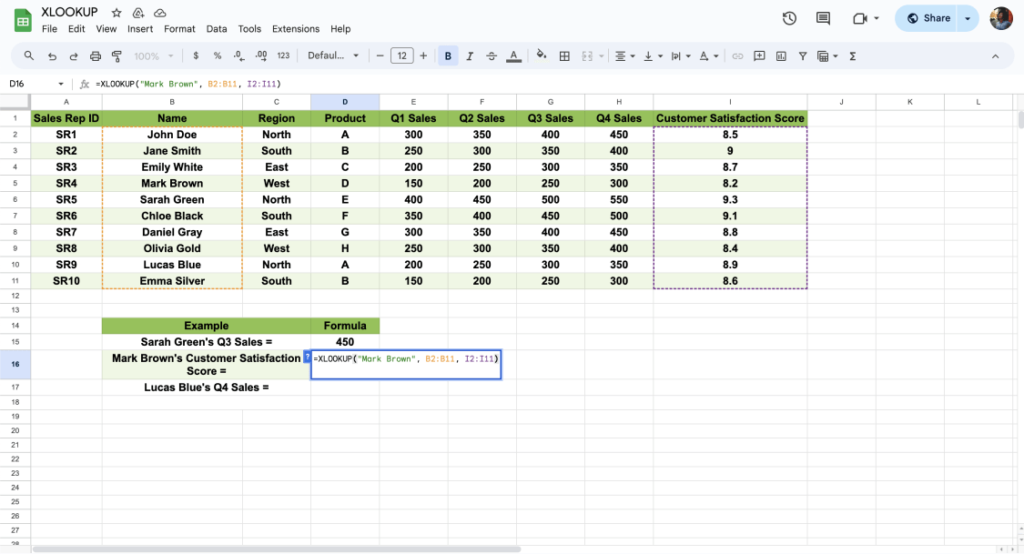
The basic syntax looks very similar in both platforms.
Excel:
=XLOOKUP(lookup_value, lookup_array, return_array)
Google Sheets:
=XLOOKUP(search_key, lookup_range, result_range)
The naming differs slightly, but the structure and behavior are nearly the same.
Ease of Use
Excel and Google Sheets both make XLOOKUP easy to write and read.
However:
- Excel offers stronger formula autocomplete and inline help
- Google Sheets is simpler for quick edits and collaboration
For beginners, both are equally approachable.
Performance Differences
Excel generally handles very large datasets better, especially when:
- Working with tens of thousands of rows
- Using XLOOKUP inside complex models
- Combining XLOOKUP with other advanced formulas
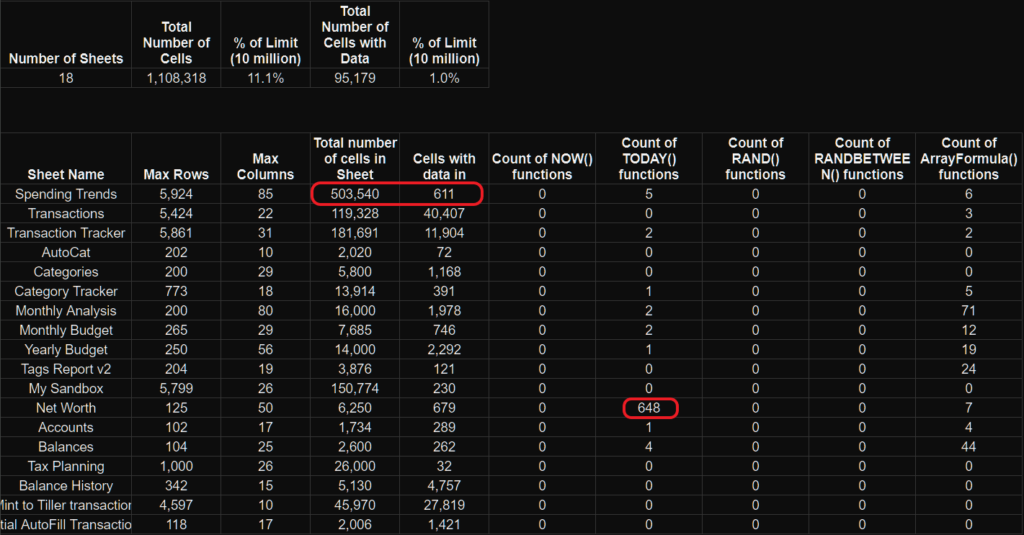
Google Sheets performs well for small to medium datasets but may slow down with heavy calculations.
Error Handling Comparison
Both platforms support built in error handling inside XLOOKUP.
Example in both tools:
=XLOOKUP(A2, A2:A20, B2:B20, “Not Found”)
Behavior is nearly identical, making formulas portable between Excel and Sheets.
Dynamic Array Behavior
This is where Excel has an advantage.
Excel:
- Strong support for dynamic arrays
- Better spill behavior control
- More predictable performance
Google Sheets:
- Supports array results
- Handles spills automatically
- Can behave differently when mixed with other array formulas
For advanced models, Excel is more consistent.
Compatibility and Sharing
Google Sheets excels in collaboration.
Advantages:
- Real time editing
- No version conflicts
- Easy sharing
Excel is better when:
- Files are large
- Offline access is required
- Advanced modeling is needed
XLOOKUP formulas themselves transfer easily between platforms with minimal changes.
Feature Comparison Summary
| Feature | Excel | Google Sheets |
| XLOOKUP availability | Yes | Yes |
| Ease of learning | High | High |
| Performance on large data | Excellent | Good |
| Error handling | Built in | Built in |
| Dynamic arrays | Advanced | Basic |
| Collaboration | Limited | Excellent |
| Offline access | Yes | Limited |
Which Platform Is Better for XLOOKUP?
Choose Excel if:
- You work with large datasets
- You build complex financial or analytical models
- You rely heavily on performance and advanced features
Choose Google Sheets if:
- You collaborate frequently
- You want easy sharing and access
- Your datasets are small to medium
In terms of pure XLOOKUP functionality, both platforms are very close.
Final Verdict
XLOOKUP works extremely well in both Excel and Google Sheets. The choice is less about the function itself and more about the environment you work in.
Excel offers power and precision.
Google Sheets offers simplicity and collaboration.
Knowing how XLOOKUP behaves in both gives you flexibility and confidence across platforms.
