

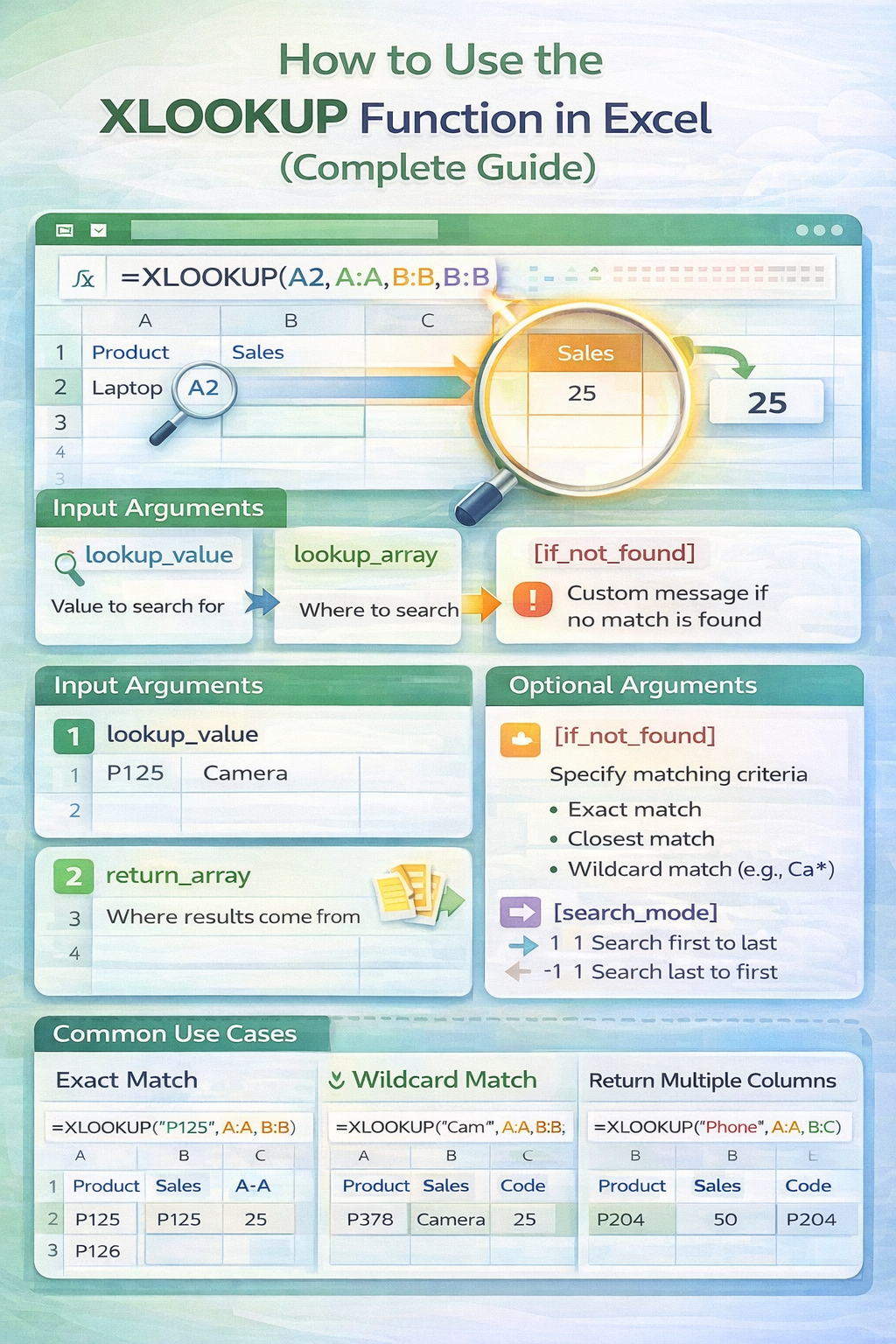
XLOOKUP is one of the most important Excel functions to learn today. It replaces older lookup formulas like VLOOKUP and HLOOKUP and simplifies tasks that once required complex setups.
In this complete guide, you will learn how to use the XLOOKUP function in Excel, starting from the basics and moving into advanced use cases. By the end, you will be able to confidently use XLOOKUP in real spreadsheets.
What Is XLOOKUP in Excel?
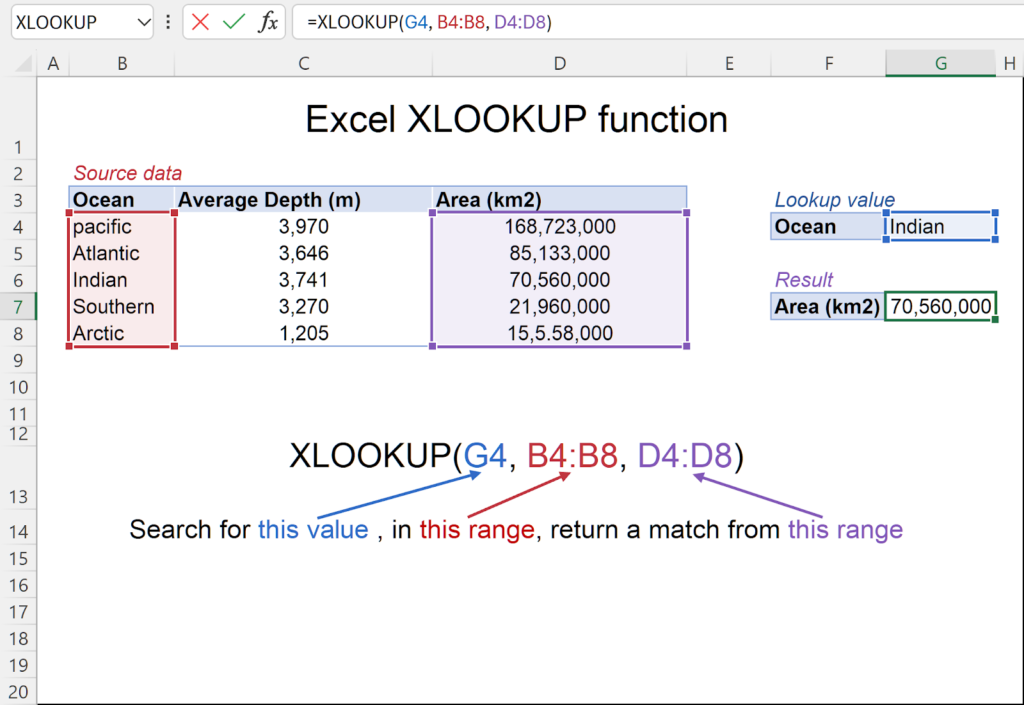
XLOOKUP is a lookup and reference function that searches for a value in a range and returns a related value from another range.
It improves on older functions by offering:
- Exact match by default
- Flexible search direction
- No column index numbers
- Built in error handling
XLOOKUP works vertically and horizontally and is designed to be safer and easier to maintain.
XLOOKUP Syntax Explained
The basic syntax of XLOOKUP is:
=XLOOKUP(lookup_value, lookup_array, return_array, [if_not_found], [match_mode], [search_mode])
Argument breakdown:
- lookup_value is the value you want to find
- lookup_array is where Excel searches
- return_array is where Excel pulls the result from
- if_not_found defines what to show if no match exists
- match_mode controls exact or approximate matching
- search_mode controls search direction
Most users only need the first three arguments.
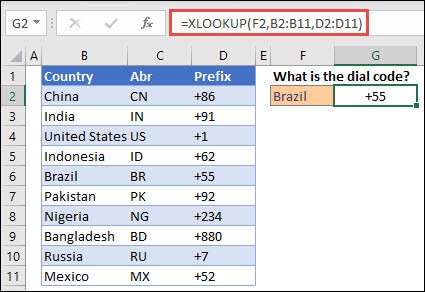
Your First XLOOKUP Example
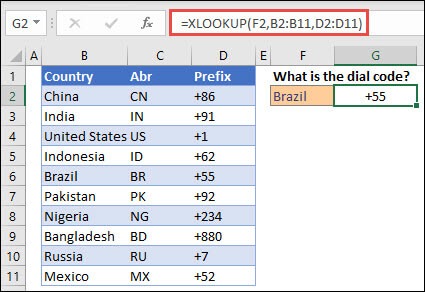
Imagine this data:
- Column A contains product IDs
- Column B contains product names
You want to return the product name based on an ID entered in cell E2.
Formula:
=XLOOKUP(E2, A2:A20, B2:B20)
Excel searches column A for the value in E2 and returns the matching product name from column B.
Using XLOOKUP to Search Left or Right
Unlike VLOOKUP, XLOOKUP can return values from columns on either side of the lookup column.
Example:
=XLOOKUP(B2, B2:B20, A2:A20)
This searches column B and returns the matching value from column A.
This flexibility removes the need to rearrange data.
Handling Missing Values with XLOOKUP
If XLOOKUP cannot find a value, it returns an error by default.
You can control this using the if_not_found argument.
Example:
=XLOOKUP(E2, A2:A20, B2:B20, “Not Found”)
This makes reports cleaner and easier to understand.
Horizontal XLOOKUP Example
XLOOKUP also works with rows instead of columns.
Example:
=XLOOKUP(B1, B1:F1, B2:F2)
This replaces the need for HLOOKUP entirely.
Using XLOOKUP with Multiple Return Values
XLOOKUP can return multiple columns at once in modern Excel versions.
Example:
=XLOOKUP(A2, A2:A10, B2:D10)
The results automatically spill across cells.
This is ideal for dashboards and summary tables.
Approximate Match with XLOOKUP
You can use XLOOKUP to find approximate matches for ranges like grades or pricing tiers.
Example:
=XLOOKUP(E2, A2:A10, B2:B10,, -1)
This returns the next smaller match.
Always ensure lookup data is properly sorted when using approximate matches.
Search Mode Options
XLOOKUP allows you to control how Excel searches.
Common search modes:
- First match from top to bottom
- Last match from bottom to top
Example for last match:
=XLOOKUP(E2, A2:A20, B2:B20,, , -1)
This is useful for finding the most recent record.
Common XLOOKUP Mistakes
Avoid these frequent errors:
- Lookup and return arrays with different sizes
- Including header rows accidentally
- Mixing text numbers and numeric values
- Forgetting exact match behavior
Careful range selection prevents most issues.
XLOOKUP vs Older Lookup Functions
XLOOKUP replaces:
- VLOOKUP
- HLOOKUP
- LOOKUP
Compared to INDEX MATCH, XLOOKUP is simpler and easier to maintain for most users.
When XLOOKUP Is Not Available
XLOOKUP is available in:
- Excel for Microsoft 365
- Excel 2021 and later
If you are using an older version of Excel, INDEX MATCH remains the best alternative.
Best Practices for Using XLOOKUP
To get the most from XLOOKUP:
- Use exact match whenever possible
- Lock ranges with absolute references when copying
- Keep lookup and return arrays aligned
- Avoid unnecessary volatile formulas
These habits improve accuracy and performance.
Final Thoughts
Learning how to use the XLOOKUP function in Excel is one of the best investments you can make in your Excel skills.
XLOOKUP is powerful, flexible, and future proof. Once you master it, your spreadsheets become cleaner, safer, and easier to maintain.
