


If you are new to Excel or moving beyond basic formulas, you may be wondering what is XLOOKUP and why it has become so popular. XLOOKUP is one of Excel’s most powerful lookup functions, designed to make finding data easier, faster, and more reliable than older functions like VLOOKUP or HLOOKUP.
In this beginner-friendly guide, you’ll learn what is XLOOKUP in Excel, what does XLOOKUP do, and how you can start using it with simple, real-world examples.
What Is XLOOKUP in Excel?
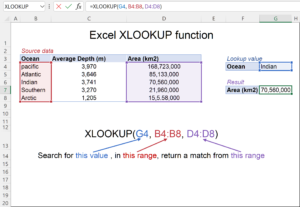
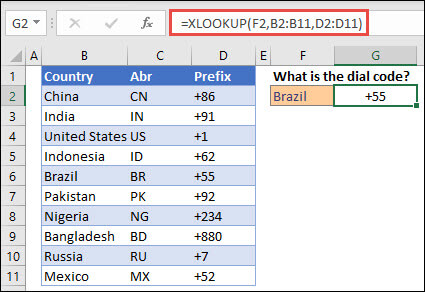
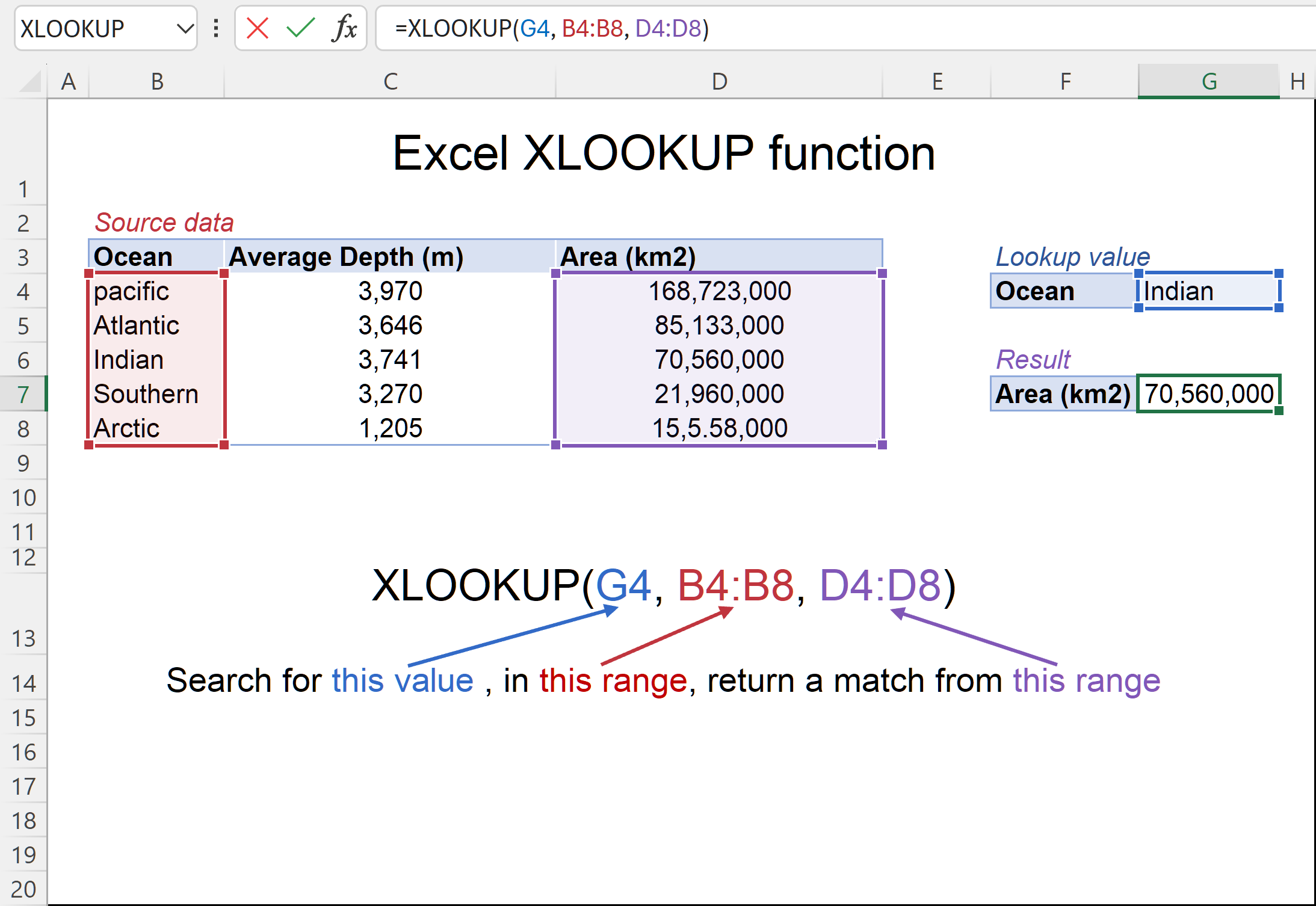
XLOOKUP is a lookup and reference function in Excel that searches for a value in one range and returns a matching value from another range. It works in both vertical and horizontal directions and does not rely on column numbers, which makes it safer and more flexible.
Unlike older lookup functions, XLOOKUP:
-
Returns exact matches by default
-
Works left, right, up, or down
-
Does not break when columns are inserted or deleted
-
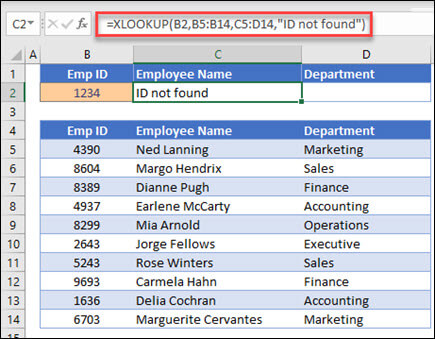
Can handle missing values cleanly
This is why many Excel users now prefer XLOOKUP when working with tables, reports, and dashboards.
What Does XLOOKUP Do?
A common question beginners ask is what does XLOOKUP do in practical terms.
XLOOKUP helps you:
-
Search for a specific value (such as an ID or name)
-
Locate it in a lookup range
-
Return the corresponding value from another column or row
For example, if you have a list of employee names and want to return their salaries, XLOOKUP can retrieve that information instantly.
This removes the need for manual searching or complex nested formulas.
Basic XLOOKUP Formula Syntax
To fully understand what is an XLOOKUP, you need to know its syntax.
Explanation:
-
lookup_value – The value you are searching for
-
lookup_array – The range where Excel searches
-
return_array – The range containing the value you want returned
Because the formula is straightforward, beginners can learn XLOOKUP quickly without memorizing column numbers.
Simple XLOOKUP Example for Beginners
Let’s look at a basic example to make things clear.
Imagine you have:
-
Column A: Product IDs
-
Column B: Product Names
You want Excel to return the product name when you enter a Product ID.
Excel looks for the value in cell E2, searches column A, and returns the matching product name from column B.
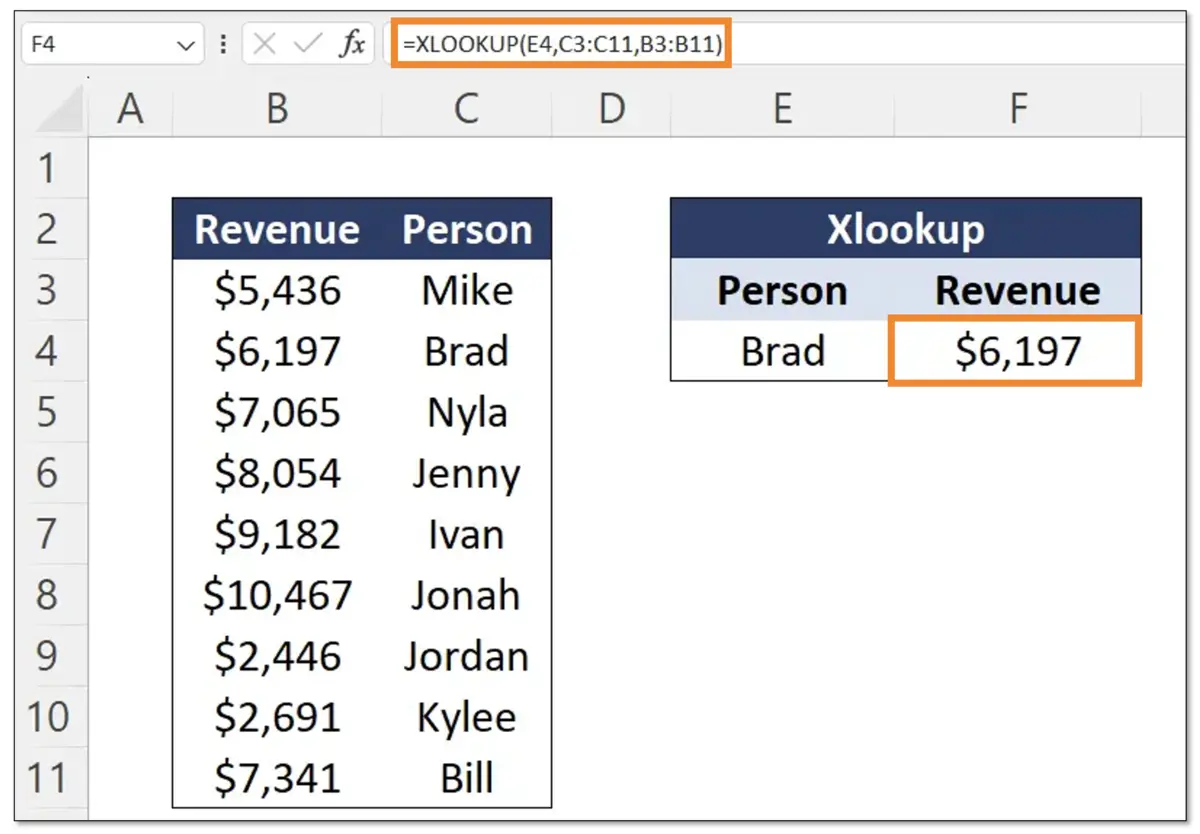
This is one of the most common beginner use cases.
Why XLOOKUP Is Better Than VLOOKUP
If you’ve used older formulas, you’ll quickly see why people ask what is XLOOKUP in Excel instead of sticking with VLOOKUP.
Key advantages:
-
No need to count columns
-
Can return values to the left
-
Built-in error handling
-
Easier to read and maintain
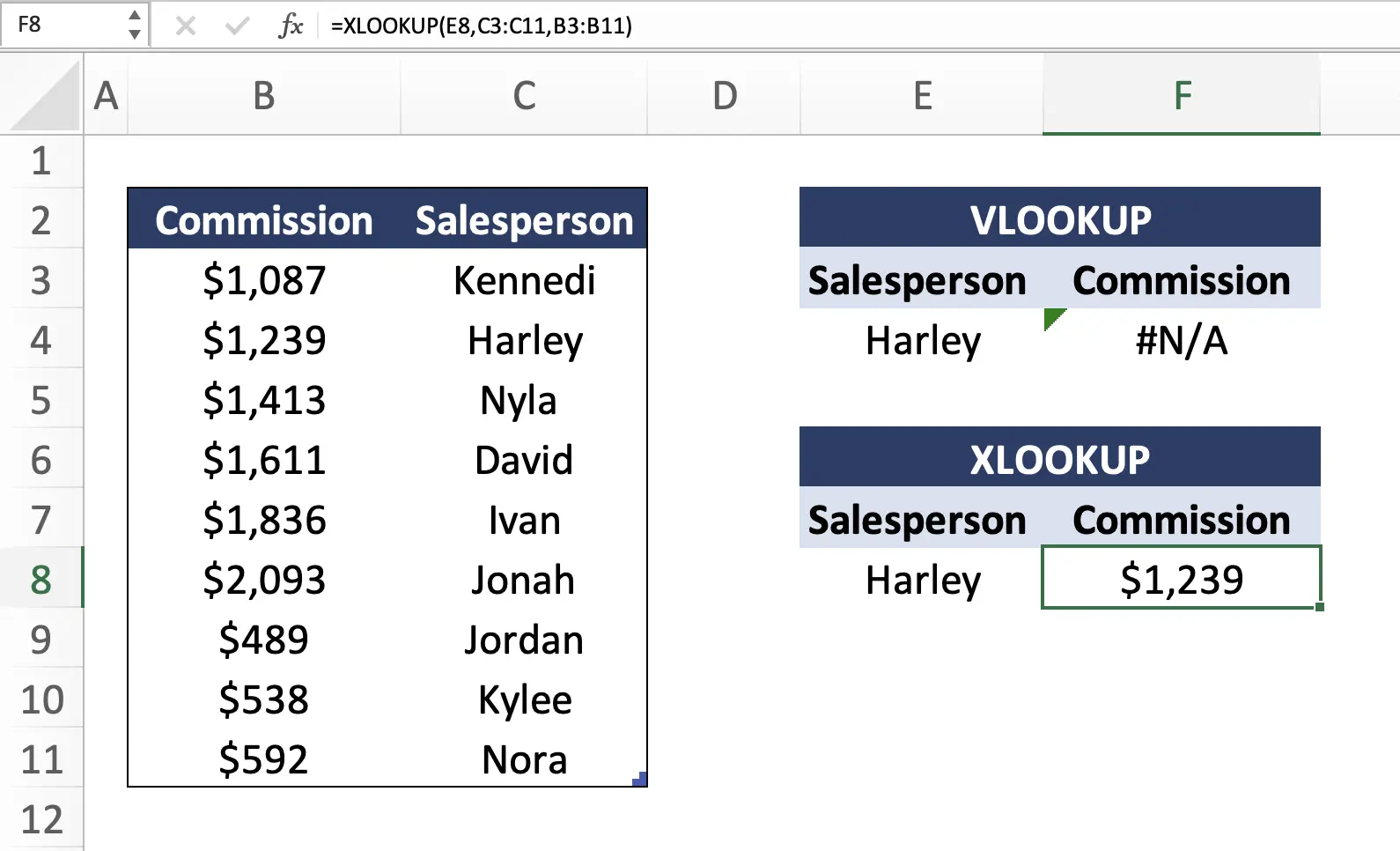
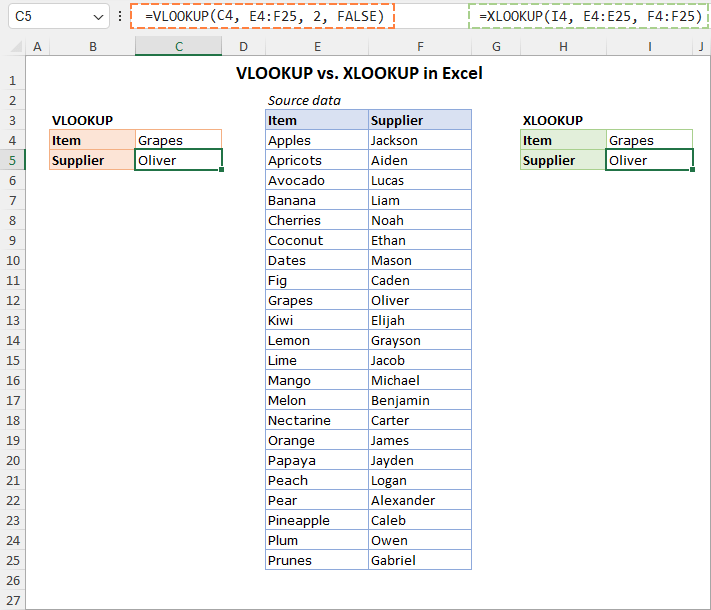
Because of these benefits, Microsoft designed XLOOKUP as a long-term replacement for older lookup functions.
Common Beginner Mistakes with XLOOKUP
Even though XLOOKUP is beginner-friendly, mistakes can still happen:
-
Selecting mismatched lookup and return ranges
-
Using extra spaces in lookup values
-
Forgetting absolute references when copying formulas
Understanding what does XLOOKUP do and how ranges align will help you avoid these issues.
Frequently Asked Questions
What is XLOOKUP used for?
XLOOKUP is used to find and return matching values from tables or ranges in Excel.
Is XLOOKUP better than VLOOKUP?
Yes, XLOOKUP is more flexible, safer, and easier to use.
Does XLOOKUP work horizontally?
Yes, XLOOKUP works both vertically and horizontally.
Can XLOOKUP return multiple values?
XLOOKUP can return arrays when used with dynamic Excel features.
What versions of Excel support XLOOKUP?
XLOOKUP is available in Excel for Microsoft 365 and Excel 2021+.
Is XLOOKUP hard to learn?
No, most beginners find XLOOKUP easier than older lookup formulas.
Conclusion
Now that you understand what is XLOOKUP, what is XLOOKUP in Excel, and what does XLOOKUP do, you can start using it confidently in your spreadsheets. Its simplicity, flexibility, and power make it one of the most important Excel functions to learn today.
If you’re building reports, managing data, or learning Excel from scratch, XLOOKUP is a skill that will save you time and reduce errors.
