

🔍 What is a Drop Down List in Excel?
If you’re wondering how to create drop down list in excel, you’re about to learn one of the most useful Excel features.
A drop-down list allows users to select a value from a predefined list instead of typing manually. This reduces errors and improves consistency.
✅ Benefits of Using Drop Down Lists
- Prevents data entry mistakes
- Saves time
- Keeps data consistent
- Makes spreadsheets user-friendly
📊 Types of Drop Down Lists
📌 Static List
- Manually typed values
- Best for small datasets
📌 Dynamic List
- Linked to a range
- Automatically updates
🪜 Step-by-Step Guide: How to Create Drop Down List in Excel
📌 Step 1: Prepare Your List


Create a list like:
- Apple
- Banana
- Mango
📌 Step 2: Select the Target Cell
Choose the cell where you want the drop-down list.
📌 Step 3: Open Data Validation

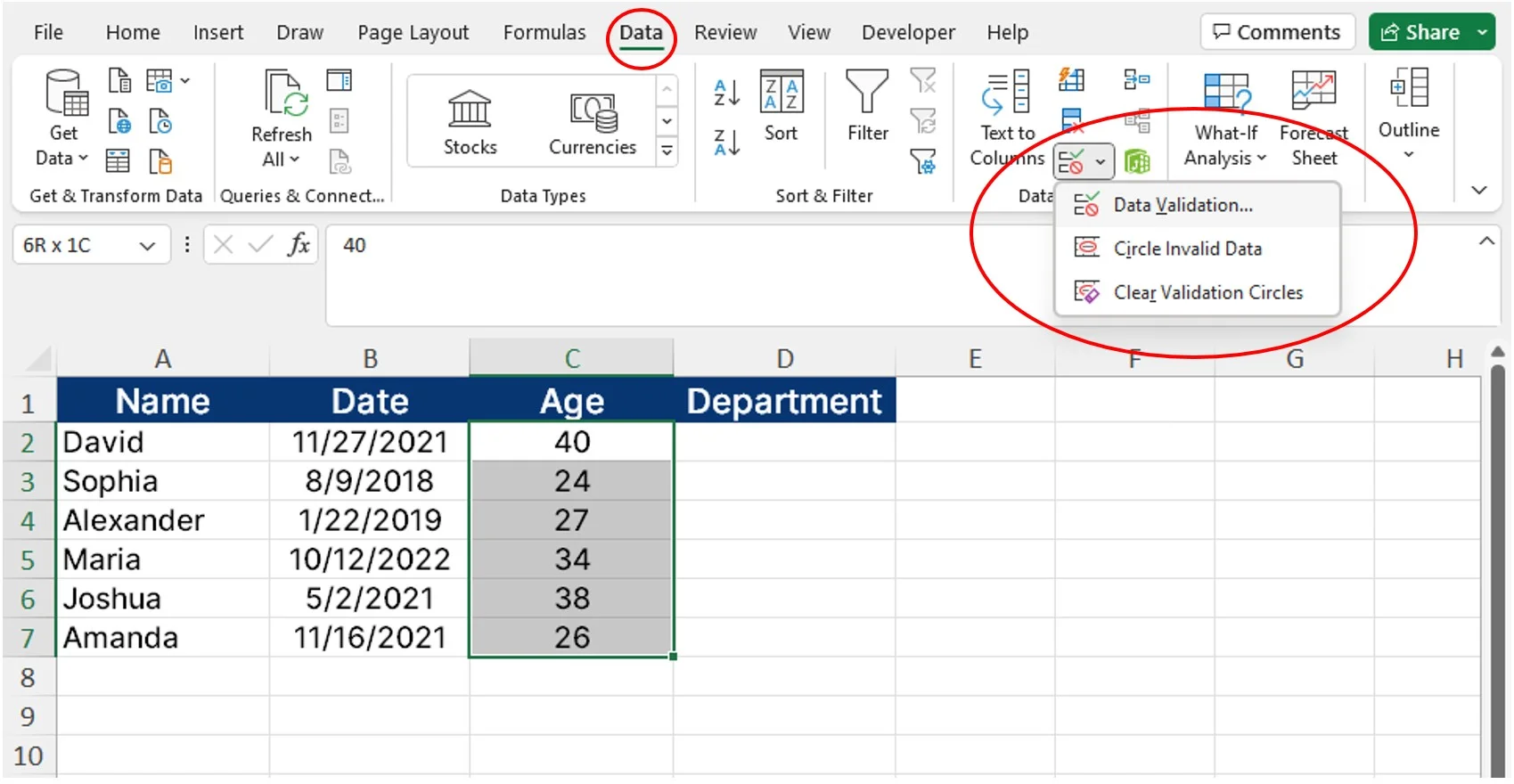
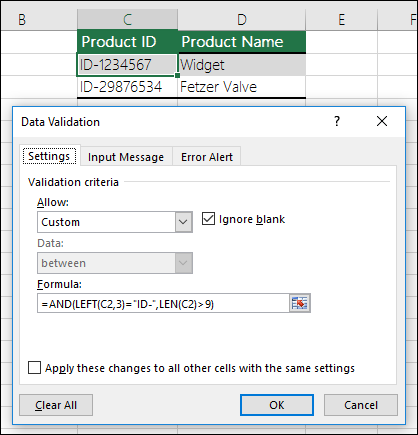

Go to:
👉 Data Tab → Data Validation
📌 Step 4: Choose List Option
- In settings → Allow → Select List
📌 Step 5: Enter Source Data
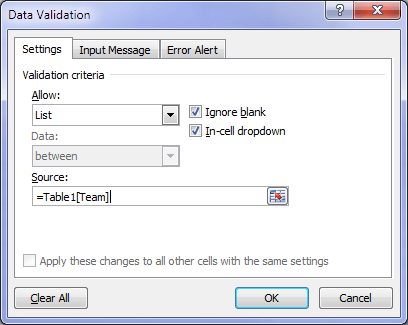
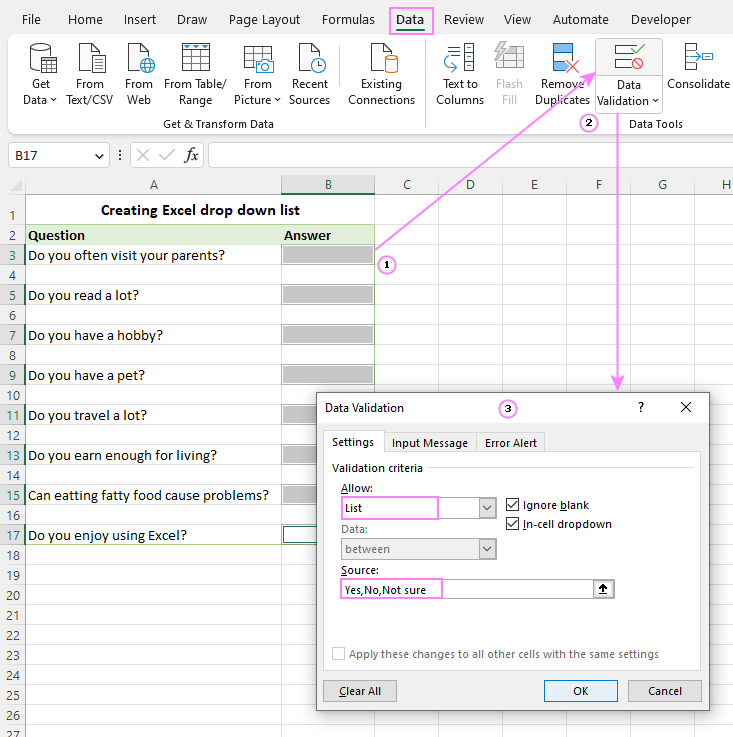
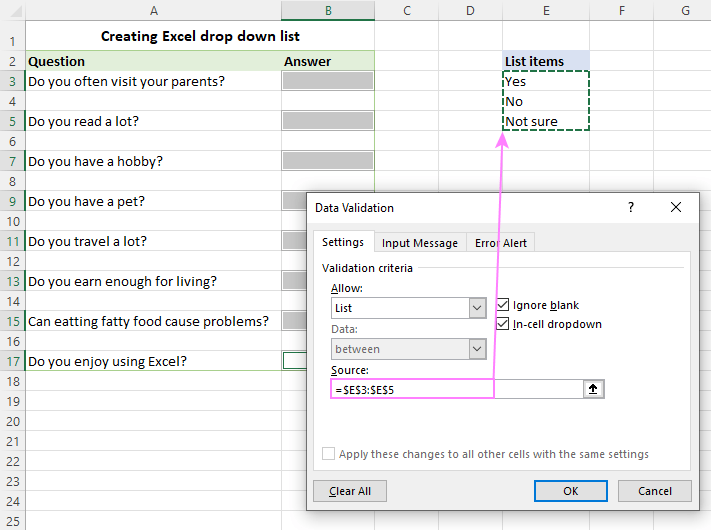
- Select your list range (e.g., A1:A3)
OR - Type values separated by commas
📌 Step 6: Apply and Test
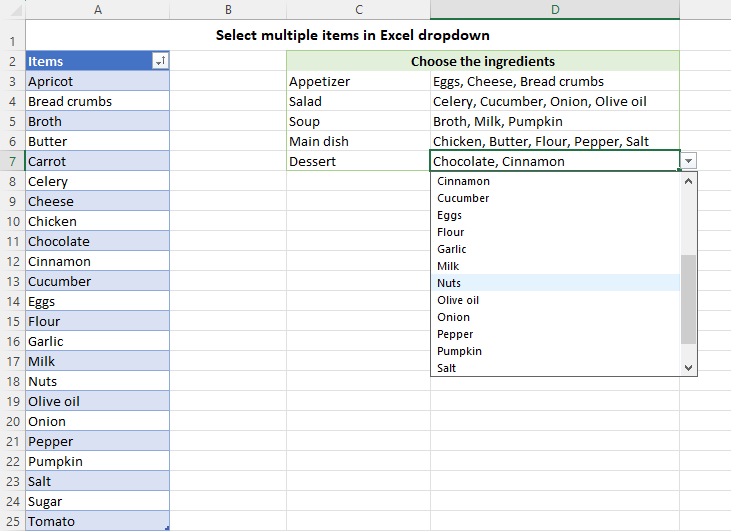
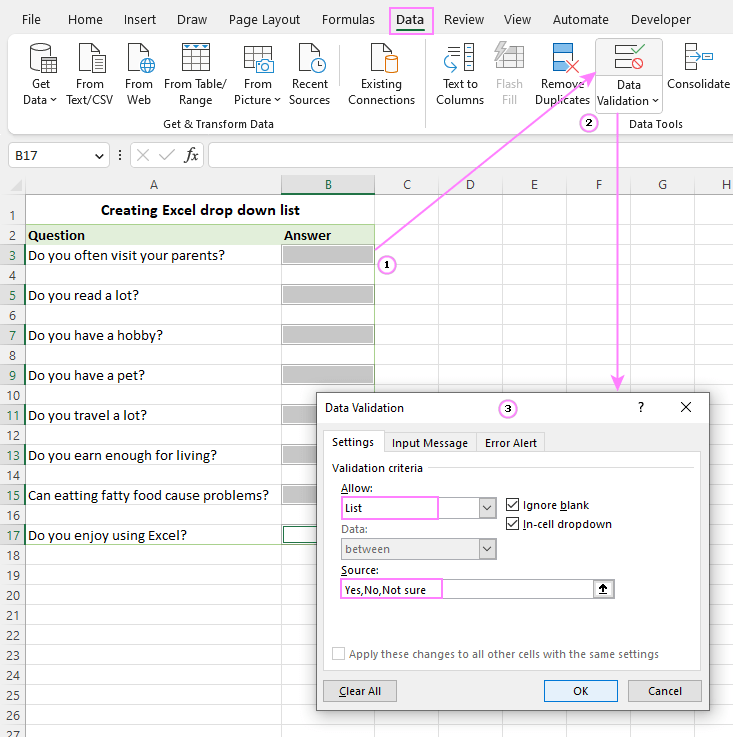
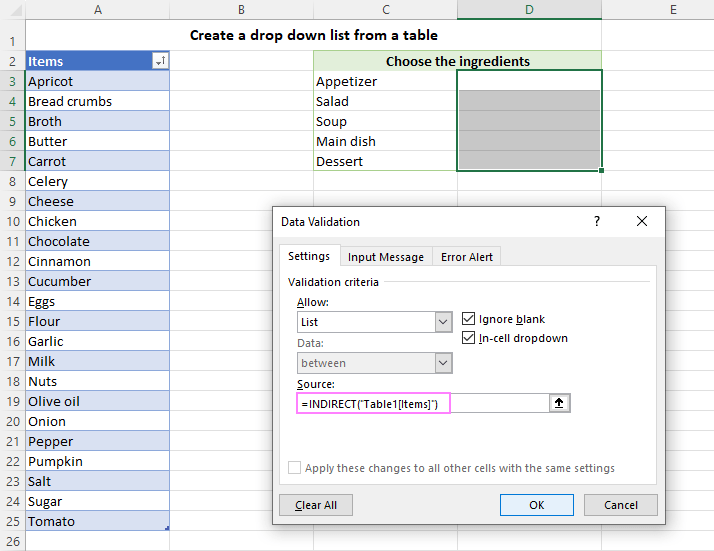
Click OK → Test your dropdown 🎉
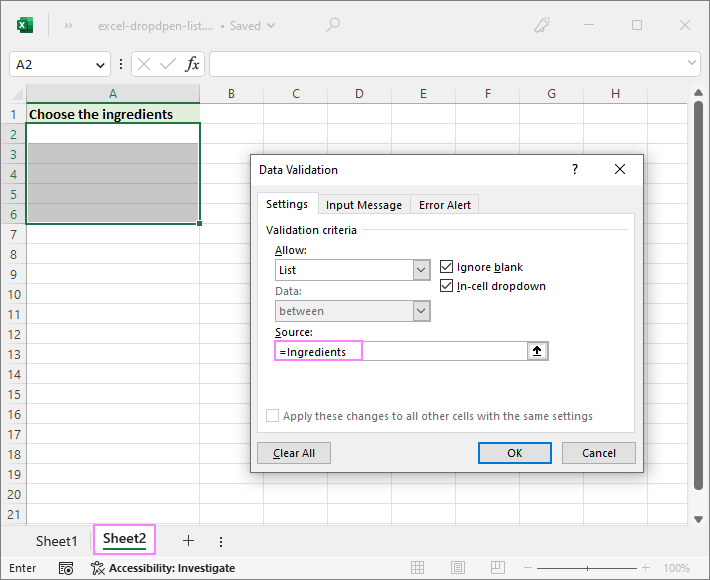
📂 Creating Drop Down List from Another Sheet
📌 Named Range Method
Steps:
- Select list in Sheet2
- Go to Formulas → Define Name
- Use that name in Data Validation
✅ Best Practices
- Use clear names
- Avoid blank cells
- Keep lists organized
⚡ Advanced Drop Down Techniques
🔗 Dependent Drop Down List
- Second dropdown depends on first
- Useful for categories
🔍 Searchable Drop Down
- Use combo box or advanced formulas
- Great for large datasets
⚠️ Common Errors and Fixes
❌ Source Error
- Wrong range
- Empty cells
🚫 Drop Down Not Showing
- Data validation not applied
- Incorrect settings
🎯 Tips for Better Usage
📌 Data Organization
- Keep lists in separate sheet
- Use tables
🎨 Formatting Tips
- Highlight dropdown cells
- Use borders for clarity
❓ FAQs
1. What is a drop-down list in Excel?
A list that allows users to select values instead of typing.
2. Can I create a drop-down from another sheet?
Yes, using named ranges.
3. How do I edit a drop-down list?
Go to Data Validation and update source.
4. Can I allow multiple selections?
Not directly—requires VBA.
5. Why is my drop-down not working?
Check data validation settings.
6. Can I create dynamic drop-down lists?
Yes, using tables or formulas.
🏁 Conclusion
Now you know exactly how to create drop down list in excel using simple steps and screenshots. This feature is essential for improving data accuracy and making your spreadsheets more professional.
Practice these steps, explore advanced options, and soon you’ll be creating powerful Excel tools with ease.
