

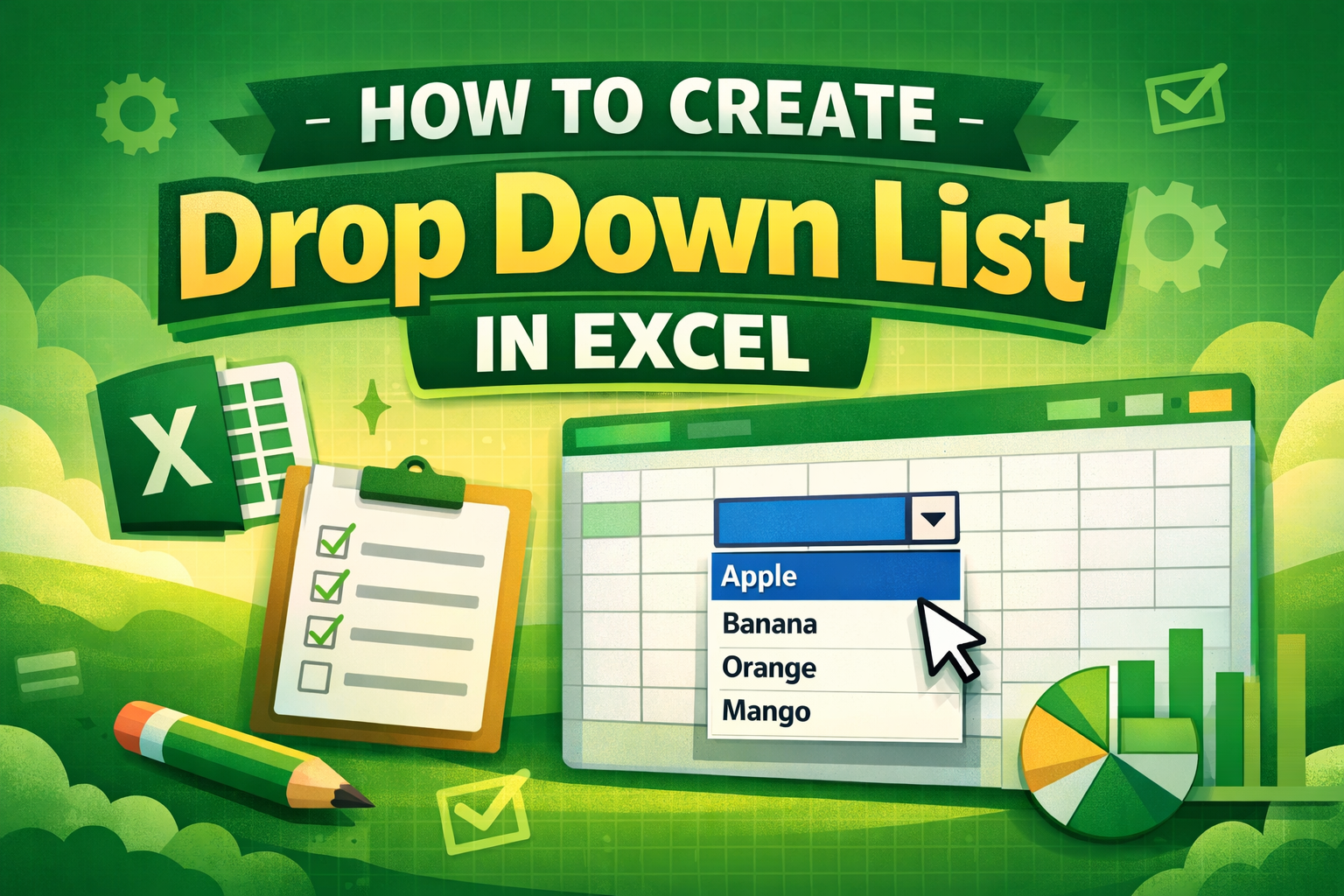
How to Create a Drop Down List in Excel
📊 Introduction to Drop Down Lists in Excel
What is a Drop Down List?
A drop down list in Excel is a feature that allows users to select a value from a predefined list instead of typing manually. It helps maintain consistency and reduces errors.
Benefits of Using Drop Down Lists
- Improves data accuracy
- Saves time during data entry
- Prevents invalid inputs
- Makes spreadsheets more user-friendly
⚙️ Prerequisites Before Creating a Drop Down List
Excel Versions Supported
You can create drop down lists in almost all versions of Excel, including:
- Excel 2010, 2013, 2016
- Excel 2019
- Excel 365
Preparing Your Data
Before creating a drop down list:
- Decide the list items
- Enter them in a column or row
- Keep them organized and clean
🛠️ Step-by-Step Guide to Create a Drop Down List in Excel
Step 1: Enter Your List Items
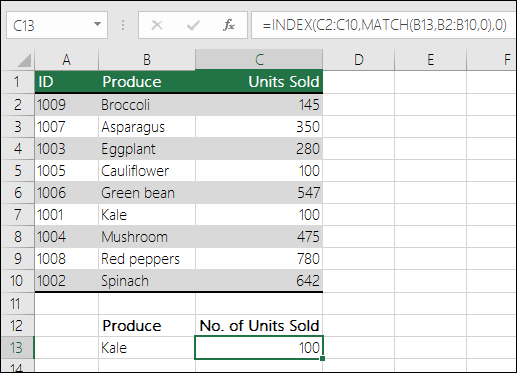
First, type your list items in a column:
Apple
Banana
Orange
Mango
Step 2: Select the Target Cell

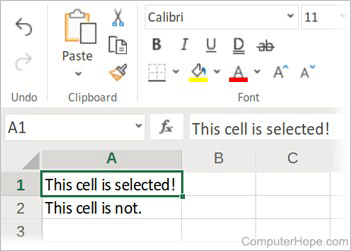
Click on the cell where you want the drop down list to appear.
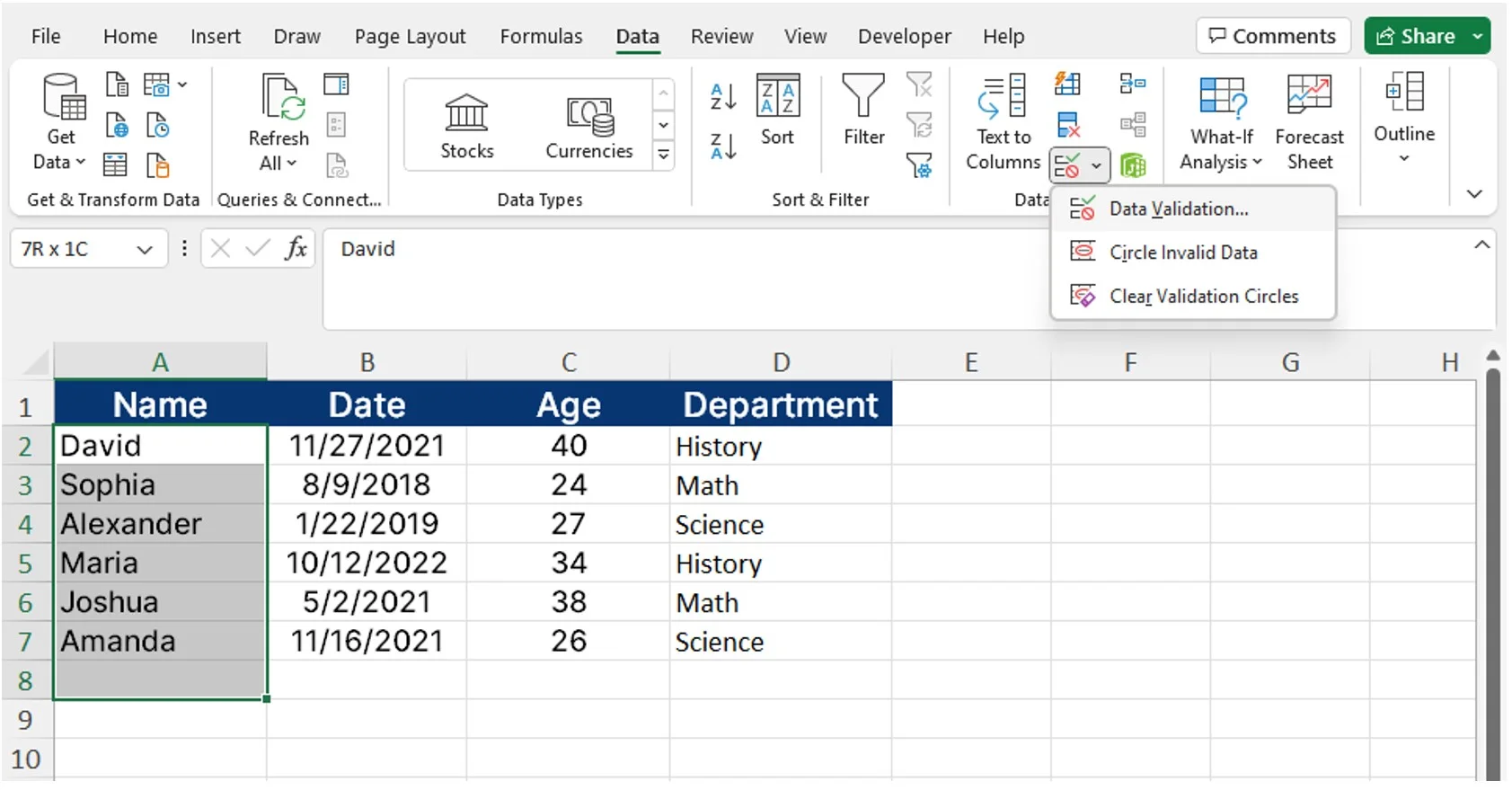
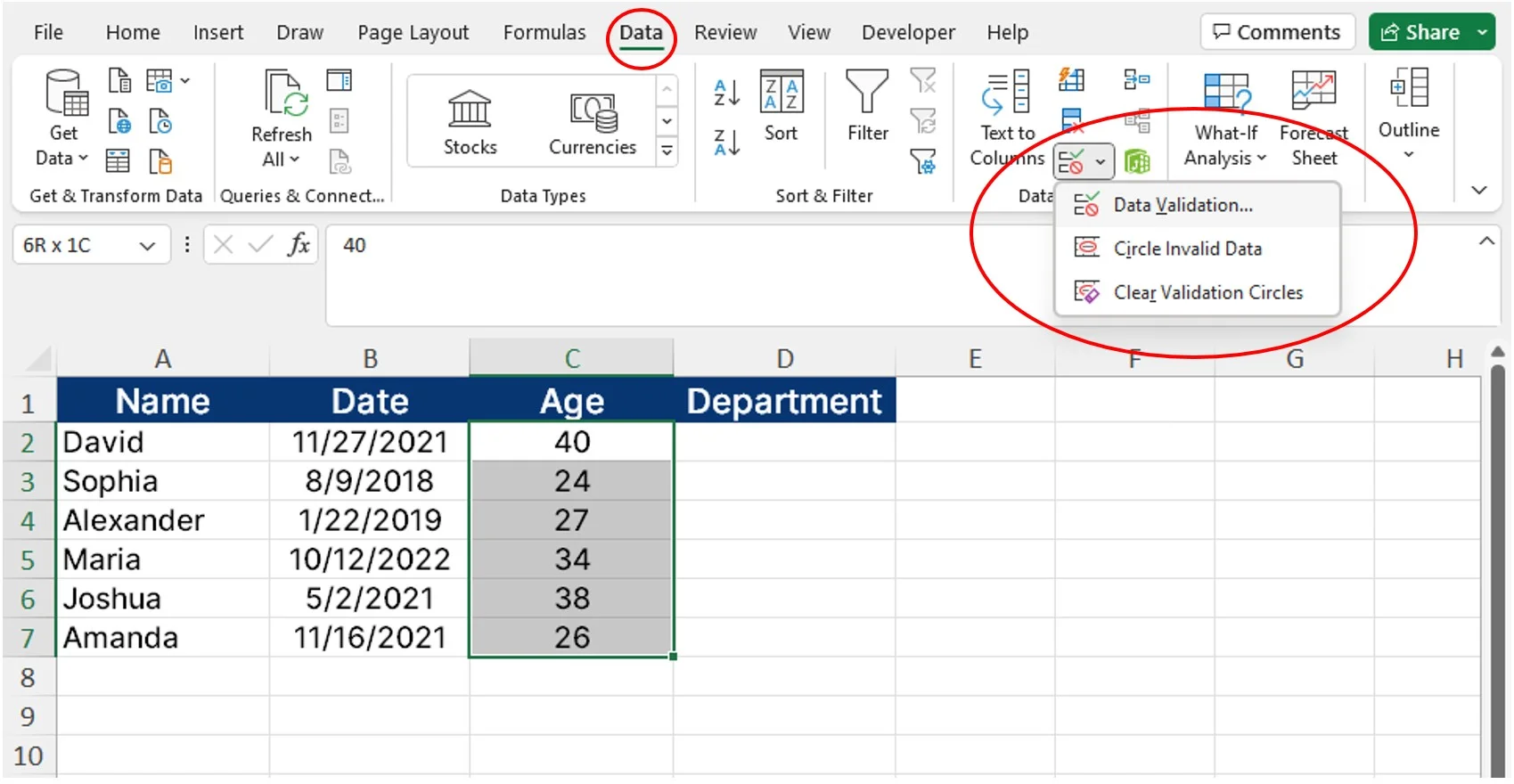
Step 3: Open Data Validation
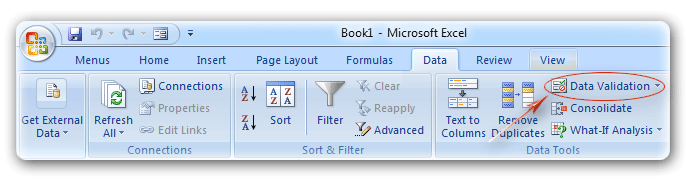

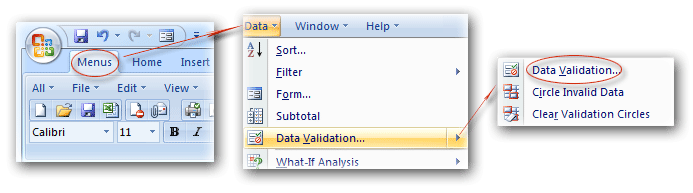
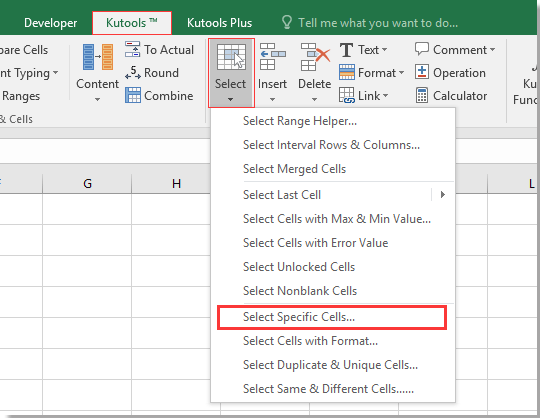
- Go to the Data tab
- Click on Data Validation
Step 4: Configure Drop Down Settings
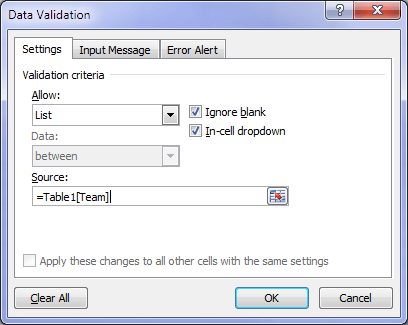
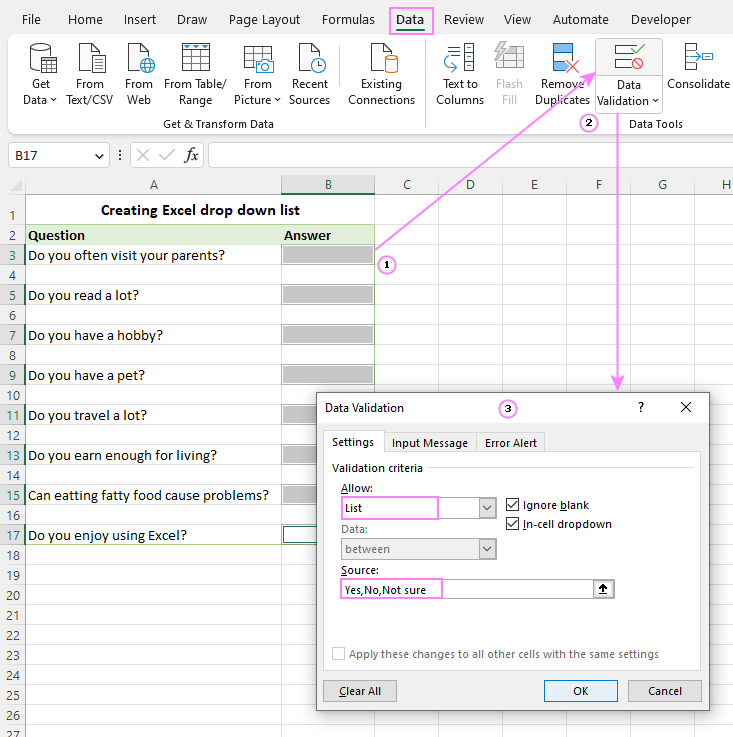
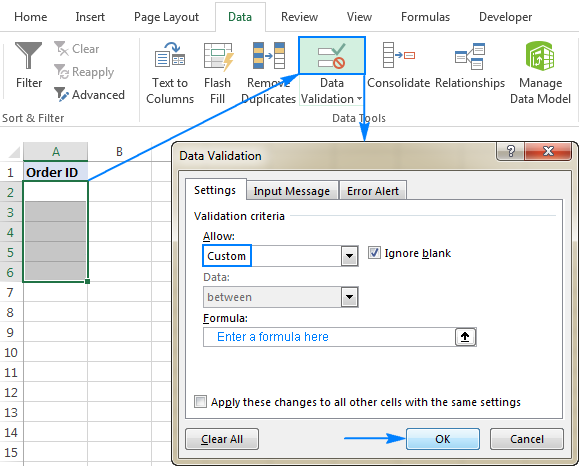
- In the dialog box:
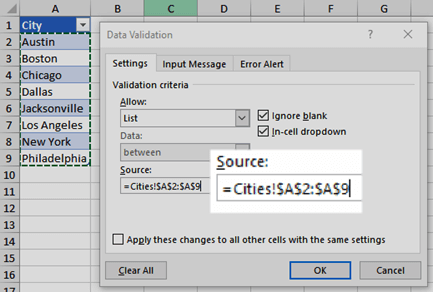
- Under Allow, select List
- In Source, select your list range (e.g., A1:A4)
- Click OK
✅ Your drop down list is now ready!
✏️ How to Edit or Update a Drop Down List
Modifying Existing List Values
- Update the original list
- The drop down will automatically reflect changes
Using Named Ranges
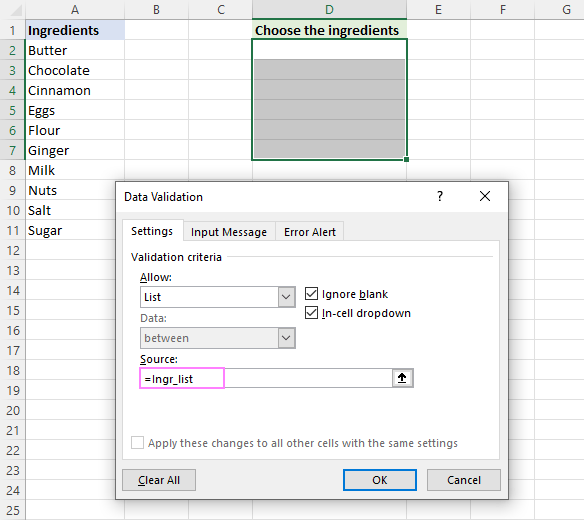
- Select your list
- Assign a name (e.g., “Fruits”)
- Use
=Fruitsin the Source box
🔄 Creating a Dynamic Drop Down List
Using Tables

- Select your list
- Press Ctrl + T
- Tables expand automatically when new items are added
Using Formulas
You can use formulas like:
- OFFSET
- INDEX
These help create flexible and dynamic lists.
⚠️ Common Errors and How to Fix Them
Drop Down Not Showing
- Ensure Data Validation is set to “List”
- Check if “In-cell dropdown” is enabled
Invalid Entries Issue
- Enable Error Alert in Data Validation
- Restrict users to only list values
💡 Advanced Tips for Better Drop Down Lists
Adding Input Messages
- Show instructions when a cell is selected
- Helps users understand what to choose
Creating Dependent Drop Down Lists
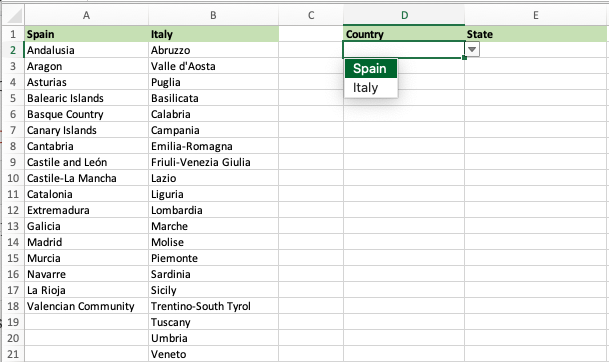
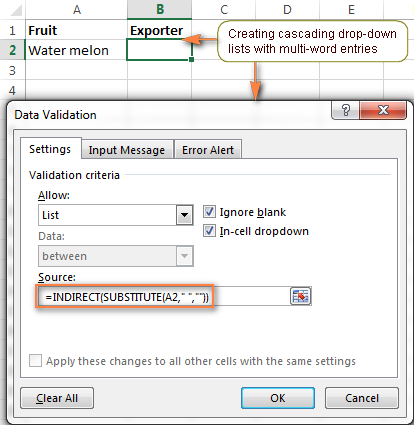
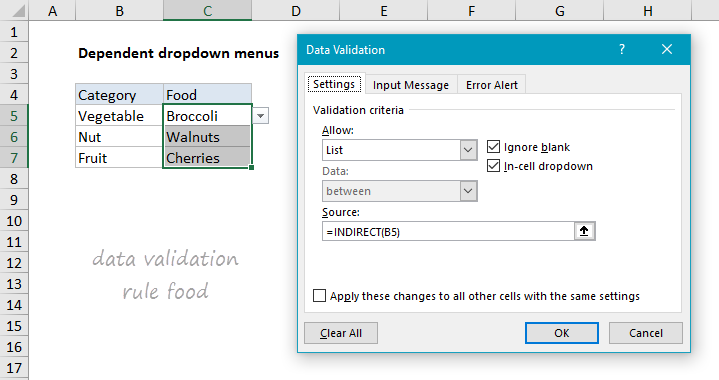

- Example: Country → City
- Use the INDIRECT function
🎯 Real-Life Use Cases of Drop Down Lists
- Employee data entry forms
- Inventory management
- Survey forms
- Budget tracking sheets
🎥 Video Tutorial: How to Create a Drop Down List in Excel
❓ FAQs
1. Can I create a drop down list in multiple cells?
Yes, simply copy the cell with the drop down and paste it into other cells.
2. How do I allow multiple selections in a drop down?
Excel doesn’t support this by default. You need to use VBA.
3. Can I use a drop down list in Excel Online?
Yes, but some advanced features may be limited.
4. Why is my drop down list not updating?
Ensure your source range includes new data or use a dynamic table.
5. Can I remove a drop down list?
Yes, go to Data Validation and click Clear All.
6. How do I sort items in a drop down list?
Sort the original data range; the drop down will follow.
✅ Conclusion
Learning how to create a drop down list in Excel is a simple yet powerful skill. It enhances your spreadsheets by making them more organized, accurate, and user-friendly. Whether you’re managing data, building forms, or improving workflow efficiency, drop down lists are a must-have tool.
By following the steps outlined above, you can easily create, customize, and optimize drop down lists for any use case. Start practicing today, and you’ll quickly see how much easier Excel becomes!
