Close Menu
    XLOOKUP
    • Home
    • Blogs
    • XLOOKUP
    • Excel Guide
    • Excel Formulas
    Build Formula
    XLOOKUP
    Home ยป How Does VLOOKUP Work in Excel? (Complete Beginner-to-Advanced Guide)
    XLOOKUP

    How Does VLOOKUP Work in Excel? (Complete Beginner-to-Advanced Guide)

    adminBy adminApril 6, 2026No Comments3 Mins Read
    Facebook Twitter Pinterest LinkedIn Tumblr Email
    How Does VLOOKUP Work in Excel

    What is VLOOKUP?

    VLOOKUP stands for Vertical Lookup. It is one of the most popular functions in Excel used to search for a value in the first column of a table and return a corresponding value from another column.

    Why VLOOKUP is Important

    • Saves time in large datasets
    • Automates data retrieval
    • Reduces manual searching
    • Widely used in business reports

    ๐Ÿ” Understanding the VLOOKUP Formula

    Syntax of VLOOKUP

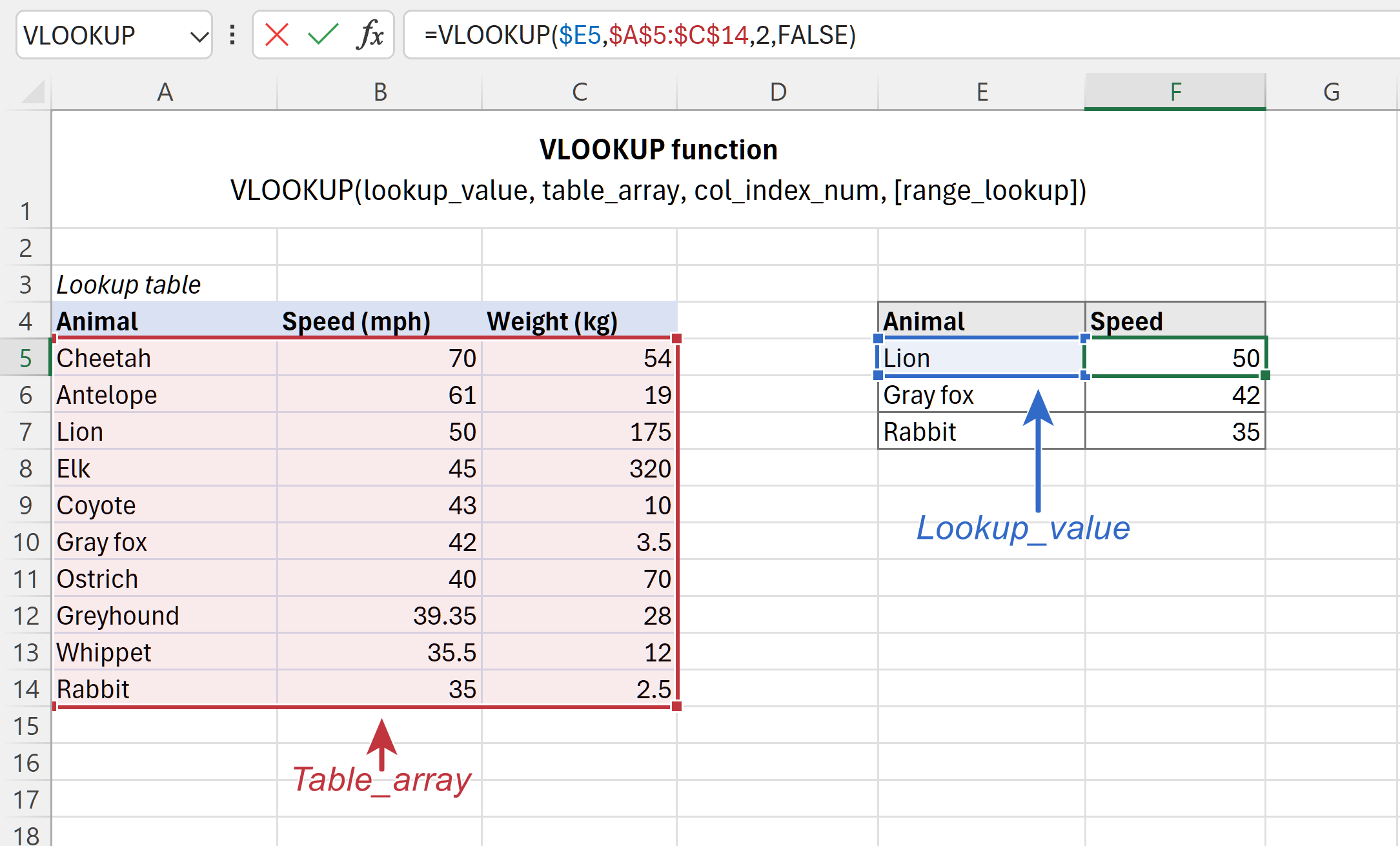
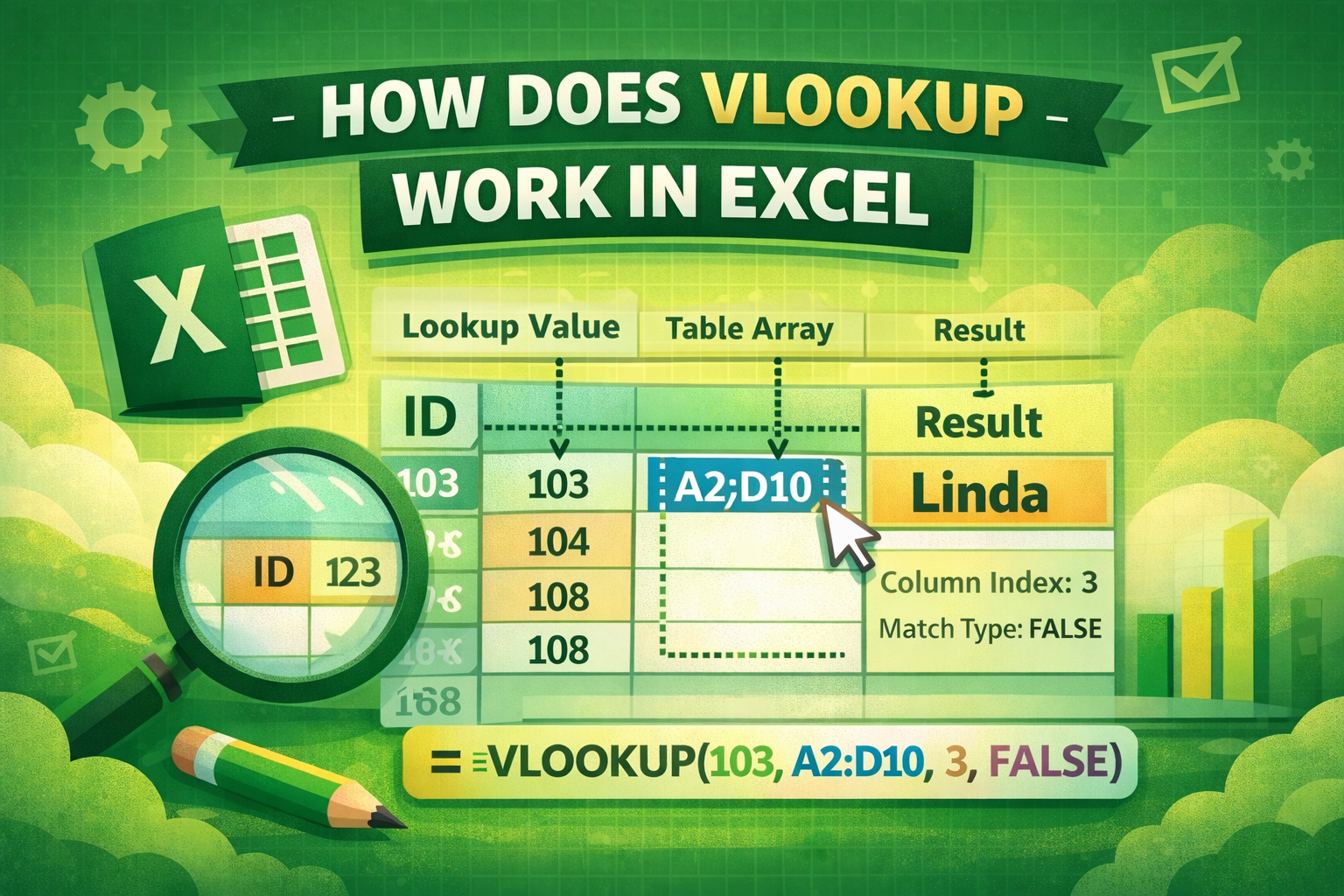
    =VLOOKUP(lookup_value, table_array, col_index_num, [range_lookup])
    

    Explanation of Each Argument

    ArgumentDescription
    lookup_valueThe value you want to search
    table_arrayThe range where data is stored
    col_index_numColumn number to return value from
    range_lookupTRUE (approximate) or FALSE (exact match)

    โš™๏ธ How Does VLOOKUP Work Step-by-Step

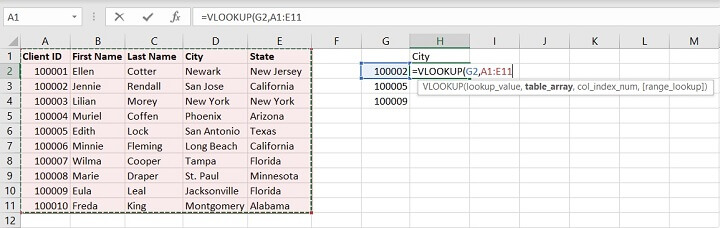
    Step 1: Identify Lookup Value

    Image
    Image
    Image
    Image

    Choose the value you want to find (e.g., Employee ID).

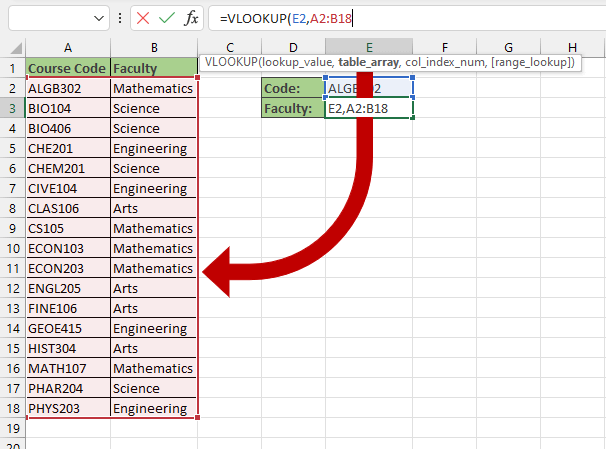
    Step 2: Define Table Array
    Image
    Image
    Image
    Image

    Select the range containing your data.

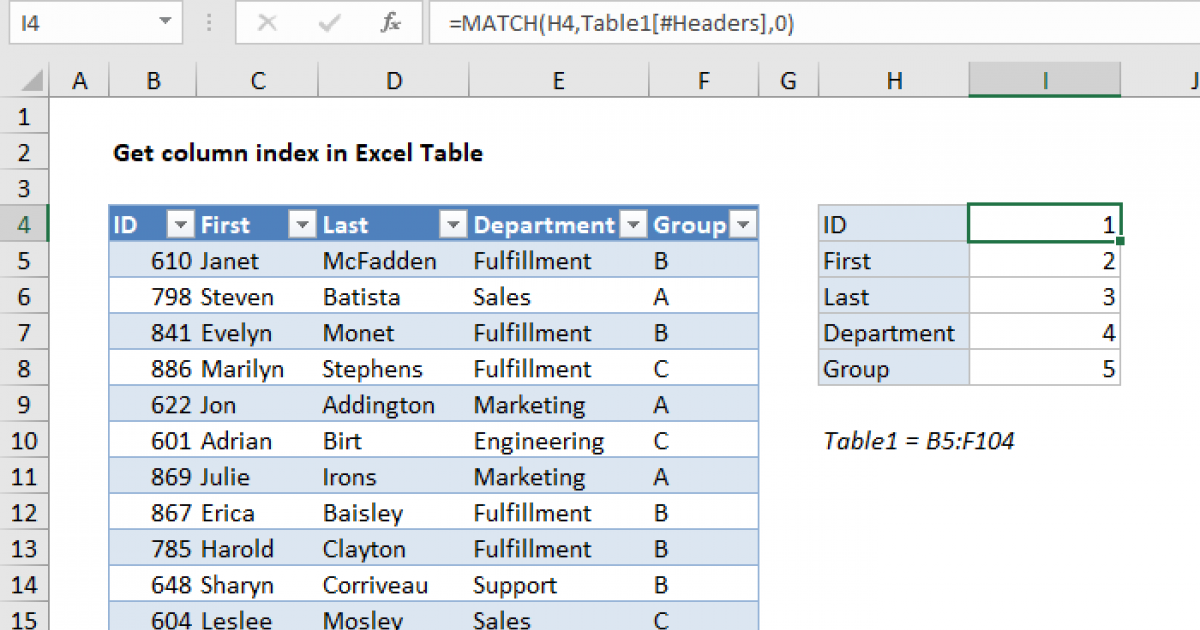
    Step 3: Choose Column Index
    Image
    Image
    Image
    Image

    Decide which column contains the result you want.

    Step 4: Select Match Type
    Image
    Image
    Image
    Image
    • FALSE โ†’ Exact match
    • TRUE โ†’ Approximate match

    ๐Ÿ“Š Practical Examples of VLOOKUP

    Exact Match Example

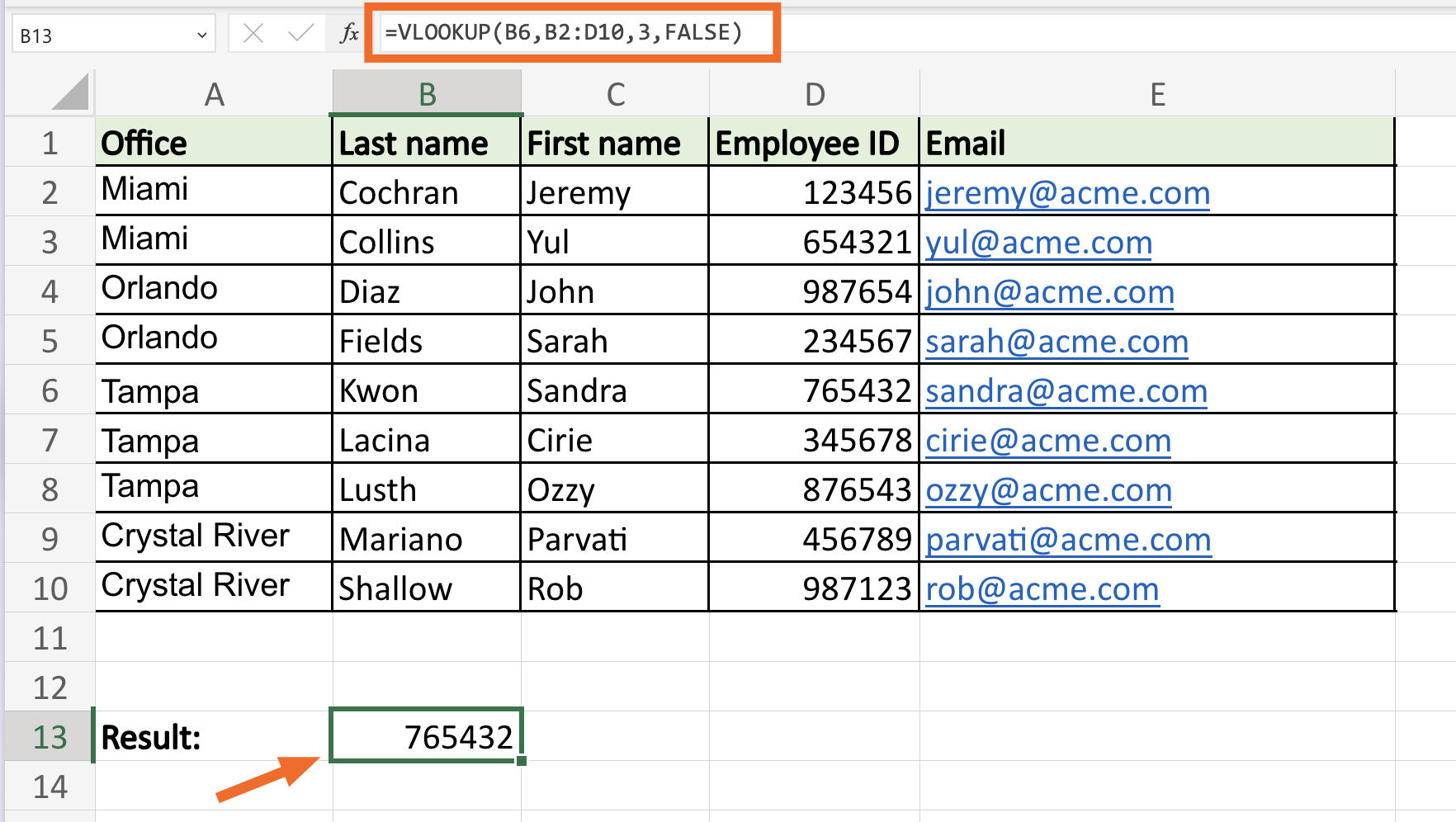
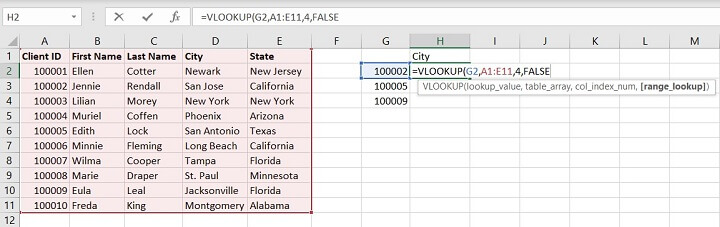
    =VLOOKUP(A2, A1:C10, 2, FALSE)
    

    Returns the exact match from column 2.

    Approximate Match Example

    =VLOOKUP(A2, A1:C10, 2, TRUE)
    

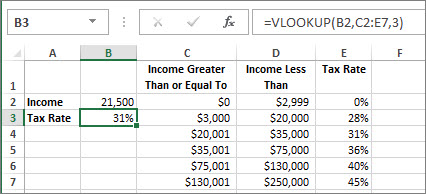
    Used for ranges like grades or tax brackets.

    โš ๏ธ Common Errors and Fixes

    #N/A Error

    • Value not found
    • Fix: Ensure exact match or correct spelling

    #REF! Error

    • Column index exceeds table range

    Incorrect Results

    • Happens with TRUE match on unsorted data

    ๐Ÿ’ก Advanced Tips for Using VLOOKUP

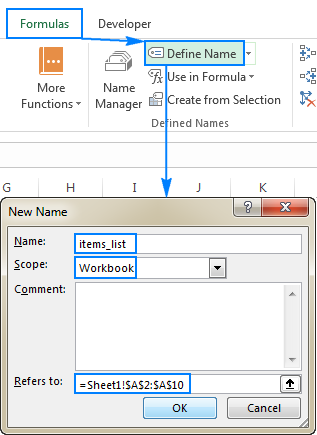
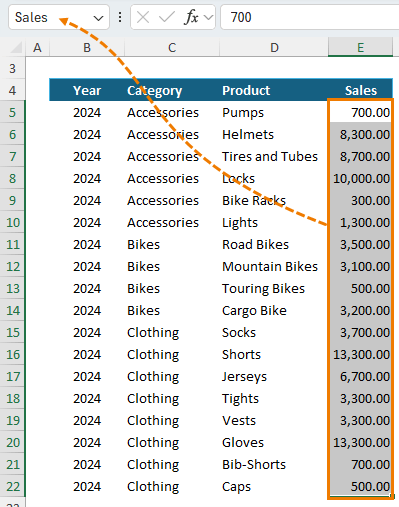
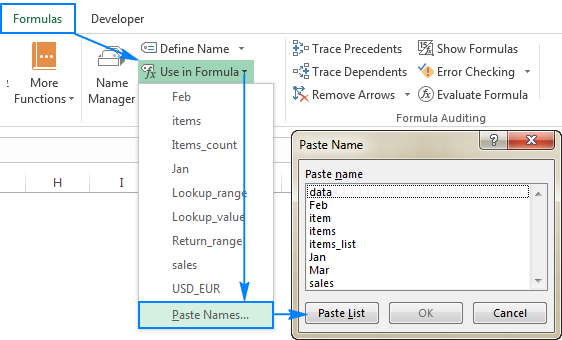
    Using Named Ranges
    Image
    Image
    Image
    Image
    • Assign a name to your data range
    • Use it in formulas for clarity

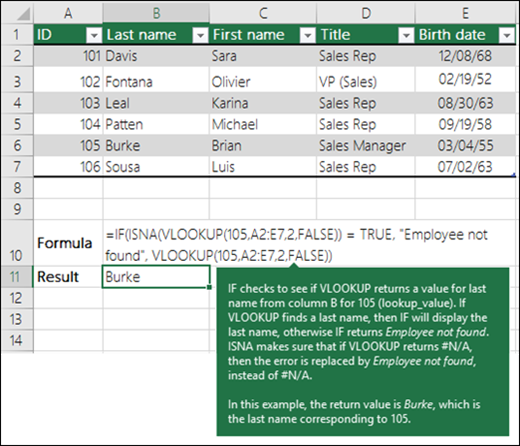
    Combining with IFERROR

    =IFERROR(VLOOKUP(A2, A1:C10, 2, FALSE), "Not Found")
    

    Prevents errors from showing

    ๐Ÿšซ Limitations of VLOOKUP

    • Only works left to right
    • Breaks if columns are moved
    • Slower with large datasets

    ๐Ÿ”„ Alternatives to VLOOKUP

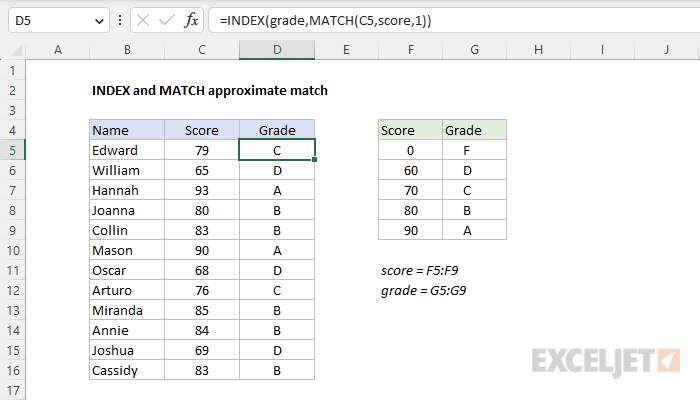
    INDEX and MATCH

    More flexible and powerful combination.

    XLOOKUP

    Modern replacement with better features.

    ๐Ÿ“Œ Real-Life Applications

    • Employee databases
    • Product pricing lookup
    • Student result sheets
    • Inventory tracking

    ๐ŸŽฅ Video Tutorial: How Does VLOOKUP Work

    โ“ FAQs

    1. What does VLOOKUP stand for?

    Vertical Lookup.

    2. Can VLOOKUP search left?

    No, it only works left to right.

    3. What is the difference between TRUE and FALSE?

    TRUE = approximate, FALSE = exact.

    4. Why is VLOOKUP returning wrong values?

    Your data may not be sorted or match type is incorrect.

    5. Is VLOOKUP outdated?

    Partially, XLOOKUP is replacing it in modern Excel.

    6. Can I use VLOOKUP with text?

    Yes, it works with both text and numbers.

    โœ… Conclusion

    Understanding how does VLOOKUP work is a crucial step toward mastering Excel. It simplifies data lookup, boosts productivity, and helps automate repetitive tasks. While it has some limitations, it remains a powerful and widely used function.

    By practicing the steps and examples above, youโ€™ll quickly gain confidence using VLOOKUP in real-world scenarios. And once you’re comfortable, you can explore advanced alternatives like INDEX-MATCH or XLOOKUP for even greater flexibility.

    How Does VLOOKUP Work in Excel
    Share. Facebook Twitter Pinterest LinkedIn Tumblr Email
    admin
    • Website

    Related Posts

    How to Freeze a Row in Excel: 7 Quick Steps to Keep Headers Visible

    April 2, 2026

    XLOOKUP Returning 0 Instead of Blank: 9 Easy Fixes You Must Know

    April 1, 2026

    XLOOKUP Formula in Excel with Example: 7 Powerful Ways to Master It Easily

    April 1, 2026
    Leave A Reply Cancel Reply

    Categories
    • Excel Formulas
    • Excel Guide
    • XLOOKUP
    Latest Posts

    How Does VLOOKUP Work in Excel? (Complete Beginner-to-Advanced Guide)

    April 6, 2026

    How to Copy a Formula in Excel (Simple & Powerful Guide for Beginners)

    April 6, 2026

    How to Create a Drop Down List in Excel (Step-by-Step Guide for Beginners)

    April 6, 2026

    How to Freeze a Row in Excel: 7 Quick Steps to Keep Headers Visible

    April 2, 2026

    How to Find Duplicates in Excel: 11 Easy Methods That Actually Work

    April 2, 2026

    How to Create Drop Down List in Excel: 9 Simple Steps for Beginners

    April 2, 2026

    Free XLOOKUP formula generator and interactive guide for Excel users. Learn how to use XLOOKUP in Excel with step-by-step examples.
    Categories
    • Excel Formulas
    • Excel Guide
    • XLOOKUP
    Company
    • Contact Us
    • About Us
    • Privacy Policy

    How Does VLOOKUP Work in Excel? (Complete Beginner-to-Advanced Guide)

    April 6, 2026

    How to Copy a Formula in Excel (Simple & Powerful Guide for Beginners)

    April 6, 2026
    © 2026 xlookup.co.uk XLOOKUP.

    Type above and press Enter to search. Press Esc to cancel.

    Powered by
    ►
    Necessary cookies enable essential site features like secure log-ins and consent preference adjustments. They do not store personal data.
    None
    ►
    Functional cookies support features like content sharing on social media, collecting feedback, and enabling third-party tools.
    None
    ►
    Analytical cookies track visitor interactions, providing insights on metrics like visitor count, bounce rate, and traffic sources.
    None
    ►
    Advertisement cookies deliver personalized ads based on your previous visits and analyze the effectiveness of ad campaigns.
    None
    ►
    Unclassified cookies are cookies that we are in the process of classifying, together with the providers of individual cookies.
    None
    Powered by