

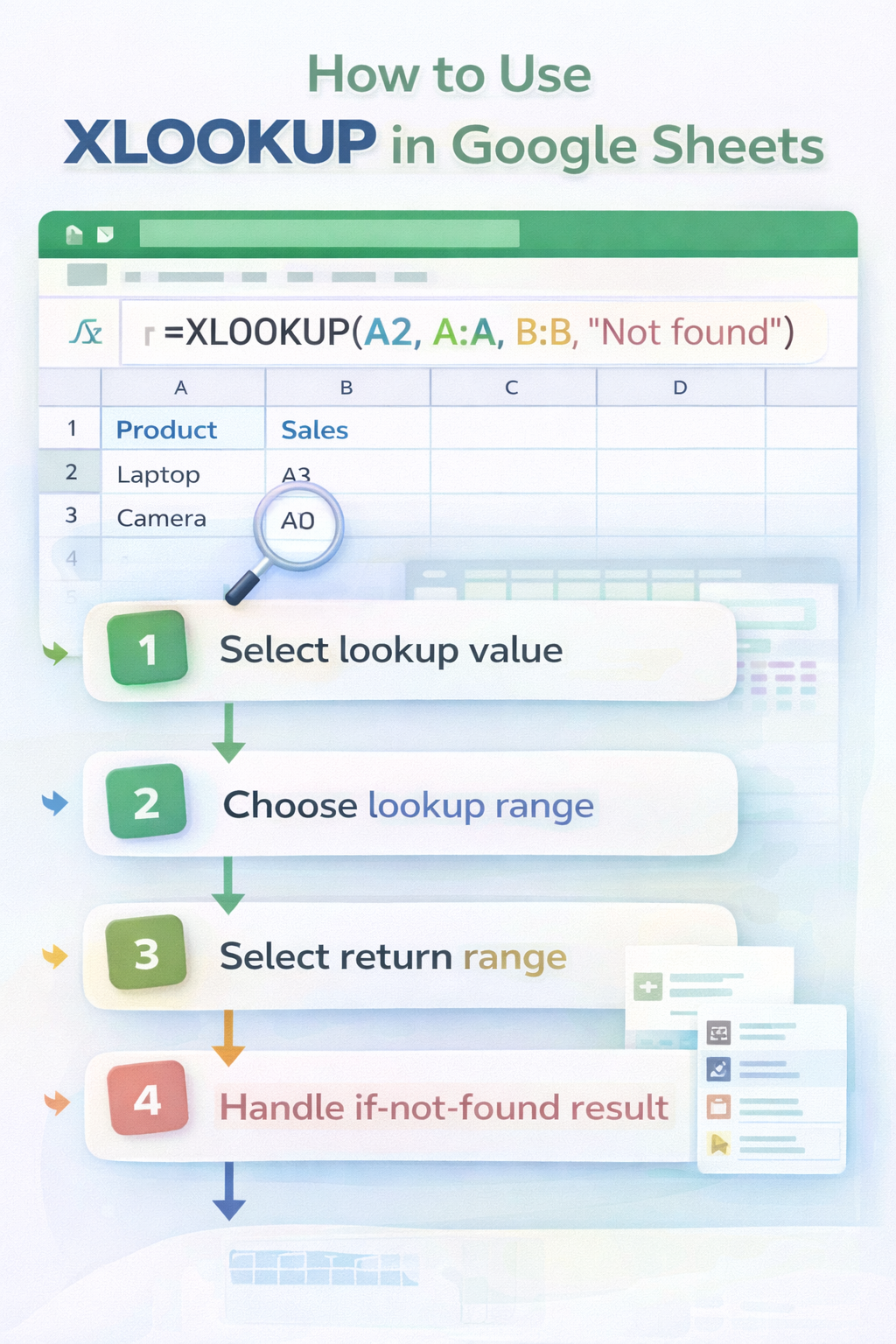
Google Sheets now supports XLOOKUP, making it much easier to search and return data without relying on older functions like VLOOKUP or complex INDEX MATCH formulas.
If you already understand XLOOKUP in Excel, the good news is that it works almost the same way in Google Sheets. In this guide, you will learn how to use XLOOKUP in Google Sheets, step by step, with clear examples.
Does Google Sheets Support XLOOKUP?
Yes. Google Sheets supports the XLOOKUP function for most users.
XLOOKUP in Google Sheets allows you to:
- Search vertically or horizontally
- Return exact matches by default
- Avoid column index numbers
- Build cleaner and more readable formulas
This makes XLOOKUP one of the best lookup options available in Sheets today.
XLOOKUP Syntax in Google Sheets
The basic syntax in Google Sheets looks like this:
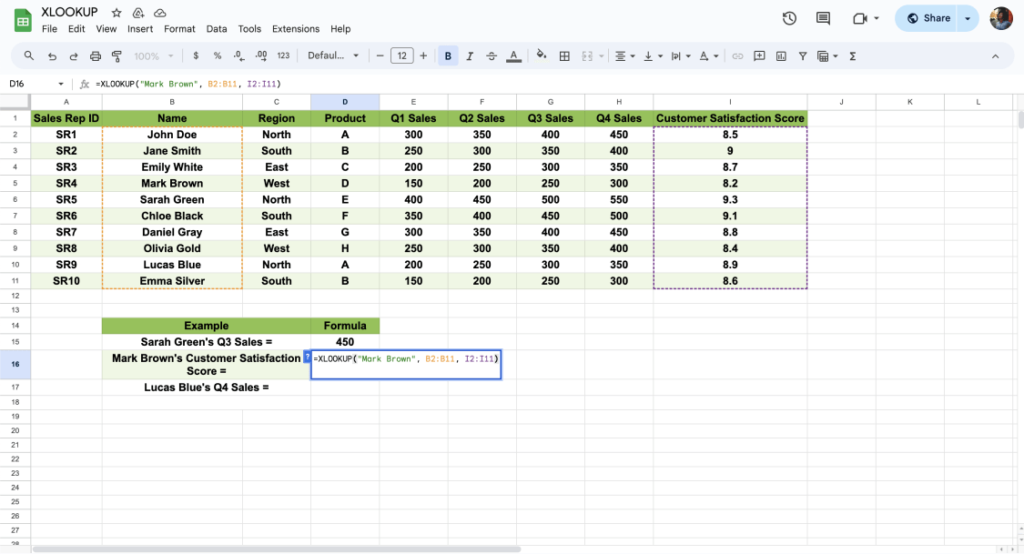
=XLOOKUP(search_key, lookup_range, result_range)
Optional arguments can be added for error handling and match behavior, but most beginners only need the first three.
Simple XLOOKUP Example in Google Sheets
Imagine you have:
- Column A with product IDs
- Column B with product names
You want to return the product name based on an ID entered in cell E2.
Formula:
=XLOOKUP(E2, A2:A20, B2:B20)
Google Sheets searches column A for the value in E2 and returns the matching product name from column B.
Using XLOOKUP to Search Left or Right
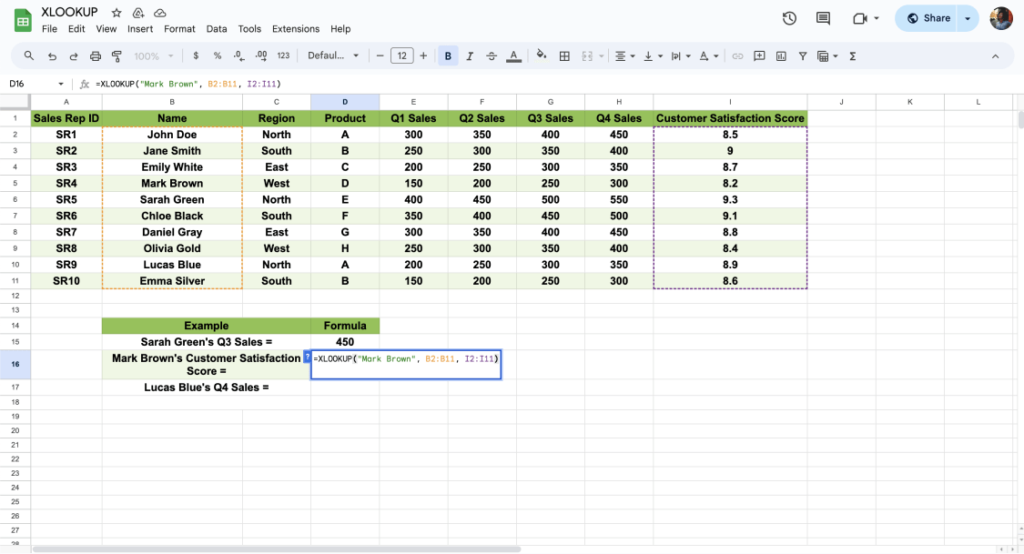
One major advantage of XLOOKUP is that it can return values from columns on either side of the lookup column.
You do not need to rearrange your data.
Example:
=XLOOKUP(B2, B2:B20, A2:A20)
This formula searches column B and returns matching values from column A.
Handling Missing Values with XLOOKUP
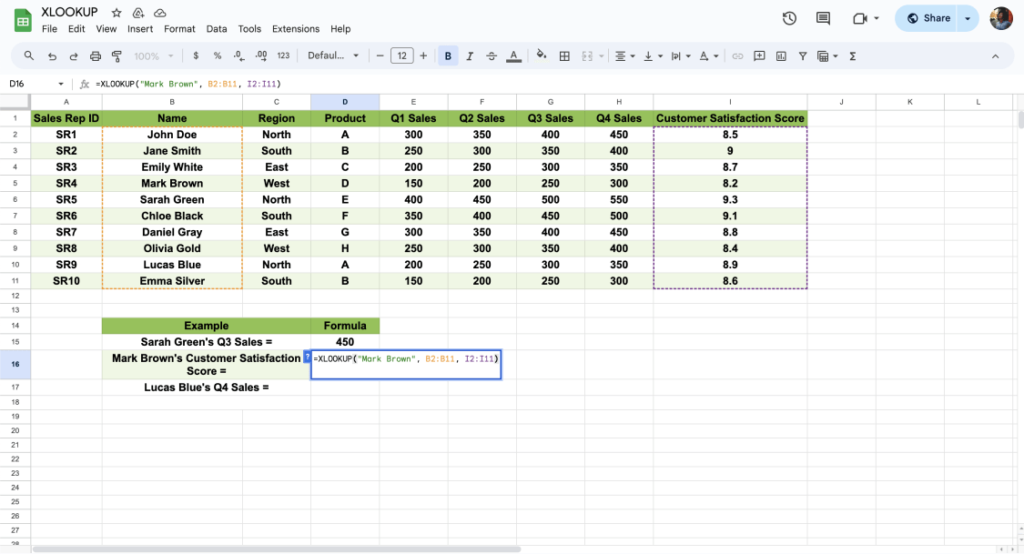
If XLOOKUP cannot find a value, it normally returns an error.
You can control this behavior by adding a fallback value.
Example:
=XLOOKUP(E2, A2:A20, B2:B20, “Not Found”)
This makes your spreadsheets cleaner and easier to understand for other users.
Horizontal XLOOKUP in Google Sheets
XLOOKUP works horizontally as well as vertically.
If your lookup values are in a row instead of a column, XLOOKUP still works without any changes to the function name.
Example:
=XLOOKUP(B1, B1:F1, B2:F2)
This flexibility removes the need for separate functions like HLOOKUP.
XLOOKUP vs VLOOKUP in Google Sheets
XLOOKUP is generally better than VLOOKUP in Google Sheets because:
- It does not rely on column numbers
- It returns exact matches by default
- It works in any direction
- It is easier to maintain
VLOOKUP still works, but XLOOKUP is the recommended option for new spreadsheets.
Common Mistakes When Using XLOOKUP in Google Sheets
Some frequent issues include:
- Lookup and result ranges with different sizes
- Extra spaces in lookup values
- Using text numbers instead of real numbers
Always make sure both ranges align properly and data formats match.
When XLOOKUP Might Not Be Available
If you do not see XLOOKUP working:
- Refresh your browser
- Check that your Google Sheets is up to date
- Confirm you are not using an extremely old or restricted environment
In most modern setups, XLOOKUP works without issues.
Final Thoughts
Learning how to use XLOOKUP in Google Sheets can save you time and reduce formula errors. It combines the power of advanced lookups with the simplicity beginners need.
If you work with shared spreadsheets, dashboards, or reports, XLOOKUP is a skill worth mastering.
