


🔍 What is XLOOKUP in Excel?
The xlookup formula in excel with example is one of the most powerful tools introduced in modern Excel versions. It allows users to search for a value in a dataset and return a corresponding result from another column or row.
Unlike older lookup functions, XLOOKUP is more flexible, easier to use, and less prone to errors. Whether you’re managing sales data, employee records, or inventory lists, XLOOKUP simplifies everything.
🚀 Why XLOOKUP Replaced VLOOKUP and HLOOKUP
Before XLOOKUP, users relied on VLOOKUP and HLOOKUP. However, those functions had limitations:
- Required fixed column indexing
- Could not search left
- Complex syntax
XLOOKUP solves all these problems in one clean formula.
📊 Syntax of XLOOKUP Formula
🧩 Explanation of Arguments
The syntax of XLOOKUP is:
=XLOOKUP(lookup_value, lookup_array, return_array, [if_not_found], [match_mode], [search_mode])
Each Argument Explained:
- lookup_value → The value you want to find
- lookup_array → Where Excel should search
- return_array → The result range
- if_not_found → Optional custom message
- match_mode → Exact or approximate match
- search_mode → Search direction
🧱 Basic Structure Breakdown
Think of XLOOKUP like this:
👉 Find this value → Look here → Return result from there
📌 Basic XLOOKUP Formula in Excel with Example
📷 Example Dataset (Employee Table)


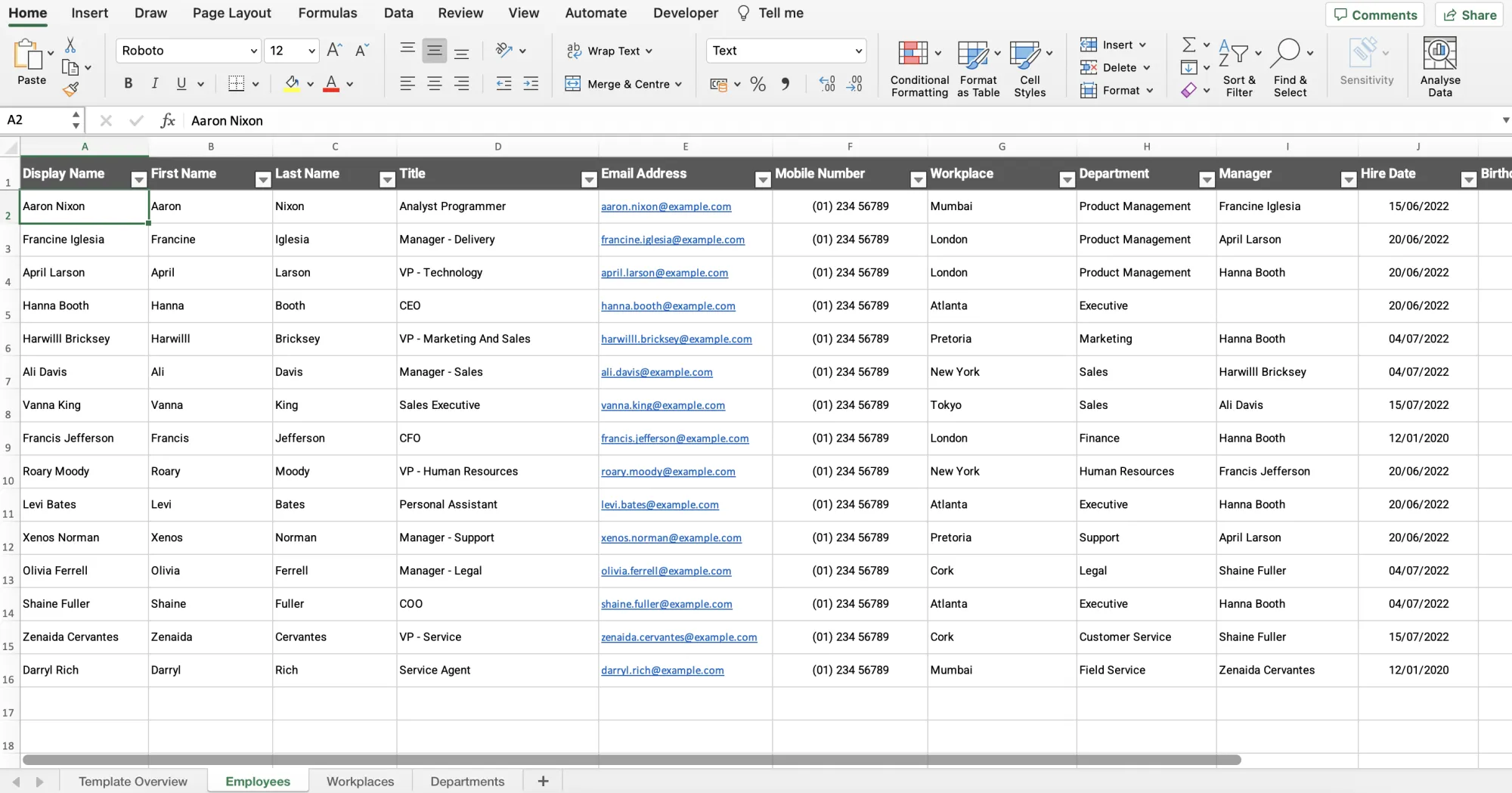
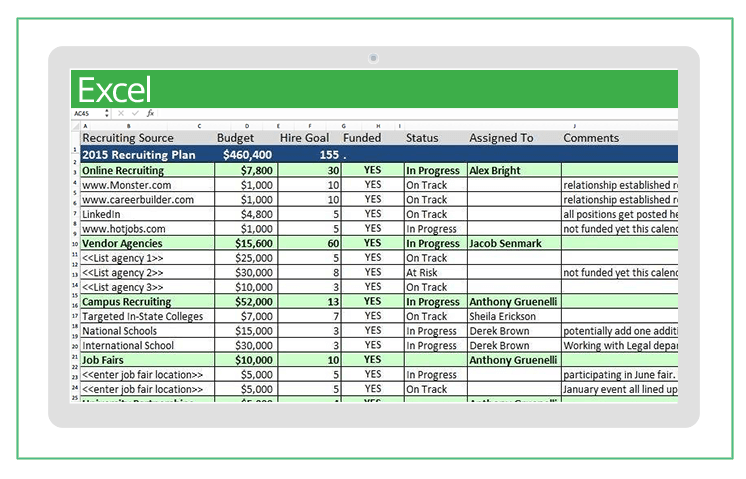
Imagine you have this data:
| ID | Name | Salary |
|---|---|---|
| 101 | John | 50000 |
| 102 | Sara | 60000 |
| 103 | Mike | 55000 |
🧮 Simple Lookup Example
Formula:
=XLOOKUP(102, A2:A4, C2:C4)
Result:
👉 60000
📷 Formula Applied in Excel
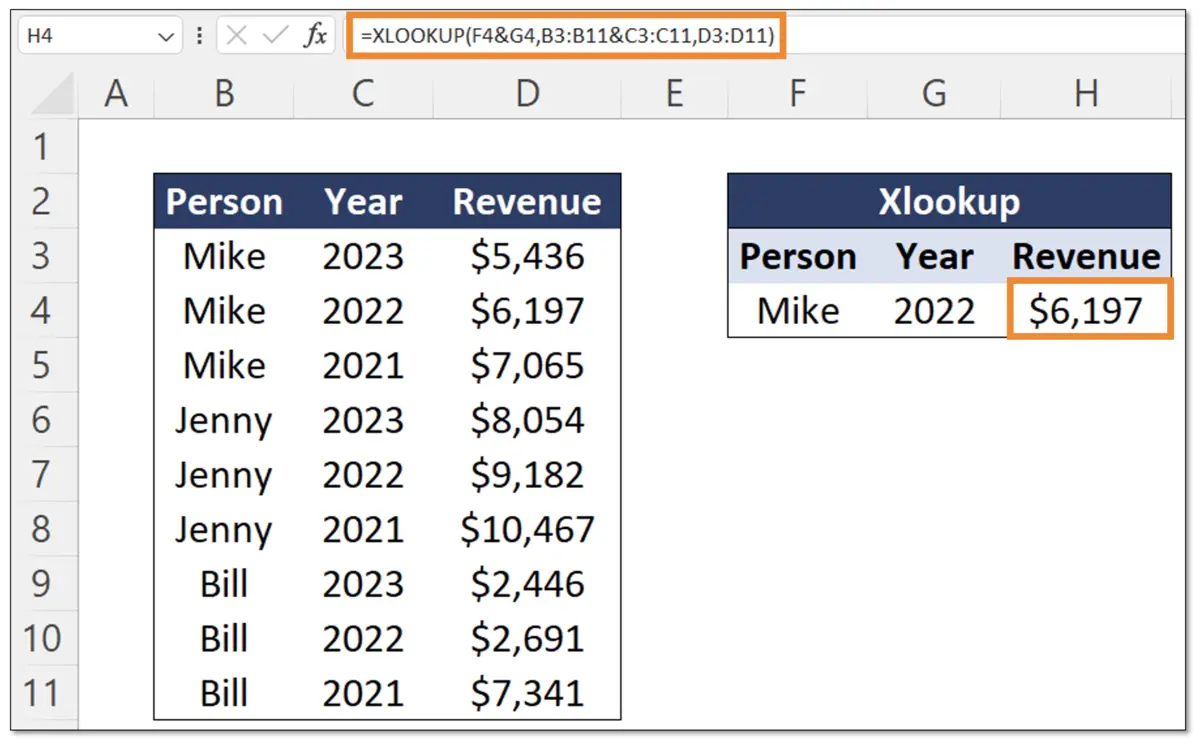
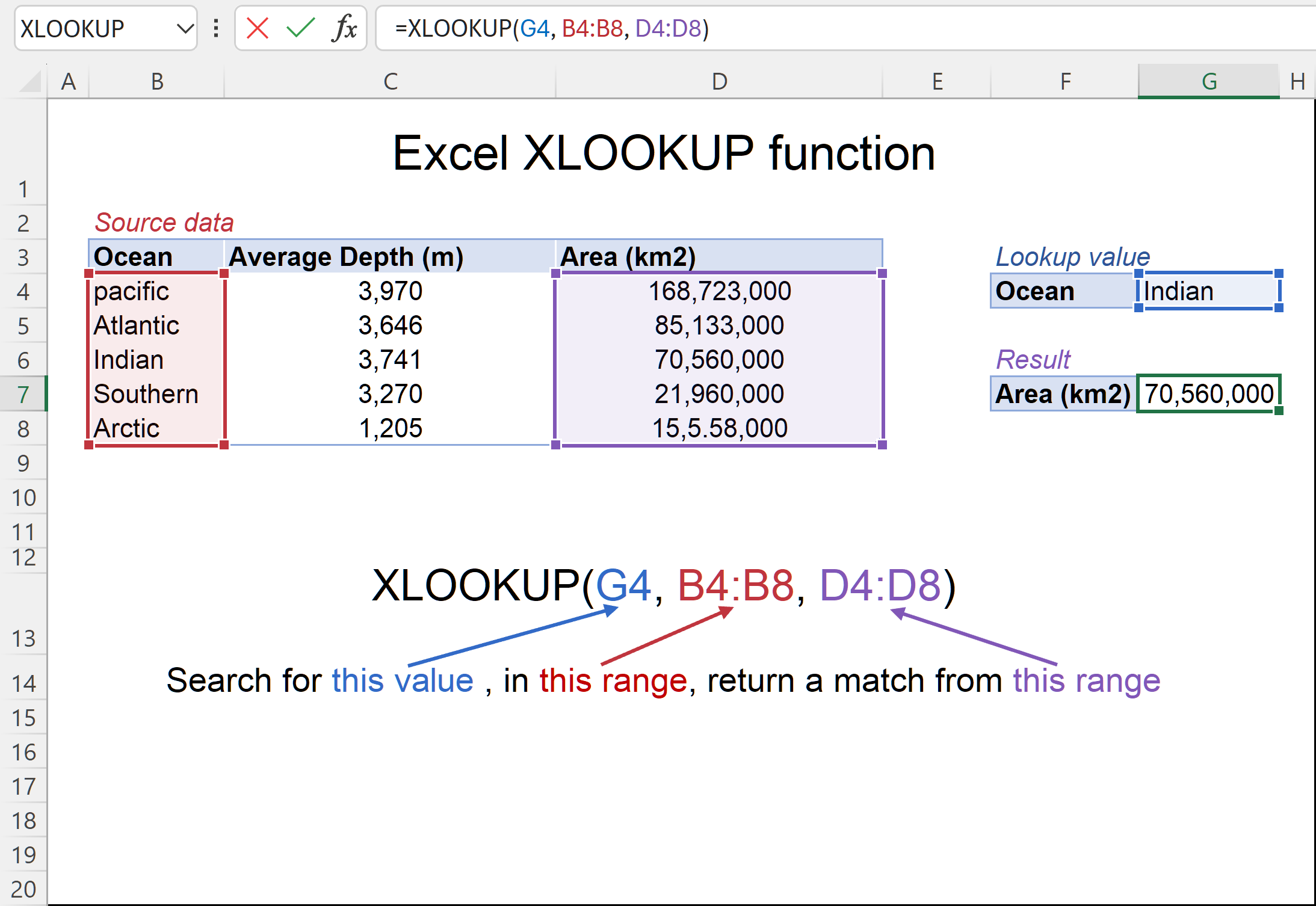
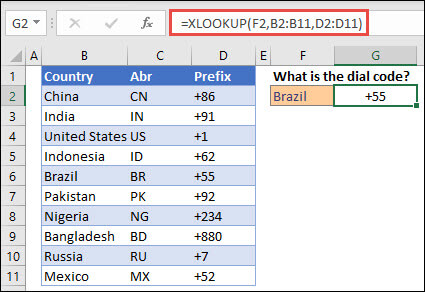
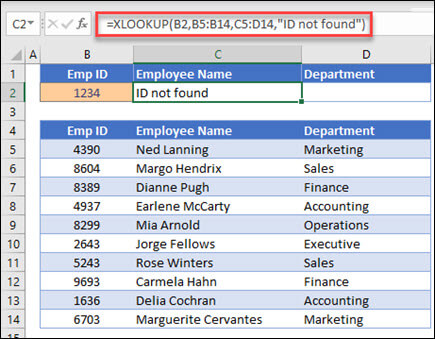
💡 Understanding Results
- Excel searches 102 in column A
- Finds it in row 3
- Returns salary from column C
Simple and powerful!
⚡ Advanced Examples of XLOOKUP
🔎 XLOOKUP with Multiple Criteria
You can combine XLOOKUP with logical expressions:
=XLOOKUP(1, (A2:A10=101)*(B2:B10="John"), C2:C10)
👉 Finds matching rows with multiple conditions.
📈 XLOOKUP with Approximate Match
=XLOOKUP(105, A2:A10, B2:B10, , -1)
👉 Returns nearest smaller value if exact match isn’t found.
🔄 Reverse Lookup Example
Unlike VLOOKUP, XLOOKUP can search left:
=XLOOKUP("Sara", B2:B4, A2:A4)
👉 Returns ID → 102
📊 XLOOKUP vs VLOOKUP Comparison
📉 Key Differences
| Feature | XLOOKUP | VLOOKUP |
|---|---|---|
| Search Direction | Both ways | One way |
| Column Index | Not needed | Required |
| Error Handling | Built-in | Manual |
| Flexibility | High | Limited |
✅ When to Use XLOOKUP
- Dynamic datasets
- Large spreadsheets
- Complex searches
⚠️ Common Errors and Fixes
❌ #N/A Error
Cause: Value not found
Fix:
=XLOOKUP(105, A2:A10, B2:B10, "Not Found")
📉 Incorrect Range Issues
Always ensure:
- Lookup and return arrays are same size
- Correct cell references
🏢 Practical Use Cases in Real Life
💼 Business Applications
- Employee salary lookup
- Product pricing systems
- Customer databases
📊 Data Analysis Use Cases
- Financial modeling
- Report automation
- Dashboard creation
🎯 Tips to Master XLOOKUP Quickly
⚡ Productivity Tricks
- Use named ranges
- Combine with FILTER function
- Avoid hardcoding values
📌 Best Practices
- Keep data clean
- Use exact match by default
- Always test formulas
❓ FAQs
1. What is XLOOKUP used for in Excel?
It is used to search for values and return corresponding results from another range.
2. Is XLOOKUP better than VLOOKUP?
Yes, it is more flexible and easier to use.
3. Can XLOOKUP replace all lookup functions?
In most cases, yes.
4. Does XLOOKUP work in older Excel versions?
No, it works in Excel 365 and Excel 2019+.
5. How do I handle errors in XLOOKUP?
Use the if_not_found argument.
6. Can XLOOKUP search horizontally?
Yes, it works both vertically and horizontally.
🏁 Conclusion
The xlookup formula in excel with example is a game-changer for anyone working with data. It simplifies complex lookups, reduces errors, and improves productivity.
With the examples and screenshots above, you now have a solid foundation to start using XLOOKUP like a pro. Practice regularly, experiment with advanced features, and soon you’ll master it effortlessly.
