Close Menu
    XLOOKUP
    • Home
    • Blogs
    • XLOOKUP
    • Excel Guide
    • Excel Formulas
    Build Formula
    XLOOKUP
    Home ยป How to Use XLOOKUP in Excel with Two Sheets: 9 Easy Steps for Accurate Results
    Excel Guide

    How to Use XLOOKUP in Excel with Two Sheets: 9 Easy Steps for Accurate Results

    adminBy adminApril 1, 2026No Comments3 Mins Read
    Facebook Twitter Pinterest LinkedIn Tumblr Email
    How to Use XLOOKUP in Excel with Two Sheets

    ๐Ÿ” What Does Using XLOOKUP with Two Sheets Mean?

    The keyword how to use xlookup in excel with two sheets refers to using the XLOOKUP function to search for data in one worksheet and return results from another worksheet.

    This is extremely useful when your data is separated across multiple sheetsโ€”something very common in real-world Excel workbooks.

    ๐Ÿš€ Benefits of Cross-Sheet Lookup

    • Keeps data organized
    • Reduces duplication
    • Improves accuracy
    • Makes large datasets manageable

    ๐Ÿ“Š Understanding the Scenario

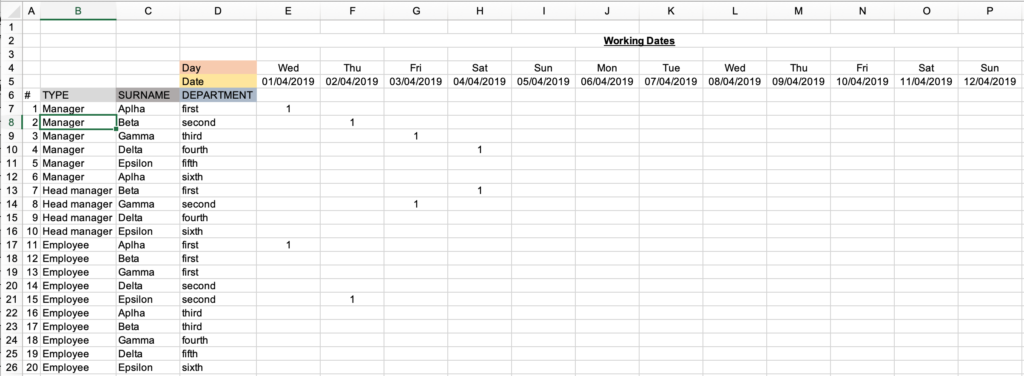
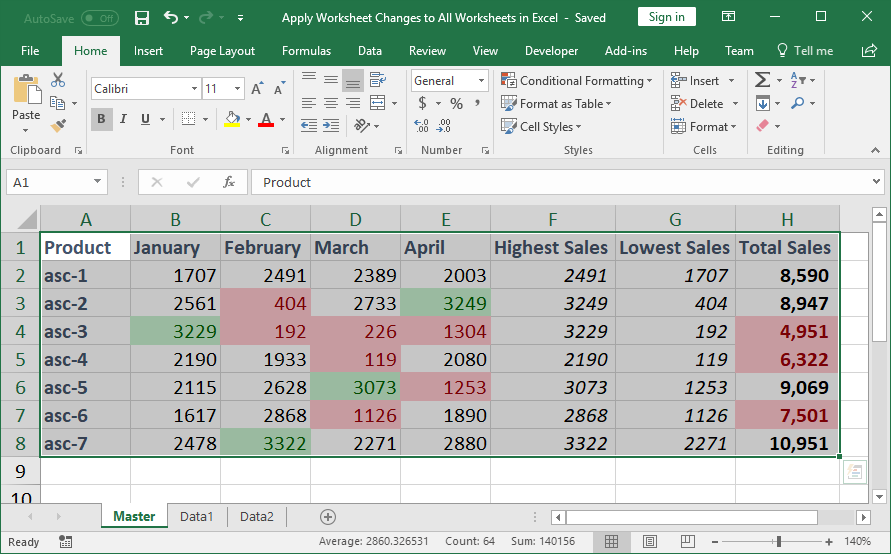
    ๐Ÿ“ท Sample Dataset Explanation


    Image

    Image

    Image

    Imagine you have:

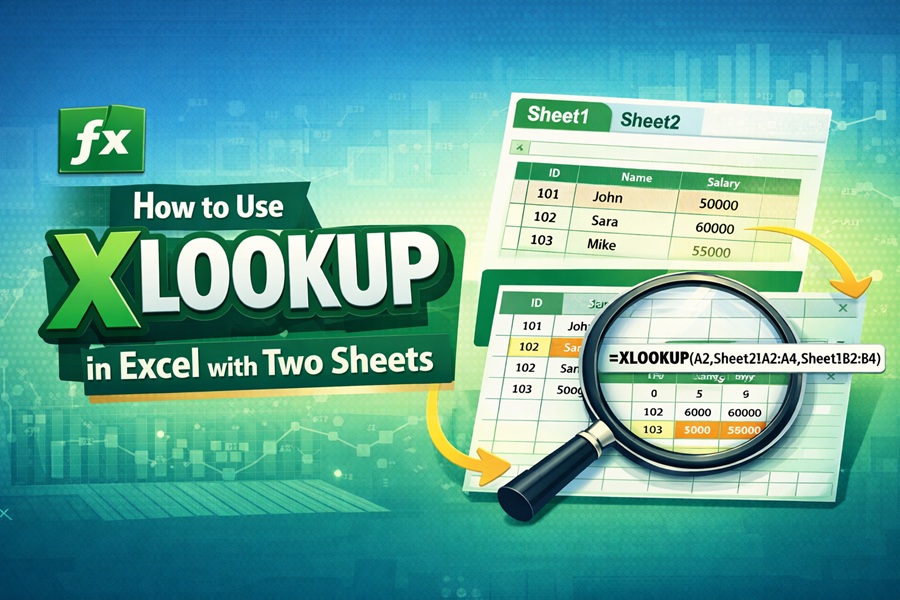
    Sheet1 (Main Sheet)

    ID Name
    101 John
    102 Sara
    103 Mike

    Sheet2 (Salary Sheet)

    ID Salary
    101 50000
    102 60000
    103 55000

    ๐Ÿ“‘ Sheet Structure Overview

    • Sheet1 โ†’ Lookup Value (ID)
    • Sheet2 โ†’ Data Source (Salary)

    ๐Ÿ“Œ Syntax of XLOOKUP for Two Sheets

    ๐Ÿงฉ Formula Structure

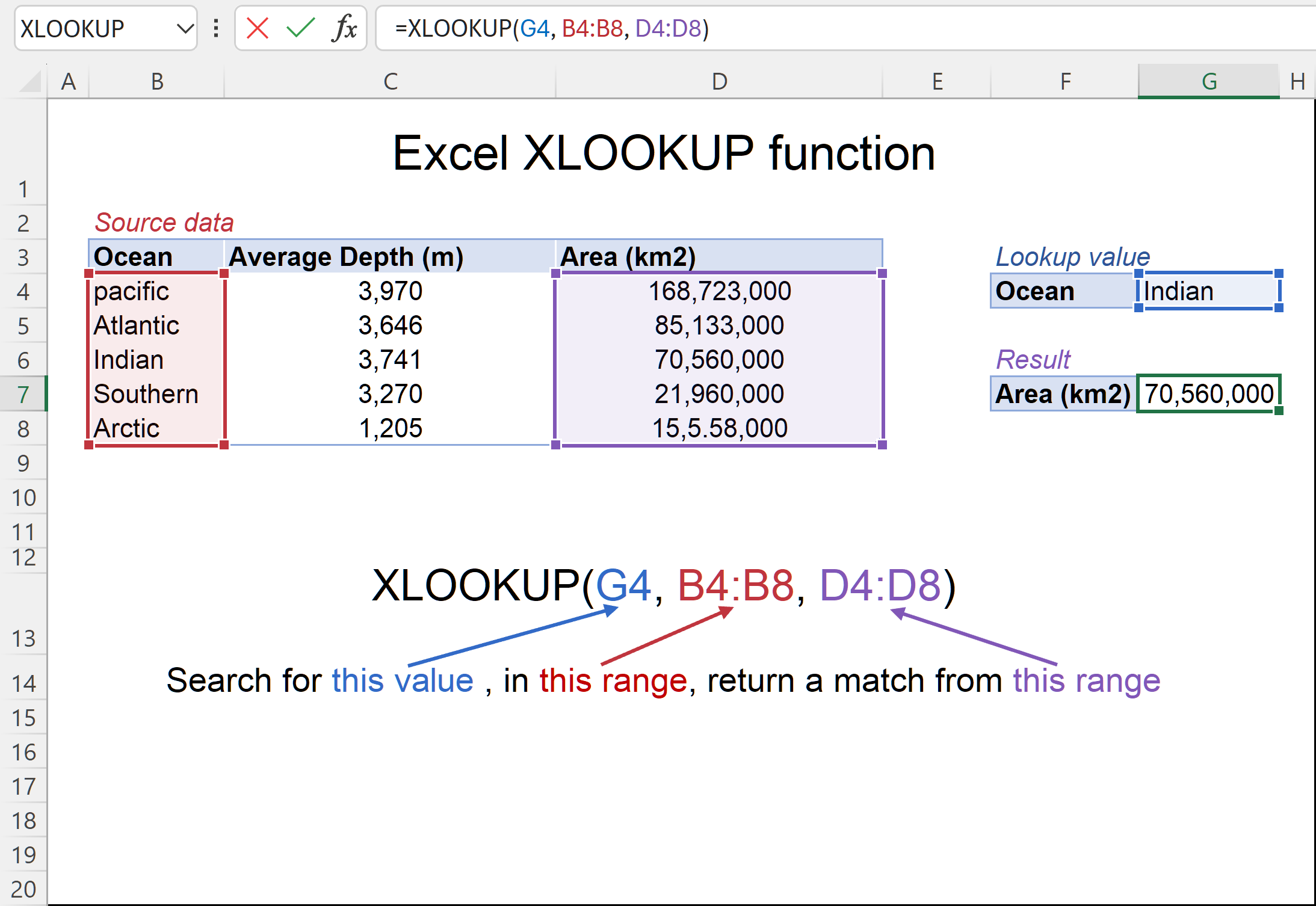
    =XLOOKUP(lookup_value, Sheet2!lookup_array, Sheet2!return_array)
    

    ๐Ÿ”— Reference Between Sheets

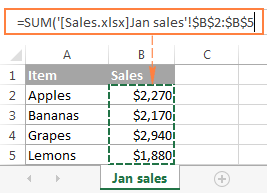
    • Use SheetName!Range
    • Example: Sheet2!A2:A10

    ๐Ÿชœ Step-by-Step Guide: How to Use XLOOKUP in Excel with Two Sheets

    ๐Ÿ“Œ Step 1: Prepare Your Data

    Ensure:

    • Both sheets exist
    • Data is clean and aligned
    • Lookup column is consistent

    ๐Ÿ“Œ Step 2: Identify Lookup Value

    In Sheet1, select the ID you want to search.

    Example: 101

    ๐Ÿ“Œ Step 3: Write XLOOKUP Formula

    =XLOOKUP(A2, Sheet2!A2:A4, Sheet2!B2:B4)
    

    ๐Ÿ“Œ Step 4: Apply and Verify

    Press Enter โ†’ Excel returns salary from Sheet2.

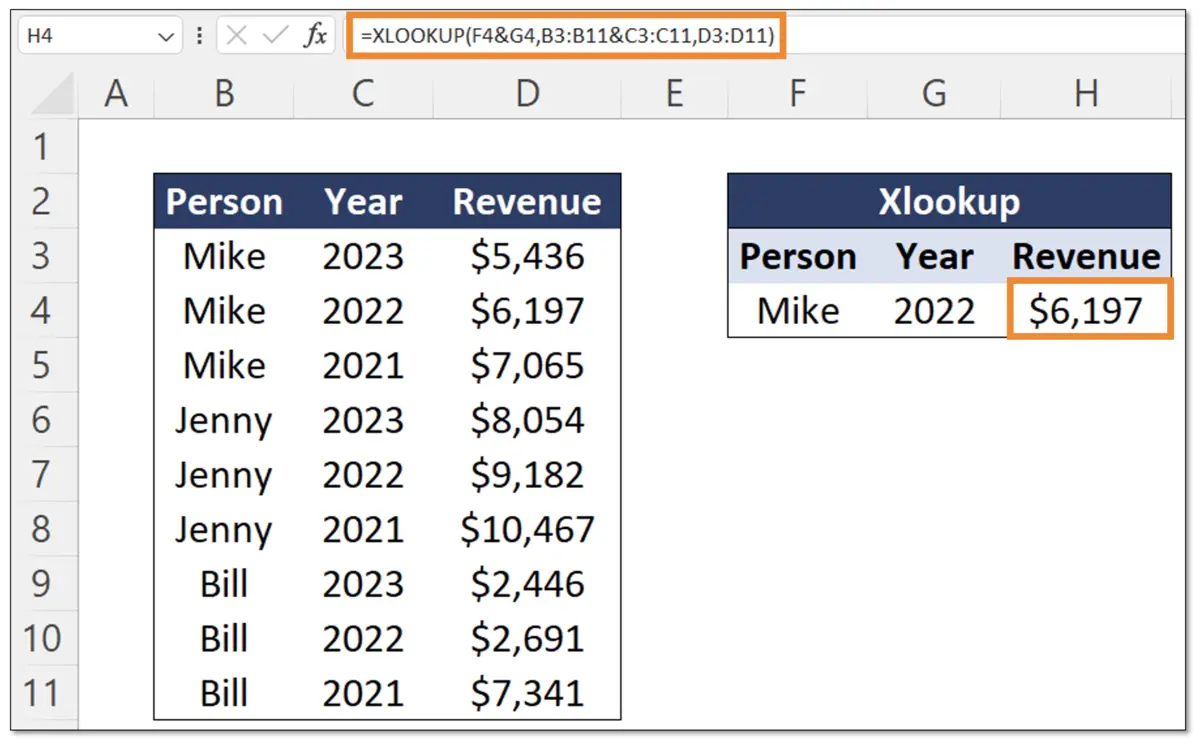
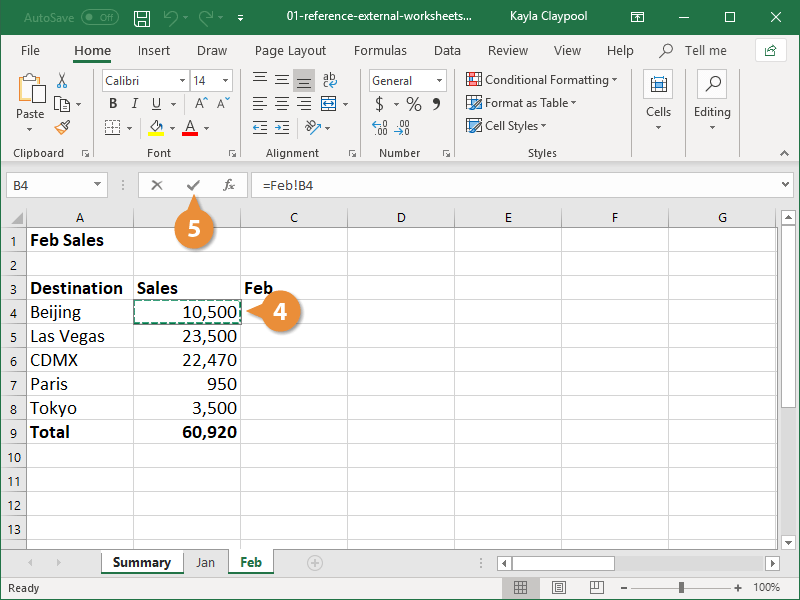
    ๐Ÿ“ท Practical Example with Screenshots

    ๐Ÿ’ป Step-by-Step Excel View

    Image

    Image

    Image

    Image

    ๐Ÿงฎ Employee Data Lookup Example

    Formula:

    =XLOOKUP(A2, Sheet2!A2:A4, Sheet2!B2:B4)
    

    Output:

    ๐Ÿ‘‰ 50000 (Salary of John)

    ๐Ÿ’ก Result Interpretation

    • Excel searches ID in Sheet2
    • Finds match
    • Returns corresponding salary

    โšก Advanced Use Cases

    ๐Ÿ“Œ XLOOKUP with Named Ranges

    Instead of ranges:

    =XLOOKUP(A2, IDs, Salaries)
    

    ๐Ÿ“Š Dynamic Data Between Sheets

    Works perfectly with:

    • Tables
    • Dashboards
    • Live reports

    โš ๏ธ Common Mistakes and Fixes

    โŒ Reference Errors

    • Wrong sheet name
    • Missing โ€œ!โ€ symbol

    ๐Ÿ“‰ Sheet Name Issues

    If sheet has space:

    =XLOOKUP(A2, 'Salary Sheet'!A2:A4, 'Salary Sheet'!B2:B4)
    

    ๐ŸŽฏ Tips for Better Accuracy

    โšก Best Practices

    • Use exact match
    • Keep consistent IDs
    • Avoid blank cells

    ๐Ÿ“Œ Performance Optimization

    • Use smaller ranges
    • Convert data into tables

    โ“ FAQs

    1. Can XLOOKUP work between two sheets?

    Yes, it works perfectly across multiple sheets.

    2. Do I need the same structure in both sheets?

    No, but lookup values must match.

    3. What if sheet name has spaces?

    Use single quotes.

    4. Is XLOOKUP faster than VLOOKUP?

    Yes, especially with large data.

    5. Can I drag the formula down?

    Yes, it auto-adjusts references.

    6. Does it work in Excel 2016?

    No, only Excel 365 and newer versions.

    ๐Ÿ Conclusion

    Now you fully understand how to use xlookup in excel with two sheets. This method is essential for managing real-world data efficiently across multiple worksheets.

    By following the steps and examples above, you can confidently apply XLOOKUP in your daily Excel tasks and significantly improve productivity.

    Share. Facebook Twitter Pinterest LinkedIn Tumblr Email
    admin
    • Website

    Related Posts

    How to Find Duplicates in Excel: 11 Easy Methods That Actually Work

    April 2, 2026

    How to Create Drop Down List in Excel: 9 Simple Steps for Beginners

    April 2, 2026

    Why Is My VLOOKUP Not Working? 11 Common Errors and Easy Fixes

    April 1, 2026
    Leave A Reply Cancel Reply

    Categories
    • Excel Formulas
    • Excel Guide
    • XLOOKUP
    Latest Posts

    How to Freeze a Row in Excel: 7 Quick Steps to Keep Headers Visible

    April 2, 2026

    How to Find Duplicates in Excel: 11 Easy Methods That Actually Work

    April 2, 2026

    How to Create Drop Down List in Excel: 9 Simple Steps for Beginners

    April 2, 2026

    XLOOKUP Returning 0 Instead of Blank: 9 Easy Fixes You Must Know

    April 1, 2026

    Why Is My VLOOKUP Not Working? 11 Common Errors and Easy Fixes

    April 1, 2026

    How to Use XLOOKUP in Excel with Two Sheets: 9 Easy Steps for Accurate Results

    April 1, 2026

    Free XLOOKUP formula generator and interactive guide for Excel users. Learn how to use XLOOKUP in Excel with step-by-step examples.
    Categories
    • Excel Formulas
    • Excel Guide
    • XLOOKUP
    Company
    • Contact Us
    • About Us
    • Privacy Policy

    How to Freeze a Row in Excel: 7 Quick Steps to Keep Headers Visible

    April 2, 2026

    How to Find Duplicates in Excel: 11 Easy Methods That Actually Work

    April 2, 2026
    © 2026 xlookup.co.uk XLOOKUP.

    Type above and press Enter to search. Press Esc to cancel.

    Powered by
    ►
    Necessary cookies enable essential site features like secure log-ins and consent preference adjustments. They do not store personal data.
    None
    ►
    Functional cookies support features like content sharing on social media, collecting feedback, and enabling third-party tools.
    None
    ►
    Analytical cookies track visitor interactions, providing insights on metrics like visitor count, bounce rate, and traffic sources.
    None
    ►
    Advertisement cookies deliver personalized ads based on your previous visits and analyze the effectiveness of ad campaigns.
    None
    ►
    Unclassified cookies are cookies that we are in the process of classifying, together with the providers of individual cookies.
    None
    Powered by